
Create Smart Groups
Build a group whose members join and leave on their own, based on rules about simulation clicks, training, directory details, and group membership.
A Smart Group is a group whose members you don't pick. You write rules, such as "clicked 2 or more simulations in the last 90 days" or "works in Finance", and Hook keeps the group in line with those rules. People join when they start matching and leave when they stop, so a campaign, training enrollment, or Automation aimed at the group always reaches the people the rules describe.
Use a Smart Group when the audience is defined by behavior or by directory details rather than by a fixed list of names. For a fixed list, create a manual group instead. See View users and groups.
Create a Smart Group
Open the builder
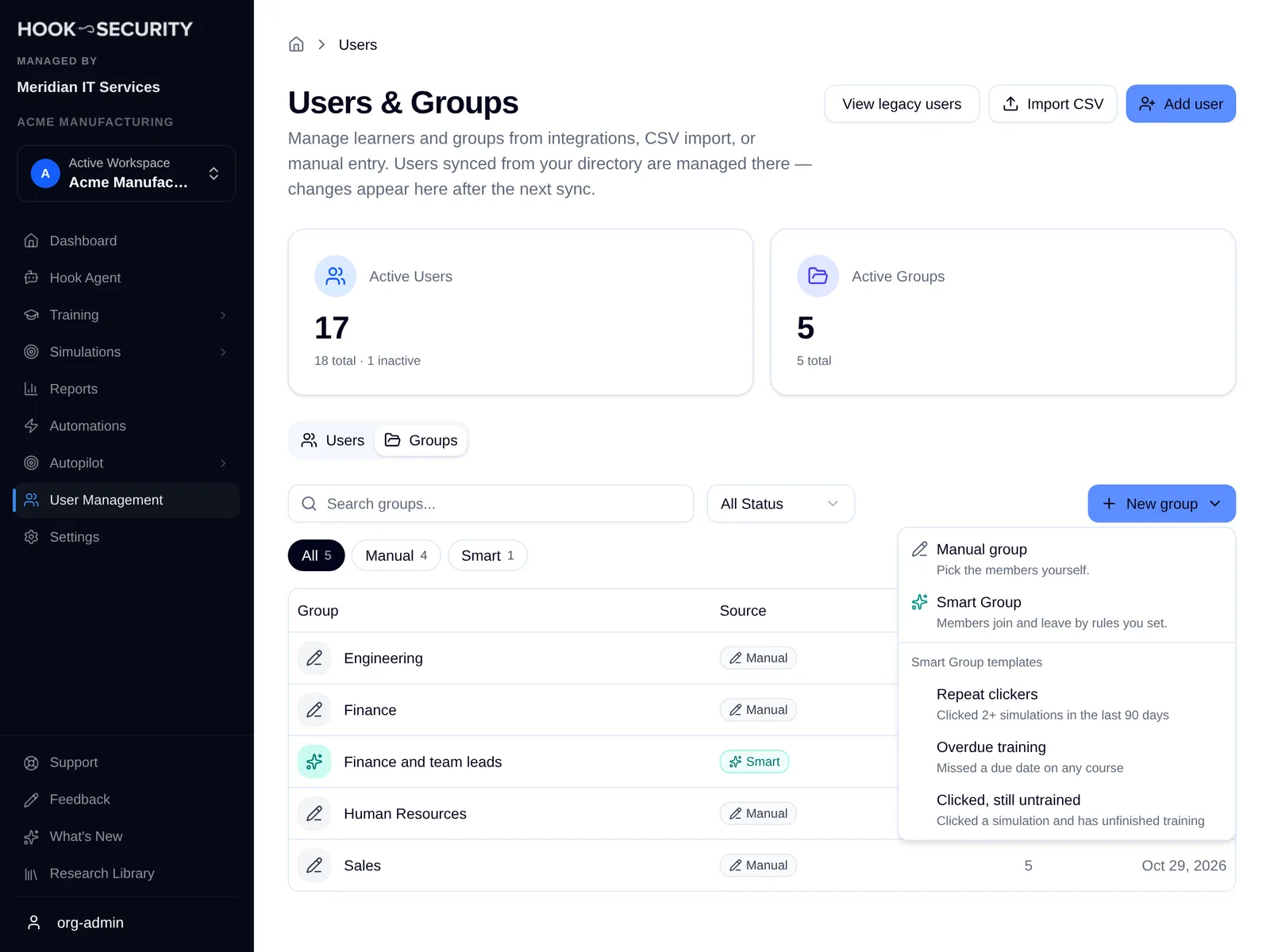
Go to Users & Groups and open the Groups tab. Click New group and choose Smart Group to start with no rules, or pick one of the templates listed under it. If your organization has no groups yet, the same choices appear in the middle of the page.
Name the group
Enter a name in Group name. It can't match the name of another active group in the organization. Pick a name that says who is in the group, since that is what you'll search for in the campaign and training pickers.
Add rules
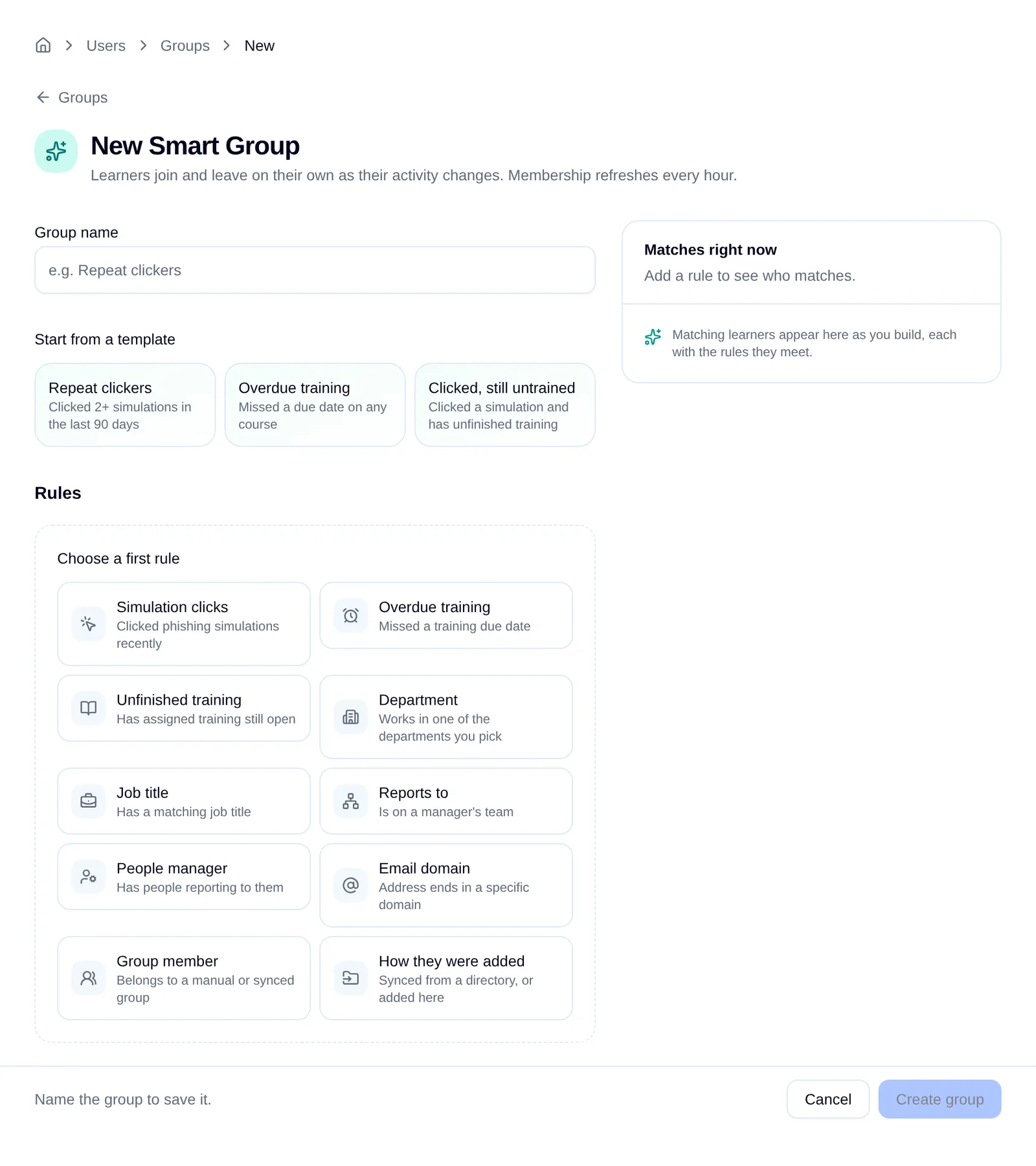
With no rules yet, the builder shows every rule type as a card. Click one to add it, then fill in its values. Each rule reads as a sentence about the person, such as "Clicked at least 2 simulations in the last 90 days". After the first rule, the cards shrink to a row of chips under your rules so you can add more. A group can have up to 20 rules.
To change a rule's type, remove it with the X in its corner and add the type you want. See Rule types for what each one matches.
Choose all or any
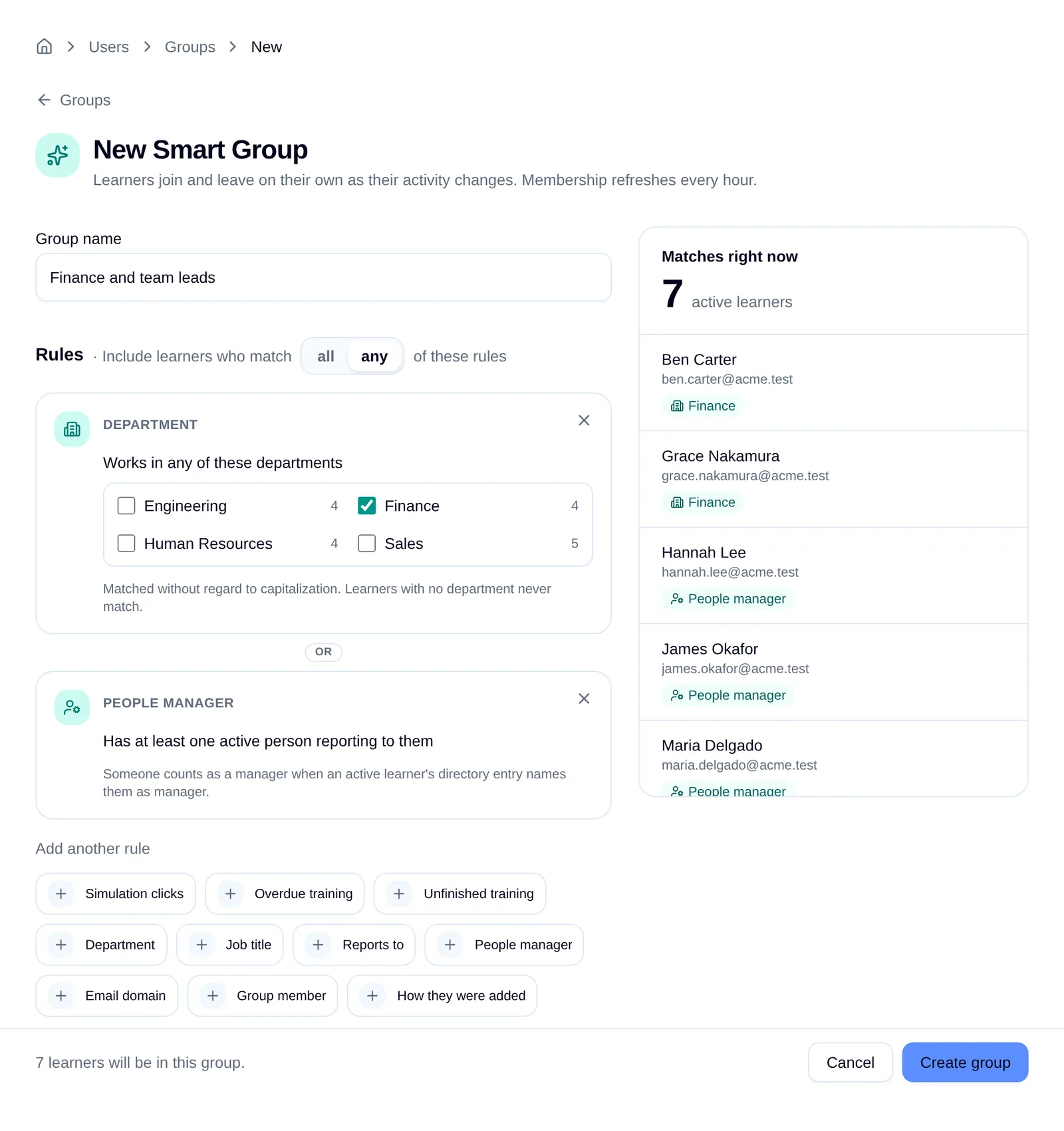
Once you have two or more rules, a toggle above them sets how they combine:
- all: a person must match every rule. Use this to narrow an audience, for example "clicked a simulation and has unfinished training".
- any: a person who matches at least one rule is in. Use this to combine audiences, for example "works in Finance or reports to the CFO".
You can't mix the two in one group. To build "A and (B or C)", create one Smart Group for each combination you need.
Check the preview
The Matches right now panel updates as you edit. It shows how many active learners match the rules, and lists up to the first 100 of them. Under each person, chips show which rules they matched, which is the quickest way to spot a rule that's catching more people than you meant it to.
A group that matches nobody yet can still be saved. People join as their data changes.
Create the group
Click Create group. Hook works out the membership straight away and opens the group's page.
Start from a template
Templates fill in the name and rules for common follow-up audiences. Every value stays editable before you save.
- Repeat clickers: clicked 2 or more simulations in the last 90 days.
- Overdue training: missed a due date on any course.
- Clicked, still untrained: clicked a simulation in the last 90 days and has unfinished training.
Rule types
Simulation clicks
Matches people who clicked at least a set number of simulations within a lookback window. Type the number of days, or use the Last 30 days, Last 90 days, Last 6 months, and Last year shortcuts.
Each simulation counts once, however many times the person clicked it. Only clicks Hook credited to a person on a simulation sent from Hook count. Results carried over from your previous system don't.
Overdue training
Matches people with a course that is unfinished and past its due date. Choose any course or one specific course. An assignment with no due date is never overdue.
Unfinished training
Matches people with a course that is assigned, launched, in progress, or failed. Completed, cancelled, and expired assignments don't count. Choose any course or one specific course.
Both training rules look at training assigned in Hook. See Assign training to groups.
Department
Matches people in any of the departments you tick. The list shows the departments your directory sends today, with how many people are in each. Matching ignores capitalization, so "Sales" and "sales" are the same department.
Job title
Matches on job title, either contains (for example, "Engineer" matches "Senior Engineer") or is exactly. Matching ignores capitalization, and the field suggests titles your directory already sends.
Reports to
Matches people on a manager's team. Pick the manager from the list, which shows how many direct reports each one has, then choose the reach:
- directly to: only the manager's direct reports.
- anywhere under: the direct reports, their reports, and so on down the chain. An inactive manager in the middle, for example one held by their email domain, doesn't cut off the team below them.
Hook follows the manager each person's directory entry lists.
People manager
Matches anyone named as the manager of at least one active person.
Email domain
Matches people whose address ends in the domain you enter. Type the domain
only, such as acme.test, without @ or https://. Subdomains don't count,
so acme.test doesn't match uk.acme.test.
Group member
Matches members of a manual group or a group synced from your directory. Other Smart Groups, the All Users group, and legacy groups can't be used.
How they were added
Matches people synced from a directory, or people added here, individually or by CSV.
Rules that need directory details
Department, Job title, Reports to, and People manager use details synced from Microsoft Entra or Google Workspace. If your directory doesn't send a detail, its rule card is greyed out in the builder. A person with no value for a detail never matches a rule on it. See Sync users from Microsoft Entra or Sync users from Google Workspace.
How membership stays current
Hook refreshes every Smart Group at least once an hour. Each refresh checks every active person in the organization against the rules, adds the people who now match, and removes the people who no longer do. People who are inactive, for example deactivated or waiting on domain approval, are never members.
You can't add or remove members by hand. To change who is in the group, change the rules.
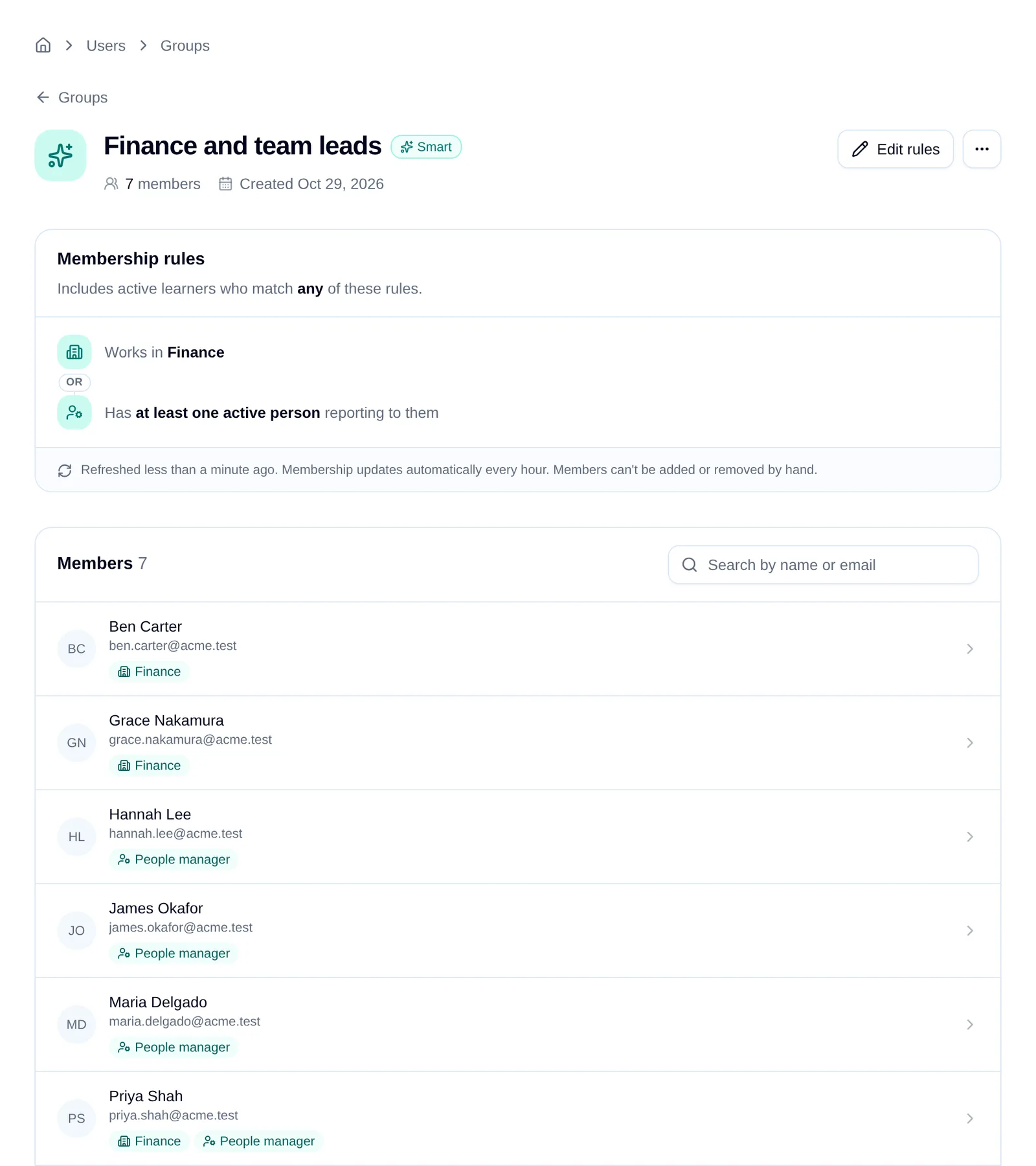
The group's page shows the rules in plain language, when membership last refreshed, and the member list. Each member has chips for the rules they matched. A member marked Leaving at next refresh no longer matches the rules and will drop out on the next refresh. If the last refresh was more than two hours ago, the page flags it. Membership catches up on the next successful refresh, and you don't need to do anything.
Use a Smart Group
A Smart Group appears alongside your other groups wherever you pick an audience:
- Phishing campaigns: a campaign takes the group's members when it starts. People who join or leave after that don't change a campaign already launched.
- Training enrollments: people who leave the group keep any training already assigned to them.
- Automations: someone joining or leaving the group can trigger an Automation, the same as for any other group.
When you first create a Smart Group, the people who match at that moment join without triggering Automations. Anyone who joins after that does, including people added because you edited the rules.
Edit the rules
Open the group and click Edit rules. The builder opens with the current rules and the live preview. Click Save changes to save, and Hook updates the membership straight away rather than waiting for the next refresh.
New rules can trigger Automations
Saving rules that match more people adds them to the group immediately, and each new member can trigger any enabled Automation for the group. Check the preview count before you save.
Fix a rule that points at something removed
If a group or course used in a rule is removed, the group's page flags the rule:
- A removed group: the rule matches no one. With all, that empties the Smart Group. With any, the other rules keep working.
- A course no longer offered: the rule keeps counting assignments people already have.
Either way, the builder won't save until you replace the rule. Choose another group or course, or for a training rule, any course.
Delete a Smart Group
Open the group, click the ... menu next to Edit rules, and choose Delete group. The rules stop running and the group becomes inactive, so it can no longer be targeted by campaigns, training, or Automations. Training already assigned, learner history, and the recipients of campaigns already launched are kept. A deleted Smart Group can't be restored, so you would need to build it again.
Common pitfalls
- The preview count looks too high. Look at the chips on a few people in the preview. With any selected, one broad rule can pull in most of the organization.
- A directory rule is greyed out. Your directory doesn't send that detail yet. Check the person's details in Entra or Google Workspace, then wait for the next sync.
- Someone you expected is missing. Smart Groups only include active people. Check the person's status on the Users tab.
- A change in your directory hasn't reached the group. The directory sync has to bring the change in first, and the group picks it up on its next refresh after that.
Related
View users and groups
Browse people and groups, and create manual groups.
Run a phishing campaign
Send a simulation to the groups you choose.
Assign training to groups
Put courses in front of a group with start and due dates.
Manage your directory connection
Sync now, change groups, reconnect, or disconnect your directory.