
Manage your phishing template library
Browse the phishing emails you can send, preview them the way a recipient will see them, and maintain the custom templates your org owns.
The template library is the catalog of phishing emails you can send. It mixes stock templates that ship with Hook and are shared across every organization with custom templates that belong only to yours. Stock templates are the fast path to a well-tested simulation. Customs exist for lures tied to your brand, your industry, or something your team has actually seen.
Browse and preview
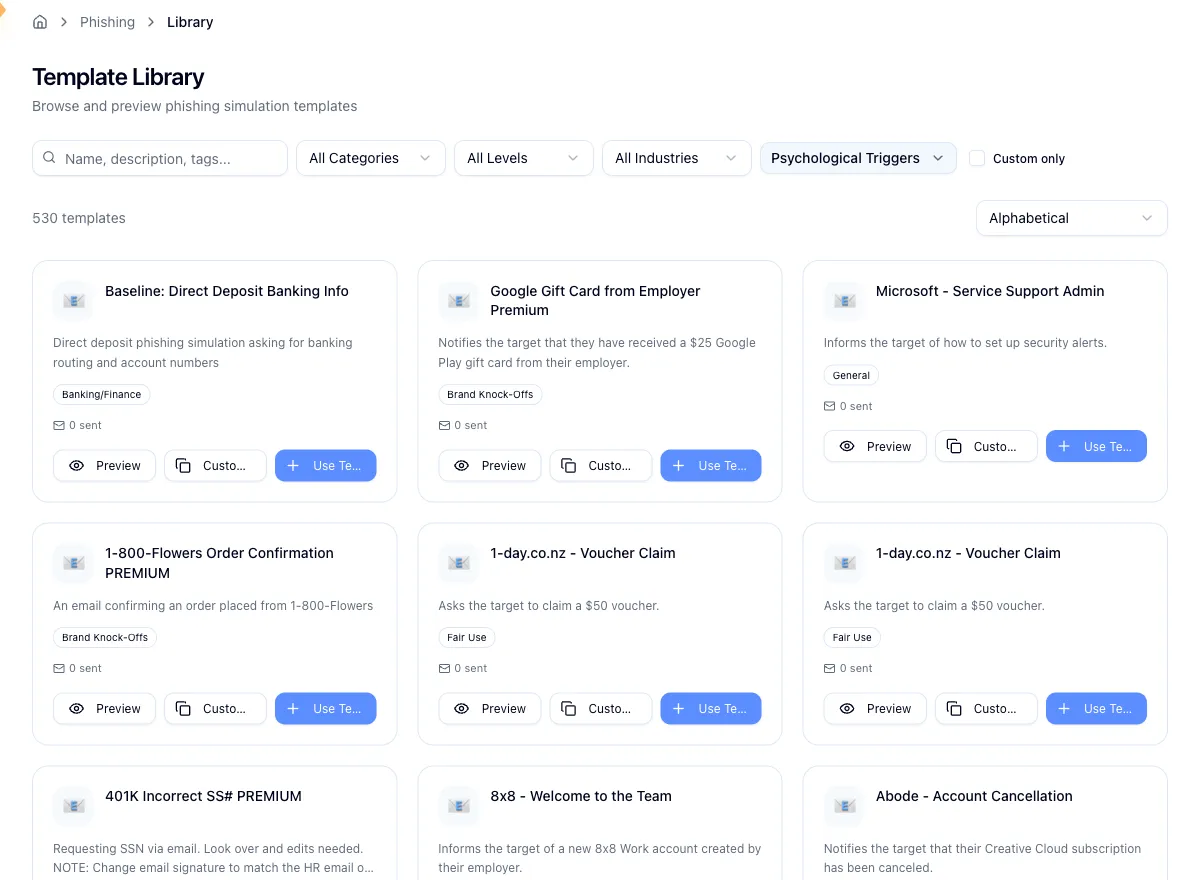
Open Simulations in the sidebar, then Templates. The grid pages through template cards showing the name, a one-line description, category badges, lifetime usage, and the Preview and Use Template actions. Templates your org owns carry a Custom badge and an Edit action as well.
Narrow the list rather than scrolling it. Search matches name, description, and tags, and you can filter by category, level, industry, and psychological triggers, or tick Custom only to see just your org's templates. Sort alphabetically or by newest.
Preview opens a quick look at the sender, subject, and rendered body. From there, View Full Template opens the detail page, which adds Email and Training Page tabs, toggles for images and dark mode, and the template's metadata. Always preview before you send.
Edit a custom template
Stock templates can't be changed, since every organization shares them, and copying a stock template into your own library to tweak it isn't available today. What you can edit is a template your org already owns.
Open the custom template and click Edit.
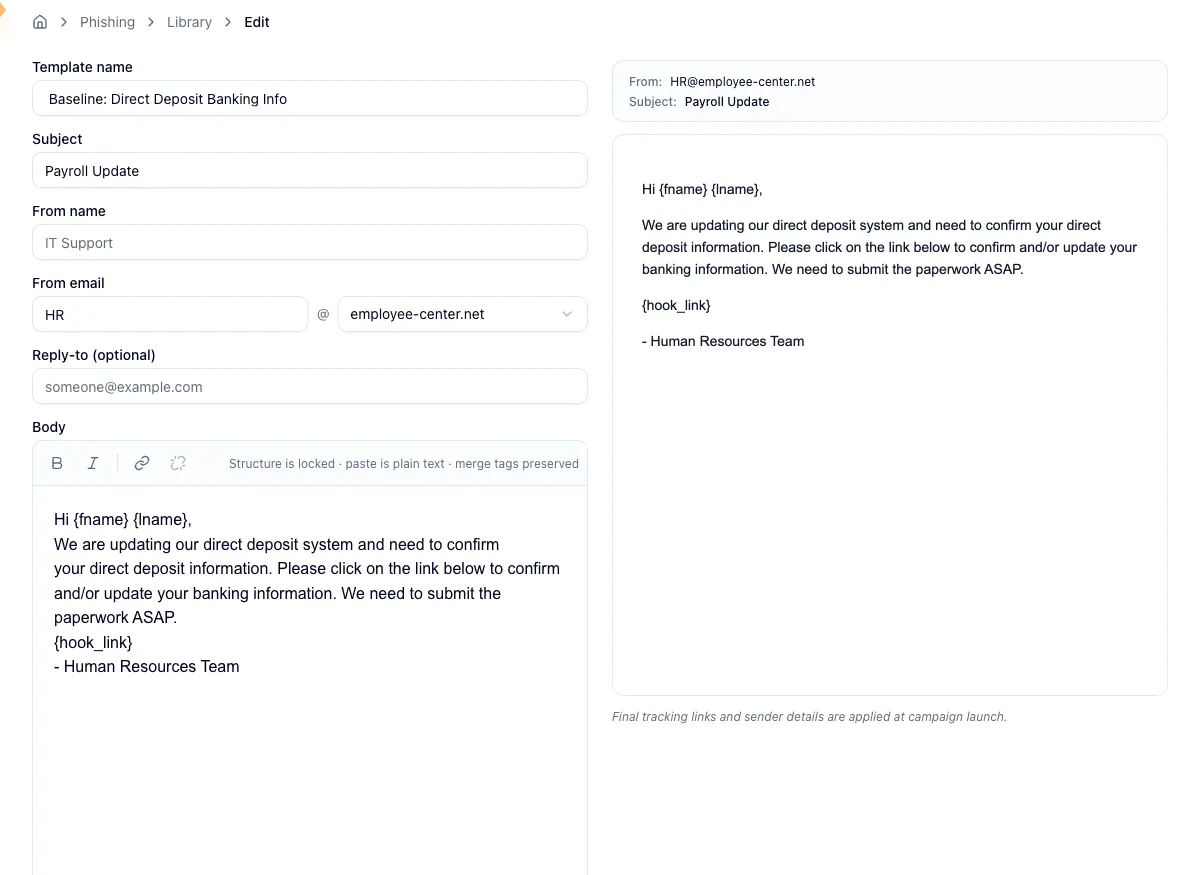
The editor puts the form on the left and a live preview on the right that updates as you type. You set the template name (2 to 255 characters), the subject (required, up to 998 characters), the from name, the sender address as a local part plus a domain chosen from a list, a reply-to address, and the body (up to 500,000 characters, far more room than a believable phishing email needs). The domain half of the sender address isn't free text, so if the one you want isn't offered you can't type it in.
Click Send test to my email to drop the current draft in your own inbox. Test sends are limited to 3 per hour, so use them deliberately. Save when you're happy with it.
A good custom lure feels like something your users already get: a tone, a sender pattern, a workflow they'd recognize. It shouldn't impersonate a named coworker or exploit a live incident. Rotate two or three a quarter, so the same subject line doesn't just train recognition of that subject line.
Use a template in a campaign
Use Template, on a card or on the detail page, opens the campaign wizard with that template already selected, so you only fill in the name, timing, and targeting. The full walkthrough is in Run a phishing campaign.
Delete a custom template
You can only delete templates your org owns; stock templates have no delete control at all. Deleting is scoped to your organization and doesn't affect campaigns that already went out using the template. Open the custom template's detail page, click Delete, and confirm in the dialog.
Deleting a template cannot be undone
Deleting won't recall in-flight emails or break a running campaign, but the template is gone as a starting point for your next variant. The lifetime usage figure on the detail page is worth a look before you decide.
Related
Monitor a live phishing campaign
Read the campaign detail page while a simulation runs, and tell the difference between real numbers and a provider hiccup.
Safelist Hook's sending domains and IPs
Give your IT or mail team the sender domains and sending IPs to allowlist so phishing simulations reach real inboxes instead of quarantine.