
Run the Security Awareness Snapshot
Pull a month of phishing and training results into one client-ready page, with a named list of everyone who still needs follow-up.
The Security Awareness Snapshot answers one question for one month: how did this organization do on phishing and training, and who still needs chasing? It is the report you reach for when a client or your own leadership asks how last month went. There is no campaign or course to choose, because the snapshot scopes itself to a calendar month.
Open it and set the month
Open Reports in the sidebar and choose the Security Awareness Snapshot card, under the Campaign category. It opens straight to data on the previous completed month, so in June you get May.
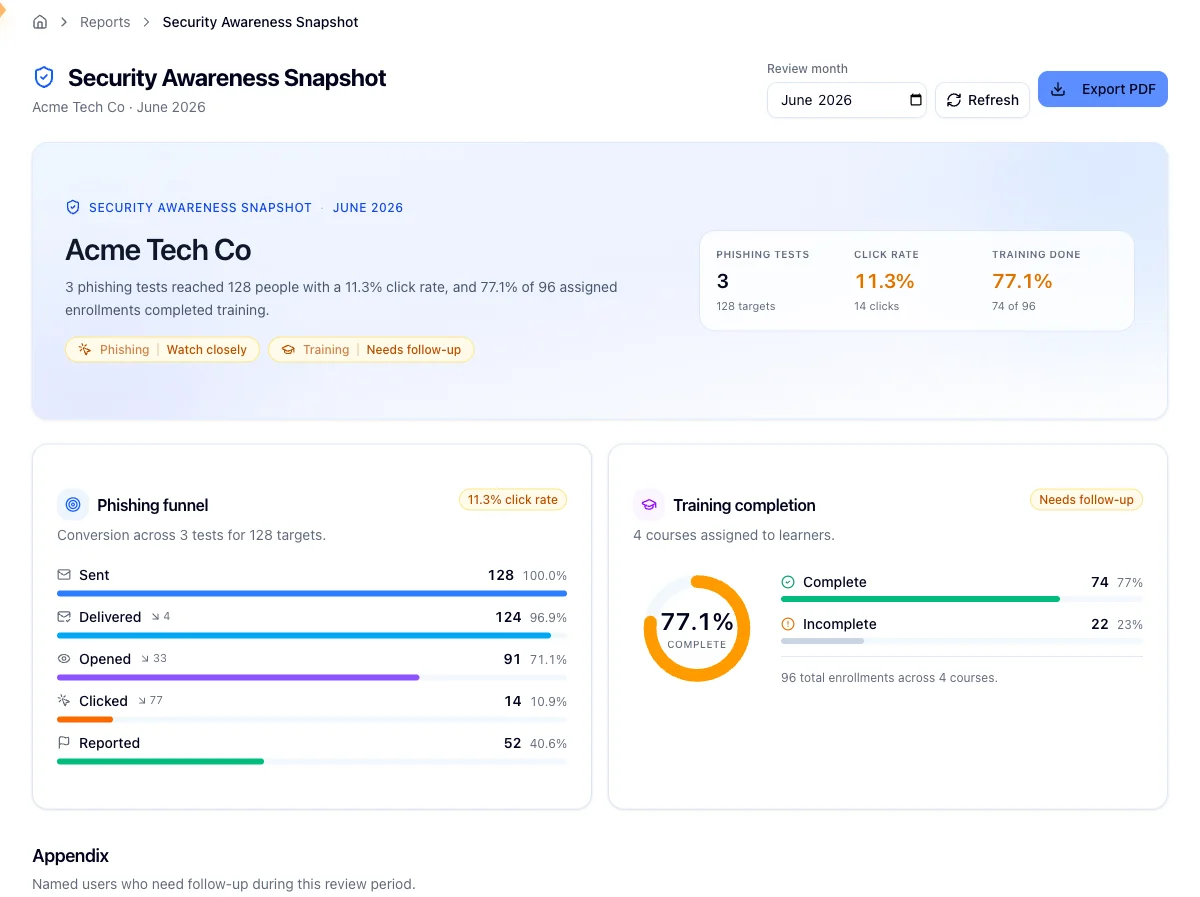
Use Review month in the header to move to another month. The report reloads on its own when you change it, so the Refresh button beside it is there for when you want to re-pull the latest numbers for the month you are already on.
A month here means the calendar month, from the 1st up to but not including the 1st of the next. Phishing tests count toward the month they started in, and training counts by when it was assigned. Pick the month that is still running and you get a partial picture, which is fine for a mid-month check but not for anything you are handing to a client. That is why the page defaults to last month.
The headline
The top card is what you would read out first. A generated sentence stitches the month's numbers together: how many tests ran, how many people they reached, the click rate, and how much of the assigned training got finished. If nothing ran, it says so plainly.
Three stats on the right give you tests run with the people targeted, click rate with the raw click count, and training completion. Click rate is shown as the observed number, with no rating attached.
A Training pill underneath rates completion against fixed thresholds: On track at 80 percent completion or above, Needs follow-up at 50 percent or above, and Behind schedule below that. With nothing assigned, the pill reads as no activity rather than as a good score.
Funnel and completion
Two cards sit below the headline. The phishing funnel walks the five stages, Sent, Delivered, Opened, Clicked, and Reported, each with a count, a percentage, and a bar, and shows the drop-off wherever a stage loses people from the one before it.
The training completion card is a donut split into complete and incomplete, with the total enrollment and course counts beside it. Everything on the incomplete side feeds the appendix.
The appendix, where the names are
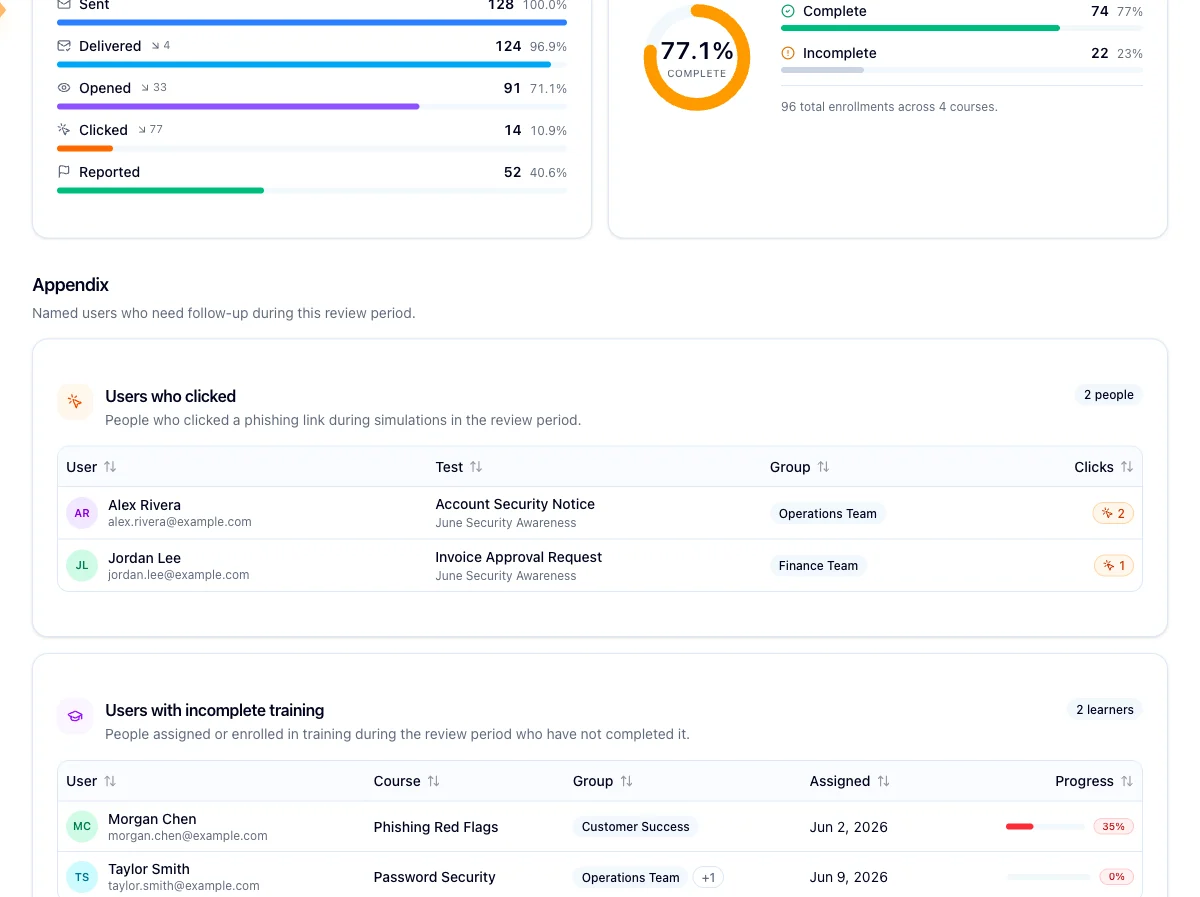
This is the part that turns percentages into follow-up. One table lists everyone who clicked a phishing link during the month, with the test and campaign they clicked in, their group, and a click count. The other lists everyone with training assigned that month who hasn't finished, with the course, their groups, the assigned date, and their progress. Both sort by column.
When both tables come back empty, the appendix shows an all-clear badge instead. Nobody clicked, and nothing is outstanding.
To act on either list, head to Assign training to groups.
Export it
Export PDF in the header downloads the whole thing, headline, both cards, and the appendix tables, formatted to hand to someone.
This report can't be emailed from the page
Unlike the other reports, the snapshot has no Email button. Export the PDF and send it yourself, or set up automated delivery, which does offer this report on a schedule.
When the numbers look wrong
Check the month first. The page defaults to last month, and most surprises turn out to be the wrong window.
Phishing numbers are pulled live for each test that started in the month. If part of that detail can't be loaded, a warning appears above the cards and the report renders what it could get, so an under-count often means the detail failed rather than that people didn't click. Refresh, and if it keeps happening see Troubleshoot phishing delivery. An organization whose phishing integration isn't set up gets nothing on the phishing side at all.
Training numbers come from Hook's own records, so they render either way.
Related
Read the executive summary report
Make sense of the metrics and recommendations after a single campaign closes.
Review the security watchlist
The running list of people who repeatedly click, across campaigns.
Track course completion
Drill into training completion and chase down incomplete enrollments.
Run the group performance report
Follow one group's phishing results month by month.
Run the Test Summary report
Break one phishing test down into its funnel, from sent through delivered, opened, clicked, and reported, and decide whether the export names the people who clicked.
Review the security watchlist
Find the people who keep clicking on phishing simulations, understand why, and decide who needs more support.