
Browse the training library and build a course selection
Explore the course catalog, filter it down, preview what learners will see, and carry a selection of up to 12 courses into the enrollment wizard.
The Training Library is Hook's catalog of security awareness courses. You use it to decide what to teach: browse, preview, and build a selection of the courses you want. Choosing who gets them and when happens afterward in the enrollment wizard. Nothing you do on the library page enrolls anyone.
You'll come here for a quarterly refresh, for follow-up after a phishing test, or when you're putting together onboarding for new hires. Browsing works even if your organization isn't set up for training yet; the wizard is where you'd hit that wall.
Open the library
Open Training in the sidebar and click Library. From the Manage Training page, Create Enrollment takes you into the wizard, where you can also pick courses without coming here first.
What's in the catalog
The library is a curated set rather than every course your provider offers. A course appears once it has been published to the catalog and hasn't been removed at the source. If a course you expect is missing, that's almost always why, and it isn't a bug.
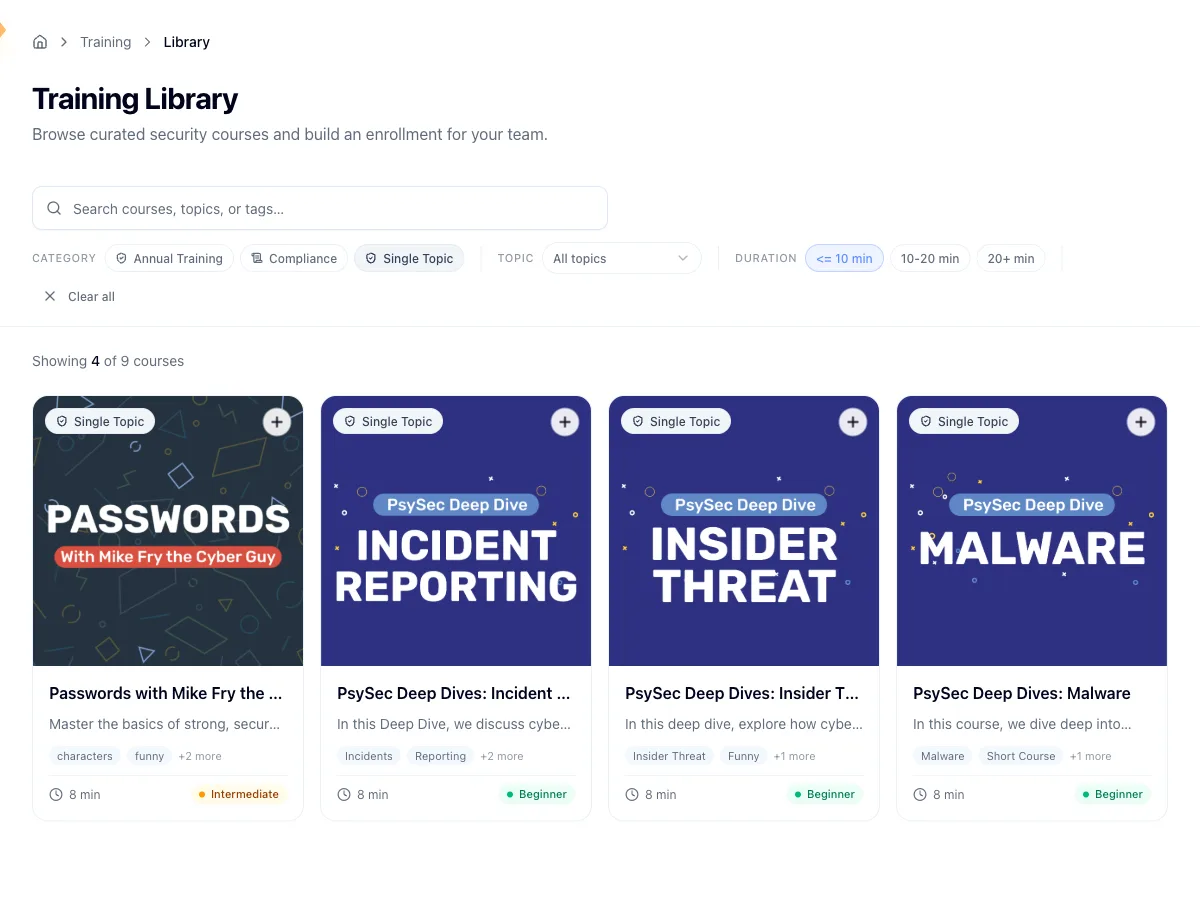
Each card carries a name, a short description, a category, topics and tags, a difficulty of Beginner, Intermediate, Advanced, or All levels, and an estimated length in minutes. Courses with no known length are listed as 10 minutes, so treat that figure as a rough guide rather than a promise.
A summary line above the grid tells you how many courses you're looking at out of the full catalog, which is the quickest way to see how much your filters cut away.
When no filter is active, the page opens with a strip of up to three featured courses. Type a search term or toggle any filter and the strip gives way to the full filtered grid. Clear your filters to bring it back.
Filter and search
The filter bar sticks to the top of the page as you scroll, and the filters stack, so each one narrows the grid further.
- Search matches your text against a course's name, both descriptions, topics, tags, and category.
- Category chips are multi-select. Pick several to see courses in any of them.
- The Topic dropdown takes one topic at a time, drawn from everything in the catalog.
- Duration chips split the catalog into 10 minutes or under, 10 to 20 minutes, and 20 minutes or more.
A Clear all button appears at the end of the row once anything is active. If nothing matches, the grid is replaced by a short empty state with its own button to reset the filters.
Preview a course
Some courses ship with a short video. Where one exists, the card offers a Watch preview so you can see what learners will see without leaving the grid. This is worth doing before you push a course to a few hundred people.
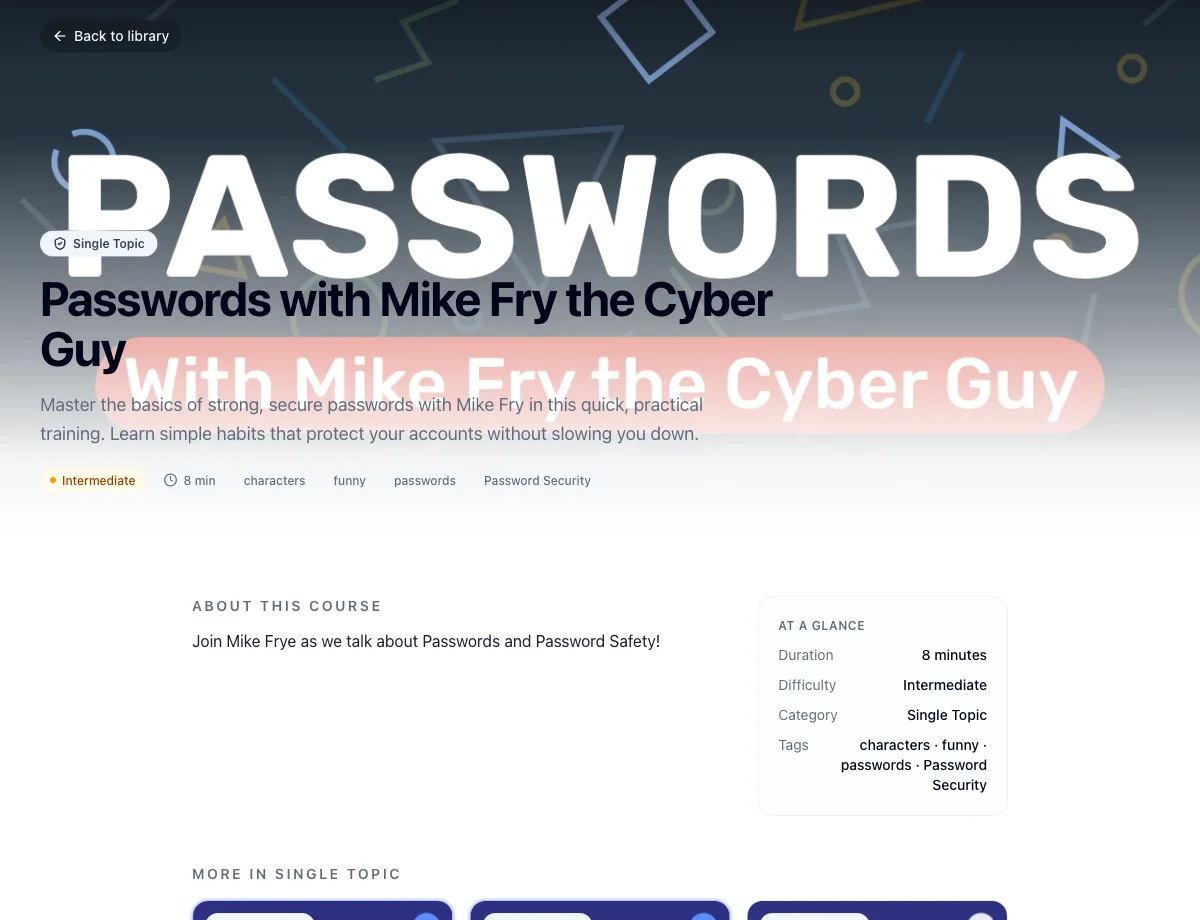
Clicking the card body opens the full detail page: a hero with the course image, difficulty, duration and tags, the complete description, a panel summarizing the same details at a glance, and up to three other courses in the same category. Where a preview video exists it plays inline here too, and a Preview button opens it. Back to library returns you to the grid.
Build a selection
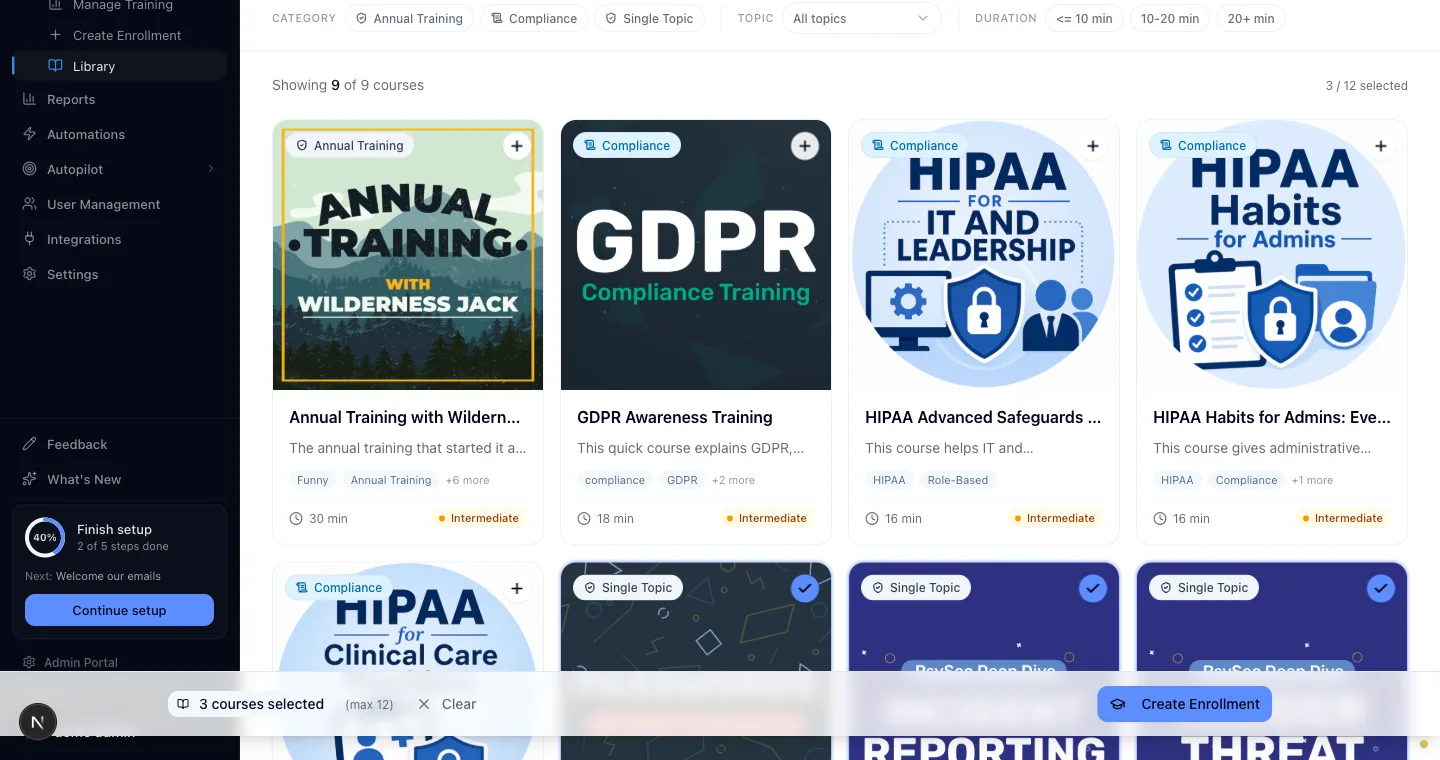
Each card has a + button in its corner. Click it to add the course, click again to remove it. Because that button sits apart from the card body, adding a course doesn't open its detail page. On a detail page, Add to enrollment in the bottom bar does the same thing.
A selection holds up to 12 courses. The summary line tracks how many slots you've used, and once you reach 12 the add buttons go disabled rather than warning you, so drop a course to make room for a different one.
Your selection follows you across the grid, the filtered views, and every detail page, and it stays put while you navigate the library. Closing the browser tab clears it.
Hand off to the enrollment wizard
Pick at least one course and a selection bar appears along the bottom of the screen with your count, a Clear button, and Create Enrollment. Clicking Create Enrollment opens the enrollment wizard with your courses already chosen, ready for you to pick recipients and set the schedule.
From a course detail page you can skip the bar: the enroll button there adds the course you're looking at, if it isn't already selected, and jumps straight to the wizard with the whole list.
Related
Deploy the Hook Report button
Give your employees a one-click Report button in Outlook that recognizes Hook simulations and sends everything else to your security team.
Assign training to groups
Use the enrollment wizard to put courses in front of groups or individuals, set due dates, and decide whether learners get an email.