Navigate the org portal and switch organizations
Find your way around the org sidebar, breadcrumb header, and workspace switcher — and understand why available sections depend on feature flags and org type.
The org portal is where you run your security awareness program day to day —
dashboards, reports, training, phishing simulations, and settings all live
under the /org routes. Every one of those pages shares the same frame: a
left sidebar for navigation and a breadcrumb header for orientation. This
page walks you through that frame, shows you how the workspace switcher lets
you move between the organizations you manage, and explains why two admins
can see very different sets of nav items.
Before you start
Prerequisites
- You're signed in to Hook as an org admin.
- You have at least one organization you can access. If you manage more than one (for example, as an MSP managing client accounts), they'll all appear in the workspace switcher.
The org portal layout
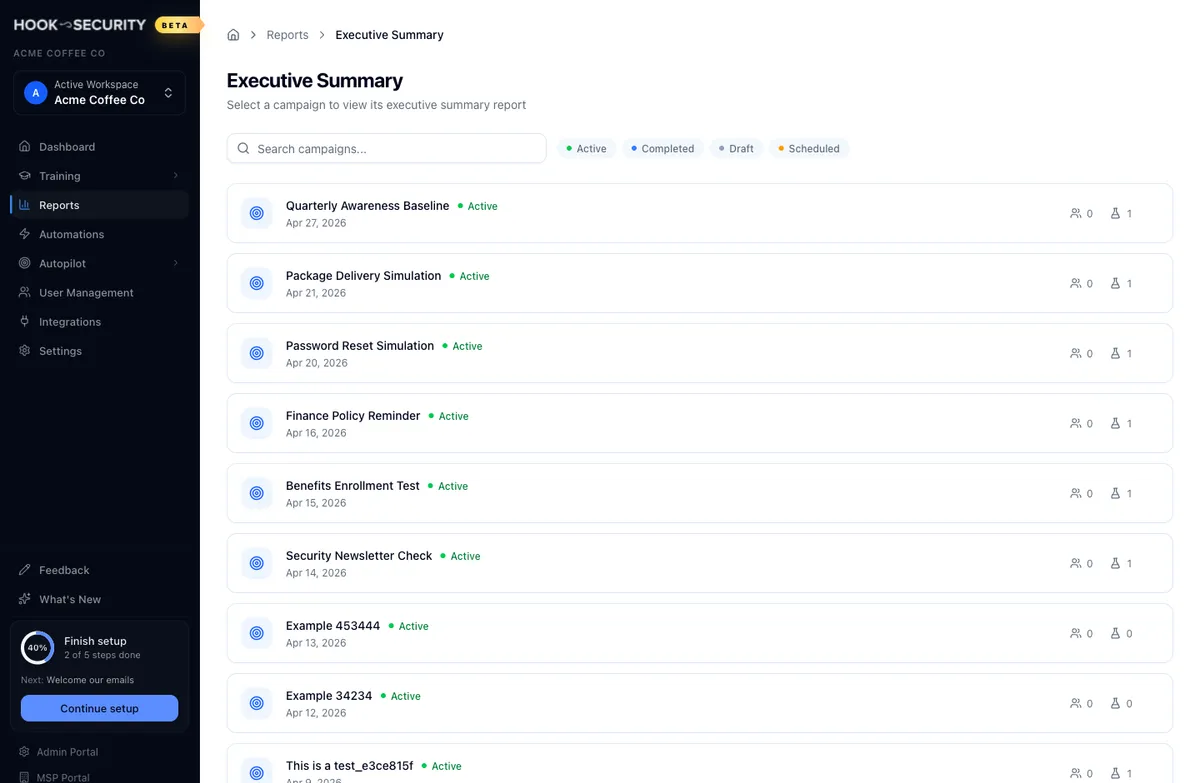
Every page under /org renders inside the same two-part shell:
- The left sidebar (the
AppSidebar) holds the workspace switcher at the top, the navigation sections in the middle, a Feedback action at the bottom of the nav list, and links to other portals in the footer below that. It's present on every org route. - The breadcrumb header sits at the top of the main content area and shows where you are in the hierarchy — for example, Home › Reports › Executive Summary. The home icon links back to the org root.
The breadcrumb only appears once you've navigated past the top level, so
the Dashboard at /org shows no breadcrumb trail. Numeric and UUID id
segments — like a specific campaign's id in the URL — are hidden from the
trail, so you won't see a meaningless number in your breadcrumbs when you're
looking at a single record.

Switch organizations with the workspace switcher
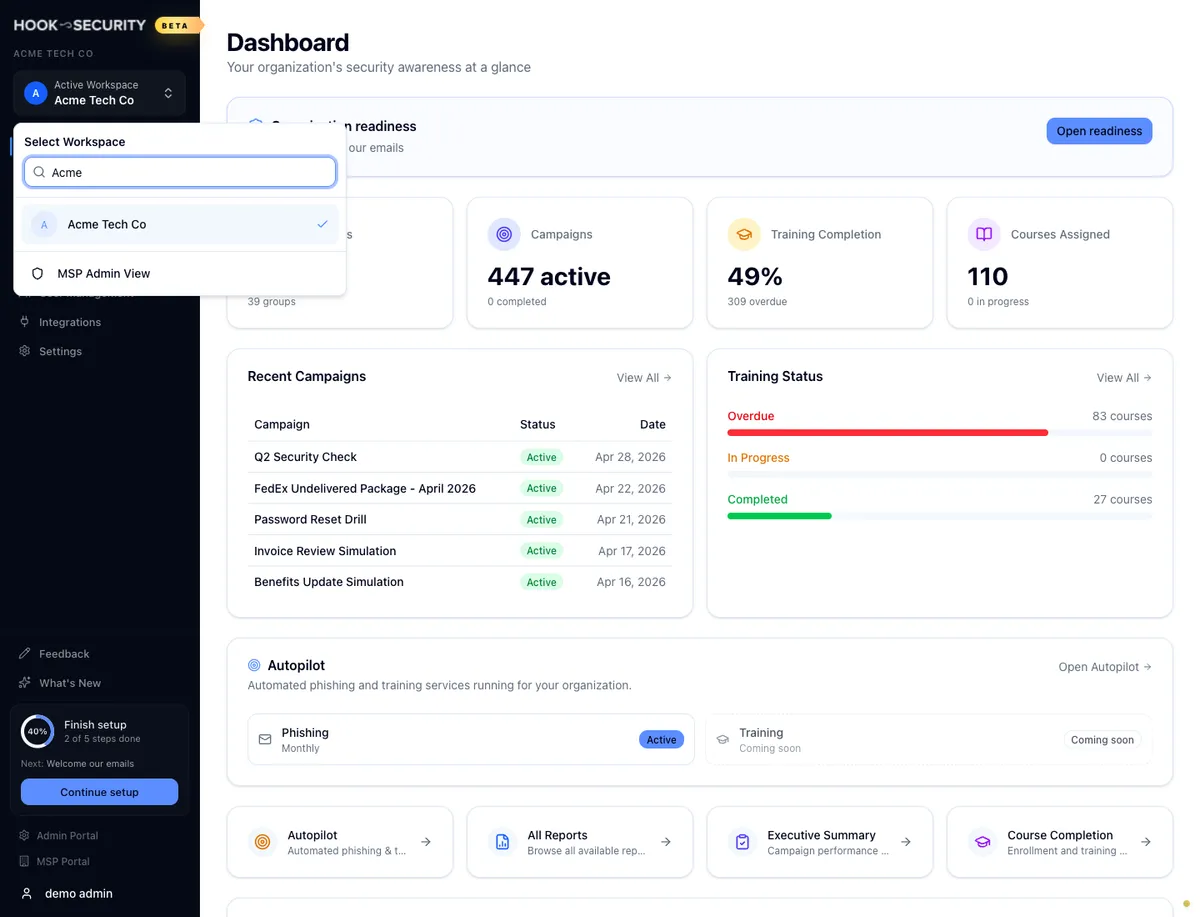
At the top of the sidebar is the workspace switcher — a button labeled Active Workspace with the current org's name and a colored avatar showing its first initial. Click it to open the Select Workspace popover.
Open the switcher
Click the Active Workspace button at the top of the sidebar. The popover opens with a search box, a scrollable list of every organization you can access, and a footer button.
Find the org you want
Type in the Search organizations… box to filter the list by name. The org you're currently in is highlighted and carries a checkmark on the right, so you can always tell at a glance which workspace is active.

Select it
Click any org in the list. The popover closes, the sidebar updates to show that org as the active workspace, and the page you're on reloads to show that org's data. (See What changes when you switch below for exactly what happens.)
MSP Admin View
The footer of the popover has an MSP Admin View button. Clicking it takes
you straight to the MSP portal at /msp, where MSPs manage their client
accounts from a single place. If you only manage a single organization, you
won't have an MSP portal to land on — see Footer portal links.
What changes when you switch
Selecting an organization does three things behind the scenes:
- It's remembered for this browser session. Your choice is saved to the
browser's
sessionStorage, so it persists as you move between org pages. When you next open the portal, the sidebar restores your last-selected workspace. - A page-wide signal fires. Hook dispatches an
organizationChangedevent that other parts of the page listen for — for instance, to re-check whether the new org has Autopilot enabled. - The URL is rewritten with
?orgId=. Hook pushes a new URL stamped with the selected org's id, so the page reloads against the right organization.
Why a record id gets dropped on switch
If you're viewing a specific record — say, a single phishing campaign at
/org/phishing/<campaign-id> — switching orgs drops that trailing id and
sends you back to the parent list (/org/phishing?orgId=<new-org>). That's
deliberate: the campaign you were looking at belongs to the previous org,
and Hook won't show you another organization's detail record by accident.
The practical upshot: data on every page follows the selected org. When you switch, the current view reloads from the top — a list resets to page 1, a dashboard recalculates its numbers — all scoped to the new workspace.
Sidebar sections and what gates them
The middle of the sidebar lists your navigation sections. Which ones you see depends on feature flags and, for one section, whether the org has Autopilot turned on.
Listed top to bottom in the order they appear in the sidebar:
| Section | When it shows |
|---|---|
| Dashboard | Always. |
| Training | When the training-enrollments flag is on. Expands to Manage Training, Create Enrollment, and Library. |
| Phishing Sim | When the org-phishing flag is on. Expands to Manage Campaigns, Create Campaign, and Template Library. |
| Reports | Always. |
| Automations | Always. |
| Autopilot | When Autopilot (the COTM program) is enabled for the selected org. Expands to Overview, Preferences, and Campaign Previews. |
| User Management | When the user-management flag is on. |
| Integrations | When the integrations flag is on. Links to Settings → Integrations. |
| What's New | When the customer-changelog flag is on. |
Below the sections is a Feedback action that's always present.
Autopilot is per-org, not a flag
Unlike the other gated sections, Autopilot isn't a feature flag — it's checked per organization. When you switch workspaces, Hook re-checks whether the newly selected org has Autopilot enabled and shows or hides the section accordingly. See Understand and set up Autopilot.
Why production admins see fewer sections
If the documentation describes a section you can't find in your sidebar, the most likely reason is feature flags. The Training, Phishing Sim, User Management, Integrations, and What's New sections are all flag-gated, and several of those flags default to on only in non-production environments — local development and Vercel previews — and off in production. So an org admin on the live app may see far fewer nav items than a teammate testing in a preview build.
A few specifics worth knowing:
- The org-phishing flag is off by default everywhere, including non-prod, so the Phishing Sim section only appears where it's been explicitly enabled for your org.
- The integrations flag is wired for per-organization targeting, so two orgs in the same environment can have it turned on or off independently.
- If a section you expect is missing, it's not broken — it just hasn't been enabled for your environment or org yet. Reach out to your Hook contact to have a flag turned on.

Footer portal links
The very bottom of the sidebar surfaces links to other portals, but only the ones you have access to:
- Admin Portal appears only if your account is a Hook platform admin. It
links to
/admin. - MSP Portal appears only when your organization is an MSP-type org.
It links to
/msp, the same destination as the MSP Admin View button in the workspace switcher.
If you're a single-organization admin who isn't a platform admin, you won't see either link — that's expected.
Common pitfalls
- A missing section usually means a flag, not a bug. Before assuming something is broken, check whether the section is flag-gated (see the table above). Most flags are off in production by default.
- Switching orgs takes you out of a detail view. If you were deep in a single record and switch workspaces, you'll land back on the parent list, not the equivalent record in the new org. There's no equivalent record to show — the id belonged to the org you just left.
- Your selection is per-browser-session, not per-account. The active
workspace is remembered in
sessionStorage, so a different browser or a fresh session starts from your default organization again.
Related
Org Admin Guides
Day-to-day operator guides for a single organization — getting around the portal, campaigns, training, autopilot, reports, users, and directory sync.
Read the org dashboard
Understand the at-a-glance org home page — metric cards, recent campaigns, training status, autopilot status, and quick actions — and the read-only Hook 2.0 model behind it.