
Run the Course Enrollment report
Measure completion for a single course, filter by group or status, and find the learners who are furthest past their due date.
The Course Enrollment report answers one question per course: where does everyone stand, and who is late? You pick a course, read the headline numbers, then work the roster down to the people who haven't finished. Admins run it before a compliance deadline, ahead of a manager check-in, or any time they need to chase stragglers on a specific training.
It goes by two names. The catalog card and the course picker say Enrollment Completion; once you are inside a course, the page is headed Course Enrollment Report. It is one report.
Pick a course
Open Reports in the sidebar and choose Enrollment Completion. The picker lists every course that has enrollments in the selected organization. If nothing has been assigned yet, you get an empty state instead of rows, and the fix is to assign some training first.
Each row gives you the completed count against the enrolled count, the number overdue in red when there are any, the earliest enrollment date and nearest due date on the course, and a completion bar on the right. The status pill is worked out from those numbers rather than stored: Overdue if anyone is past due, Completed at 100 percent, and In Progress the rest of the time.
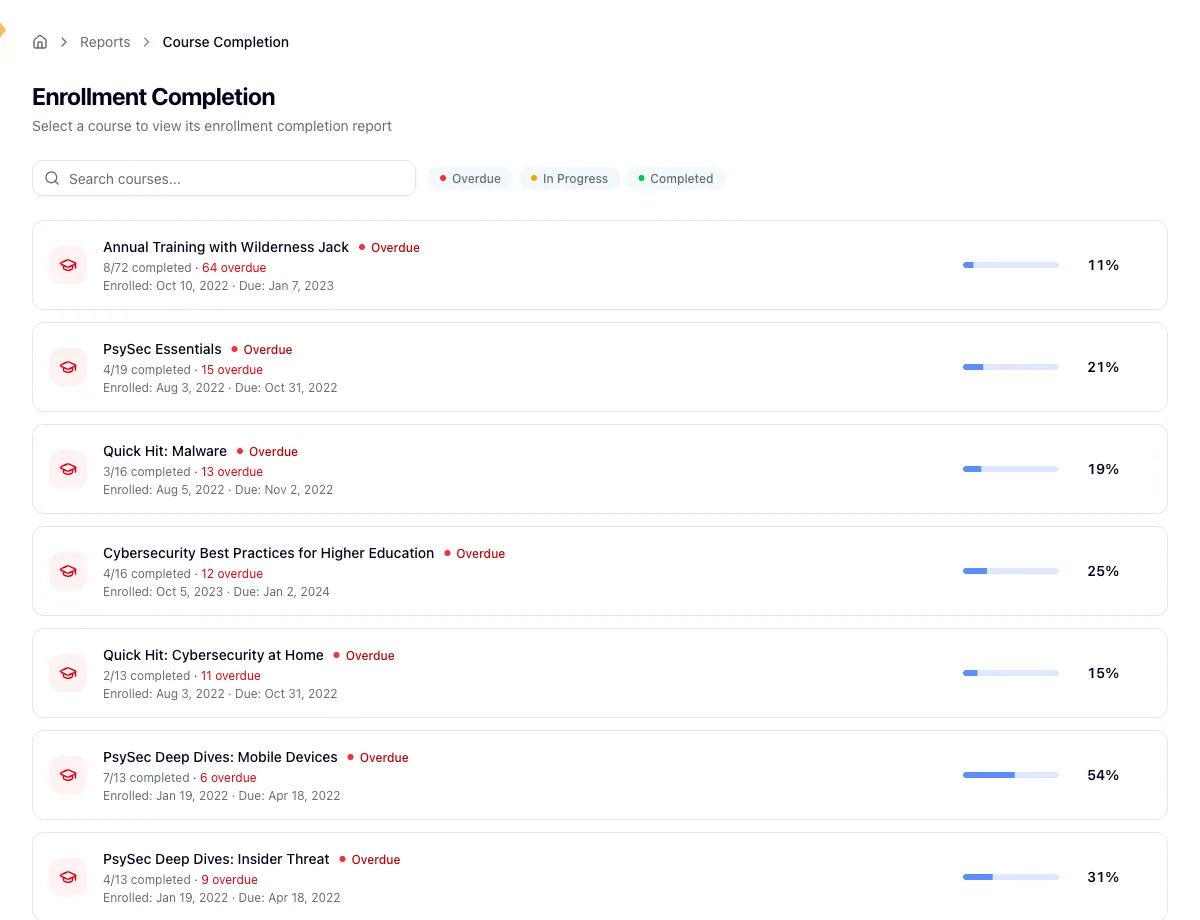
Search by course name, and use the Overdue, In Progress, and Completed pills to narrow the list. They toggle and combine, and a Clear link resets the search and the pills together. Click any row to open the course.
This report reads training records straight out of Hook, so it works for organizations that have no phishing integration at all.
Read the report
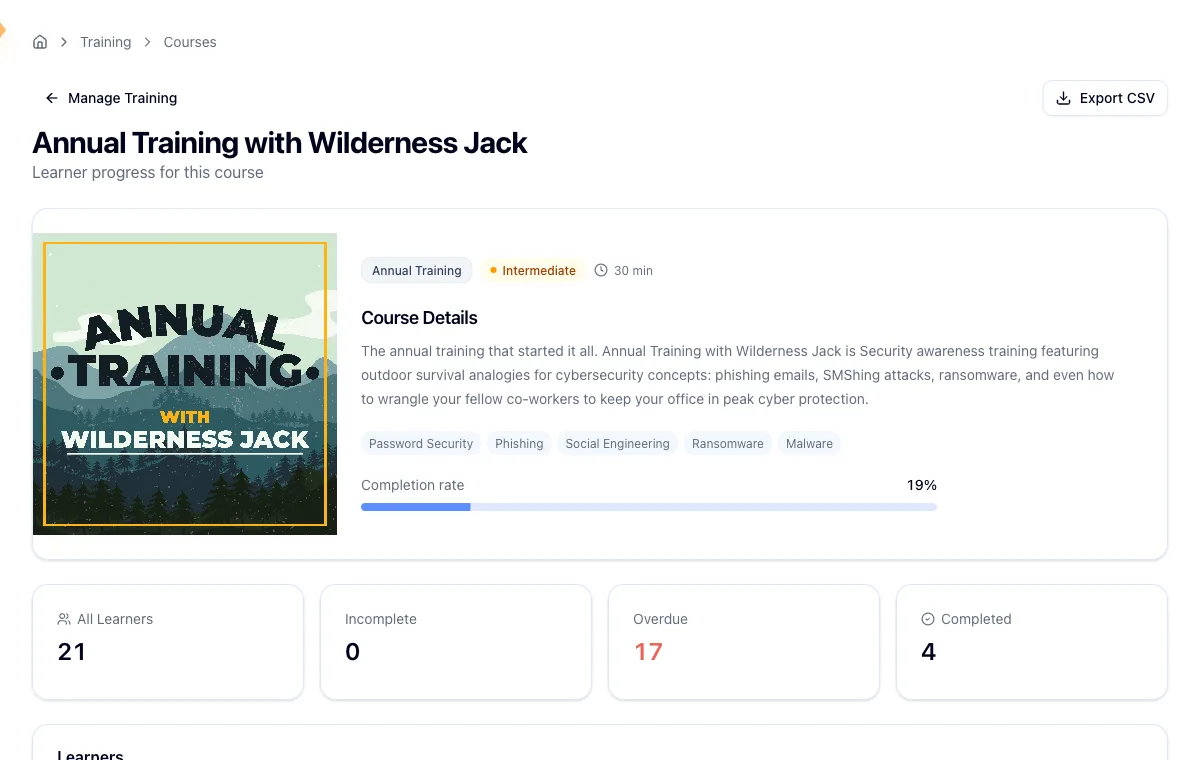
Four cards sit at the top and reflect whatever filters you have on:
- Enrolled is everyone on the course.
- Completed is how many have finished, and turns green when that is everybody.
- Completion Rate shows the same thing as a percentage with a bar, green at 100 percent and a warning style below 75 percent.
- Overdue counts people past their due date who haven't finished. It goes red whenever it is above zero, which is your cue to follow up.
The learner table
Below the cards is the full roster, not just the people in trouble. Four chips above the table filter by status and each carries its own count: All Users, where you start, plus Completed, Overdue, and Incomplete.
Every column sorts: Name, Email, Group, Enrollment Date, Due Date, Status, Completed, and Progress. Status is where the urgency lives. On rows that are genuinely overdue it renders as a badge scaled to how late the learner is, critical at 30 days or more past due, high at 14 or more, and medium at 7 or more. Progress separates the learner who never opened the course from the one who got most of the way through, which usually changes how you word the nudge.
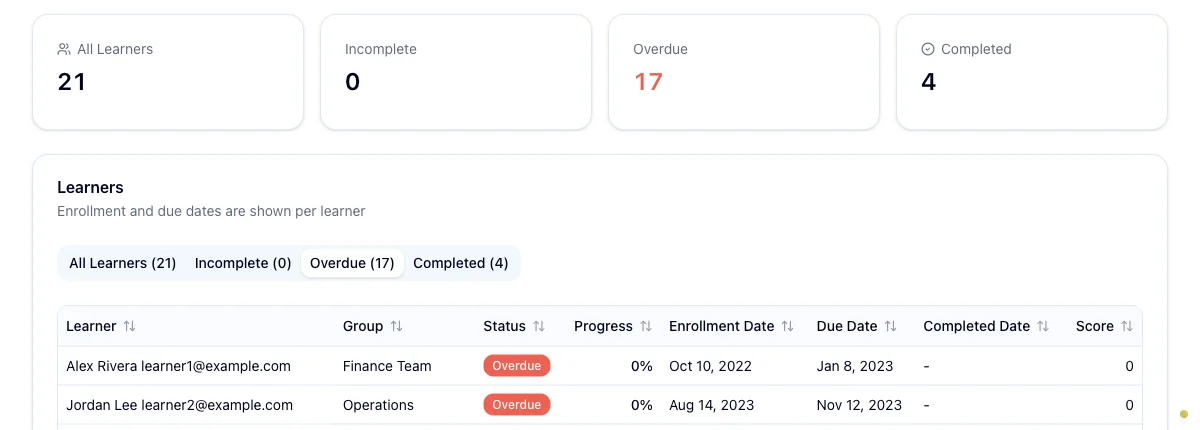
An empty table under a filter is not a broken report. Filter to Overdue on a healthy course and you should get nothing back.
Filter by group
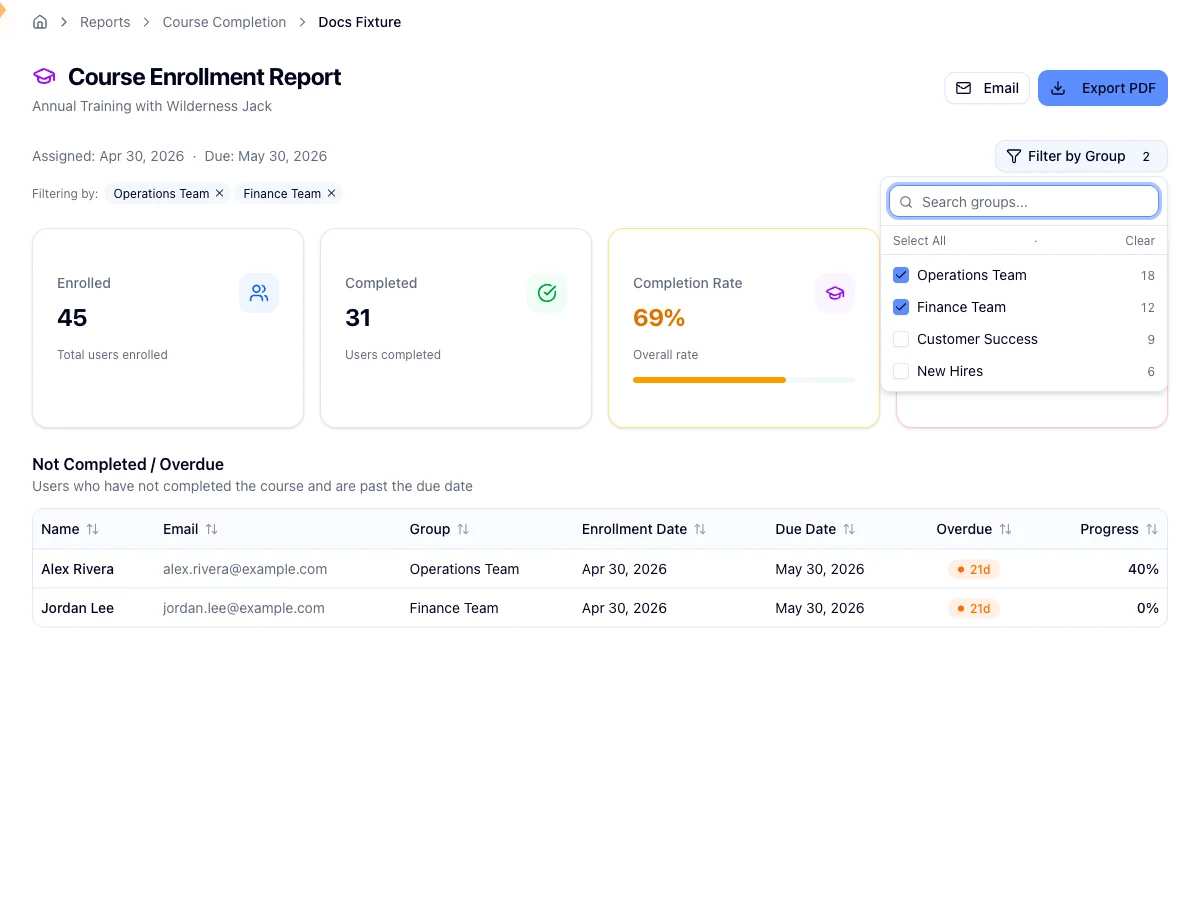
When the enrolled learners belong to at least one group, a Filter by Group button appears in the header. Open it, search if the list is long, and tick the groups you want. Select All takes everything currently visible, so it respects your search, and Clear drops the lot. Your picks appear as chips under the header that you can remove one at a time.
The cards and the table refetch for the groups you chose, so what is on screen always matches the filter. You can select up to 100 groups at once. Past that the request is rejected outright rather than returning half an answer, though normal group counts won't come close.
Export or email
Export PDF downloads the report. Email opens a picker of users in the organization and sends them the same PDF.
Exports keep your status filter but drop your group filter
Both the PDF and the emailed copy are generated for the whole course, ignoring any group filter you set on screen. The status filter does carry through, so if you are looking at Overdue only, that is what your recipient gets. Switch back to All Users before you export if you want the full roster.
Before you draw conclusions
Overdue depends on a due date. Learners enrolled without one are never counted as overdue, however long they sit untouched. Set due dates when you assign training if you want them tracked here.
The report covers the selected organization only. It does not roll up child organizations, so if the roster looks short, check the org switcher first.
Related
Review the security watchlist
Find the people who keep clicking on phishing simulations, understand why, and decide who needs more support.
Run the Group Performance (Phishing Trendline) report
Track one group's phishing resistance month by month, with a trendline, best and worst month callouts, and a sortable monthly breakdown.