
Manage your directory connection
Run a manual sync, change which groups you sync, check what landed, and disconnect or reconnect Microsoft Entra or Google Workspace.
Once Microsoft Entra or Google Workspace is connected, the Synced directories table on the Integrations page is where you look after it. Expand a row to work on that connection. You'll come back here whenever your org structure changes or a sync needs a nudge.
You need to be an org admin with the right organization selected in the sidebar switcher. If you haven't connected a directory yet, start with Sync users from Microsoft Entra or Sync users from Google Workspace.
Open the connection workspace
Go to Settings, then Integrations, and click your directory row to expand its workspace.
The header summarizes the connection: when it was connected, how many Synced groups are in scope, how many Synced users those groups bring in, and how many Authorized domains are approved for sending.
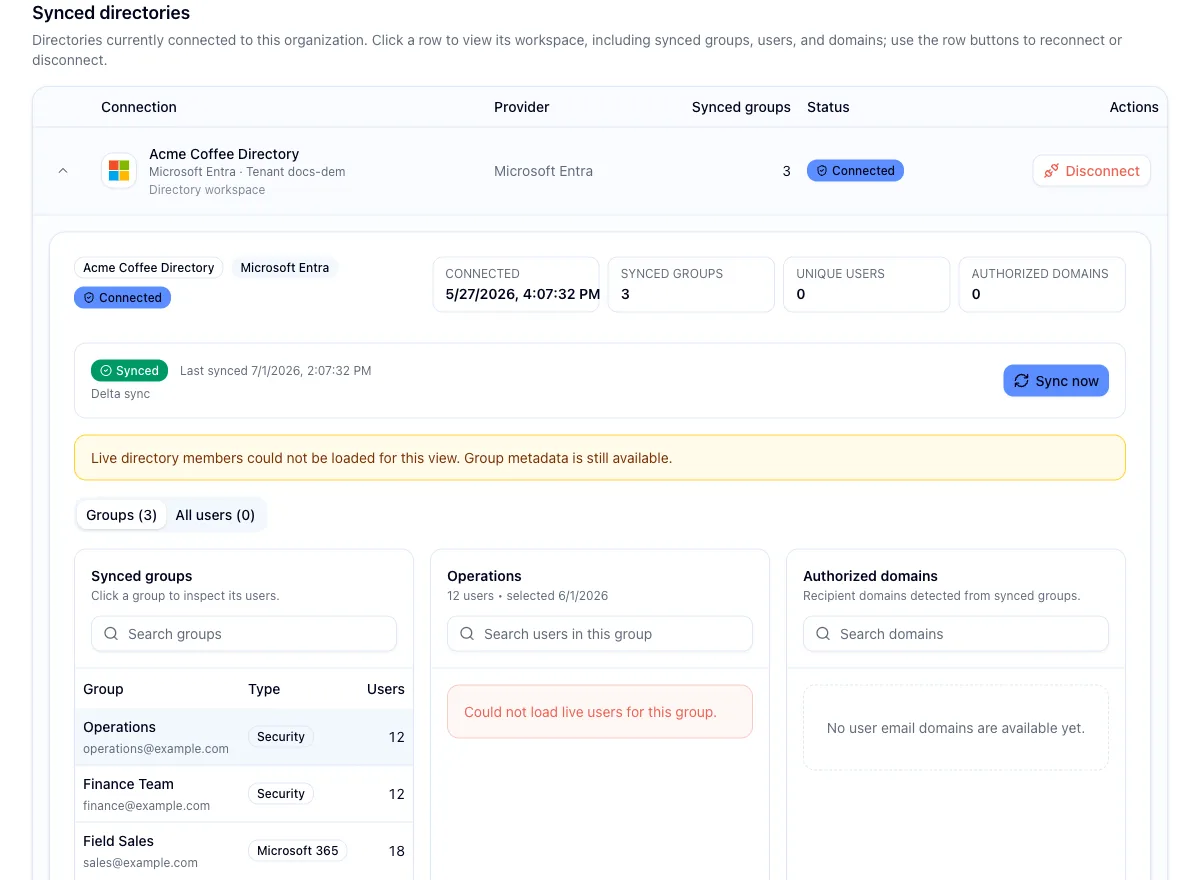
Below the header sits the sync block, and under that a three-column pane: your synced groups on the left, the members of whichever group you click in the middle, and authorized domains on the right. A search box filters the member list once you've selected a group.
The domains column lists the email domains your synced users receive mail on, each marked Authorized, Pending review, Unauthorized, or Awaiting sync, with an Authorize domain button on the rows that need one. For the full workflow, see Authorize recipient domains.
Hook supports one active directory connection per organization, so you can't run Microsoft Entra and Google Workspace side by side. Once a directory has synced users into your organization, those users stay tied to it even after you disconnect, so connecting the other provider is refused until the switch is handled for you. Contact support if you need to move from one provider to the other.
Run a manual sync
Hook re-reads membership from Entra every night at 2:00 AM UTC. When you don't want to wait, click Sync now in the sync block. Google Workspace connections sync on demand today: they run when you click Sync now, save a group selection, or change your scope, and scheduled refreshes for Google are on the way.
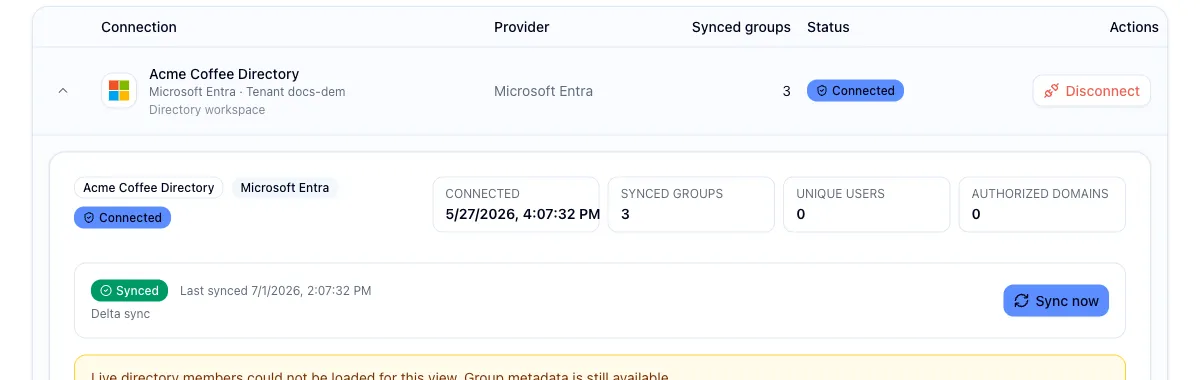
The button only works with at least one group in scope, and only one sync runs per directory at a time, so while a run is in flight the workspace shows a syncing state and a second attempt is turned away. When the run ends you get either a fresh "last synced" timestamp or a failure state, and the workspace metrics and domain list refresh on their own.
Change which groups you sync
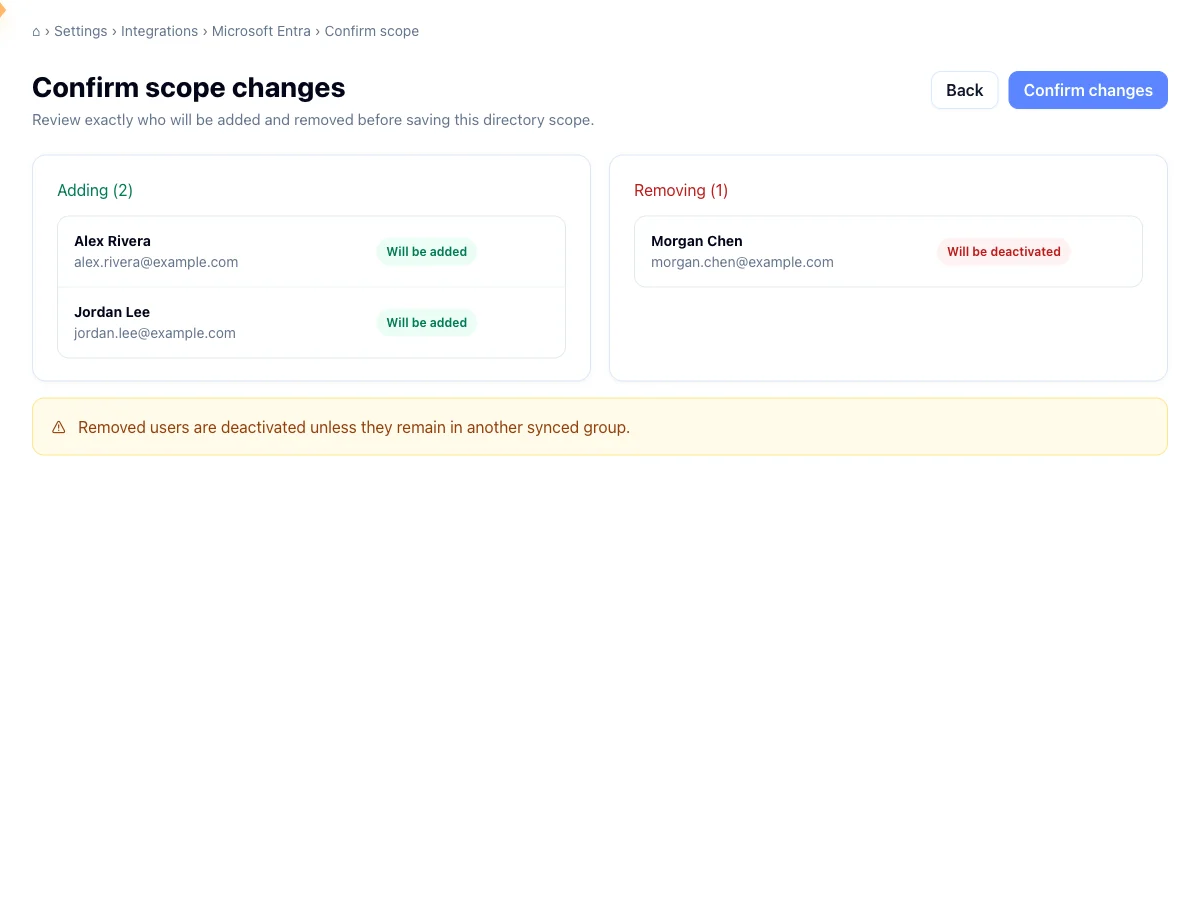
Click Manage groups in the Synced groups footer to reopen the picker with your current selections already checked. Adjust the selection and continue, and instead of the first-run preview you'll get a confirmation screen showing exactly what your edit changes.
Review the diff
The screen splits your edit into Adding and Removing. Each group expands: added groups list the members coming in, and removed groups show how many users currently reach Hook through them and which of those will be deactivated.
Check who loses access
If removing a group would leave someone with no synced group at all, Hook warns you and names how many people that affects. Anyone who is also in a group you're adding doesn't count, because the sync reattaches them.
A single group can't bring in more than 50,000 members. If one does, the save is blocked and Hook names the group so you can drop it from the selection.
Save the change
Click Save scope change. Hook queues the resync in the background and returns you to Integrations. If your selection matches what's already saved, it tells you there's nothing to apply instead.
Removing every group deactivates every synced user
An empty scope leaves nobody with a directory membership, so everyone who came from this connection is deactivated. Hook makes you tick an acknowledgement checkbox naming how many people that is before it will let you save. You can bring them back by re-selecting their groups.
Retry a failed scope sync
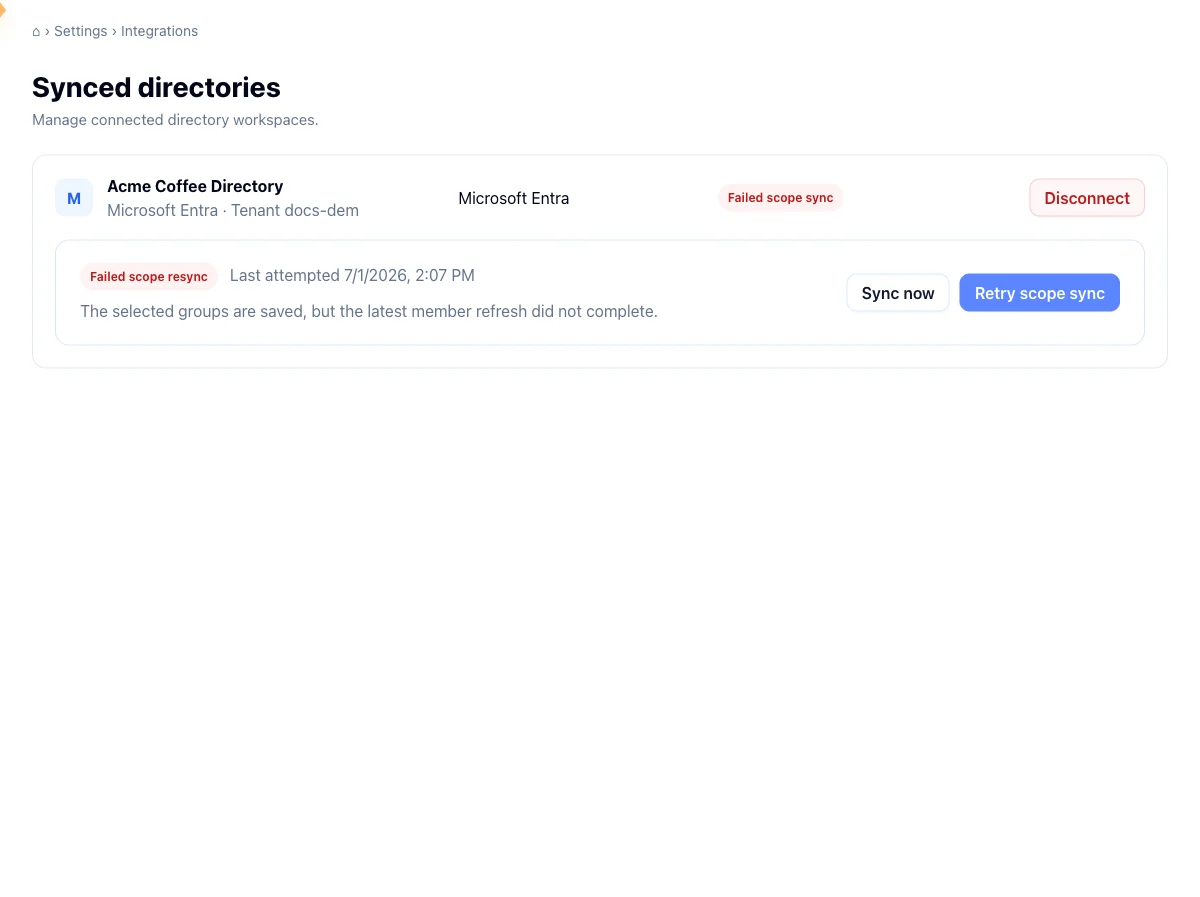
A scope change runs in the background after you save, and Sync now can't replay it, so a regular sync won't recover one that failed. When the most recent run is a failed scope change, the sync block offers a Retry scope sync button that re-queues the same change without making you redo the picker.
Actions on the directory row
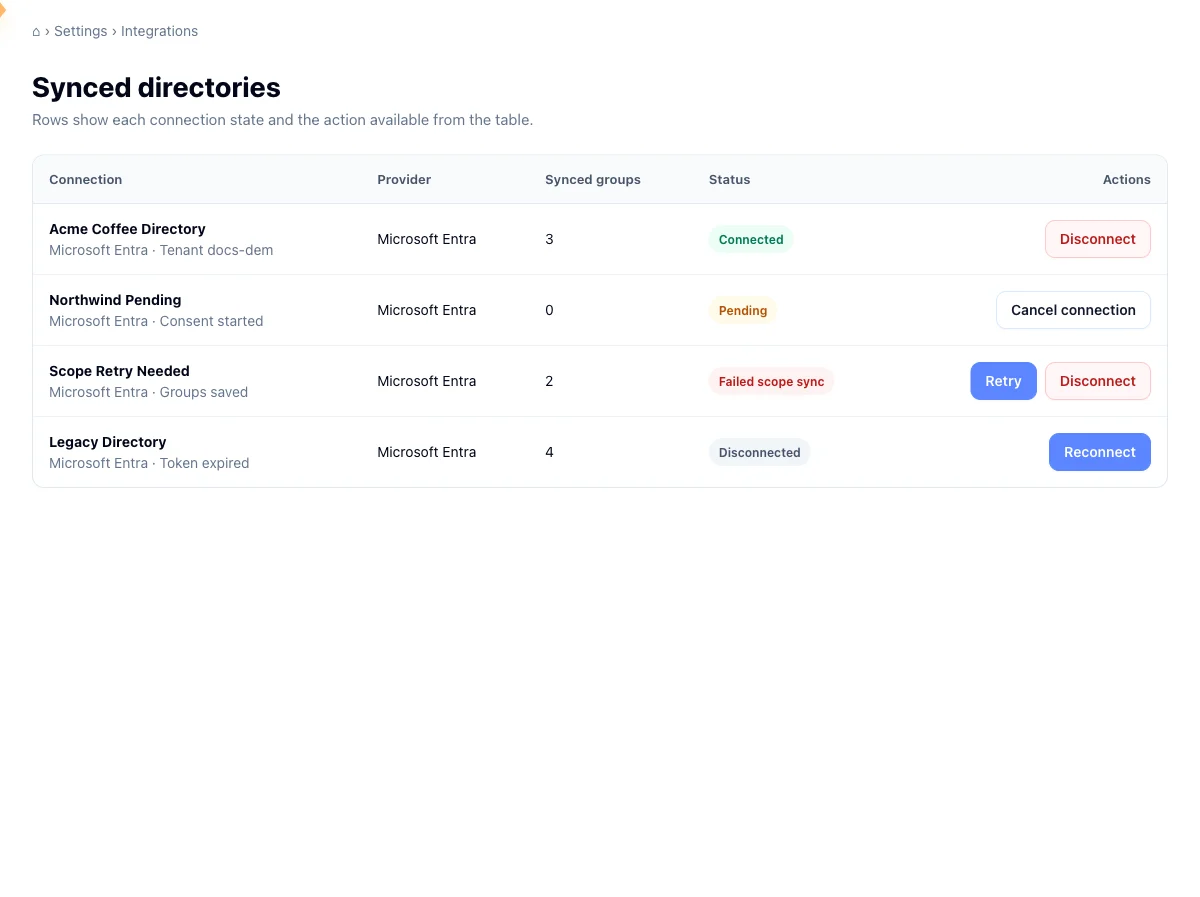
The buttons on the right of each Synced directories row follow the connection's status badge:
- Connected gives you Disconnect, with a confirmation dialog first.
- Connecting gives you Cancel connection, for a Microsoft consent handshake still in flight or a Google Workspace setup that has not been verified yet. For Google Workspace the row also reopens the account panel, so you can copy Hook's account email again or click Verify.
- Error gives you both Retry and Disconnect. For Microsoft Entra, Retry sends you back through the consent prompt to repair the connection. For Google Workspace, Retry reopens the account panel so you can check the role assignment and click Verify again.
- Reauthorization needed gives you Reconnect and Disconnect, and nothing else. See below.
- Disconnected gives you Reconnect.
Reauthorization needed
A connection lands in Reauthorization needed when the access your admin granted at connect time stops working and a sync fails because of it. For Microsoft Entra that usually means someone removed Hook's app from your tenant or withdrew its consent. For Google Workspace it means the read-only admin role was removed from Hook's account for your organization, or the role itself was deleted, in the Google Admin console. Hook doesn't make the switch for a passing problem such as a network blip or a rate limit; those show up as a failed run and the connection stays connected.
While a connection is in this state Hook won't sync it. Sync now is hidden and the row offers only Reconnect and Disconnect. Your saved group selection and your synced users are untouched, so nobody is deactivated by the status itself. Click Reconnect to grant access again, then review your groups as described under Reconnect.
Disconnect
Click Disconnect and confirm. Syncing stops, but your previously synced groups are preserved, so you don't lose your selection and you can reconnect later. For a Google Workspace connection, Hook keeps the account it created for your organization, so a later reconnect shows the same account email. Hook cannot revoke the role your super admin assigned, so the confirmation asks you to remove the role assignment yourself in the Google Admin console under Account, then Admin roles. See Remove Hook's directory role.
Reconnect
Click Reconnect on a disconnected row or a row that needs reauthorization. For Microsoft Entra, if the original consent is still good Hook reactivates the connection without a trip to Microsoft; if it isn't, you'll go back through the consent screen first. For Google Workspace, Reconnect opens the account panel and re-runs Verify against the same account. Nobody visits Google: if the role is still assigned, Verify succeeds at once; if it was removed, have your super admin assign it again first. If Hook's account was replaced in the meantime, the panel shows the new email and the role has to be granted to it before Verify passes.
Either way the connection keeps your saved group selection, but Hook doesn't start syncing again on its own. After reconnecting, for either provider, Hook opens the group picker with your selection pre-checked and asks you to review it. Until you save, the connection shows as connected but Sync now stays off and the sync block shows a reminder. Re-confirming the same groups is enough; the point is that nobody's membership is synced under a new grant without an admin having looked at the selection.
Cancel a connection that's stuck connecting
A connection sits in Connecting when you started a connect but never finished it. For Microsoft Entra that is an unfinished consent step; the link expires after a few minutes, so an abandoned handshake has to be restarted anyway. For Google Workspace it is a setup that has not passed Verify yet, which can legitimately sit for a day while a super admin assigns the role. Click Cancel connection to clear it, then connect again.
Common pitfalls
- Sync now does nothing with zero groups in scope. Pick at least one group through Manage groups first.
- A failed scope change won't fix itself from Sync now. Use Retry scope sync in the sync block instead.
- Nested groups aren't expanded. Hook syncs direct members only, so if a group contains other groups, select those nested groups as well.
- Sync now is off right after a reconnect. Open Manage groups, review the selection, and save. Syncing resumes from there.
Related
Sync users from Microsoft Entra
Connect Hook to Entra, pick groups to sync, preview members, and confirm.
Sync users from Google Workspace
Assign a read-only role to Hook's account, verify, pick Google Groups, preview members, and confirm.
Authorize recipient domains
Approve the email domains your synced users share so simulations can reach them.
View users and groups
Browse the full roster of synced users and the groups that drive targeting.
Troubleshoot directory sync
Diagnose missing users, failed syncs, and stale group membership.