
Review the security watchlist
Find the people who keep clicking on phishing simulations, understand why, and decide who needs more support.
Most reports tell you how one campaign went. The watchlist tells you who keeps clicking, across every simulation you have run in a date range, ranked worst first.
You'll usually open it when you're planning what to do next: who needs extra training, which groups deserve a tougher simulation, and whether anyone has been struggling long enough that their manager should know.
Find your watchlist
Open Reports in the sidebar.
Filter by User using the chips at the top, or just look for the Watchlist card in the grid.
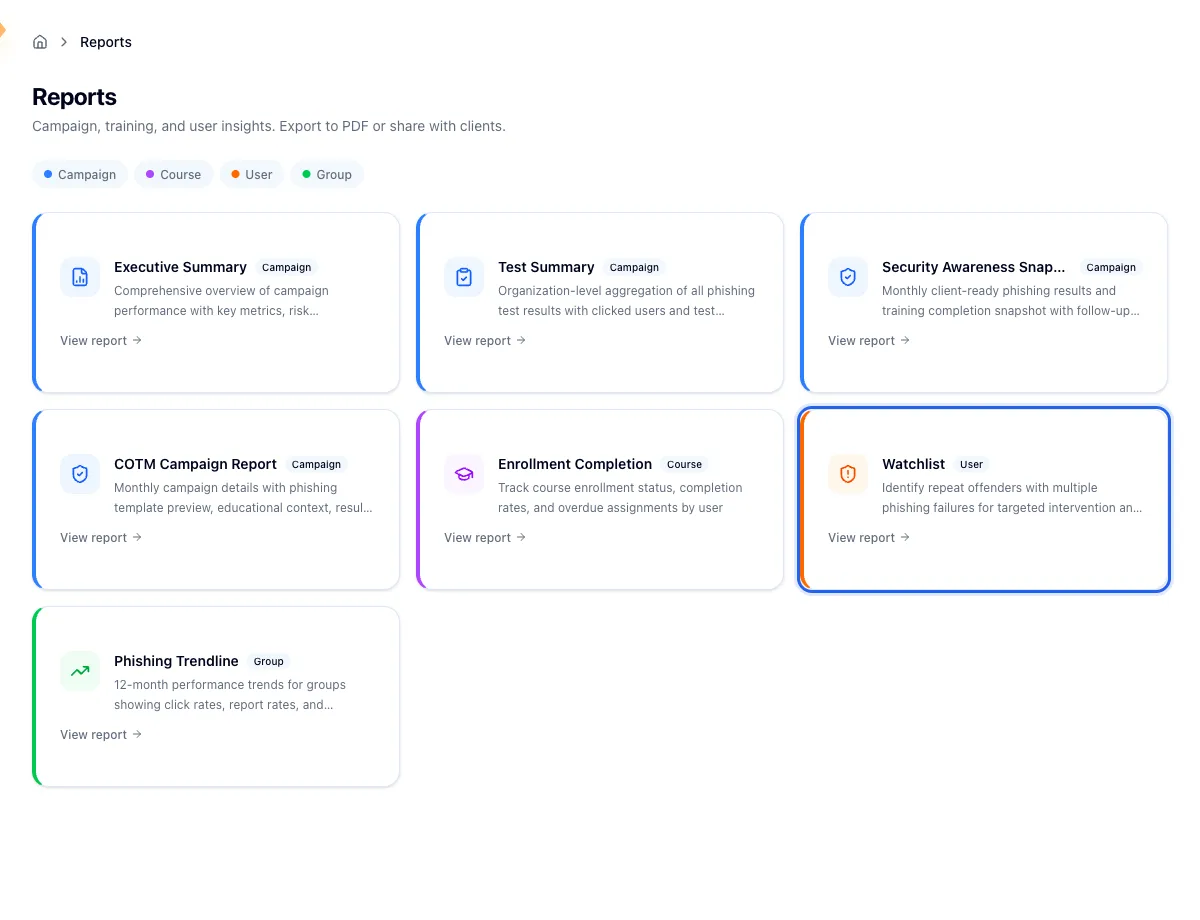
The watchlist opens on the last 12 months. Use the date picker in the top right to change that. The window is stored in the address bar, so you can bookmark a particular range or send it to someone else.
What you're looking at
Two counters run across the top:
- Repeat Offenders is how many people clicked at least twice in the window. That's the headline number.
- Total Failures is every one of those clicks added up. It's most useful compared against last quarter.
Below that is a table of everyone who clicked twice or more, with their name, email, and how many simulations they clicked. Sort by Total Fails to bring the highest counts to the top.
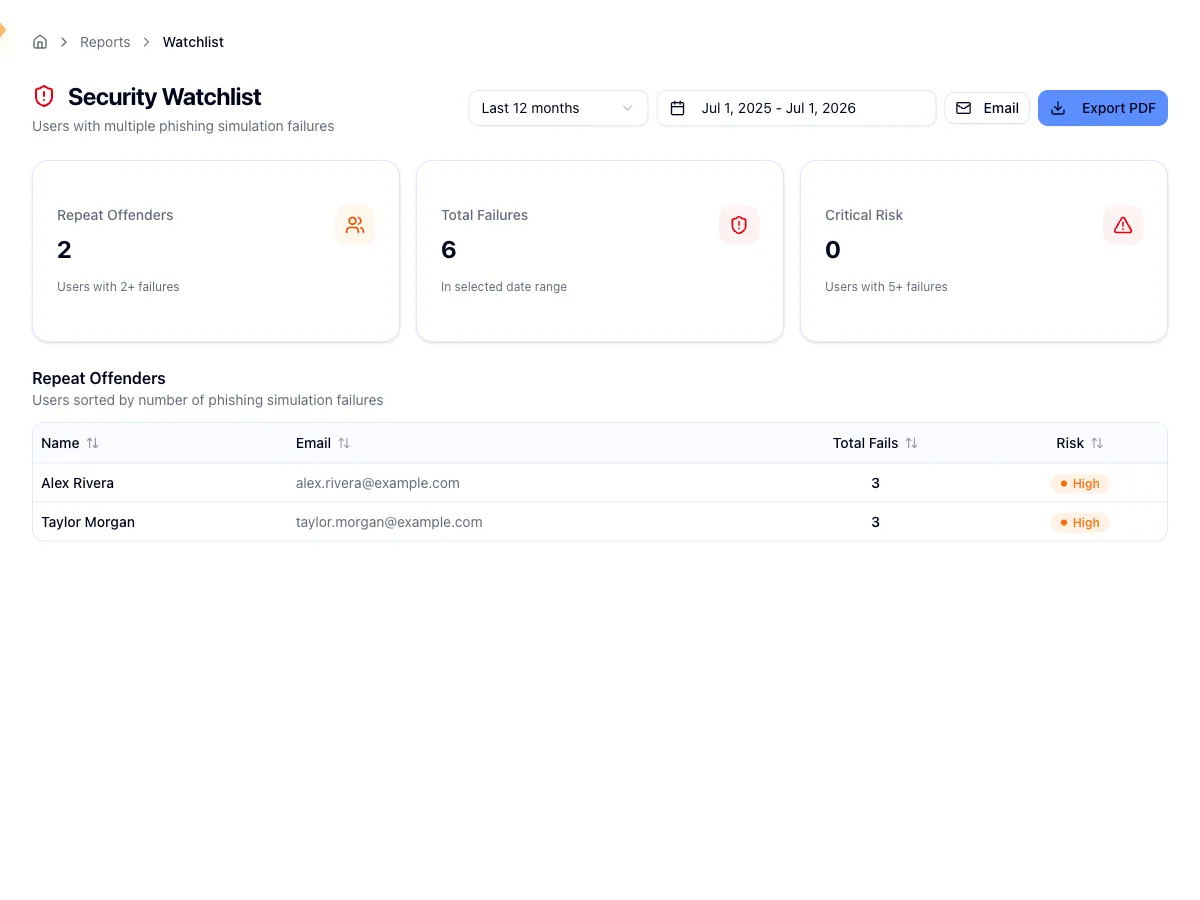
An empty table means nobody clicked twice in that window. That's a good result, not a broken report.
The rows don't link anywhere. To see one person's campaign-by-campaign history, look them up under User Management, or open the executive summary for the campaigns they appeared in.
To send it to someone else, use Email in the top right. Recipients get the same date window you're looking at.
What to do with the names
Assign more training. People with three or more fails are the obvious candidates. Group them and assign a focused course rather than enrolling people one at a time. See Assign training to groups.
Run a tougher simulation against just them. Build a group from the same people and send them a harder template. The follow-up tells you whether the training actually landed. See Run a phishing campaign.
Loop in a manager. If someone keeps showing five or more fails across two or three windows despite training, escalate.
Some roles will always rank high
People in HR, recruiting, finance, and executive assistant roles open attachments and click links all day because that is the job. They show up near the top of this list even when they are careful, so weigh a fail count against how much external mail that role handles before you act on it.
Before you draw conclusions
Check your date window first. The default 12 months mixes someone who failed three simulations last January and has been clean since with someone who failed three this quarter. Those two people need very different responses. If you want to know who is struggling right now, narrow the range to the last 90 days.
Related
Run the Security Awareness Snapshot
Pull a month of phishing and training results into one client-ready page, with a named list of everyone who still needs follow-up.
Run the Course Enrollment report
Measure completion for a single course, filter by group or status, and find the learners who are furthest past their due date.