
Assign training to groups
Use the enrollment wizard to put courses in front of groups or individuals, set due dates, and decide whether learners get an email.
You'll assign training after a simulation turns up a risky cohort, when new hires start, when compliance comes due, or when leadership wants everyone on a refreshed module. Each trip through the wizard creates one enrollment batch: a set of courses, a set of recipients, and a schedule for each course.
It goes faster if your people are already in groups, since the wizard targets groups first and named individuals second. If all you have is a flat user list, start with Sync users from Microsoft Entra.
Open the wizard
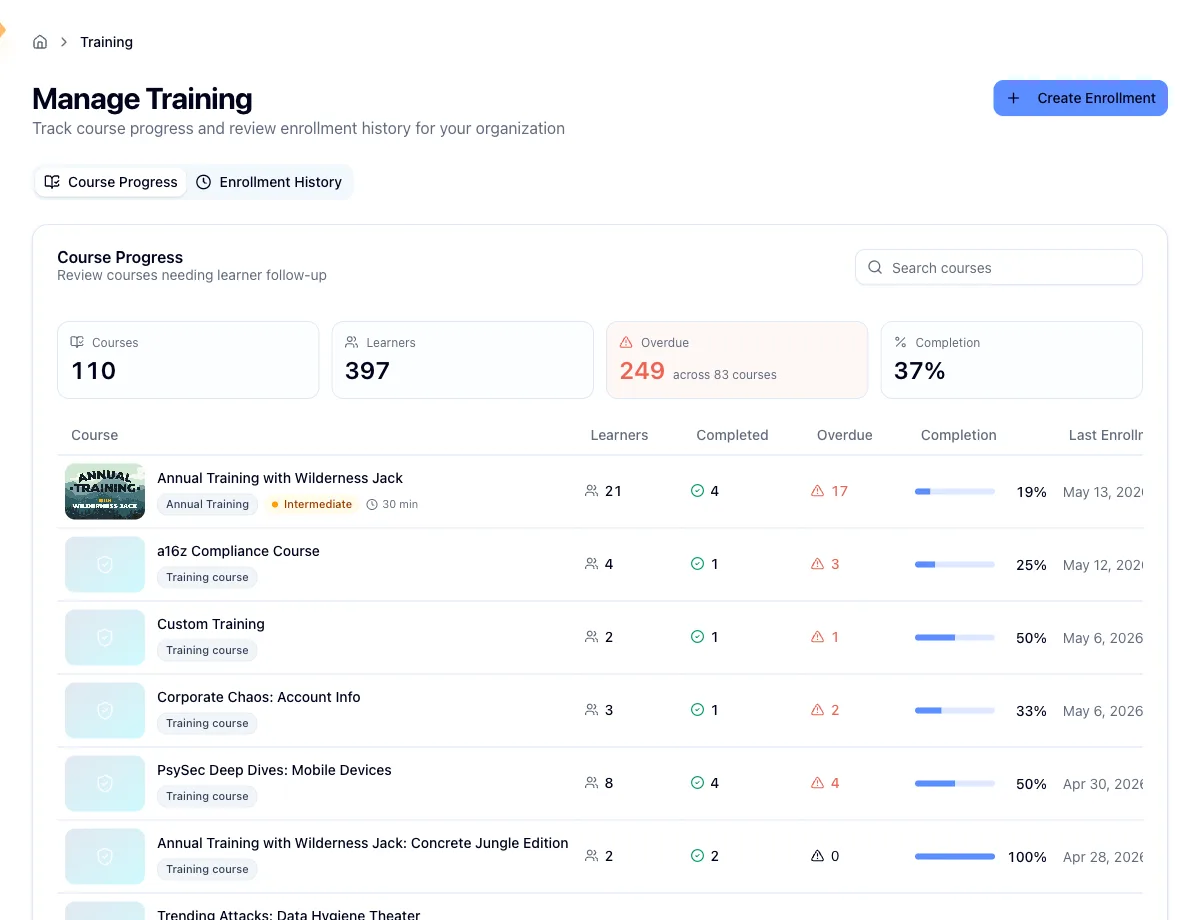
Open Training in the sidebar. The page is called Manage Training and opens on the Course Progress tab, with past batches on the Enrollment History tab beside it. Click Create Enrollment in the top right.
Select courses
Select Courses is where you search the library and click course tiles to add them, six to a page. A batch takes 1 to 12 courses, and they collect in the summary cart where you can drop any of them again. If you already built a selection in the training library, the wizard opens with those courses in place.
This step also has an optional Enrollment name, such as "September courses". The name appears in Enrollment History and on each batch detail page so you can tell submissions apart at a glance. Leave it blank and each batch shows its course name instead.
Choose recipients
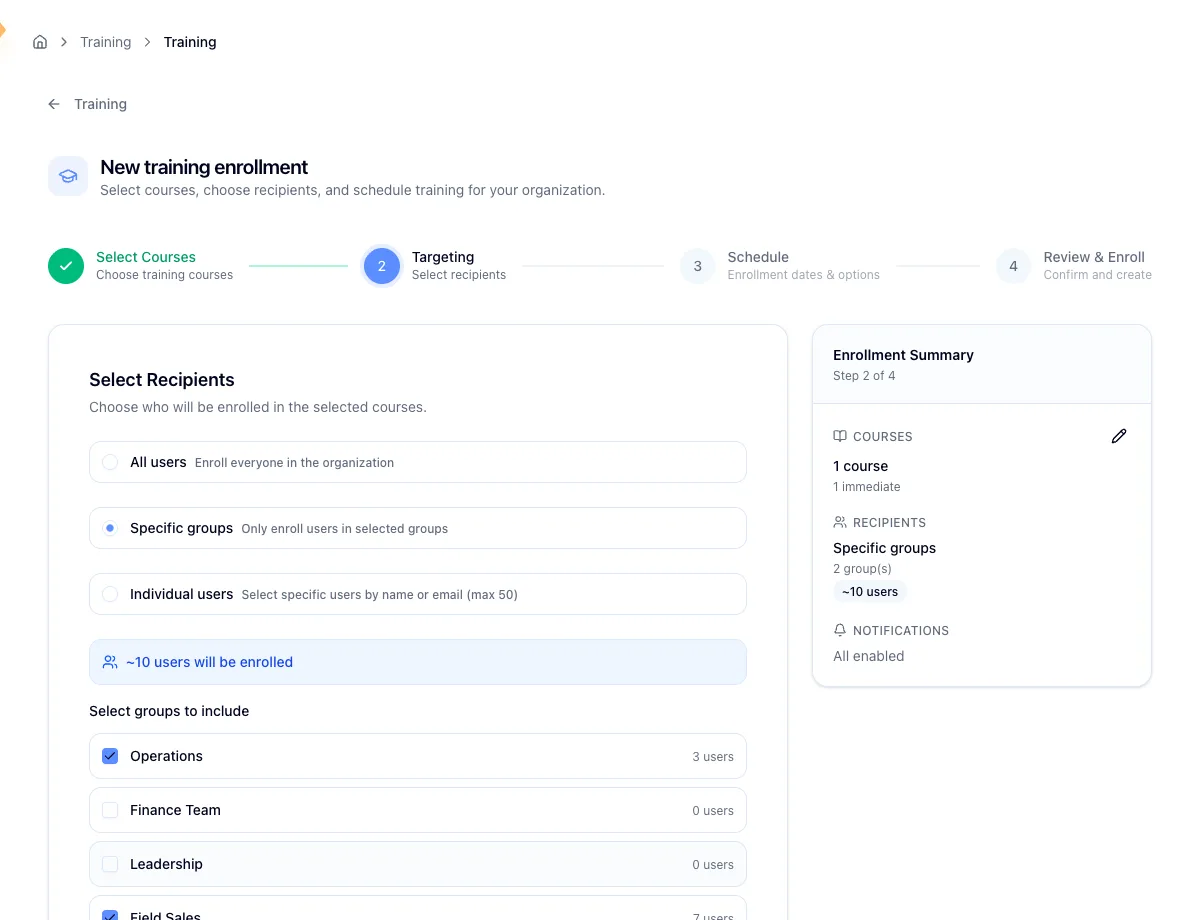
Targeting has three modes. All users takes every active user in the org. Specific groups lets you check up to 500 groups. Individual lets you search for named people, up to 50 in one batch.
There's no "everyone except" mode, so to leave a team out, target the groups you do want. The cart keeps an estimated user count as you go, which is your read on the size of the batch before you commit.
Set the schedule
Schedule gives every course a Start enrollment on date and a Learner due date. The due date defaults to 30 days after that course's own enroll date, and you can override either field on any row.
Two presets handle the common cases. All immediate enrolls every course as soon as you submit, still with a due date 30 days out. Monthly stagger pins the first course to the 1st of next month and spaces the rest a month apart, each one due 30 days after it enrolls. Stagger when you don't want to drop five modules on someone in the same week.
Below the dates sit two switches: one for the welcome email that goes to people getting a learner account for the first time, and one for the per-course enrollment email. Both are on by default, so learners will be emailed unless you turn them off.
Review and enroll
Review & Enroll plays your batch back to you: courses, recipient mode, estimated headcount, schedule, and notification choices. Submit, and Hook opens the batch detail page so you can watch each course land.
Learners are emailed by default
Both notification switches start on. If you're staging an assignment ahead of your own announcement, turn them off before you submit, because the mail goes out as soon as a course enrolls.
Re-enrolling someone is always allowed
Hook never blocks a repeat assignment, and there is no limit on how many times you can enroll the same person in the same course. If someone is already enrolled in a course you're assigning, they're quietly skipped instead of being enrolled twice, and the batch reports them as already covered.
So you can assign a refresher to a whole department without working out who took it last time. A batch aimed at 50 people where 12 already had the course simply reports 38 newly enrolled and 12 already covered.
After you submit
Immediate courses go to the training provider right away and flip to enrolled shortly after. Scheduled courses fire on their start date with no further action from you.
The batch detail page and the Enrollment History tab both track what happened, and that's where you edit or cancel anything still scheduled and retry a course that failed. See Review and manage enrollment batches. For completion rather than delivery, use the Course Progress tab.
Related
Browse the training library
Pick your courses first, then carry the selection into the wizard.
Review and manage enrollment batches
Confirm a batch landed, reschedule a future one, or retry a failure.
Track training progress and completion
See who has finished, who is behind, and who hasn't started.
Run a phishing campaign
The most common reason to assign follow-up training.
Browse the training library and build a course selection
Explore the course catalog, filter it down, preview what learners will see, and carry a selection of up to 12 courses into the enrollment wizard.
Track training progress and completion
Watch training land: see completion by course, find the learners who are behind, and export a roster for a manager.