
Monitor a live phishing campaign
Read the campaign detail page while a simulation runs, and tell the difference between real numbers and a provider hiccup.
Once a simulation is out, the campaign detail page is where you watch it land: how many emails went out, who opened, clicked, or reported, and how delivery is being paced. You'll live on this page for a day or two after a launch, and come back later when you need one person's activity before assigning follow-up training.
Open a campaign
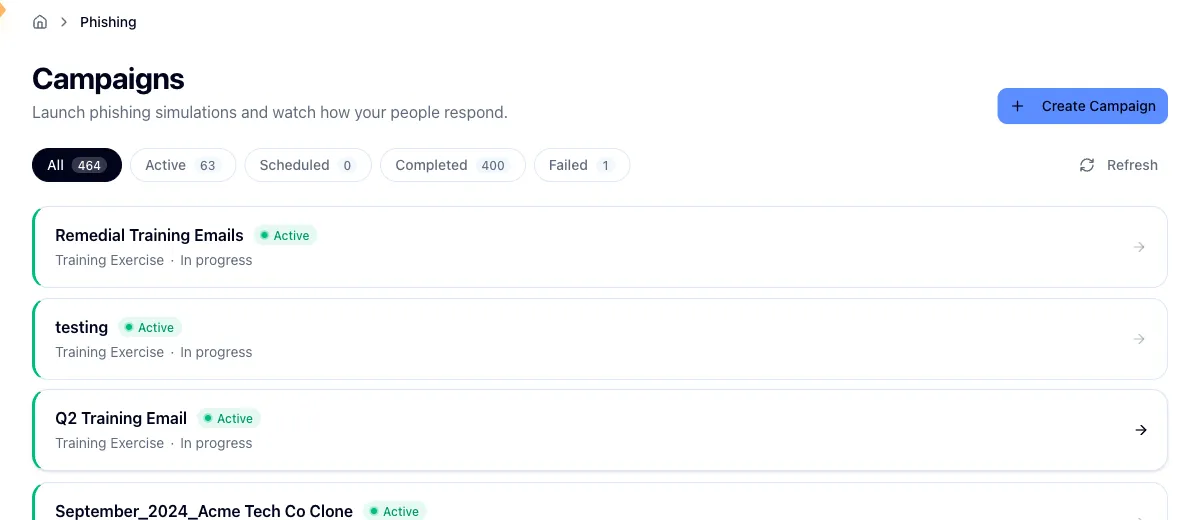
Open Simulations in the sidebar and click any row in the list. Depending on how your account is set up, you may also land here right after launching.
The status filters across the top carry counts. Those are org-wide totals, not a count of the rows currently on screen, so a filter reading higher than the page in front of you is normal. The list doesn't poll for changes either, so use Refresh if you just launched something and the status looks stale.
The page depends on where the campaign is
This is the part that surprises people. A campaign that is still setting up, or waiting for a scheduled send, shows no funnel and no engagement numbers at all. Not zeros: nothing. The funnel and the recipient rows appear once the campaign goes active, and they stay for completed and archived campaigns.
So a sparse-looking page an hour before a scheduled send is working correctly. Check the status pill in the header before you go hunting for a problem.
Read the engagement funnel
Five cards run across the top of a running campaign:
- Enrolled is how many recipients are attached to the campaign.
- Sent is how many messages the provider dispatched.
- Opened, Clicked, and Reported count people, not events. Someone who opens the same email five times still counts once.
Opened, clicked, and reported come from the delivery provider and are pulled fresh each time the page loads.
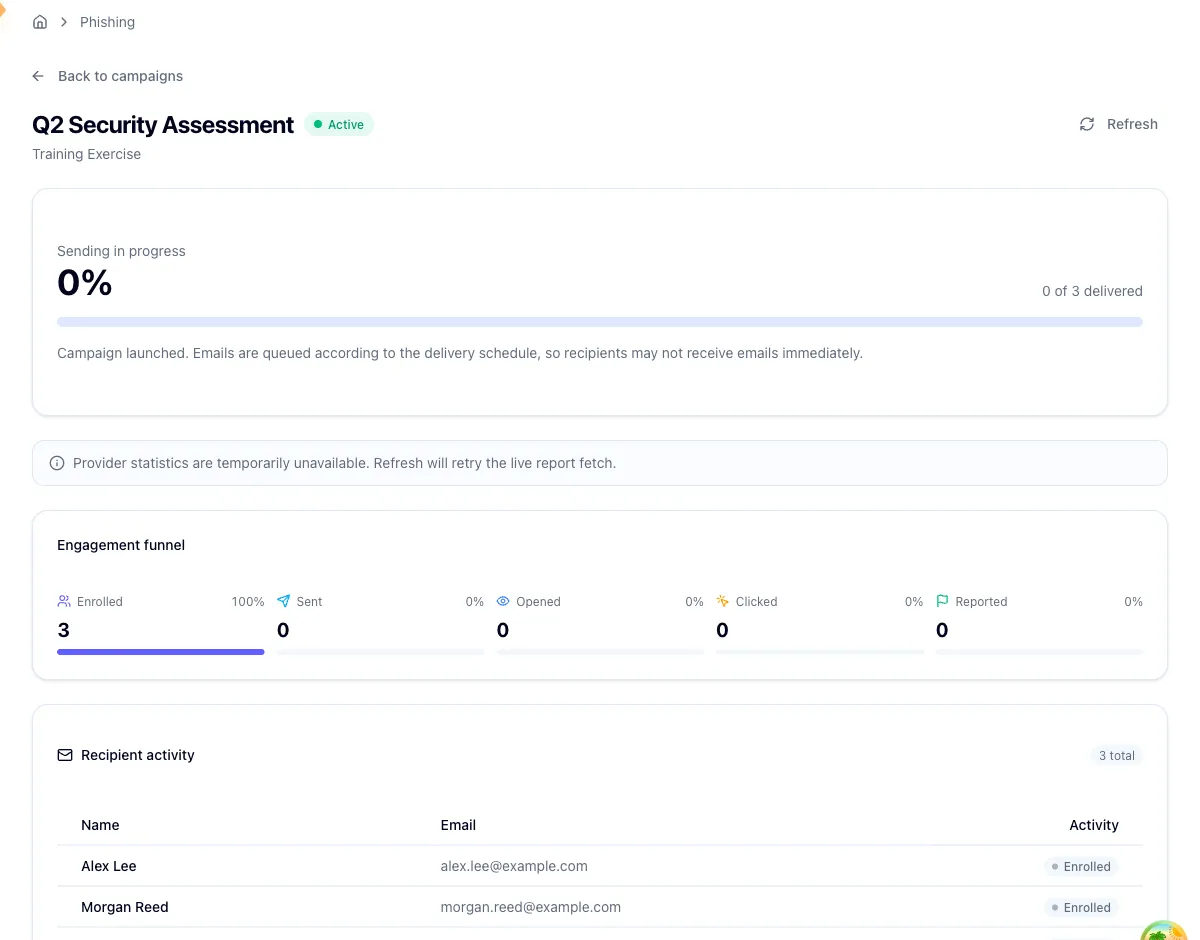
The gap between Sent and Opened tells you about delivery health. The gap between Clicked and Reported is the one that matters for your program: over successive campaigns you want reporting climbing faster than clicking.
Read the campaign details
Expand Campaign details for a flat list of roughly ten fields covering how the campaign was configured and how it's being delivered. Status isn't among them, because the pill in the header already carries it.
Three fields repay a closer read:
- Send mode says whether emails go out at campaign start or are spread across a number of days.
- Sending shows the hourly cap on an immediate send, up to 1,000 emails an hour, or the business-hours window on a spread send, Monday to Friday between 8:00 AM and 5:00 PM.
- Tracking is how long clicks and reports keep counting. The default is 3 days.
Audience always reads as configured at launch rather than naming the groups you picked, because the recipient mode isn't stored on the campaign. Your targeting was locked in when you launched and can't be changed here either way. The provider ID is the campaign's identifier on the delivery side, and it stays pending until the campaign finishes syncing.
Read recipient activity
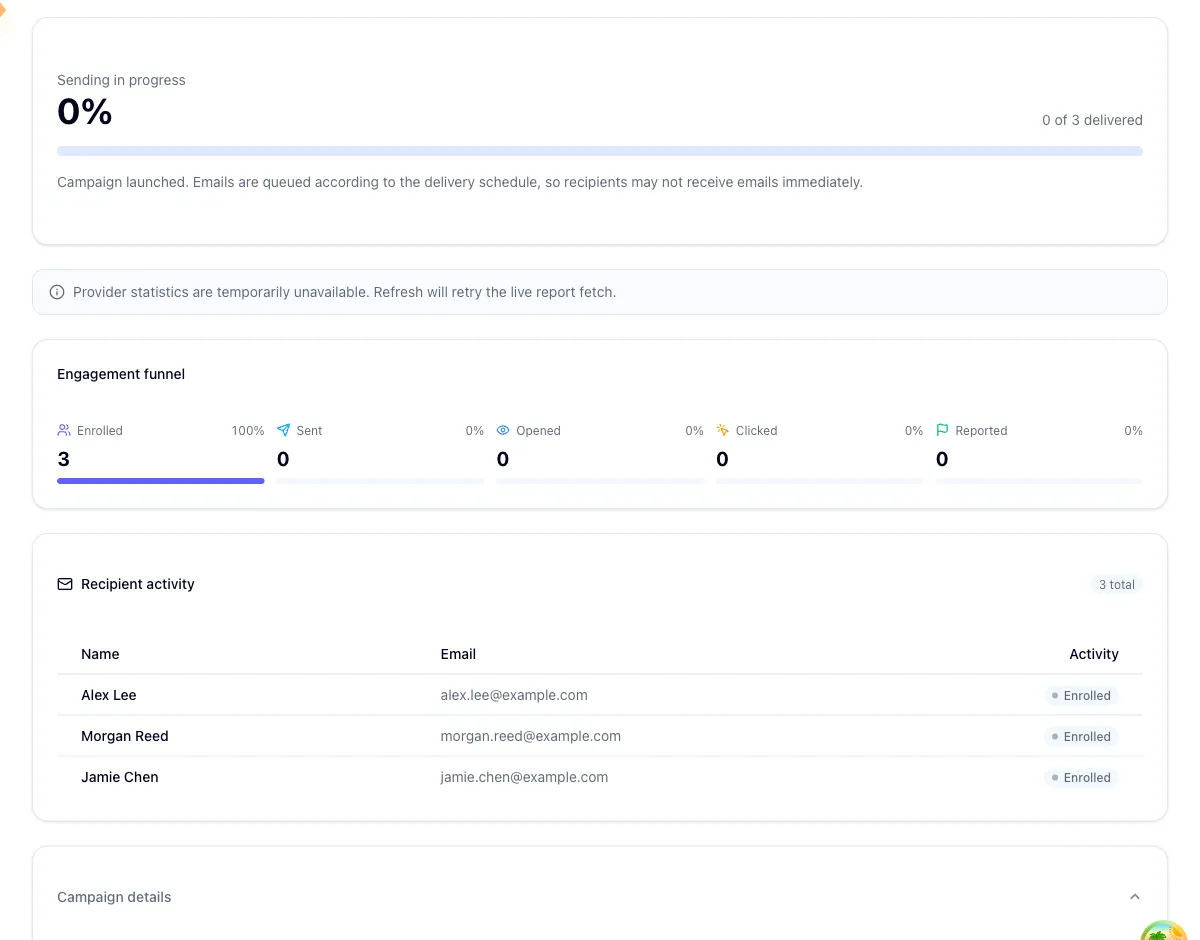
The Recipient activity card lists people with a badge showing the furthest action each one took: reported, clicked, opened, sent, or targeted. A count in the card header gives you the true total even when fewer rows are loaded.
When live provider data isn't available, Hook falls back to its own record. In that state the card loads the first 100 recipients only, and every badge reads as enrolled, because engagement is tracked on the provider side.
An empty card usually explains itself. Before a campaign executes there are no recipients to show yet, and a campaign that has recipients but no loaded rows tells you the individual list isn't available even though the totals are. For the complete picture across everyone, use the executive summary report.
Refresh, and what a zero really means
Nothing on this page auto-refreshes. What you see is a snapshot from when the page loaded. Refresh in the top right re-pulls the metrics and the recipient activity.
If Hook can't reach the delivery provider, a banner tells you provider statistics are temporarily unavailable and the numbers fall back to local values. Enrolled keeps its count while Sent, Opened, Clicked, and Reported all read zero, because those totals only exist on the provider side. That's the only banner this page shows. Refreshing retries the fetch, and a transient hiccup usually clears on the next attempt.
Counts dropping to zero means the fetch failed, not that activity was lost
Engagement data lives with the delivery provider, so a failed fetch empties the funnel without touching anything underneath it. Look for the unavailable banner and refresh in a minute. If clicks genuinely aren't being tracked, work through Troubleshoot phishing delivery.
When a campaign fails
A Failed status means the campaign never reached the delivery provider, so nothing went out. Depending on how your account is set up, you may see a Retry option on the campaign. If you don't, create a fresh one from Run a phishing campaign.
One more thing worth knowing: these pages are scoped to the organization you have selected. Open a link to a campaign belonging to a different org and Hook tells you it's unavailable rather than showing you another org's data. Check the org switcher before you assume a campaign was deleted.
Related
Run a phishing campaign
Launch a simulation through the four-step wizard, then land on this detail page.
Read the executive summary report
The full picture after a campaign closes: KPIs, key recommendations, and who needs follow-up training.
Review the security watchlist
Track repeat clickers across every campaign and target remediation.
Run a phishing campaign
Launch a simulated phishing email against your users, choose who gets it and when, and know what to expect after you hit launch.
Manage your phishing template library
Browse the phishing emails you can send, preview them the way a recipient will see them, and maintain the custom templates your org owns.