
Run the Test Summary report
Break one phishing test down into its funnel, from sent through delivered, opened, clicked, and reported, and decide whether the export names the people who clicked.
The Test Summary covers a single phishing test, meaning one send to one target group, and lays out that test's funnel: how many messages went out, how many were delivered, opened, clicked, and reported.
Reach for it when a campaign fanned out across several groups or repeated over time and you want to judge one send on its own. The executive summary rolls a whole campaign into one picture for leadership. This report answers a narrower question: how did this send, to this group, actually do?
Find the test
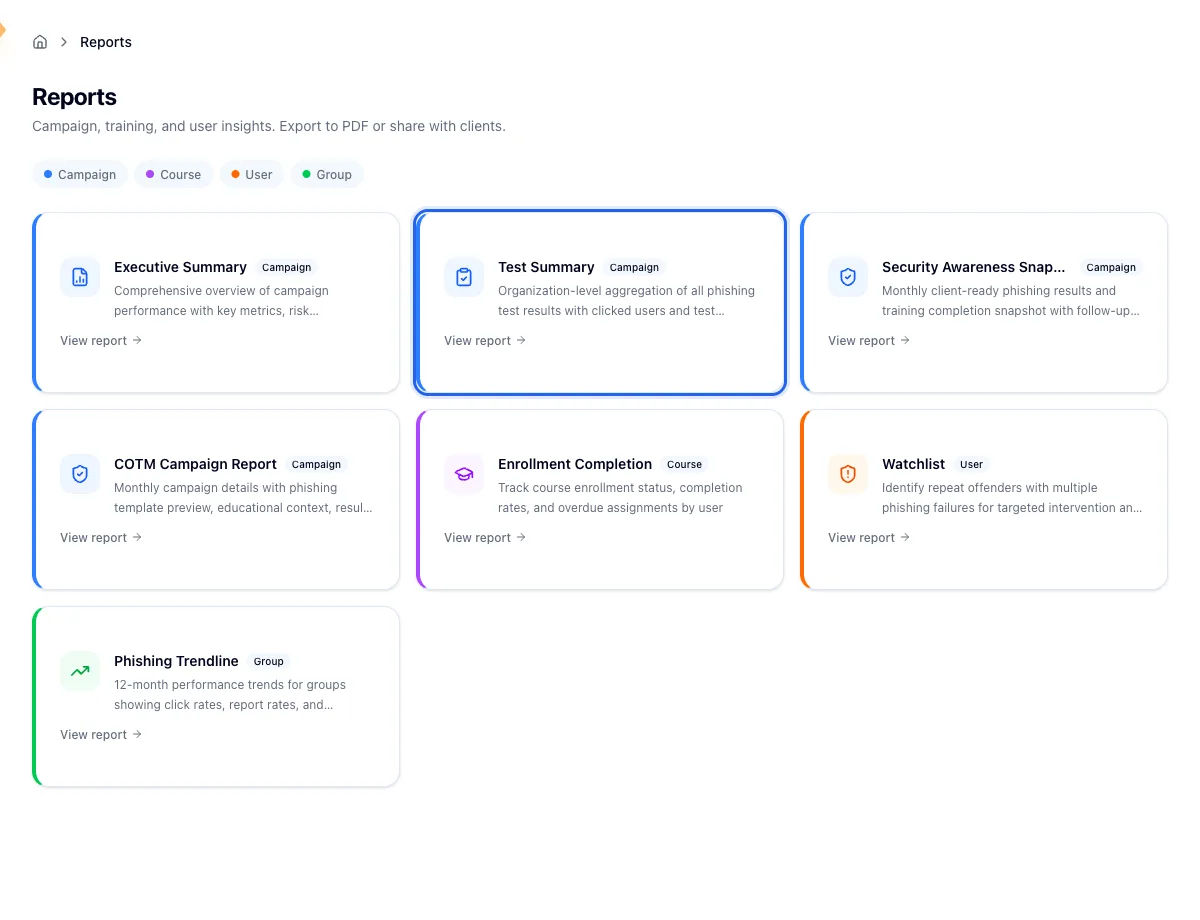
Open Reports in the sidebar and click Test Summary. Only tests under campaigns that reached the delivery provider are listed, so a draft that never launched has nothing to show here.
The picker groups every available test under its parent campaign, and each row carries the target group, the test ID, and the date the test started. If the list is long, the search box narrows it. Click a row to open that test.
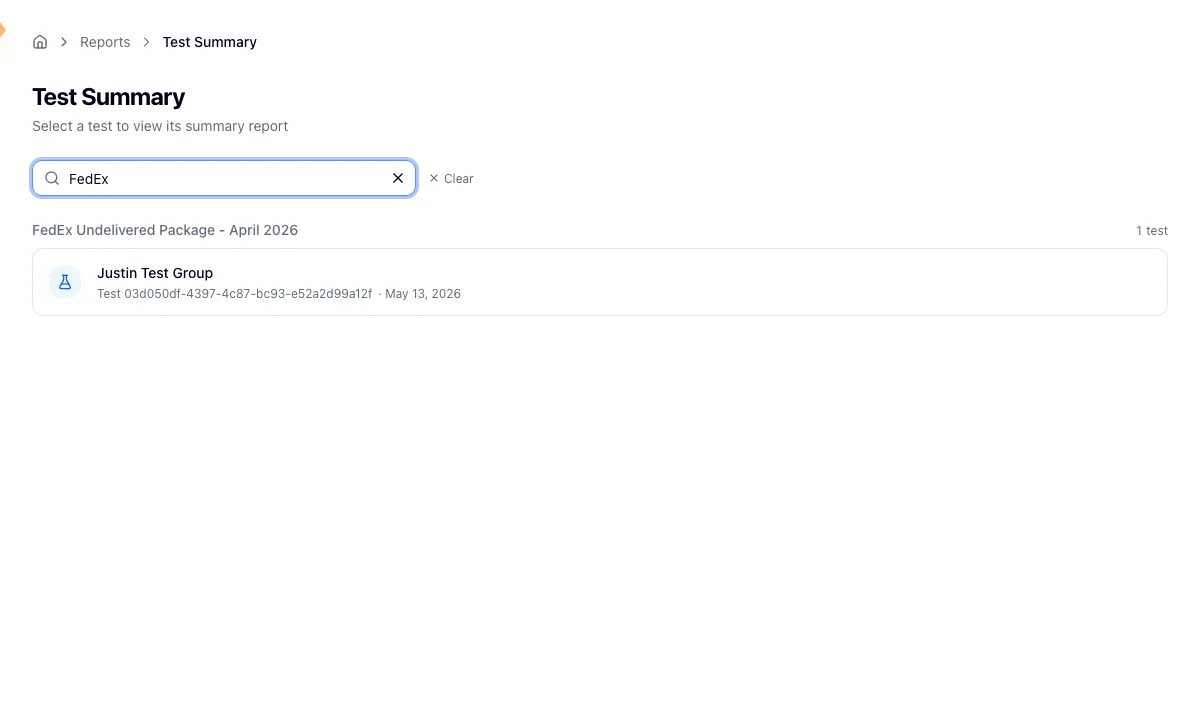
If a test you know you ran is missing, the campaign behind it probably never reached the provider. See Troubleshoot phishing delivery.
Read the numbers
The detail page is titled Campaign Test Summary and opens with five figures: Sent, Delivered, Opens, Click Rate, and Report Rate. Rates count unique people rather than raw events, so someone who clicks the same link three times still counts once.
Sent carries a subtitle telling you how big the target group was. Delivered takes out bounces and unsent messages and shows the delivery rate beneath it, and Opens shows the open rate with the unique count below.
Click Rate is the figure to watch. Hook highlights it once it passes 10 percent and flags it harder above 20 percent. Report Rate works in the opposite direction: it reads as a good result once more than half the group reported the email.
Metrics come live from the delivery provider and are cached for about a minute, so a click that just landed may not show until you reload. A large send can take a while to assemble, and Hook waits up to 95 seconds before it gives up and asks you to retry. Reloading almost always works the second time.
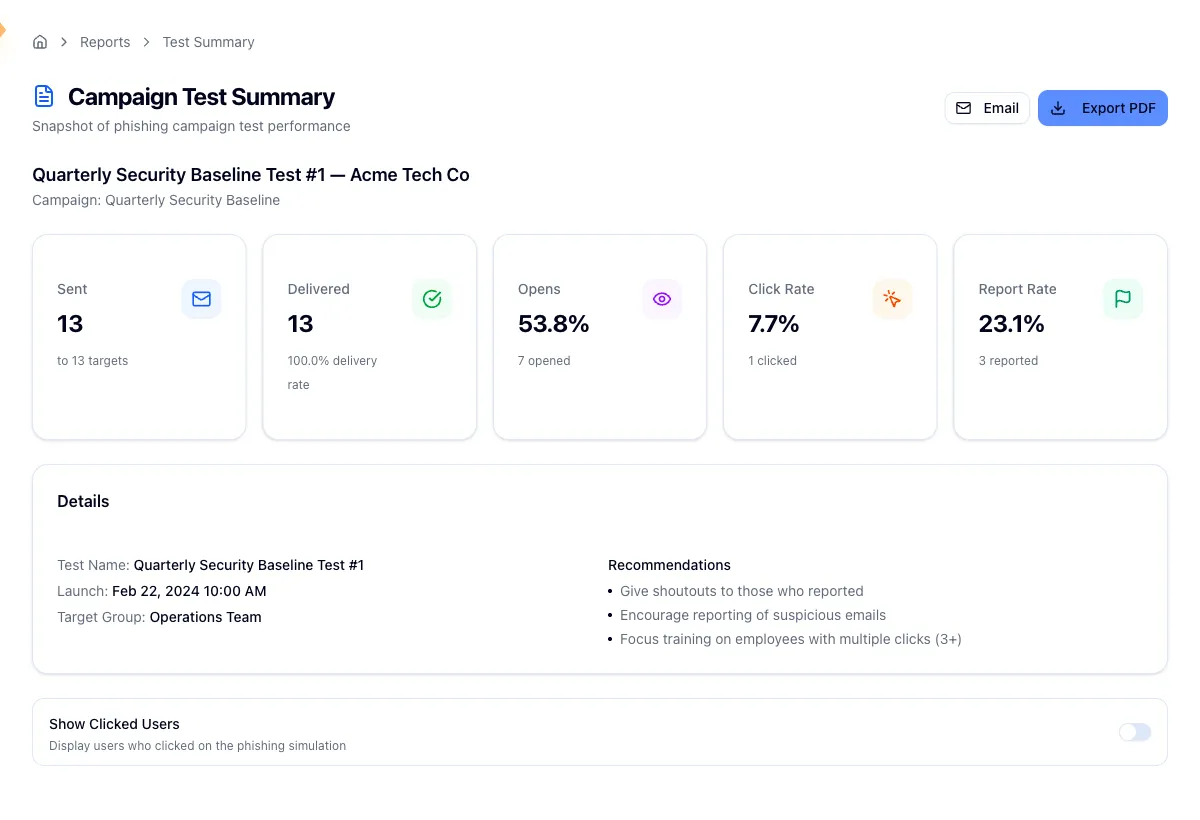
Below the figures, a Details card restates the test name, launch date, and target group. Next to it, a Recommendations list offers three prompts: thank the people who reported, encourage reporting generally, and focus training on anyone with several clicks. Those three are fixed and appear on every test, so if you want advice shaped by this test's actual numbers, read the executive summary instead.
Name the people who clicked
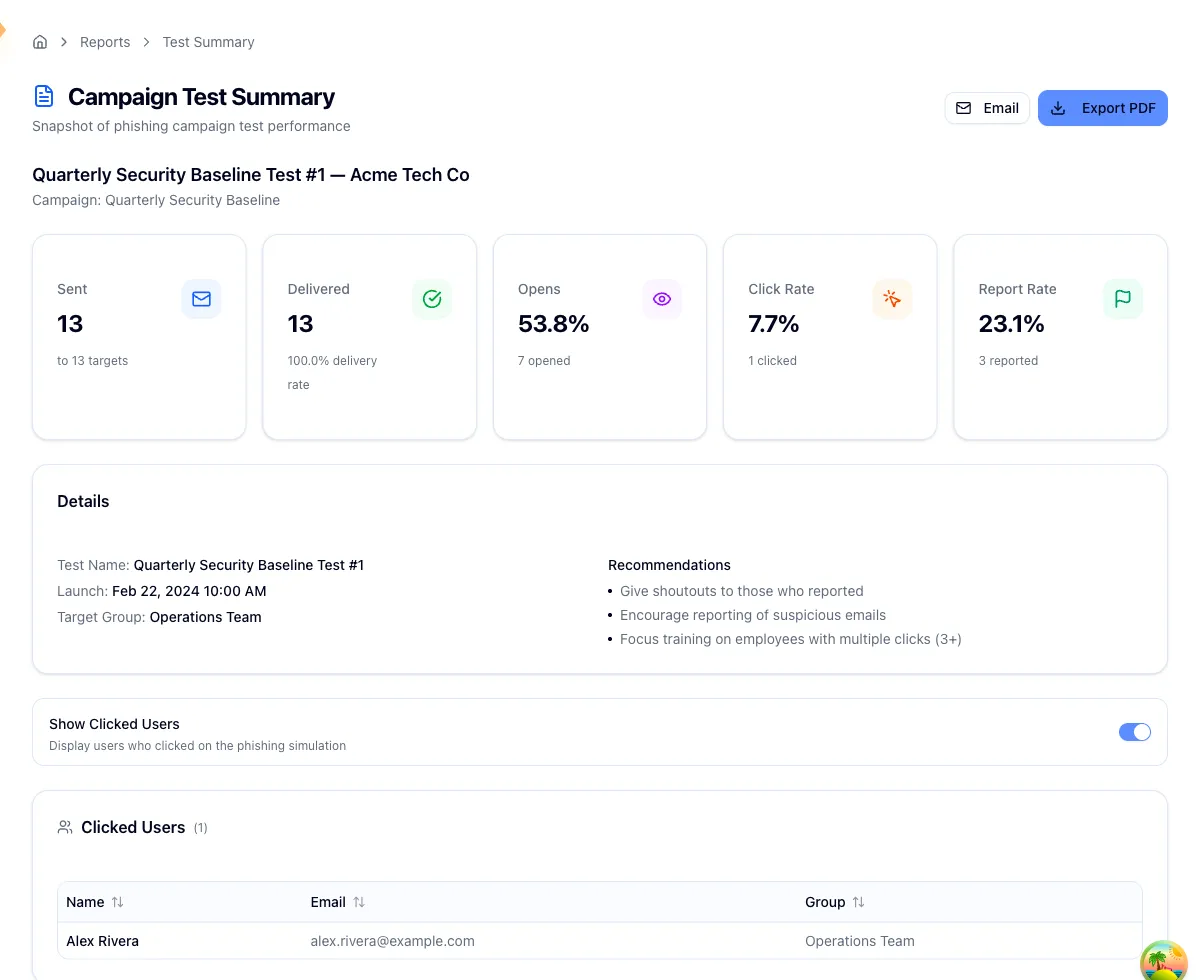
The report is aggregate by default. Turn on Show Clicked Users and Hook loads a read-only table of everyone who clicked or otherwise failed the test, with each person's name, email, and group.
Set the switch before you export
Whatever Show Clicked Users is set to at the moment you export carries into both the PDF and the emailed copy, where the clicker list becomes its own page. Turn it on when you want names in the file. Leave it off when the report is going somewhere wide.
Share it
Export PDF downloads the report. Email opens a dialog where you pick recipients from your organization, and Hook sends them the same report as a PDF attachment. Both are built server side from the data on screen, so they match what you're looking at.
Related
Read the executive summary report
Roll a whole campaign into one picture, with recommendations drawn from its numbers.
Monitor a live phishing campaign
Watch sends, opens, clicks, and reports while a campaign is still in flight.
Run the security awareness snapshot
See phishing and training results for a whole month in one place.
Read the executive summary report
Open, interpret, and share the executive summary for a phishing campaign so leadership sees the results and your team knows what to do next.
Run the Security Awareness Snapshot
Pull a month of phishing and training results into one client-ready page, with a named list of everyone who still needs follow-up.