
Safelist Hook's sending domains and IPs
Give your IT or mail team the sender domains and sending IPs to allowlist so phishing simulations reach real inboxes instead of quarantine.
Your email security stack has to be told to let Hook's simulations through. If your gateway, spam filter, or firewall blocks or quarantines them, your users never see the test and your open, click, and report numbers come back artificially clean, overstating how well your users are actually doing.
Safelisting, also called allowlisting or whitelisting, is how you prevent that. You hand your IT or mail team the exact sender domains and sending IPs to trust. Do it once before your first real campaign, and again any time you start using a template that sends from a new domain.
You'll need whoever administers your email security. They make the changes, you supply the values. It also helps to know which template you're sending, because sender domains are set per template.
What you're handing to IT
There are two pieces, and they behave differently.
The Hook IP addresses
These are fixed. The same eight addresses cover every simulation, manual or Autopilot, across mail delivery, landing page assets, and portal infrastructure.
| IP address | Purpose |
|---|---|
64.191.166.196 | Phishing email server (US) |
64.191.166.197 | Training email server |
64.191.166.198 | Landing pages and image assets (US) |
198.61.254.6 | Transactional email server |
54.80.160.189 | Portal server (US) |
54.88.246.212 | School/training portal (US) |
54.240.70.101 | Transactional email server |
54.240.70.102 | Transactional email server |
The sender domain
This one moves. Each template sends from its own domain, so there's no global domain list to hand over. Hook surfaces the relevant domain in the campaign wizard, where you can read it off for the exact template you're about to send.
Copy the live values out of the app, not out of this page
The addresses above are accurate as of this article's date, but the values shown in the product are the source of truth. Copying from the wizard or the previews card rather than transcribing from documentation means you'll catch a change without having to wonder whether the doc is stale.
Where to find the values
In the campaign wizard, for manual campaigns
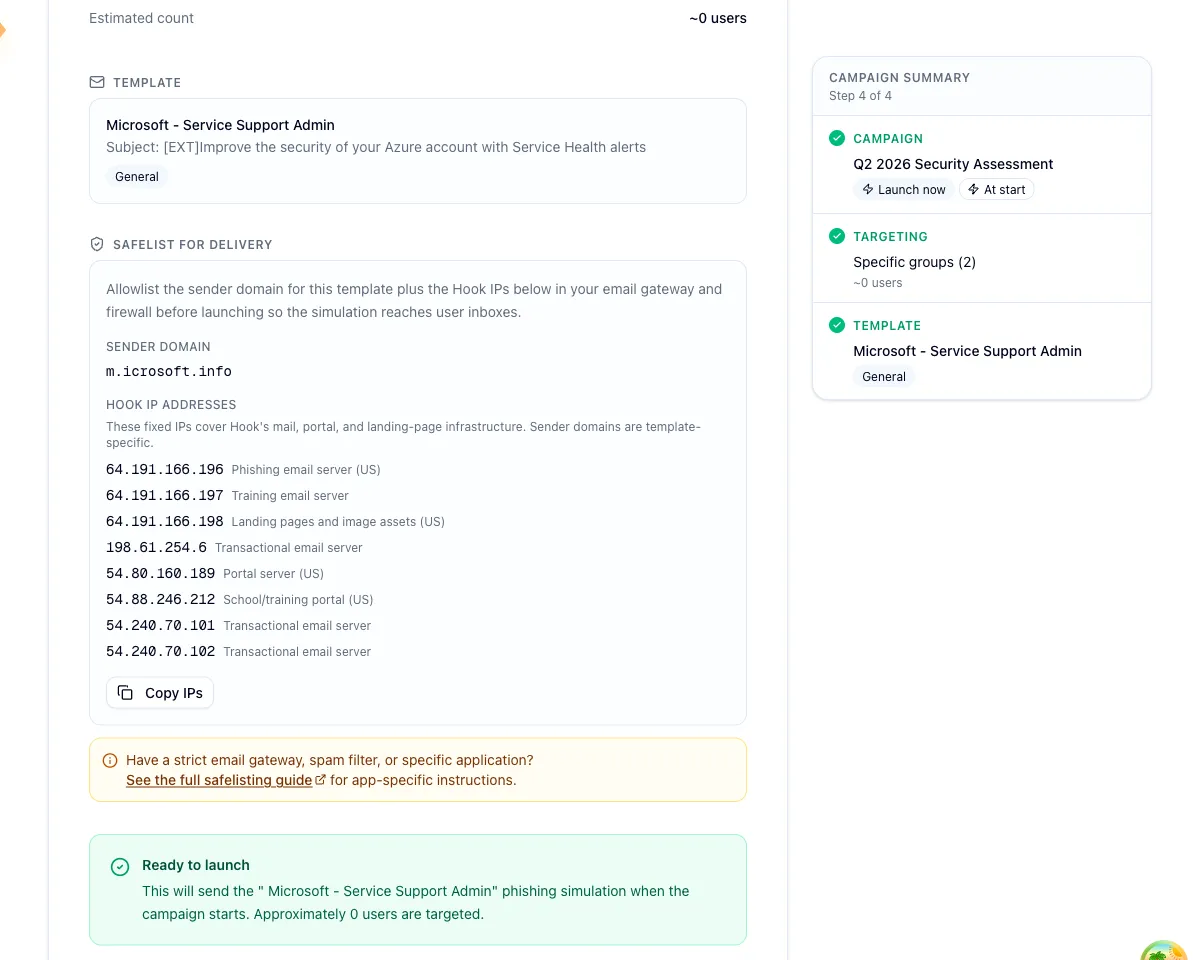
On the wizard's final step, Review and Launch, a panel headed Safelist for delivery gives you both pieces for the campaign you're about to send, and tells you to get them allowlisted in your gateway and firewall before you launch.
The sender domain shown is the one for the template you selected. If no domain resolves, the field shows a dash instead. Below it sit the eight Hook IP addresses, each with a short label saying what it's for, and a Copy IPs button that puts them on your clipboard as a comma separated list. That button takes the IPs only, so grab the domain separately. There's also a link to the full safelisting guide, which opens in a new tab. Point your IT team at it if they run a strict gateway, spam filter, or a mail security product that needs app-specific steps.
In Autopilot Campaign Previews
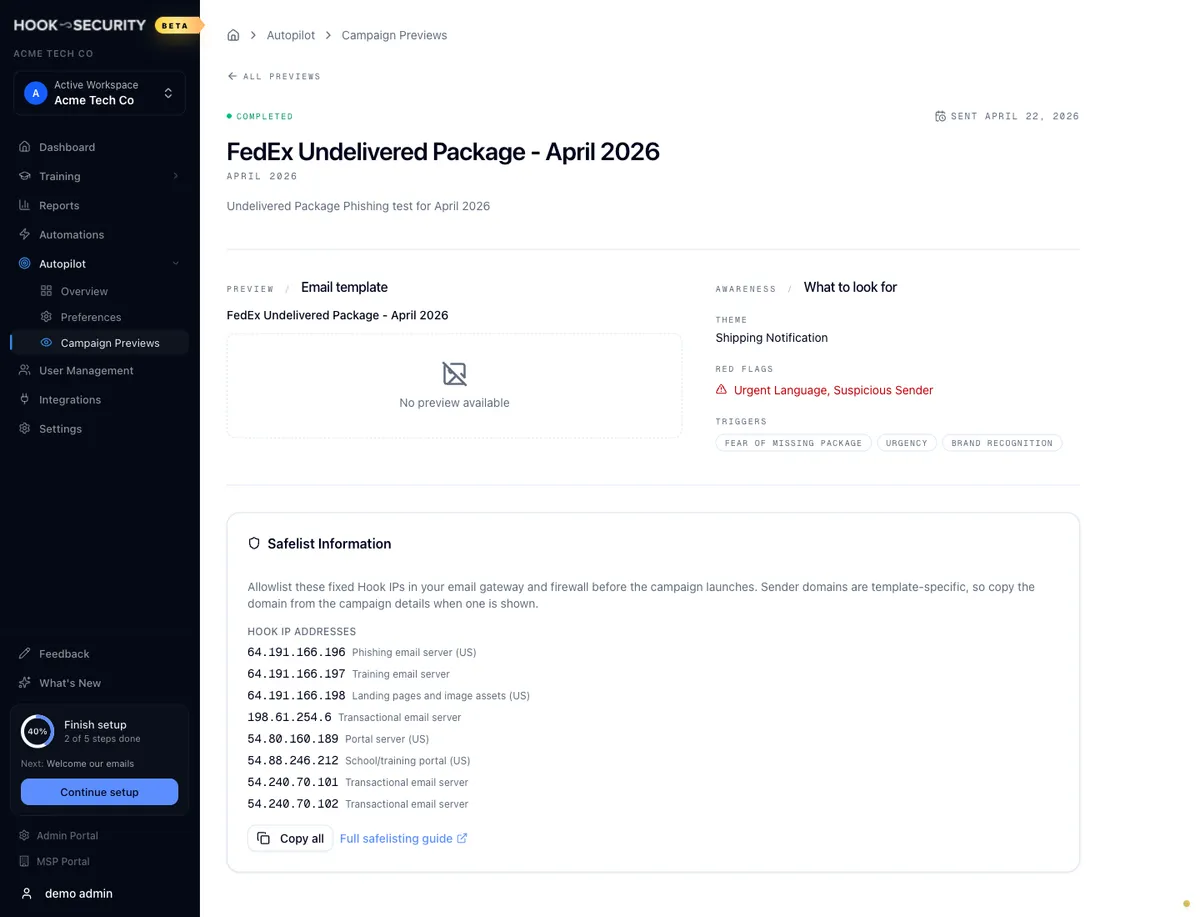
If you run an Autopilot program, the Campaign Previews page carries a Safelist Information card asking you to allowlist the listed domains and IPs in your gateway and firewall before the campaign launches. Its Copy all button copies everything as one labelled block, ready to paste into a ticket.
The card shows the same eight sending IPs. It has slots for domains too, but that static list ships empty, for the reason above: sender domains are per template and are surfaced in the wizard instead.
Make the handoff
Gather the values for what you're sending
Open the Review and Launch step for a manual campaign, or the Campaign Previews safelist card for Autopilot. Copy the sending IPs and note the sender domain shown for your template.
Send both to your IT or mail team
Ask them to allowlist the IPs and the sender domains in every layer that filters inbound mail: the email gateway, the spam filter, and the firewall. If they run a strict gateway or a specific mail security product, point them at the full safelisting guide linked from the wizard.
Confirm before you go live
Get confirmation that the changes are in place before your first real campaign, or before an Autopilot program starts sending. The cheapest check is a pilot to yourself and a couple of teammates. If it lands in the inbox rather than junk or quarantine, you're set.
Safelisting is not recipient domain authorization
These two are easy to conflate, and you generally need both.
Safelisting, this article, is something your IT team does on your infrastructure: telling your gateway and firewall to trust Hook's sending IPs and sender domains so simulations arrive.
Recipient domain authorization is something you do inside Hook, to prove you're allowed to send simulations to your users' email domains. It's covered in Authorize recipient domains.
Doing one does not do the other.
When it still doesn't work
The most common miss is copying the IPs and forgetting the domain, since the wizard's copy button only takes the IPs. The second is assuming one safelisting covers every template forever. The IPs stay constant, but a template that sends from a new domain needs that domain allowlisted too.
If messages are delivered but filtered into junk, or aren't arriving at all, work through Troubleshoot phishing delivery.
Confirm delivery with a pilot before you read any campaign as a real signal.
Related
Run a phishing campaign
Launch a simulation through the four-step wizard, where the safelist panel lives on the final step.
View campaign previews
See the Autopilot Campaign Previews page and its safelist card before a program goes live.
Authorize recipient domains
The separate step that approves your users' email domains so Hook can send to them.
Troubleshoot phishing delivery
Diagnose simulations that get blocked, filtered, or never arrive.
Manage your phishing template library
Browse the phishing emails you can send, preview them the way a recipient will see them, and maintain the custom templates your org owns.
Deploy the Hook Report button
Give your employees a one-click Report button in Outlook that recognizes Hook simulations and sends everything else to your security team.