
Run the Autopilot (COTM) Campaign report
Build a client-ready write-up of a managed Campaign of the Month simulation, with results, the email your users saw, the training video, and an optional list of who clicked.
The Autopilot Campaign of the Month (COTM) report turns one managed monthly simulation into something you can hand to an exec sponsor or a client without editing it first. It puts the reasoning behind the lure next to the numbers.
You'll run it after a monthly Autopilot campaign finishes, when someone wants to see exactly what was sent and how the team handled it. If you need a campaign-by-campaign picture instead, the executive summary is the better fit.
Open the report
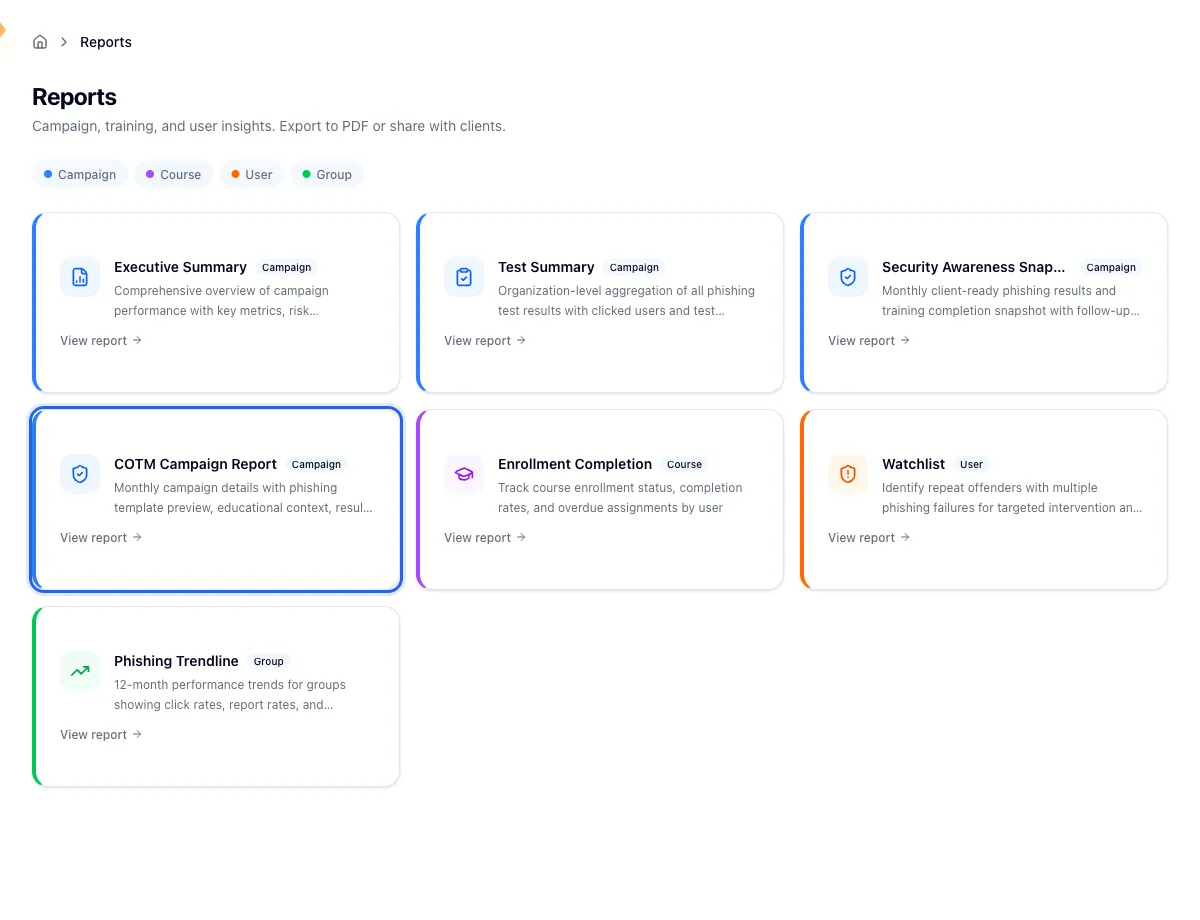
Go to Reports and click the COTM Campaign Report card. That card only appears when Autopilot is enabled for the organization you have selected, so if it's missing, check the org switcher first, then see Understand and set up Autopilot.
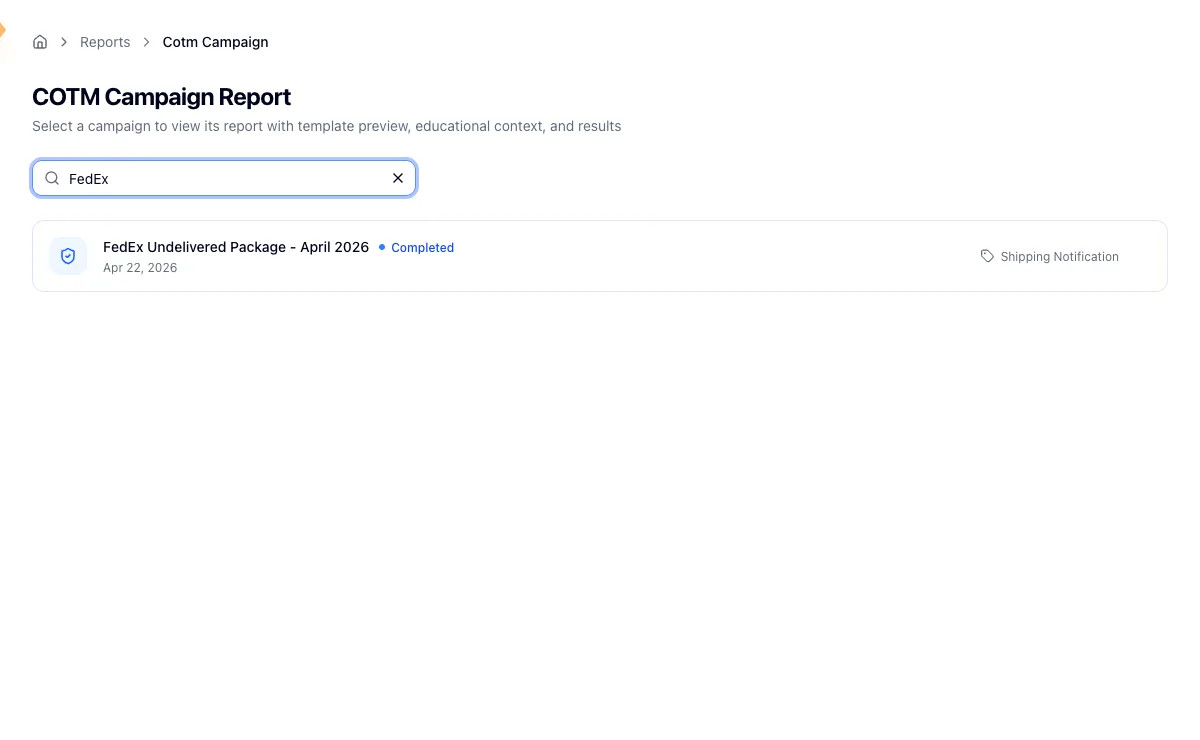
You land on a picker rather than a report, because Hook needs to know which campaign you mean before it renders anything. The picker lists the Autopilot campaigns that completed successfully for this organization, each with a completed status, the scheduled date, and a theme tag where the campaign had one. Campaigns that failed to send, and campaigns that ran for a different organization, aren't listed. Type in the search box to filter by campaign name or theme, then click a row. An empty picker means no Autopilot campaign has finished for this org yet.
Read the report
Results summary
Four tiles open the report: Emails Sent, Clicked, Reported, and Click Rate. Click Rate is banded so it reads at a glance, green at 5 percent or under, amber up to 15 percent, and red above that.
Read the reported count next to the click count. A month with a high click count and a high report count means people spotted the lure and flagged it, which is a different result from a month where neither number moved.
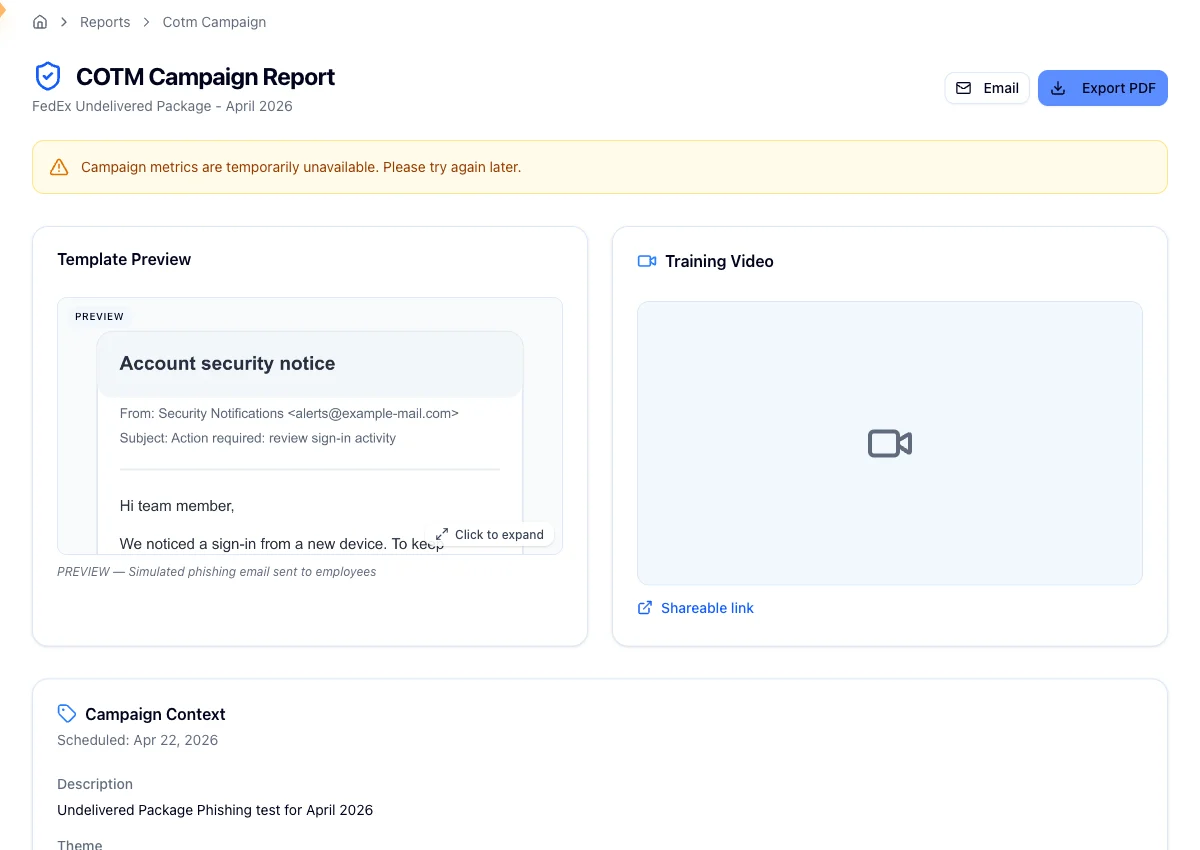
If Hook can't reach the delivery provider, the tiles are replaced by a short notice that the numbers are temporarily unavailable. The rest of the report still renders, so reload later and only the results section will change.
Template preview and training video
The report shows a preview of the simulated email your users received, labelled clearly as a simulation, beside the follow-up training clip for that theme. YouTube and Vimeo videos play in place. Anything else shows a placeholder, and either way there's a shareable link below that opens the video in a new tab. The video card only appears when the campaign has one.
Campaign context and group participation
Campaign context is the educational "why" behind the lure: the scheduled date, an optional description, the theme, the psychological triggers the email leaned on, and the red flags that should have given it away. It's read-only and comes from the campaign definition, so it's the same story every recipient could have been told afterwards.
Group participation lists every group that was in scope, whether it was included or skipped, and the reason for any skip. A line above the table tells you how many of those groups actually took part.
Choose what goes into the export
Two controls change what the exported report contains, and neither is saved. They apply to the file you generate right now and reset when you reload.
Users who Clicked starts hidden, which keeps the report shareable without naming anyone. Switch it to visible and Hook fetches the name and email of each person who clicked.
Notes is a free text box for your own commentary, context for the client, next steps, whatever belongs on the report. It caps at 2,000 characters with a live counter. The note rides along in the PDF and the email, but nothing is stored, so keep a copy elsewhere if you'll want it again next month.
Click Update PDF before you download
Adding a note or revealing the clicked users puts an Update PDF button in the report header. Until you click it, the downloaded file is still the last version Hook generated, without your changes. Make your edits, click Update PDF, then Export PDF. Emailing the report rebuilds the file at send time, so that path always reflects what's on screen.
Download or email it
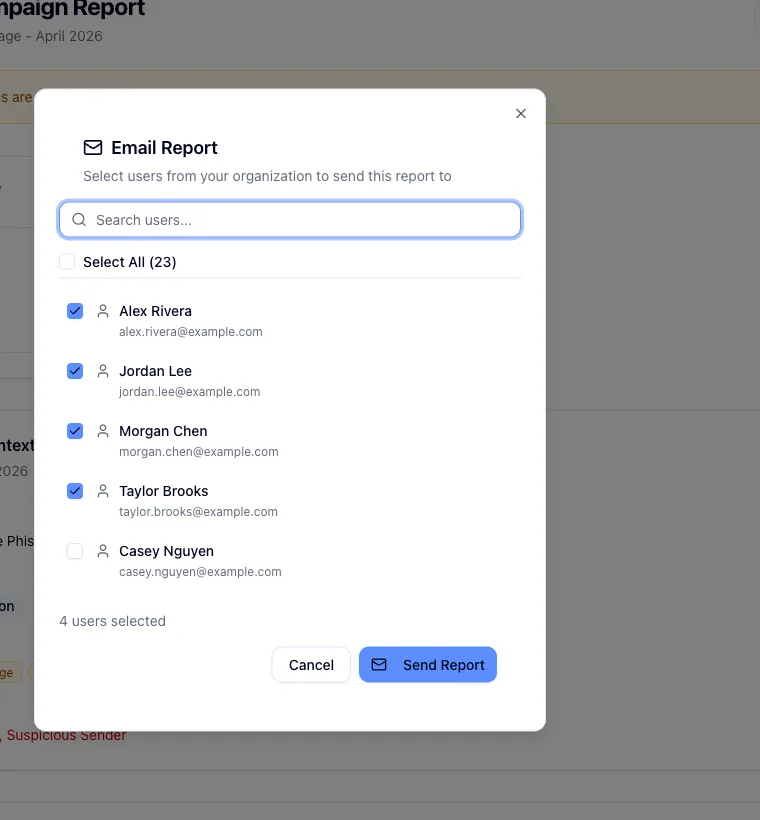
Export PDF downloads the report for offline sharing. Email opens a dialog listing your organization's users, where you can search, tick recipients or select everyone, and send. Hook generates the PDF and attaches it to the message.
You can send to at most 100 recipients at once, and Hook only sends to users it can verify in the organization the report belongs to. Selecting more than 100 gets the send rejected rather than trimmed.
Related
Understand and set up Autopilot
Turn on monthly simulations and set how often they run and who they reach.
View campaign previews
See the template, theme, and training behind upcoming and past monthly simulations.
Read the executive summary report
Make sense of the KPIs, key recommendations, and who needs follow-up training after a campaign closes.
Run the Group Performance (Phishing Trendline) report
Track one group's phishing resistance month by month, with a trendline, best and worst month callouts, and a sortable monthly breakdown.
Automate report delivery
Schedule a report to be generated and emailed to the people who need it, on a repeating cadence, so you stop forwarding PDFs by hand.