
Core concepts: the building blocks of Hook
What organizations, users, groups, campaigns, templates, courses, enrollments, reports, the watchlist, autopilot, and directory sync mean in Hook.
Hook runs on a small vocabulary. A campaign is built from a template and aimed at groups of users. An enrollment assigns courses to those same people. Reports and the watchlist read the results back out, and autopilot repeats the loop on a schedule.
Read this page when a word in another guide is unfamiliar, then follow the link to the how-to.
Organization
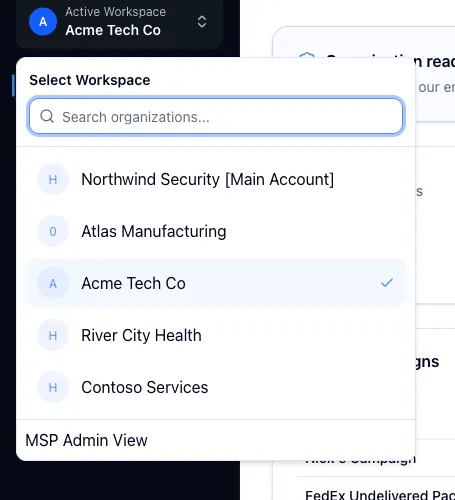
Everything belongs to an organization: users, groups, campaigns, templates, enrollments, and reports. Almost every screen shows data for the one organization you currently have selected.
Organizations nest. A managed service provider (MSP) is an organization with client organizations underneath it. If you administer more than one, the workspace switcher at the top of the sidebar is how you move between them, and what's on screen always follows your selection.
Users and groups
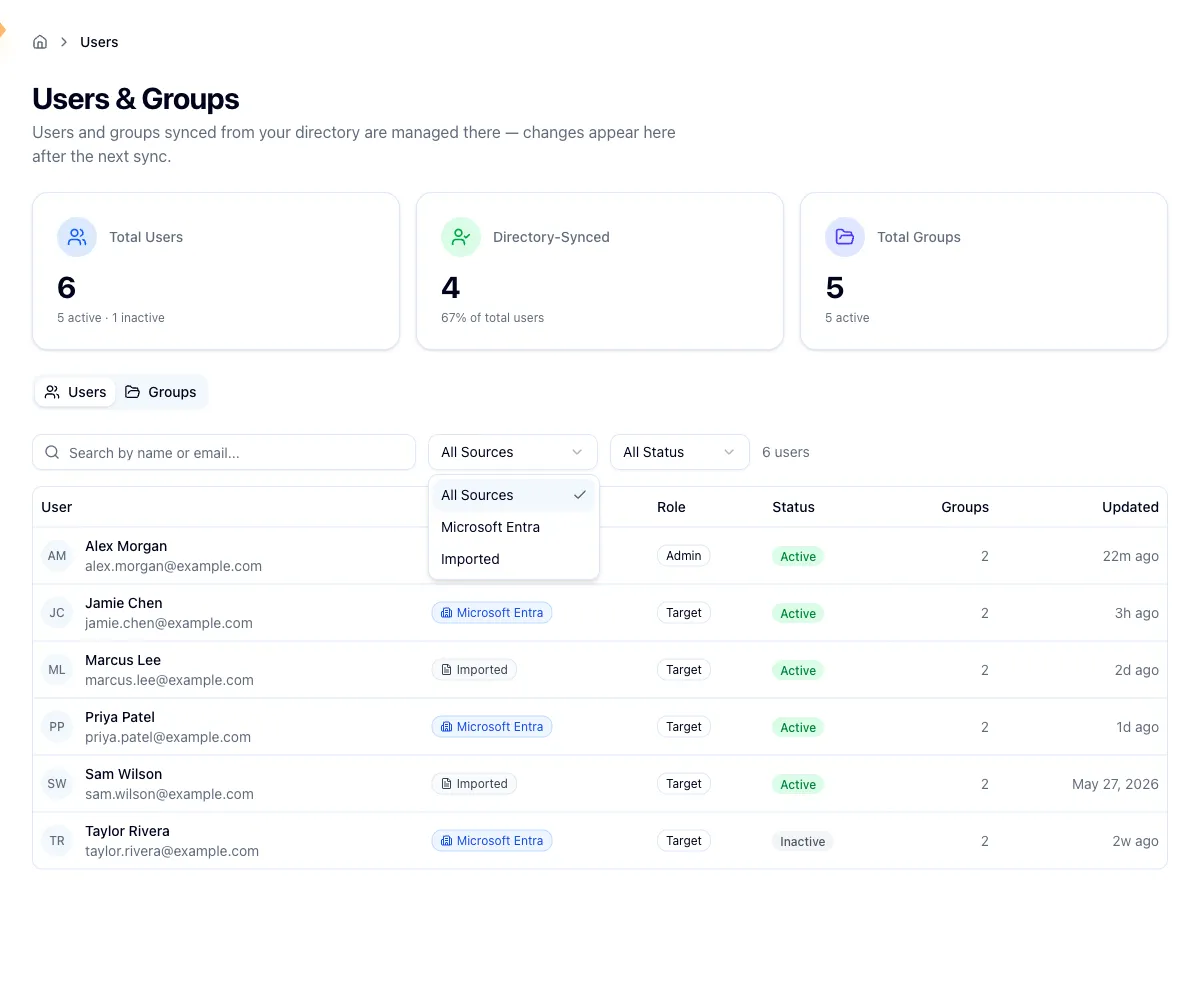
A user is one person you can send a simulation to or enroll in training. A group is a named set of users, usually a department, location, or role. Groups are how you target almost everything in Hook.
Both are read-only in the portal. They arrive either through directory sync, the recommended way to keep your roster current, or as records imported from your existing Hook environment. Groups can also be maintained manually or by Hook itself. You can search, filter, and open any record to see members and memberships, but there are no add, edit, or delete controls.
So you change people where they originate. Edit a synced user or group in Microsoft Entra and the next sync reconciles it. Deactivating someone at the source is what takes them out of future campaigns and enrollments.
Campaign and template
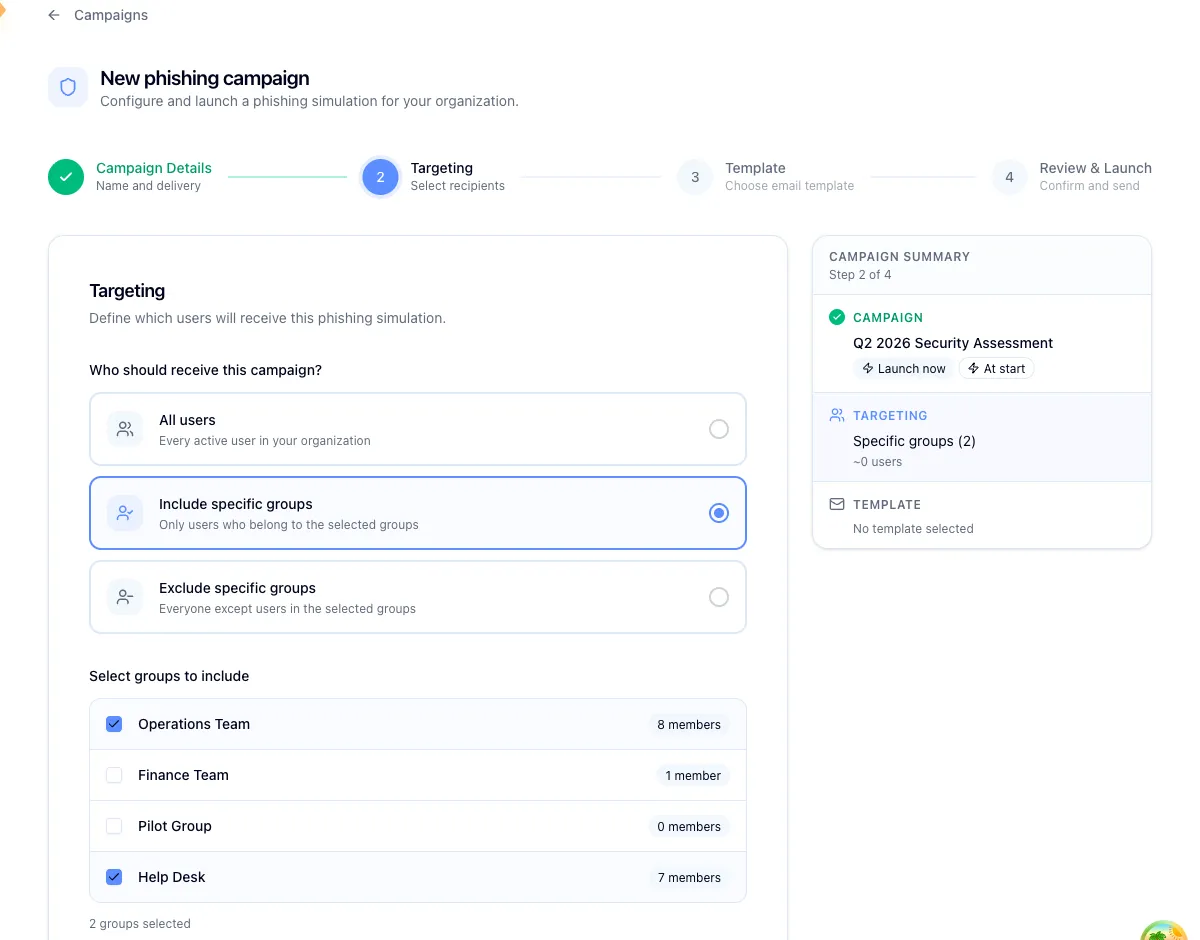
A campaign is a phishing simulation: an email sent to a defined set of your users, after which Hook tracks who opened it, clicked, submitted credentials on the landing page, or reported it.
Every campaign is built from a template, which bundles the phishing email with its matching landing page. Templates come from Hook's library or are custom to your organization, and each carries a difficulty rating and a category.
When you build a campaign you choose who gets it: everyone in the organization, or specific groups. The recipient count on screen is an estimate resolved when the campaign sends, so it shifts if someone is added or deactivated in between.
See Run a phishing campaign, Manage phishing templates, and View campaign previews.
Course and enrollment
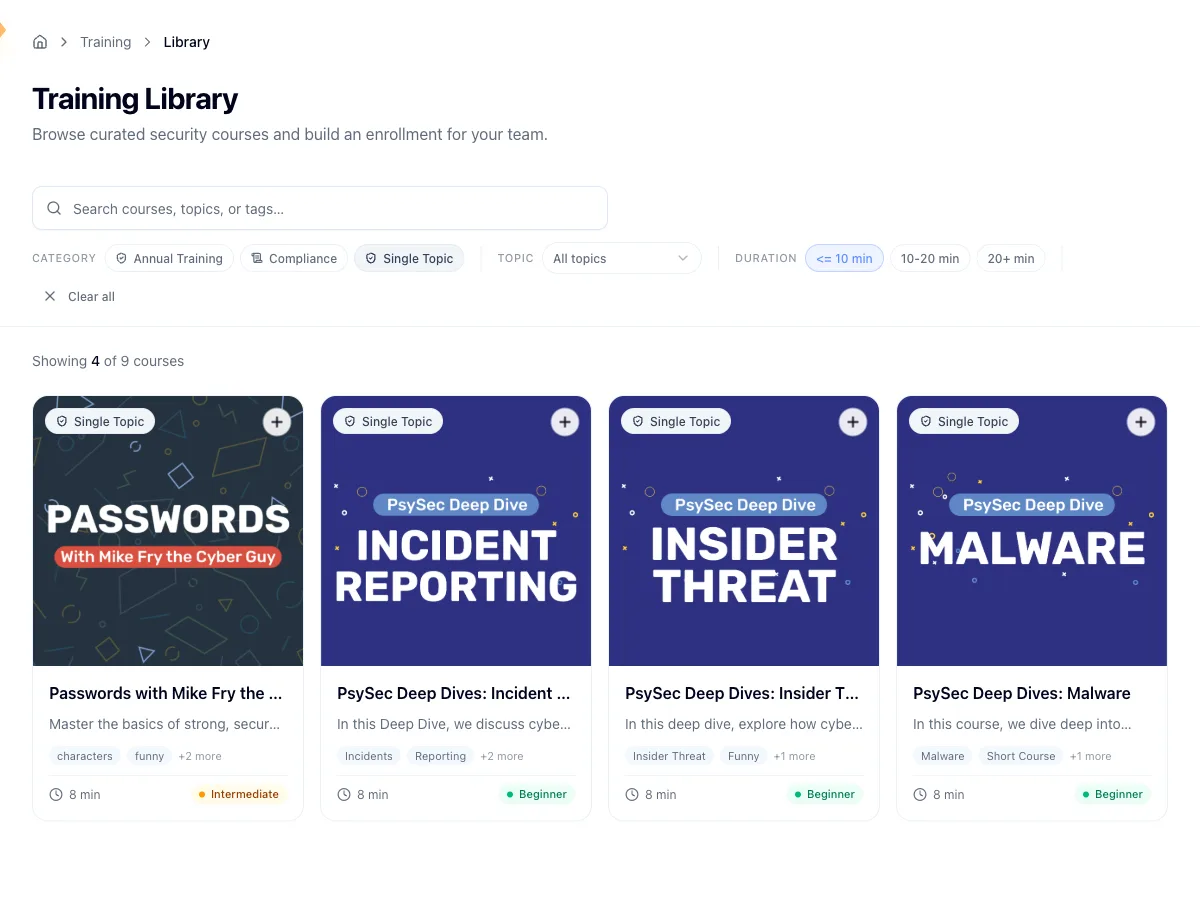
A course is one short browser-based lesson from Hook's curated catalog. Only published courses appear in your library, each with a description, category, topics, difficulty, and an estimated length.
An enrollment assigns one or more courses to a set of people. You create them as a batch: pick the courses and the recipients, then set when enrollment starts and when it's due. Hook tracks completion against that due date, so you can see who's finished, who's in progress, and who's overdue.
See Browse the training library, Assign training to groups, Track course completion, and Review enrollment history.
Reports
Reports read the results back out. They come in four categories, campaigns, courses, users, and groups, and most can be exported to PDF or emailed. Some pull live from the delivery provider for up-to-the-minute phishing results; others read from Hook's own database. You can also put a report on a schedule so a list of recipients gets it by email without logging in.
Every report covers the single organization you have selected. No report rolls up child organizations, so a parent org sees its own numbers rather than a combined total.
Start at Browse and run reports, then dig into one like the Executive Summary or the Group Performance report. Recurring sends are set up in Automate report delivery.
Security watchlist
The security watchlist is the cross-campaign view of repeat clickers: people who failed two or more simulations inside a date range. It isn't tied to one campaign, so it surfaces patterns a single campaign report can't.
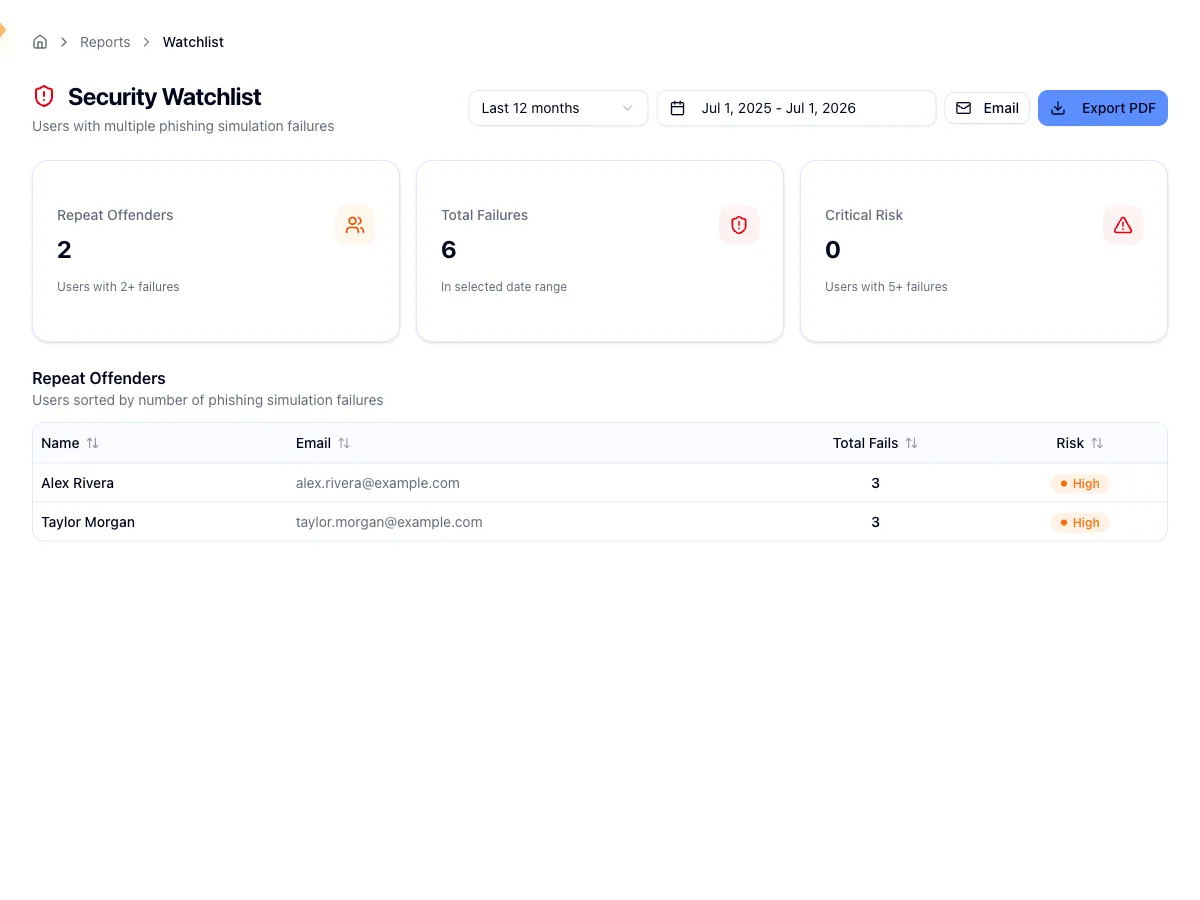
See Review the security watchlist.
Autopilot (Campaign of the Month)
Autopilot runs recurring phishing simulations so nobody has to launch one by hand every cycle. Parts of the product call it COTM, short for Campaign of the Month. Same feature.
An autopilot schedule has a frequency of monthly, bi-monthly, or quarterly, an audience of either all users or specific groups, and a switch to skip the next cycle. Reports that depend on it, like the COTM Campaign Report, only appear once it's enabled for your organization.
Depending on how your account is set up, you may be able to turn phishing autopilot on yourself, or you may need to ask your Hook contact. Training autopilot isn't live yet, so its row reads as coming soon.
See Understand and set up autopilot and Run the COTM campaign report.
Directory sync
Directory sync brings your Microsoft Entra groups and their members into Hook and keeps them current. You connect Hook to Entra, choose which groups to sync, preview the members, and confirm. Membership then refreshes on a schedule, so routine joiners and leavers don't send you back through the wizard.
Sync also feeds recipient domain authorization. The email domains of your synced users are what Hook checks before delivering a simulation, so a recipient on an unauthorized domain never receives one.
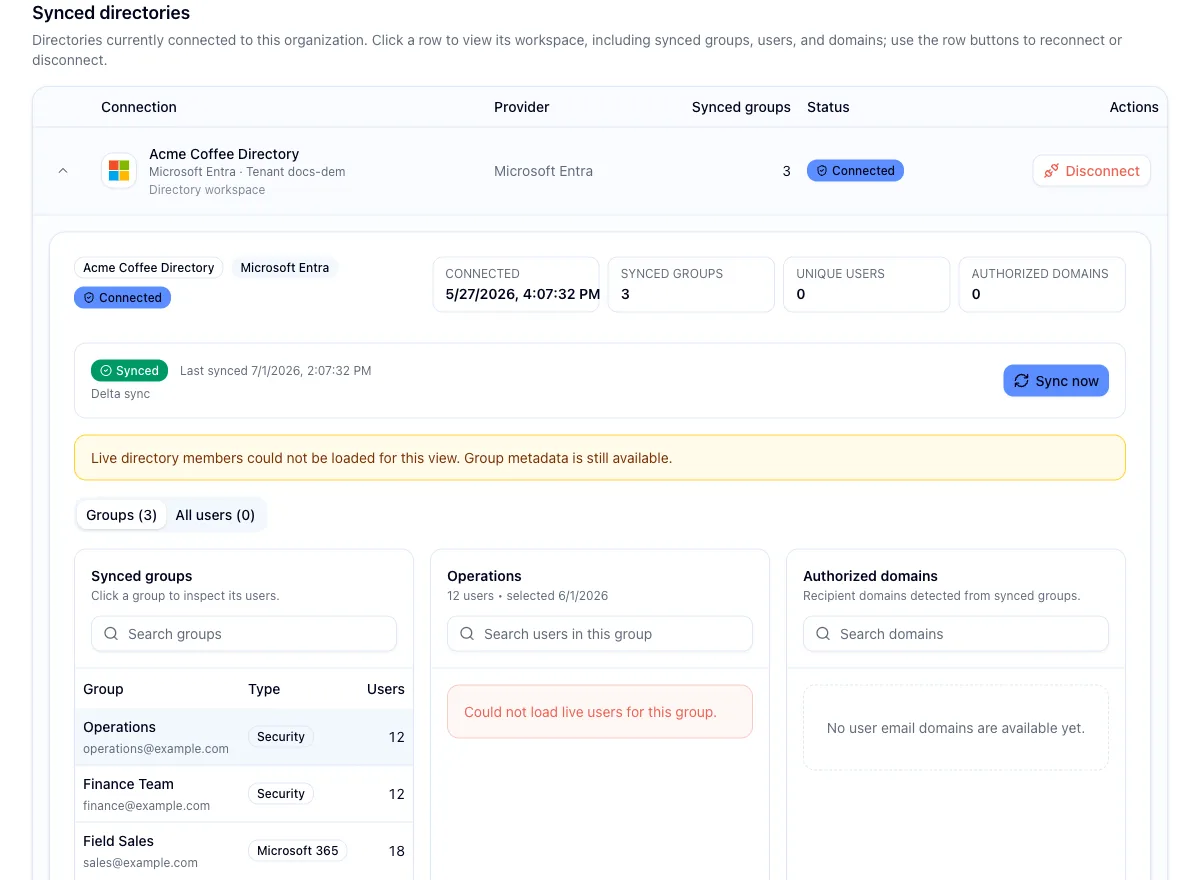
See Sync users from Microsoft Entra, Manage directory connections, and Authorize recipient domains.
Single sign-on
An SSO connection links one organization to its identity provider, such as Microsoft Entra ID, Okta, or Google Workspace, so learners can open assigned training by signing in with their work account. Each organization has at most one, and signing in never creates a learner: the person must already be in Hook, though they don't need training assigned.
The connection's sign-in mode decides what emailed training links do. Available keeps the links working alongside single sign-on; required sends every learner through the provider instead, and applies to links already sent. Recovery access is a bounded window, granted by Hook support during a provider outage, in which emailed links work again without changing the configuration. See Set up single sign-on for learners.
Naming overlaps, at a glance
Three labels in the product don't match the concept behind them:
| What you see in the UI | What it actually is |
|---|---|
| COTM, or Campaign of the Month | Phishing Autopilot |
| The Phishing Trendline card | Group Performance report |
| The Enrollment Completion report | Course Enrollment report |
Related
Run a phishing campaign
Walk the wizard to launch a simulation against your users.
Understand and set up autopilot
Turn the recurring COTM phishing schedule into a hands-off program.
Browse the training library
See which curated courses you can assign to users and groups.
Sync users from Microsoft Entra
Connect a directory so your roster stays current on its own.