
Get started with Hook: from sign-in to your first campaign
A 15-minute first run that takes a new org admin from sign-in to a launched phishing campaign and a report you can hand to leadership.
You'll need an invited Hook account, because sign-in is invitation-only and there's no public sign-up. Have your work email handy and pick 5 to 10 pilot teammates who know they might receive a simulated phishing email. If you're an MSP managing client orgs, the flow is similar but starts in the MSP portal.
Sign in
Hook signs you in with a one-time emailed code by default. A password tab exists for accounts that have a password set.
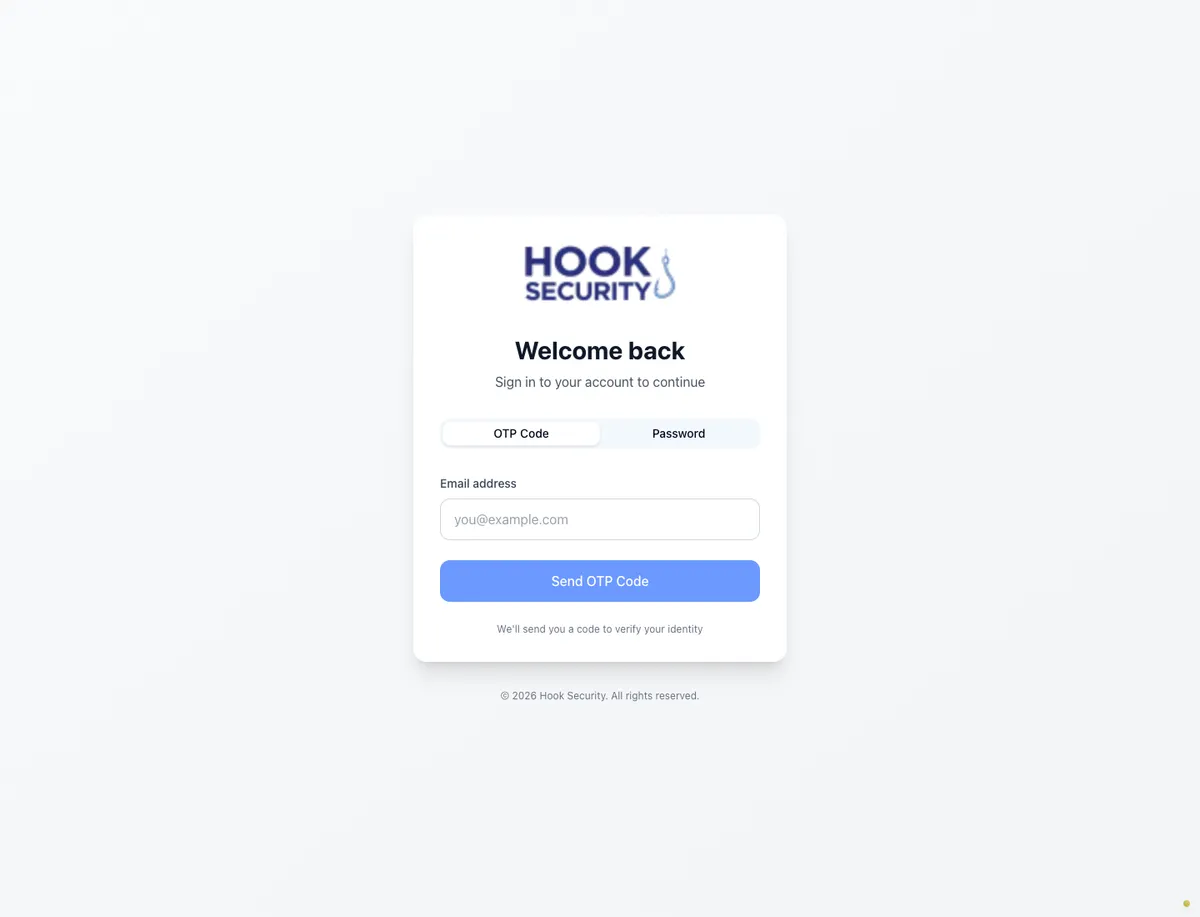
Request a code
Enter your work email and send the code. Hook always advances you to the code-entry screen, whether or not the email matches an account, so the login page can't be used to probe who has access.
Enter the 6-digit code
Copy the code out of the email and type it in. The field takes six digits and nothing else, and the verify button stays disabled until all six are there. If it doesn't arrive or has expired, resend it. There's a 30 second cooldown between sends, and you can switch to a different email address without reloading.
Every successful login lands in an admin portal. There is no learner experience here, and only people with the Admin role in Hook can sign in, so an employee trying to complete training will be turned away and pointed at school.hooksecurity.net. If you're stuck at the login screen, see Troubleshoot sign-in.
Land on the org dashboard
Hook drops you on your dashboard at /org. Four metric cards run across the
top, Total Users, Campaigns, Training Completion, and Courses
Assigned, each linking to the report behind it. Below them sit your five
most recent campaigns, training status bars, Autopilot status, quick-action
shortcuts, and a short FAQ. A brand-new org may also show a readiness card at
the top covering what's left to set up.
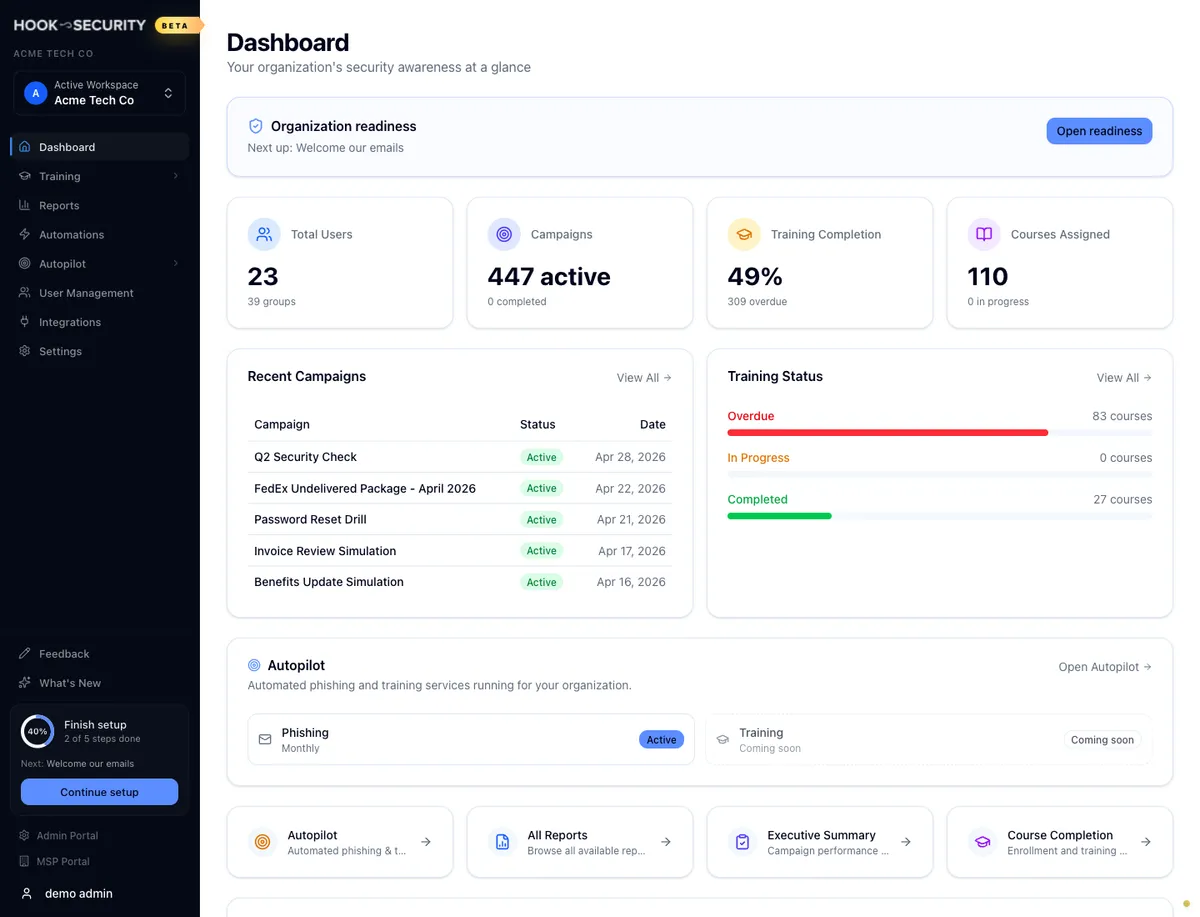
A first-time org shows zeros and empty panels. That's expected; you're about to put data in them. Campaigns launch from the wizard, not from this page.
Confirm the right workspace is selected
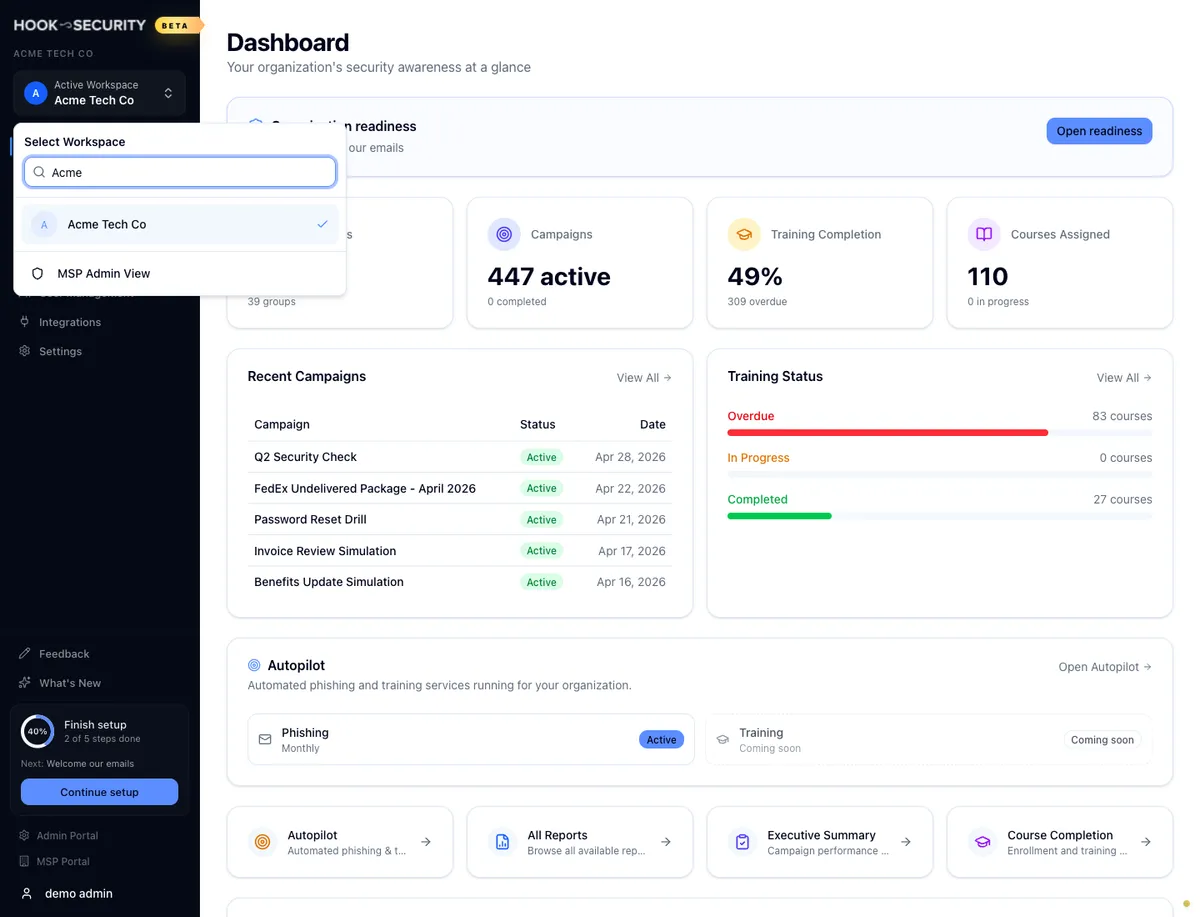
The workspace switcher at the top of the sidebar names the organization every action you take applies to. If you manage one org it's already right. If you manage several, open the switcher now, search by name, and pick the org. Your choice sticks for the session and the dashboard reloads immediately.
The wrong workspace sends real email to the wrong people
Workspace selection is the single most common thing to get wrong on a first run, especially for admins affiliated with an MSP. A launched campaign can't be recalled, so confirm the active workspace matches the org you mean to test before you open the campaign wizard.
Find your way around the sidebar
The left sidebar is your map: Dashboard, Hook Agent, Training, Simulations, Reports, Automations, Autopilot, User Management, and Settings, with What's New and other links below. Integrations live inside Settings rather than at the top level.
A fresh org may show fewer sections than that. Sections are enabled per organization, so if one this guide mentions isn't in your sidebar, it isn't turned on yet and your Hook contact can enable it. For a tour of each section, see Navigate the org portal.
Confirm your pilot users
Open User Management. Users sync in from your identity provider and your existing Hook environment; you don't add them one at a time here. Either your org is connected to Microsoft Entra, the recommended path, covered in Sync users from Microsoft Entra, or your CSM preloaded the roster, in which case check the count looks right.
For the 15-minute path all you need is a handful of pilot users sitting in a group you can target. Give that group a heads-up first that they may receive a simulated phishing email.
Launch your first phishing campaign
Open Simulations in the sidebar and start a new campaign. It's a four-step wizard. Keep this first run small.
Campaign Details
Give it an internal name, which recipients never see. Something like
Q2 2026 Pilot, Acme is fine. Leave delivery set to send at campaign start.
If your account offers scheduling, you can pick a date and time here instead
of launching right away.
Targeting
Choose specific groups and pick the pilot group you confirmed above. The summary updates with an estimated recipient count. Keep it to 5 to 10 people for a first run.
Template
Browse the library and pick a low-difficulty stock template. Preview it to see the email and landing page the way a recipient will, then select it. No edits are needed for a first campaign.
Review and Launch
Check the name, the recipient count, the template, and the launch timing, then launch. Hook confirms the campaign is on its way and tells you how many people were targeted.
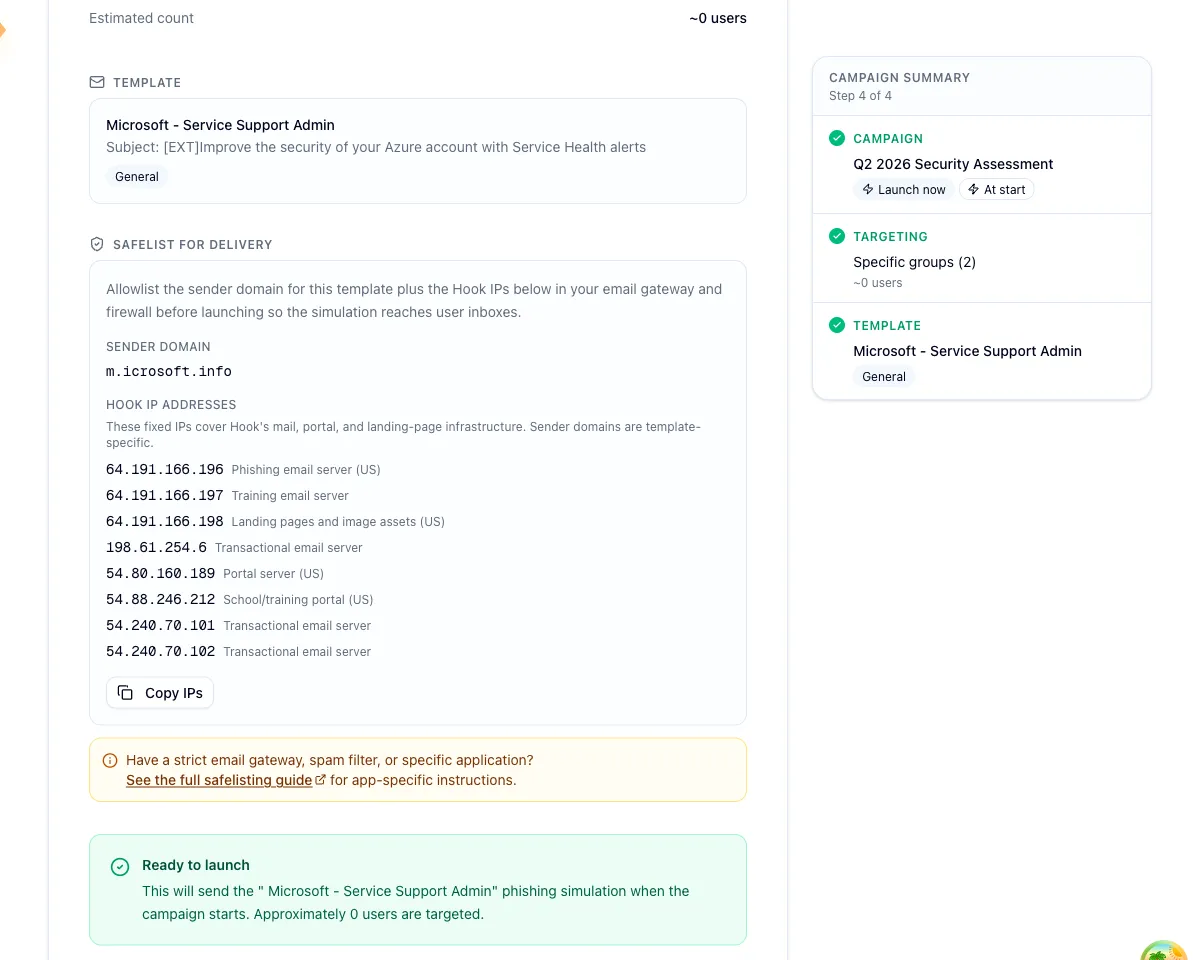
For the full walkthrough see Run a phishing campaign. To watch events arrive, see Monitor a live phishing campaign.
Read the executive summary
Engagement trickles in within minutes and keeps arriving across the campaign's tracking window, three days by default. Open Reports in the sidebar, choose Executive Summary, and pick your campaign. The picker only lists campaigns that have reached the delivery provider, so one you launched moments ago may not be there yet.
The report leads with Total Employees and Click Rate, and adds Report Rate once someone reports the email. Below that sit AI-generated insights, key recommendations, a breakdown of the individual tests, and the employees who clicked and could use follow-up training. Email it or export it to PDF; it's built to go straight in front of leadership.
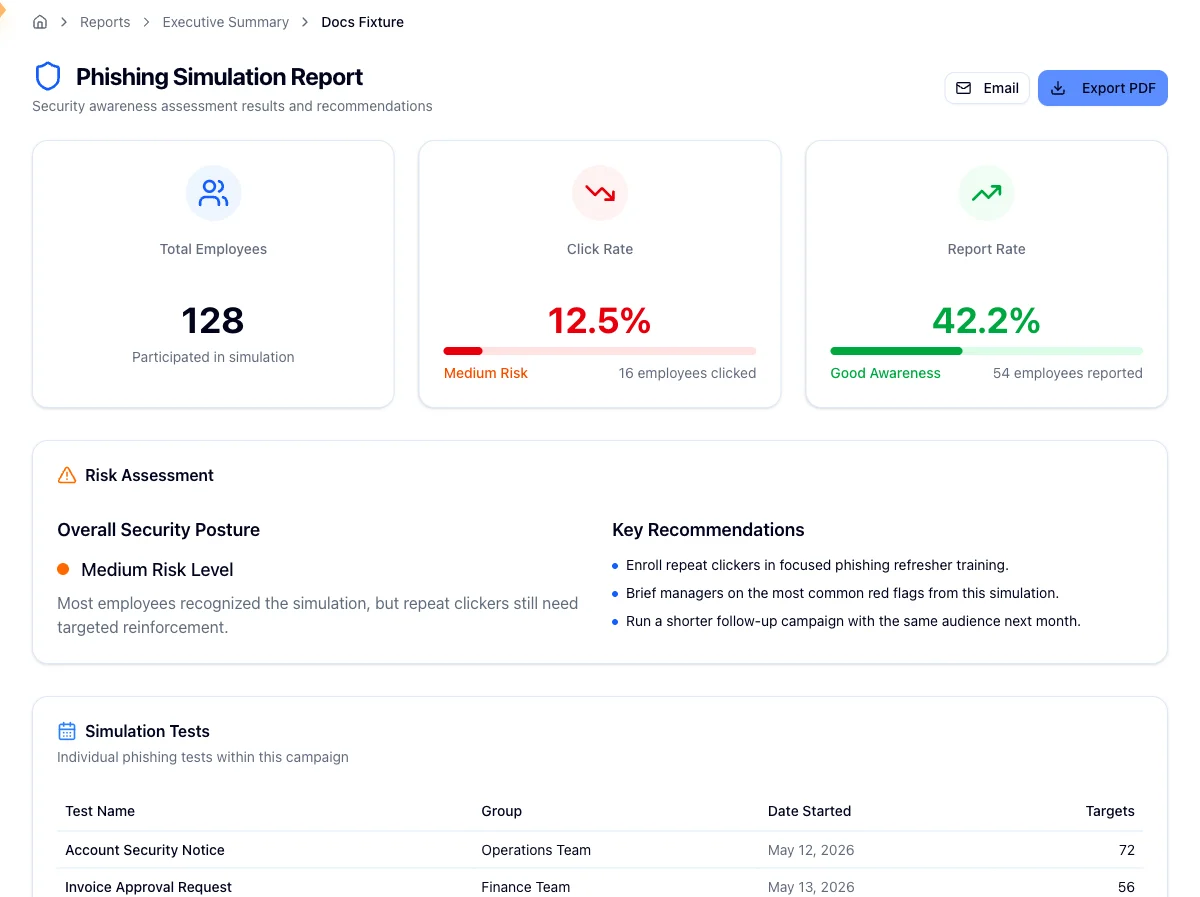
For a section-by-section breakdown, see Read the executive summary report.
Common pitfalls
- You've never been invited. A correct email address on its own won't get you in. Ask your CSM or an existing admin to provision you.
- Your role isn't Admin. Only admins can sign in here. Learners complete training at school.hooksecurity.net.
- The wrong workspace is selected. Confirm it before launching, so the email reaches the org you intended.
- A sidebar section is missing. Sections are enabled per organization, so a fresh org legitimately sees fewer than this guide lists.