
Read the executive summary report
Open, interpret, and share the executive summary for a phishing campaign so leadership sees the results and your team knows what to do next.
This is what you send after a phishing campaign closes. Your sponsor reads it for one headline: are we getting better, and where do we still have a problem? Everything on the page is arranged to answer that in a single screen.
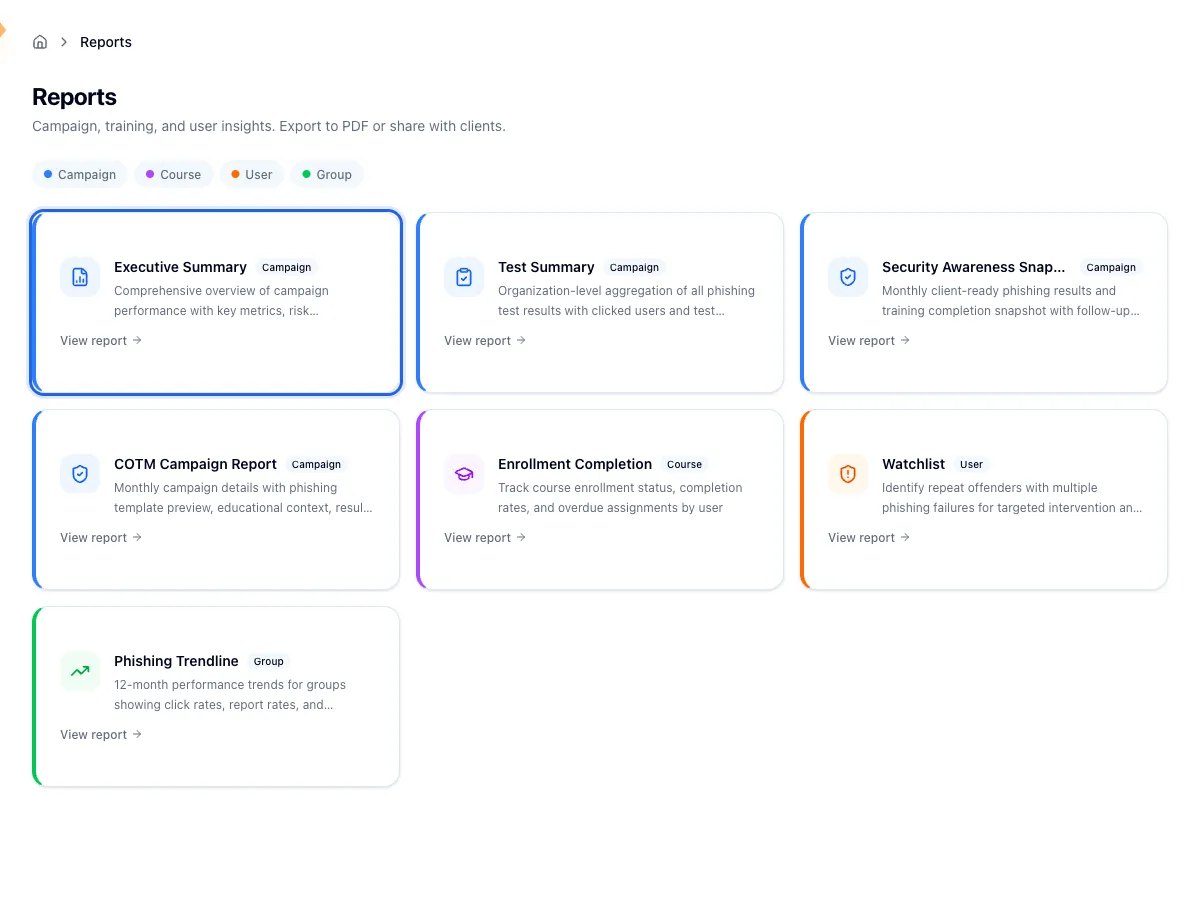
Find your report
Open Reports in the sidebar and pick the Executive Summary card.
Choose the campaign you want. The list covers campaigns that have reached the sending provider, so one you started but never launched won't be there. Scheduled campaigns do show up before they send, and opening one tells you the results aren't in yet.
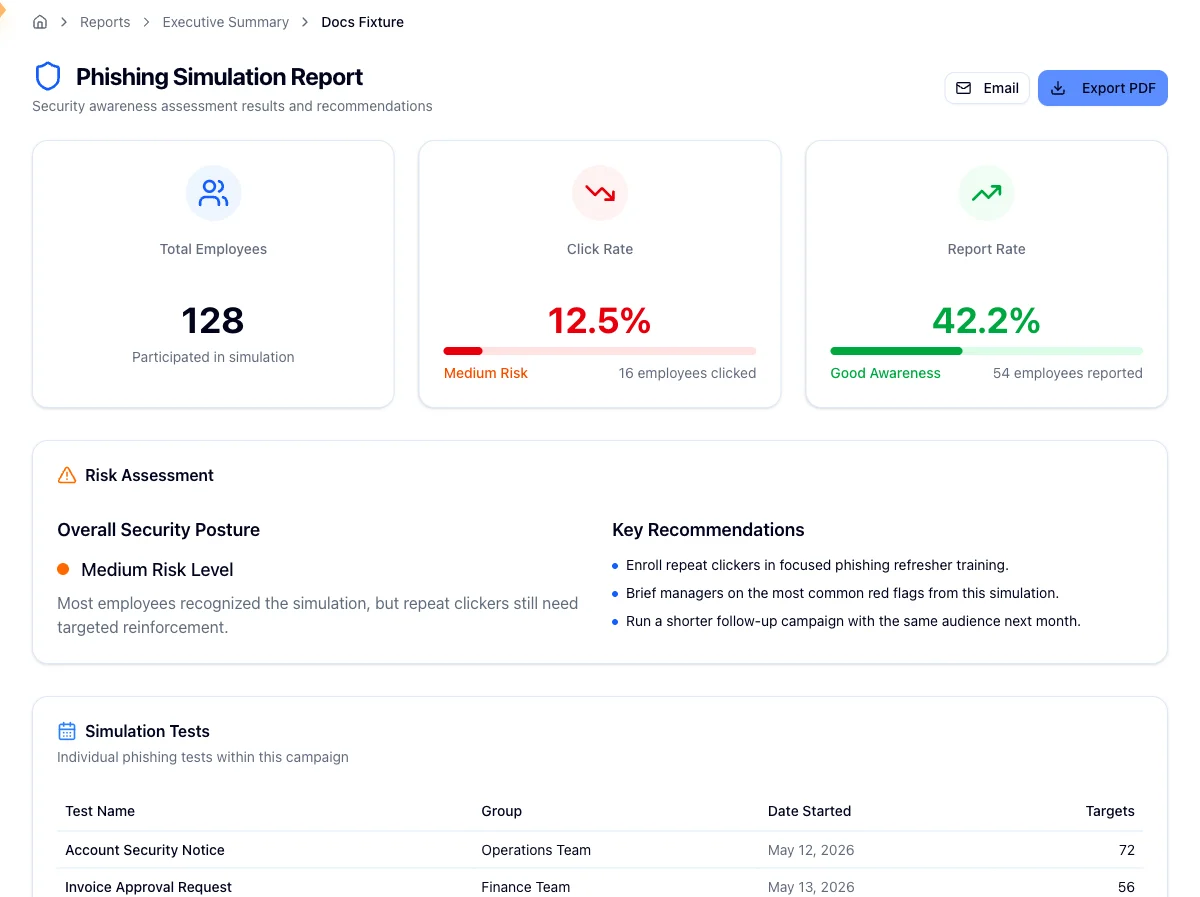
The page you land on is headed Phishing Simulation Report, and each campaign has its own stable URL, so you can bookmark it or send an exec back to it later.
What each section shows
The three metric cards
Total Employees is how many people took part, with the number of simulations and emails behind it for a recurring campaign. Click Rate is the share of recipients who clicked the link. Report Rate is the share who used the report-phish button, and it only appears once at least one person has reported.
Click Rate shows the observed rate with the number of employees who clicked beneath it. Report Rate carries a label, graded so that more is better: Good Awareness at 50 percent or above, Moderate Awareness at 25 percent or above, and Needs Improvement below that.
Both figures describe a single campaign, so compare successive campaigns to see which direction the rates are moving.
AI insights and key recommendations
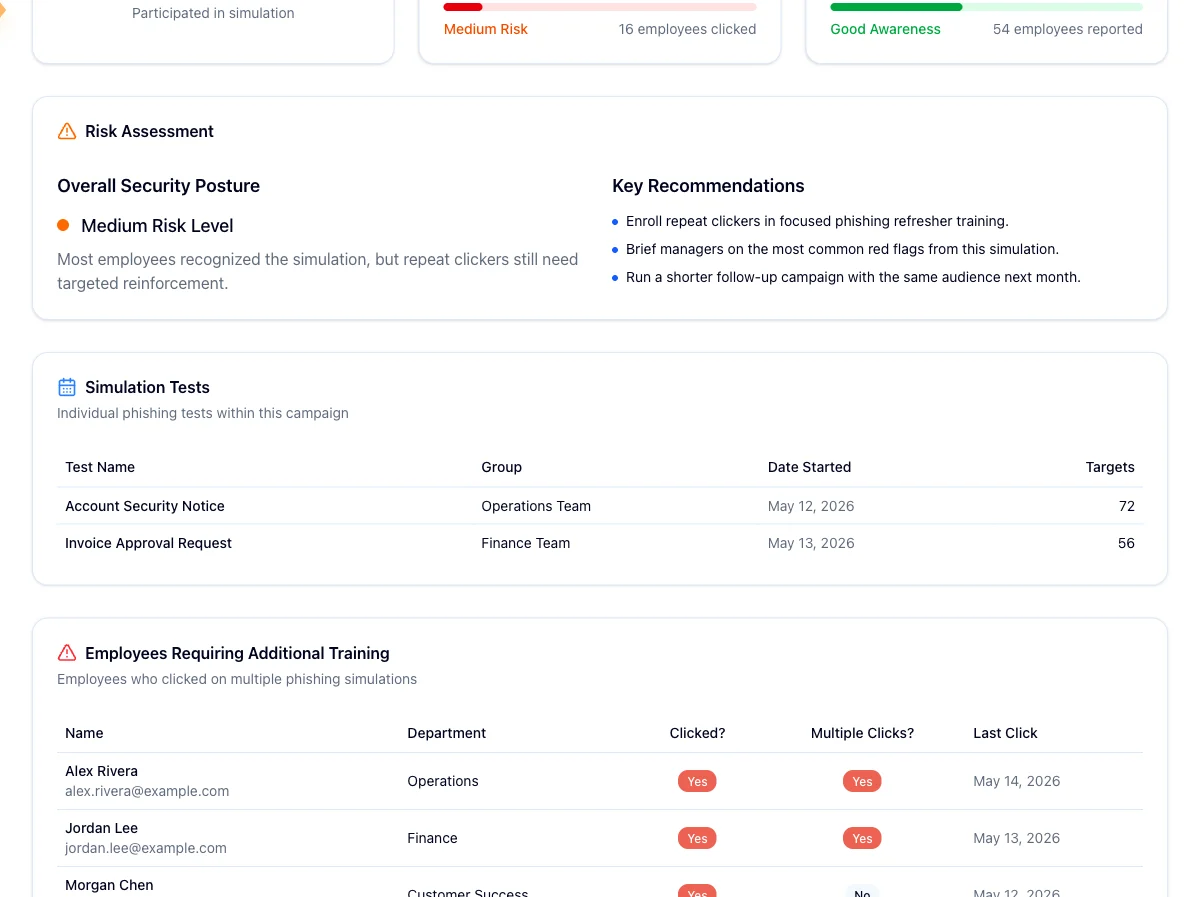
A short generated narrative below the cards summarizes the campaign, lists the key insights, and suggests next steps. Under it, the Key Recommendations card lists exactly three recommendations, generated from the campaign result.
Three things are worth raising with a sponsor when you see them: a click rate rising across consecutive campaigns, a handful of repeat clickers accounting for most of the clicks, and a report rate near zero.
Simulation tests
When a campaign ran more than one test, this table breaks out each one by name, group, start date, and target count. It is what you point at when an exec asks which template tripped people up.
Employees requiring additional training
The bottom table lists everyone who clicked, whether they clicked once or multiple times, and when they last clicked. Multiple clicks is the column to act on: those people need a follow-up enrollment.
There is also a department column, but it isn't your HR data. Hook derives it
from the email domain, so jdoe@acme.test shows up under "acme". Read it as a
rough grouping, not an org chart.
Share it
Export PDF gives you a print-ready version for a board deck or compliance evidence. Email opens a picker of org users and sends them the same PDF. For a copy every month or quarter without you doing anything, set up automated delivery.
What to do next
Take the repeat clickers off the bottom table and give them something targeted with Assign training to groups, then queue the next campaign so the comparison data exists in a month. Brief your sponsor on the three cards, the key recommendations, and your one-line plan.
Related
Browse the reports catalog
Find your way around the Reports hub, filter the catalog by category, and pick the report that answers the question you were asked.
Run the Test Summary report
Break one phishing test down into its funnel, from sent through delivered, opened, clicked, and reported, and decide whether the export names the people who clicked.