
Automate report delivery
Schedule a report to be generated and emailed to the people who need it, on a repeating cadence, so you stop forwarding PDFs by hand.
An automation is a saved rule: build this report, on this schedule, and email it to these people. Set one up instead of opening the executive summary the morning after a campaign closes and forwarding the PDF to your CISO.
They pay off when the same person needs the same report on the same rhythm: the monthly board update, the weekly watchlist for whoever owns security.
See what's already running
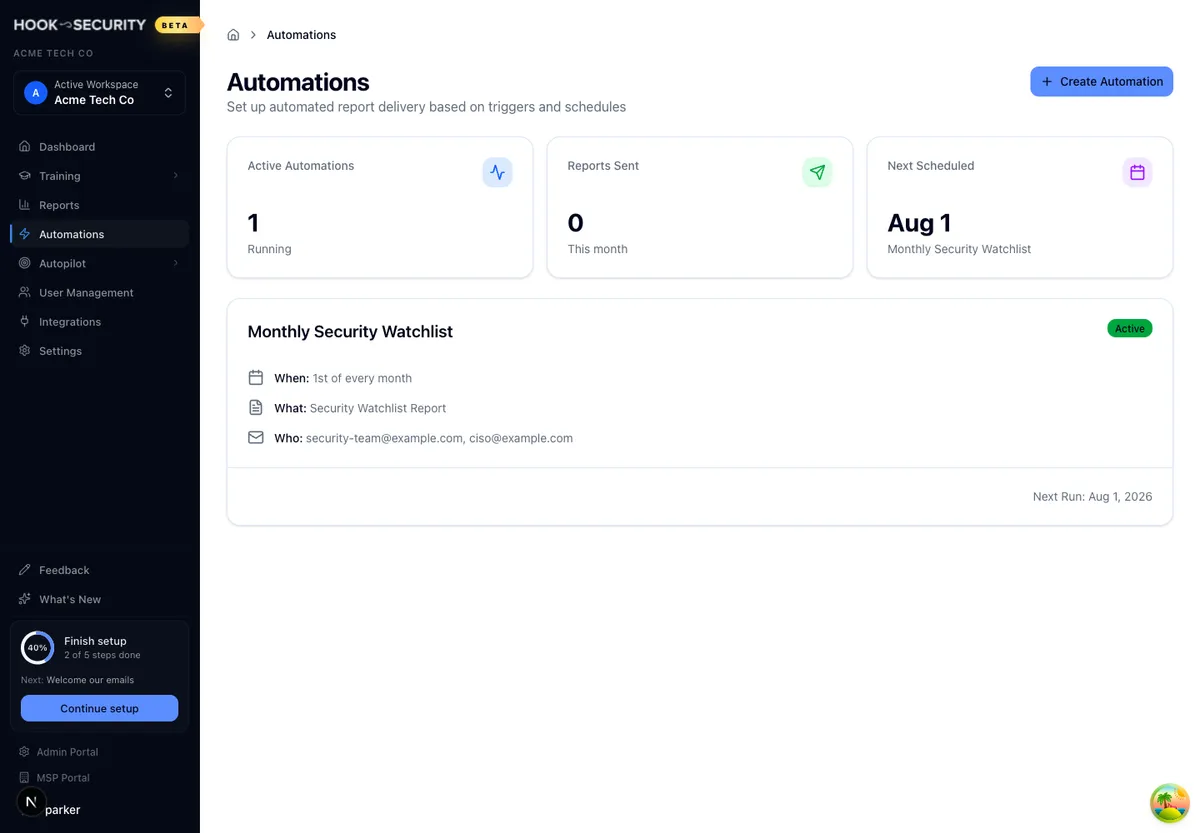
Click Automations in the sidebar. Three tiles across the top count the active automations, the reports sent this month, and the next run due, with the name of the automation that's up next. The sent counter starts over the first time an automation runs in a new calendar month.
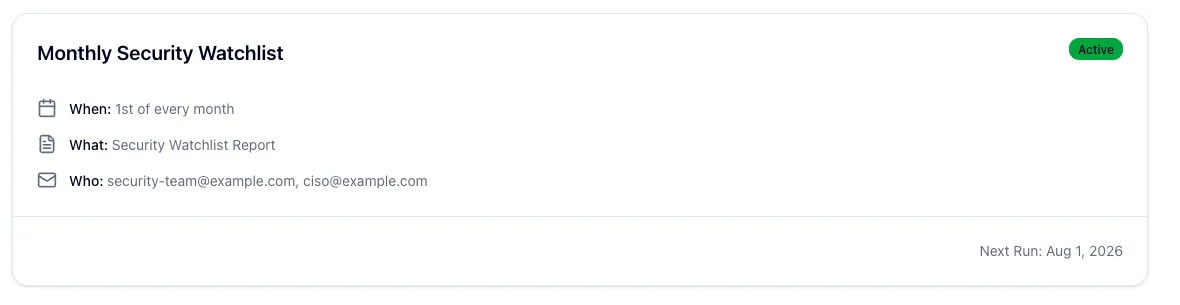
Below that, each active automation gets a card showing when it runs, what it sends, who receives it, and its last and next run dates. Only active automations are listed.
Create an automation
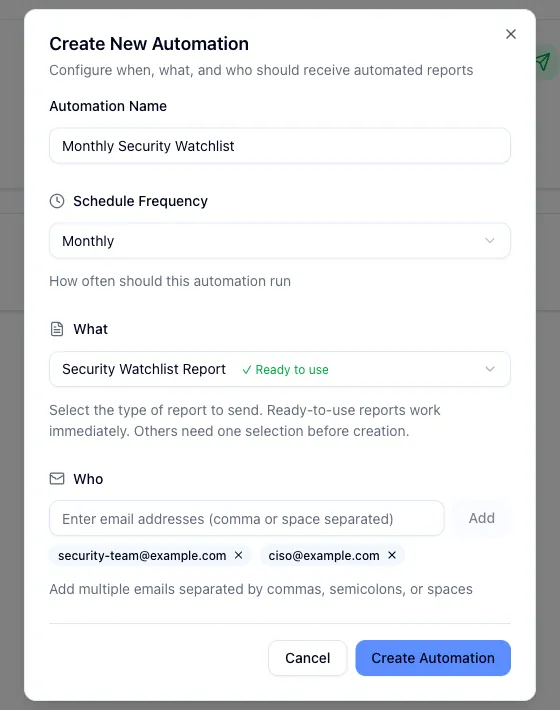
Click Create Automation and name it something a teammate would recognize months from now, from 3 to 50 characters.
Pick a frequency: Daily, Weekly, Bi-Weekly, Monthly, Quarterly, or Yearly. Monthly adds a day of the month field. Pick any day from 1 to 31 and the report goes out that day at 11:00 AM Eastern. Short months use their last day, so a 31 sends on the 30th in April.
Choose the report: Campaign Executive Summary, Security Watchlist Report, Security Awareness Snapshot, Group Performance Report, Course Enrollment Report, or COTM Campaign Report. Most ask for one more choice, a campaign, a group, or a course, in a dropdown that appears the moment you pick the type. The watchlist and the snapshot are marked ready to use and need nothing further, though the snapshot locks the frequency to monthly.
Add recipients. Type or paste addresses separated by commas, semicolons, or spaces, then press Enter or click Add. Each becomes a badge you can remove, and you need at least one to save.
Click Create Automation. The card appears in the list with its next run date filled in.
Test Summary is the one report you can't automate. It covers a single send rather than a recurring window, so run it by hand from Reports.
Any email domain is accepted, since board members and auditors rarely have an address at your company. That also makes the recipient list a data egress path, so clear external addresses with your security lead first.
What recipients receive
Every run builds the report fresh from live data and sends it as a PDF attachment. The email itself is a short branded note saying the report is attached, so the numbers live in the file rather than in the body of the message. One email goes out per run, to everyone on the list at once.
The scheduler wakes every 15 minutes, so a run can land a few minutes later than you expected.
Change a schedule
Each card has an Edit schedule button, which changes the frequency and, for monthly automations, the day of the month.
Recipients and report settings can't be changed later
Edit schedule covers timing only. To change who receives an automation, or which campaign, group, or course it reports on, create a new one with the settings you want. There's no pause or delete control in the portal today, so get the recipient list right before you save.
Before you leave it running
Check the Next Run date on the card before you walk away. Monthly automations are predictable because you choose the day. The other cadences count forward from the day you created the automation.
An automation with nothing to report still sends. If the campaign hasn't started or the group is empty, leadership gets a page of zeros, so wait until the data is real before pointing a recurring delivery at an executive.
Related
Run the Autopilot (COTM) Campaign report
Build a client-ready write-up of a managed Campaign of the Month simulation, with results, the email your users saw, the training video, and an optional list of who clicked.
View users and groups
Browse the read-only roster of everyone Hook knows about, search and filter it, and inspect a single user's or group's details.