
Troubleshoot training enrollments
Fix enrollments that failed, landed on the wrong people, or never reached learners.
When you create an enrollment, Hook pushes each course to the training provider and tracks the result per course on the batch detail page. Most courses flip to Enrolled within a minute. When one doesn't, the batch detail page tells you what went wrong, and in most cases you can fix it yourself.
Open the batch from the Enrollment History tab on the Manage Training page to get there. See Review enrollment history if you can't find it.
Read the status on the batch detail page
Each course shows one of these:
| Badge | Meaning |
|---|---|
| Enrolled | The course reached the provider successfully. |
| Scheduled | A future enrollment that hasn't fired yet. |
| Pending | An immediate enrollment still in flight. |
| Partial | Some recipients enrolled, at least one didn't. Retryable. |
| Failed | The push failed for the whole course. Retryable. |
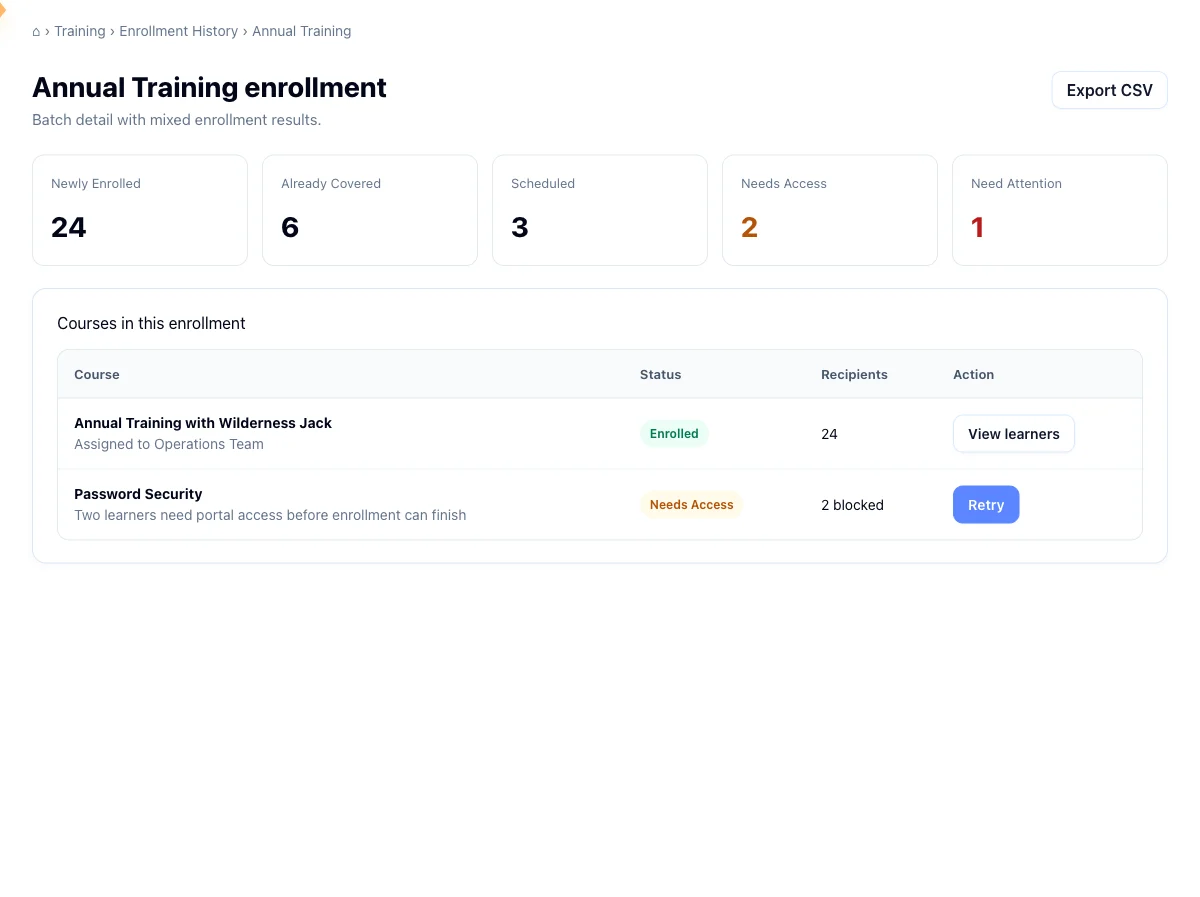
The cards at the top roll these up. Newly Enrolled and Scheduled always show. Already Covered, Needs Access, and Need Attention appear only when their count is above zero.
Needs Access is a leftover from older enrollments and means the organization wasn't entitled to that course. New enrollments don't produce it. If you see it on an old batch and still want that course, ask support to enable it for your organization.
Hook says your organization isn't configured for training
You'll see this the moment you submit the wizard, or when you retry a course. Your organization is missing the credentials Hook uses to talk to the training provider, so Hook refuses the enrollment before it touches the provider and nothing is created.
You can't fix this from the org portal. Email support@hooksecurity.co and ask to have your organization provisioned for training, then re-run the wizard or click Retry.
A course says Failed or Partial
Failed means the push didn't complete, usually a passing provider or network problem. Retry it first; it often clears on the second attempt. Partial means some recipients enrolled and others didn't, and the ones who enrolled stay enrolled.
The Retry button acts on a single course row, not the whole batch, so retry each affected course separately. Retrying never throws away a success: people who already enrolled are not enrolled a second time, so a retry only fills the gaps.
If a course keeps failing after a few attempts, copy the error text under the status and send it to support@hooksecurity.co.
You need to change or cancel a scheduled enrollment
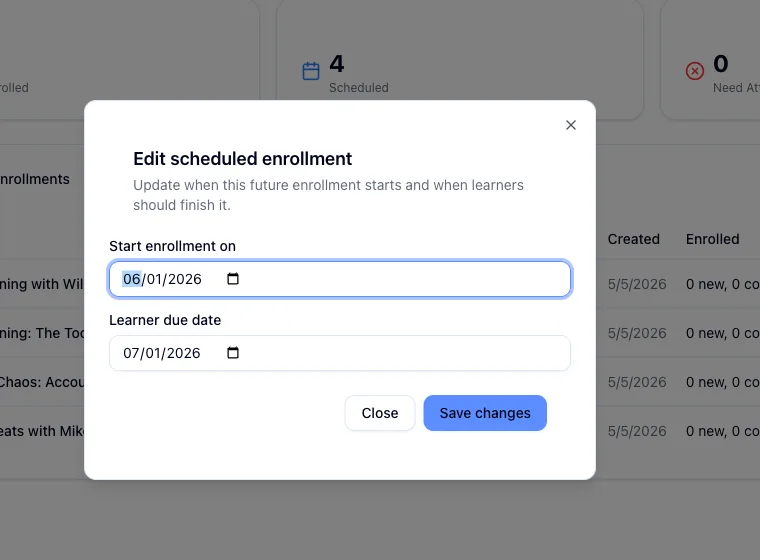
You can only touch a course while it's still Scheduled, meaning before its enroll date fires. Edit and Cancel appear only on scheduled rows, and once a course has enrolled, the server turns down any change.
Editing enforces two date rules. The new Start enrollment on date has to be in the future, so you can't reschedule to today or the past, and the Learner due date has to fall after it. Break either one and the save fails. Pick valid dates and save again.
Depending on how your account is set up, editing may not be offered at all on newer scheduled enrollments. In that case Hook asks you to cancel the course and create a new enrollment with the dates you want. That isn't a fault, and the result is the same.
Canceling stops the pending job from firing. If it was the only course in the batch, you land back on the Training dashboard. Otherwise the rest of the batch carries on untouched.
The wizard rejected your selection as too large
The wizard validates before it creates anything. The caps are 1 to 12 courses per batch, up to 500 groups, and up to 50 individual users. Group targeting and individual targeting each need at least one selection. To reach more people than a single batch allows, split the work across batches, or target groups rather than naming individuals.
Enrolling someone who might already be enrolled
Go ahead. Re-enrolling a person in a course they're already in is never blocked, and there's no limit on how many times you can enroll someone. Hook spots the duplicates, skips them quietly, and reports them back as already covered. When you aren't sure whether somebody was included the first time, the safe move is to enroll them again.
Learners didn't get an email, or got one you didn't expect
Two switches under Notification Settings in the wizard's schedule step control this. One sends a welcome email to people who don't have a learner account yet. The other sends the per-course "you've been enrolled" email.
Both default to on, so learners are emailed unless you turn them off. If you're staging a quiet rollout and plan to announce training on your own channel, turn both off before you submit. If learners got mail you didn't expect, the switches were left on. If you expected Hook to announce it and nobody heard anything, re-run those courses with the switches on.
A retry uses whatever notification setting was saved with the batch, not whatever you would pick today, so confirm the setting before you count on a retry to email anyone.
Make sure you're in the right Create Enrollment wizard
The older assignment wizard doesn't enroll anyone
An earlier four-step assignment flow still renders at
/org/training/assignment, and its final button looks like it creates an
enrollment. It doesn't. Nothing is saved and nobody is enrolled. If a
bookmark or an old link took you there, back out.
Always start from Training in the sidebar and use Create Enrollment there. That's the flow documented in Assign training to groups, and the only one that writes a real batch you'll later see in Enrollment History.
Related
Troubleshoot Microsoft Entra directory sync
Clear consent failures, group picker limits, scope change errors, and failed sync runs.
Troubleshoot single sign-on
Why a learner can't sign in, why metadata is refused, what an expired certificate does, and how to get people back into training during a provider outage.