
Sync users from Google Workspace
Connect Hook to Google Workspace by assigning a read-only admin role to Hook's account for your organization, click Verify, then choose which Google Groups to sync, so your user list stays current without CSV exports.
Google Workspace directory sync keeps your Hook user list aligned with Google. Once it's connected, Hook pulls the Google Groups you choose straight from your Workspace, so you stop chasing CSV exports every time someone joins or leaves.
Hook connects through an account of its own, created just for your organization. Nobody at your company hands Hook a password or a token, and no person's Google account is involved. Instead, a Google Workspace super admin gives that account a read-only admin role, and Hook reads your directory as itself from then on. If the super admin who set it up later leaves, nothing changes.
It takes a few minutes in Hook plus a few minutes in the Google Admin console, and you can split the two halves between people.
Not using a directory?
If your organization doesn't use Google Workspace or Microsoft Entra, you can import users with a CSV instead and manage learners and groups directly in Hook.
Before you begin
- You need the org admin role in Hook. That is who clicks Connect and Verify on the Integrations page.
- You need a Google Workspace super admin. Creating an admin role and assigning it to an account both happen in the Google Admin console, and only a super admin can do them. It can be you or a colleague; Hook shows you everything the super admin needs to copy across.
- Hook reads users, groups, and organizational units, and nothing else. The role you create is read-only. Hook never asks for write access and never changes anything in Google.
- What Hook reads, and why. To expand a group and to notice when someone has left it, Hook reads your whole directory on every sync: the user list, the group list, and the members of the groups you selected. It keeps only the people who belong to a selected group. Users outside your selection are read to work out membership and departures, then discarded; they are never stored in Hook.
- You'll want at least one Google Group. Hook syncs Google Groups, so an organization with no groups has nothing to select yet. See If you have no groups yet below.
Connect Hook to Google Workspace
Start the connect
Go to Settings, then Integrations. Find the Google Workspace tile under Sync new directories, and click Connect.
Hook creates a dedicated account for your organization and opens a panel showing that account's email address, the three privileges the role needs, and a link back to this page. Copy the email address. The super admin will paste it into the Google Admin console in a later step.
The panel can be closed and reopened at any time from the directory row, so it is fine to leave it while the Google side gets done. The account email does not change.
Create the read-only admin role
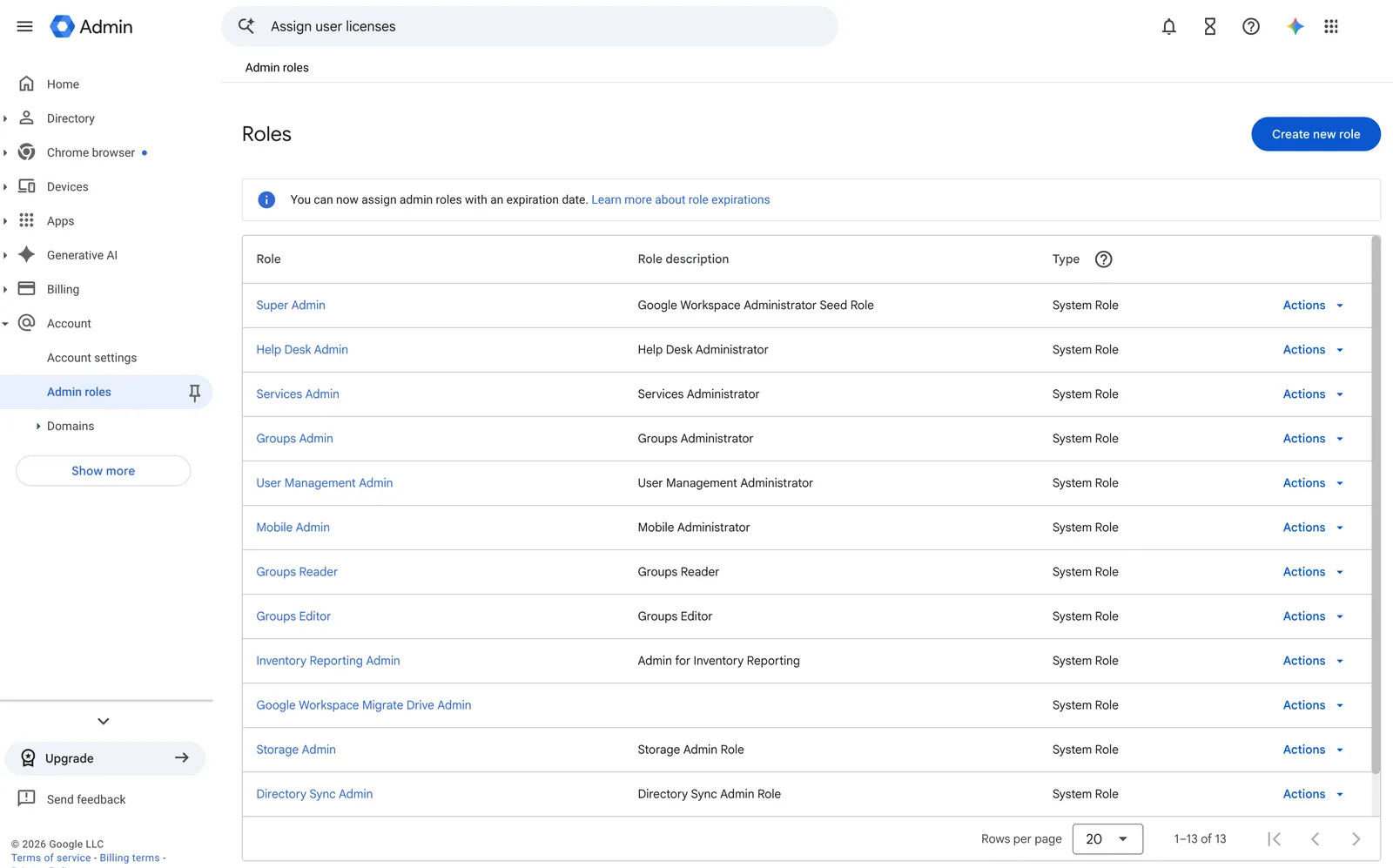
In the Google Admin console, go to Account, then Admin roles, and click Create new role. Give it a name you will recognize later, such as "Hook directory read", and continue to the privileges page.
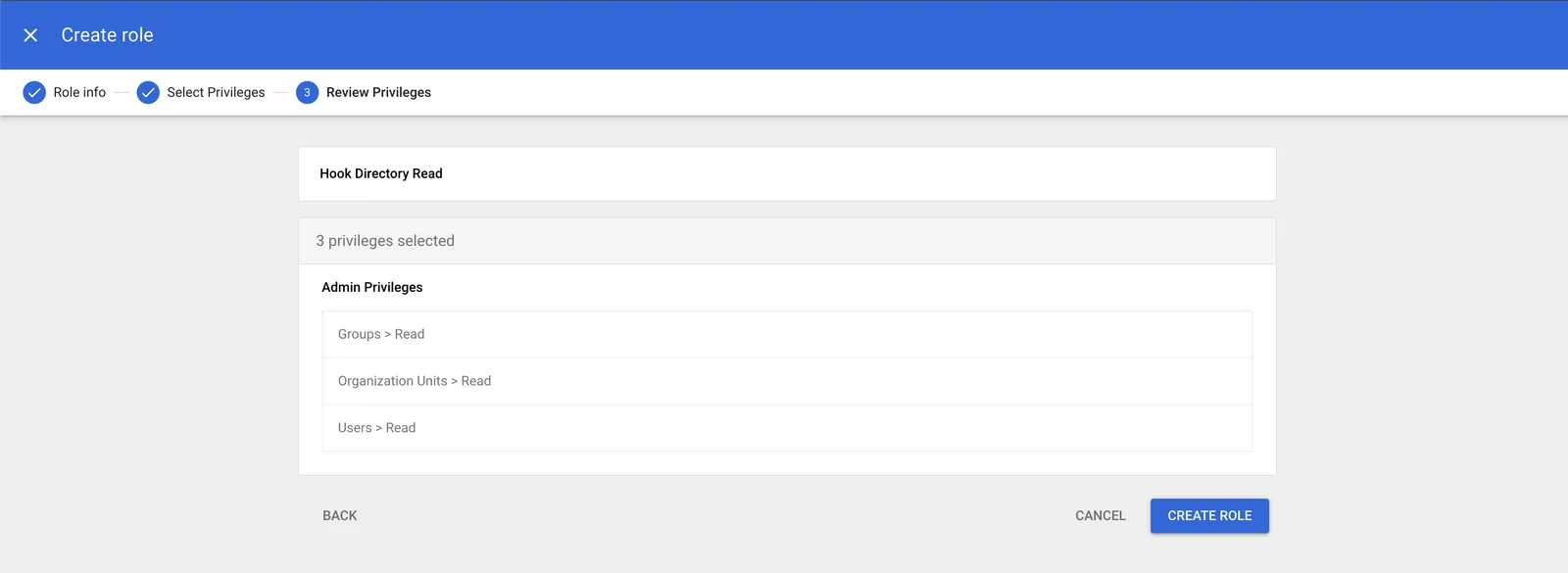
Under Admin API privileges, tick exactly these three:
- Users, then Read
- Groups, then Read
- Organization Units, then Read
Search for "read"
Search the privileges list for the word read, not for "view" or a privilege's name such as "Users". Searching by name can leave the Read checkbox out of the results. Searching for read lists the Read privilege under each service, so scroll through the results to find Users, Groups, and Organization Units.
Leave everything else unticked and create the role. Google has no prebuilt read-only role that covers users, which is why you make one. A broader prebuilt role also works, but Hook only ever uses these three reads.
Assign the role to Hook's account
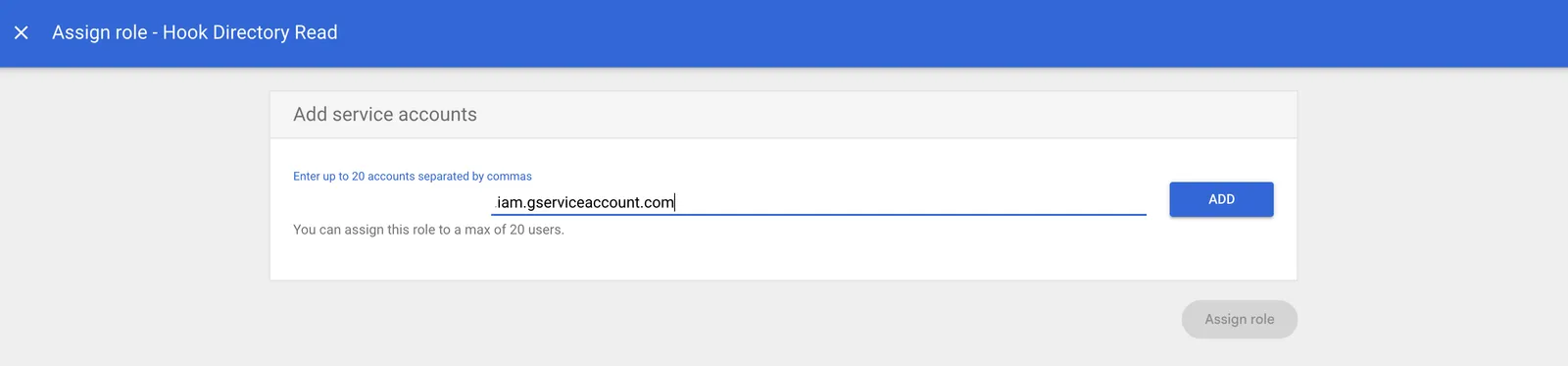
Open the role you just created, choose Assign service accounts, and paste the account email you copied from Hook. Confirm the assignment.
Assign the role only from the Google Workspace you intend to sync into this Hook organization. Hook binds the connection to whichever Workspace grants the role first, and the Integrations page then shows that Workspace's primary domain so you can check it landed in the right place.
Click Verify
Back in Hook, open the panel from the directory row if you closed it. Enter
your Google Workspace domain, the primary domain of the Workspace where you
assigned the role (for example example.com), then click Verify. Hook
uses the domain once, to look up your organization's record, then reads that
record, the first page of groups, and the first page of users as its own
account, and nothing more. When all the reads succeed, the connection becomes
Connected, the panel shows the primary domain it bound to, and the group
picker opens next.
If Verify does not succeed straight away, the panel tells you why:
- Waiting for the role to apply. Google has not yet applied the role to Hook's account. Google says a role assignment can take up to 24 hours to propagate, though it is usually a matter of minutes. Click Verify again in a few minutes. Hook keeps a 24-hour window from the first time it was turned away; if the window runs out before the role is seen, check the assignment in the Admin console and click Verify again to start a new one.
- Preparing your Google account. Hook's account for your organization was created a moment ago and Google is still finishing it on Hook's side. This usually takes about a minute. Carry on with the role assignment and click Verify once it is done.
- Admin SDK API access is disabled for this Google Workspace. Some Workspaces turn off API access to the directory. In the Google Admin console, go to Security, then Access and data control, then API controls, and enable API access. Then click Verify again.
- Hook could not reach Google on its side, or Hook has reached its Google account capacity. Both are on Hook's side. Hook's team has already been alerted, nothing you assigned has been revoked, and there is nothing to change in Google. Try again later, or contact support if it persists.
- Google has no Workspace with that domain. Check the domain you entered against the primary domain shown in the Google Admin console under Account, then Domains. Then click Verify again.
- Google did not answer in time. Nothing changed. Click Verify again in a moment.
Choose groups and preview
Once Verify succeeds, Hook opens the group picker straight away. If you come back later, expand your directory row and click Manage groups in the Synced groups footer.
Find the groups you want
The picker loads up to 1,000 groups with each group's member count. If your Workspace has more than that, Hook says the list was truncated, so use the search box rather than scrolling. The count is Google's direct-member count, and a group containing the "everyone in your organization" entry expands to every active user in your Workspace, which the preview shows before you save.
Select them and continue
Tick each group you want, up to 200. Past 100, Hook warns that a selection this large takes longer to preview, which is a heads-up rather than a limit. Select-all only applies to the rows on screen, so with a search active it takes the matches you're looking at, not the whole Workspace.
Groups containing other groups carry a badge, because Hook syncs direct members only. To get the people inside a nested group, select that group too. When the selection looks right, click Continue to preview.
Preview and save
The preview lists each selected group with its full member list and a count of how many members it holds. Read down it for two things: external members and shared mailboxes, since Google Groups often include outside collaborators and role addresses that shouldn't receive simulations, and people you expected but can't see, usually a suspended or archived account or someone who changed groups. Neither has to be solved now. Fix it in Google and the next sync catches up.
Suspended and archived Workspace accounts are left out of the preview and of every sync, so they never receive simulations or training. Members from outside your Workspace are included, and their email domains go through domain review before anyone on them can be sent a simulation.
Hook gives itself about 10 seconds to load members. If it runs out of time on some groups, a banner says the preview is partial and that you can save anyway. Counts are still right, and anything that didn't load is picked up by the first real sync.
Click Save selection. Hook walks you through a short progress view, then confirms the initial sync has started. It runs in the background, so you can leave the page.
Unsyncing a group deactivates people, it doesn't delete them
If you uncheck a group that's already saved, Hook asks you to confirm. Anyone left without a synced group is deactivated, not removed. Their campaign and training history stays intact, and re-selecting the group brings them back.
If you have no groups yet
Hook syncs Google Groups, so if your Workspace has none, the picker shows an empty state asking you to create one. Create a group in the Google Admin console under Directory, then Groups, or at Google Groups, add the people you want in Hook, and come back to Integrations. Expand your directory row and click Manage groups to pick it.
For a small organization that wants everyone in Hook, a single group whose membership is the whole organization works as a whole-directory scope. When a group's members include the "everyone in your organization" entry that Google offers, Hook expands it to every active user in your Workspace, across all of your domains, and the preview shows the resulting count.
After the first sync
Your row in Synced directories now shows how many groups are in scope. Expand it for three columns: the synced groups, the members of whichever group you select, and the email domains those users receive mail on. Those domains need approving before anyone on them can be sent a simulation. See Authorize recipient domains.
Google Workspace connections sync on demand today. Click Sync now in the sync block whenever you want Hook to re-read membership, and it also syncs whenever you save a group selection or change your scope. The sync block shows when the last sync ran and whether it succeeded, and the run history underneath it lists earlier runs. Scheduled refreshes for Google Workspace are on the way. To change which groups are synced, reopen Manage groups; your current selection is pre-checked.
Two things to know about who gets deactivated. People are deactivated in Hook when they drop out of every synced group, and also when their Google account is suspended or archived, because Hook reads each member's account status on every sync. Restoring the account in Google brings the person back on the next sync with their history intact. If something looks wrong after a sync, see Troubleshoot directory sync.
MSP-managed organizations
If your organization is managed by an MSP, the MSP admin usually does the Hook half and your Workspace super admin does the Google half. The MSP admin clicks Connect on your organization's Integrations page and forwards three things to your super admin: Hook's account email from the panel, the three privileges listed above, and the name of the Hook organization it belongs to, so the role is assigned from the right Workspace.
Nothing in Hook has to happen in the same sitting. Once the super admin confirms the role is assigned, any Hook admin with access to the organization, whether at the MSP or at the customer, opens the panel from the directory row and clicks Verify.
When something goes wrong
The role was removed
Hook keeps syncing for as long as the role stays assigned to its account. If a super admin removes the assignment, or deletes the role, the next sync is turned away. Hook gives Google a short grace period for a role that was only just changed, and after that the run fails and your directory row switches to Reauthorization needed. In that state the row offers only Reconnect and Disconnect, and Sync now is hidden. Your saved groups and synced users are untouched; nobody is deactivated by the status itself.
To fix it, ask your super admin to assign the role to the same account email again, then click Reconnect. That reopens the panel with the same email showing. Click Verify; nothing else is needed on the Google side. When it succeeds, Hook opens the group picker with your saved selection pre-checked and asks you to review it before syncing resumes. Re-confirming the same groups is enough.
Hook's account was deleted at Google
The account Hook created for your organization lives on Hook's side, and a super admin cannot delete it from your Admin console. If it is ever gone all the same, the panel says the account needs to be re-created. Click Reconnect: Hook creates a replacement, which has a new email address. Copy the new email, have your super admin assign the role to it exactly as on first connect, and click Verify. The old email no longer does anything, so the old assignment can be removed. If you had also set up Google Direct Send, its delegation entry has to be granted to the new account as well.
Provisioning failed
If Hook could not create the account when you clicked Connect, the panel says so and the directory row stays in its connecting state. The usual cause is that Hook has reached its Google account capacity, which Hook's team is alerted about automatically. There is nothing to change in Google. Click Reconnect on the row to try again, or Cancel connection to clear it and start over later. If it keeps failing, contact support.
A Hook-side error
Any message that says the problem is on Hook's side means exactly that: Hook's own connection to Google, not your role assignment, is at fault. Hook's team has been alerted. Nothing you assigned has been revoked, and there is nothing for your super admin to do. Try again later, or contact support if it persists.
Remove Hook's directory role
Hook cannot remove a role your super admin assigned, so switching Hook off in Google takes two steps, and the order matters.
- In Hook, click Disconnect on your directory row and confirm. Syncing stops on Hook's side. Your saved group selection is kept, and so is Hook's account for your organization, so reconnecting later shows the same email and only needs a Verify if the role is still assigned.
- In the Google Admin console, go to Account, then Admin roles, open the role you created for Hook, choose Assign service accounts, and remove Hook's account email from the list. If nothing else uses the role, you can delete the role itself.
Disconnecting in Hook first means the removal never lands as a failed sync or a Reauthorization needed status.
Removing a Gmail delegation entry for Google Direct Send
This section only applies if your organization also set up Google Direct Send, which places phishing simulations straight into Gmail inboxes. Direct Send uses the same Hook account as directory sync but is granted separately, through a domain-wide delegation entry that carries only Gmail permissions. Removing the directory role does not remove that entry, and removing the entry does not affect directory sync.
To remove it, in the Google Admin console go to Security, then Access and data control, then API controls, then Manage Domain Wide Delegation. Find the entry whose client ID matches Hook's account for your organization and remove it. Switch your campaign delivery method away from Google Direct Send in Hook before you do, so no campaign is left trying to deliver through an entry that is gone.
Related
Manage your directory connection
Run manual syncs, change your group scope, and reconnect or disconnect a directory.
Authorize recipient domains
Approve the email domains your synced users share so simulations can reach them.
Assign training to groups
Put your freshly synced groups to work in the enrollment wizard.
Run a phishing campaign
Target a synced group with the campaign wizard, end to end.
For Gmail delegation setup and removal, see Set up Google Direct Send. The delegation entry lives in the Google Admin console under Security, then Access and data control, then API controls, then Manage Domain Wide Delegation. Disconnecting this directory also disconnects Direct Send; remove its delegation entry in Google Admin console to revoke mailbox access.