
Run a phishing campaign for a client
Launch a phishing simulation into a client org from the MSP portal: pick the client, the audience, and the template, then send or schedule it.
You have two ways to run a simulation for a client. You can drop into that client's own portal and use the standard campaign flow, or stay in the MSP portal and use the cross-client wizard. The MSP wizard is the better default when you're running campaigns across your book, because the campaign list, client switching, and per-client status all stay in one place. Use the client portal when you're walking a single launch through with that client's admin.
Before you launch
The client org needs to appear as ready in your campaign list, and it needs users imported plus at least one group if you plan to target groups rather than everyone. Manage client accounts covers a client that's missing or not yet configured.
Tell the client before you send
Clear the test with the client's primary contact first, even when your contract already covers it.
Find your campaigns
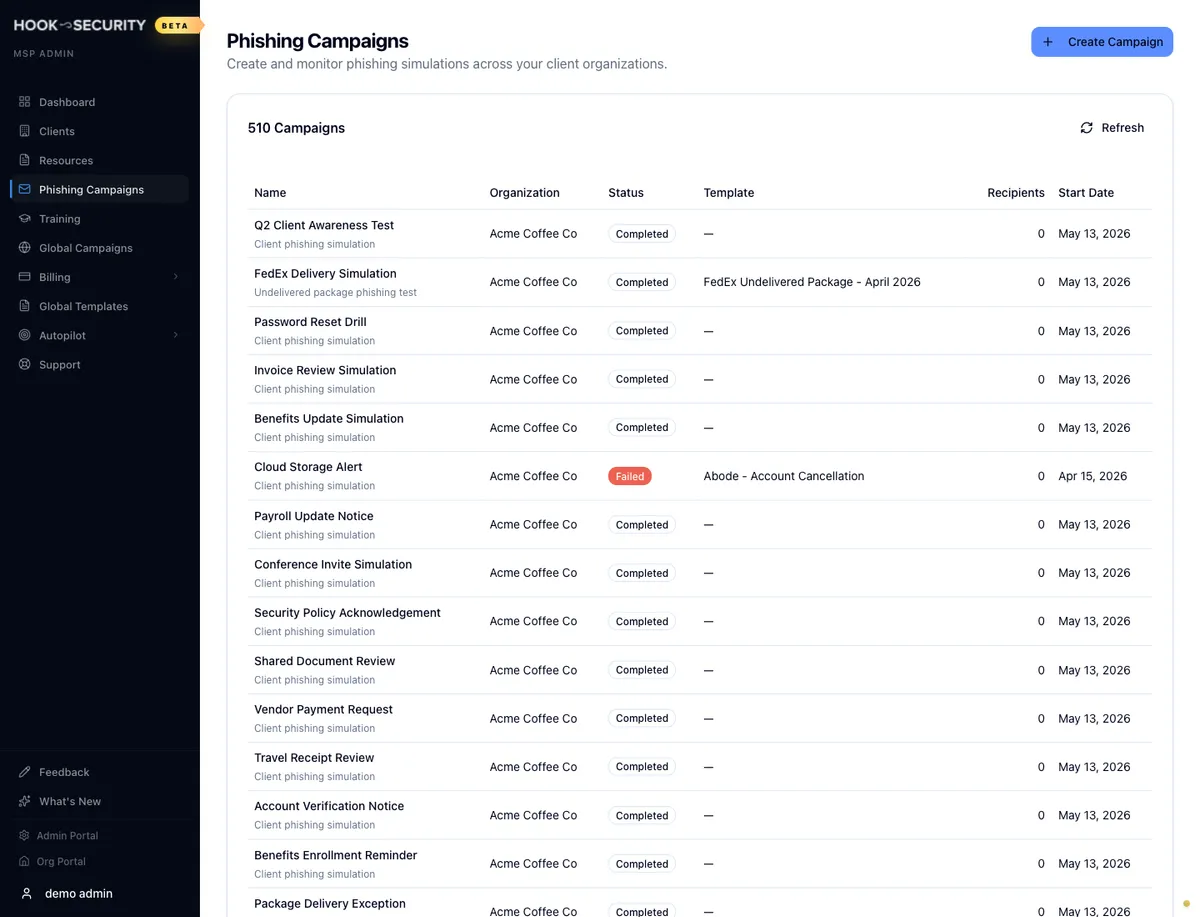
Open Phishing Campaigns in the MSP sidebar. The list is grouped by launch, so one wizard submission is one row no matter how many client orgs it went to. Click a row to expand it in place and see the per-client breakdown, then click through from a client's entry to that campaign's detail page. Create Campaign in the top right starts a new one.
Walk through the wizard
The MSP wizard has five steps, one more than the org-admin version. The extra step comes first and picks the client. Steps 2 to 5 mirror the org-admin Run a phishing campaign flow, and a summary cart on the right tracks your choices the whole way.
Select orgs
Each client shows a Ready or Not configured badge, and only ready clients can be selected. Search by name, or use Select all eligible if you genuinely want a fleet-wide test. The wizard caps a single campaign at 25 organizations.
A normal launch is one row checked. A client stuck on Not configured isn't set up for phishing yet, so finish provisioning it before you start. Note that changing your client selection later clears the targeting step, so settle on the client first and build the audience after.
Campaign details
Give the campaign an internal name like Acme Coffee Q2 2026 awareness test.
It never appears in the phishing email, but write it as something you'd be
comfortable having a client admin read. The optional description is a good home
for the request ticket, the SOW phase, or the follow-up training plan.
Then choose when it sends. You can send as soon as you launch, or pick a date and time and let Hook send it for you.
Targeting
There are two ways to pick recipients: All users in the client org, or Include specific groups. Group lists are scoped to the client you chose in step 1, and each group row shows how many members it has. The estimated recipient count at the bottom updates as you change the selection.
Select more than one org in step 1 and this step is replaced by a note that every user in each org will be included. Group targeting needs a single client.
Template
Pick the phishing email. Each row shows the name, subject, a short description, and badges for difficulty and category. Search by name or subject, filter, sort, and use Preview to see the full email and its landing page before you commit. This is the shared template catalog, the same one you'd see inside any of your clients' portals.
Review and launch
The last step lays out the whole campaign: the organizations, the name and description, when it sends, the audience with its estimated count, and the template you chose. Launch from here and Hook creates the campaign in the client's org and hands it to the delivery provider. You'll get a results screen showing each org's status along with its campaign ID and enrolled user count, and from there you can head back to the campaign list.
Watch it run
Open the campaign from the list to see the MSP campaign page. It names the client org in the header so you never lose track of who you're looking at, alongside a status pill and Refresh for pulling the latest numbers. Right after launch the campaign reads as setting up while the delivery provider provisions it, which is normal and usually brief.
Below the header, five tiles cover enrolled, sent, opened, clicked, and reported. Sent onward start filling in once delivery begins. A campaign info card carries the client name, template, start date, and the upstream campaign ID, and an enrolled users table lists the recipients in that client.
The full report, with KPIs, key recommendations, and follow-up training, lives on the org side inside the client. It reads the same no matter which portal launched the campaign. See Read the executive summary report.