
Manage your client accounts
Read your portfolio, find a specific client, and drop into that client's own portal without a second sign-in.
The MSP portal is where partner teams run Hook across several client organizations. One sign-in gets you a portfolio dashboard, a directory of every client you manage, and a way into any client's own portal without juggling credentials.
Read the portfolio dashboard
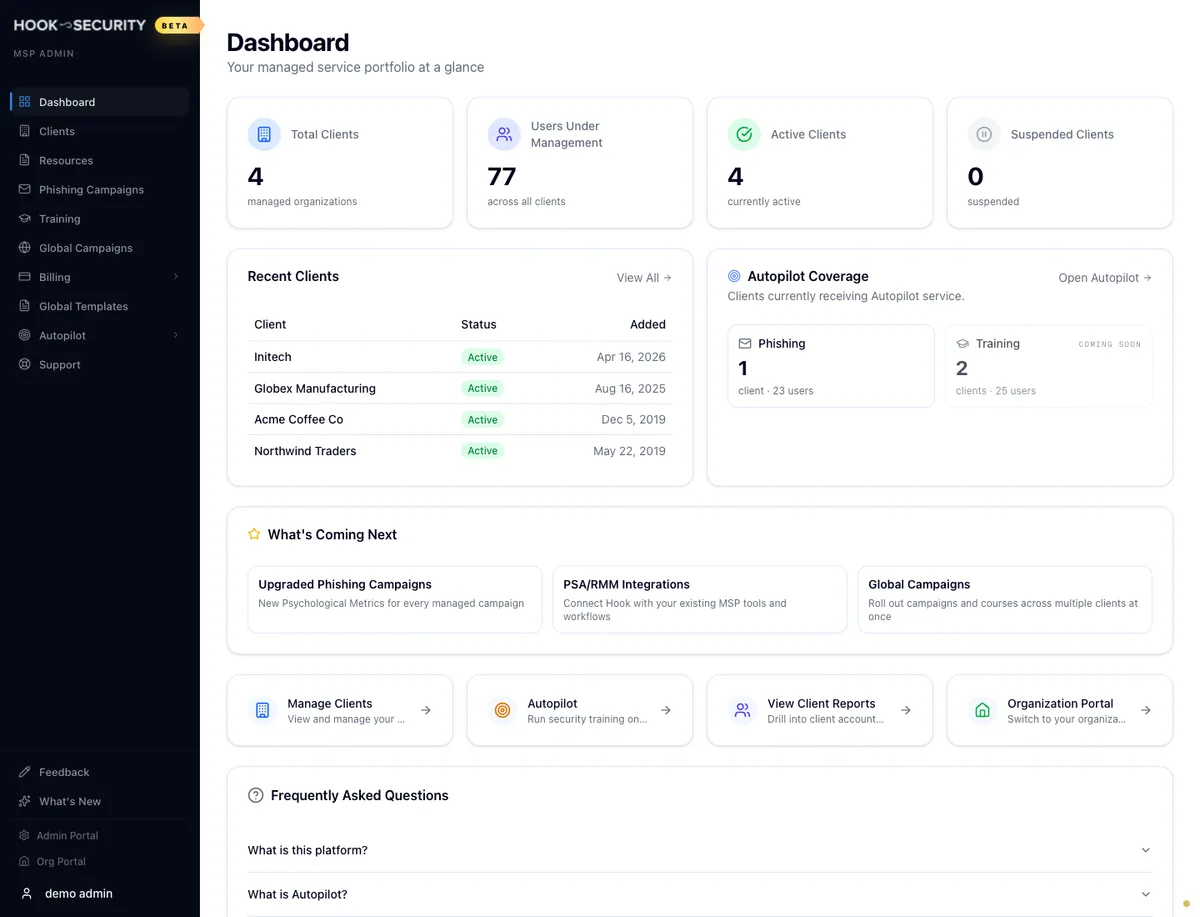
You land on the MSP dashboard when you sign in as MSP staff. Four metric cards run across the top: Total Clients, Users Under Management, Active Clients, and Suspended Clients. Each one links through to your client list.
Recent Clients below them shows the orgs you added most recently, with their status and when they joined. Clicking a name there takes you to the full client list rather than straight to that client, so plan on picking the row you want once you get there.
The rest of the page is context: a What's Coming Next card of roadmap items, four quick action cards, and an FAQ.
Find a client
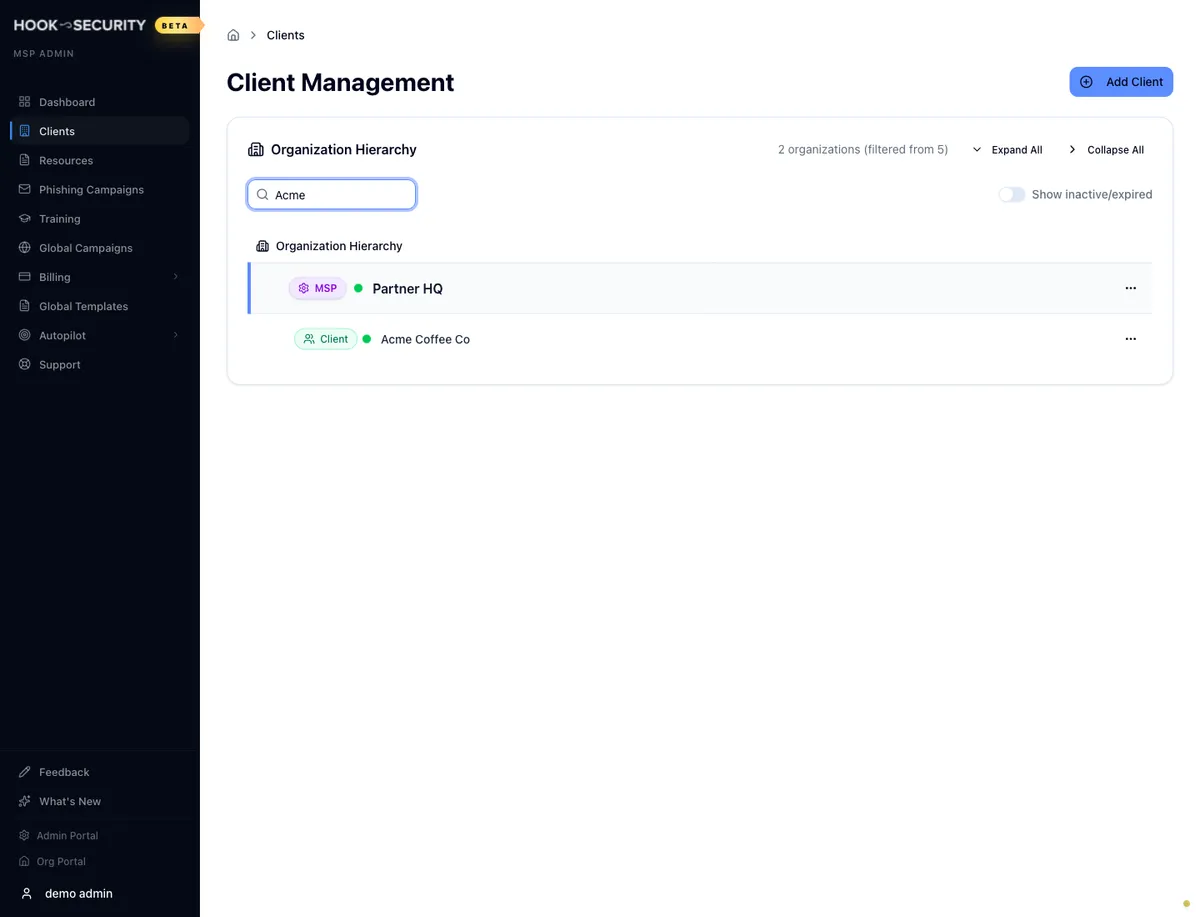
Open Clients in the sidebar. The Organization directory puts your own MSP org at the top with every client nested beneath it. Expand or collapse a branch with the chevron on a parent row, or use Expand All and Collapse All in the card header.
Search matches on name, and the parent orgs above a match stay visible so you don't lose the shape of the hierarchy. Searching for a downstream MSP keeps its branch in view and expands it in place, right where it sits in the tree.
Every row carries a type badge for MSP or client, a status dot, the org name, and a pill when the account is expired or inactive. Two buttons sit on the right of each row and are always visible: View details opens the client, and Access takes you into their portal.
A client that vanished is usually hidden, not deleted
The directory hides orgs whose subscription is inactive or past its expiration date, so day-to-day work stays uncluttered. If a client you expect is missing, turn on Show inactive/expired before you assume anything happened to the account.
Open a client's detail page
Click a row, or its View details button, to open that client. The header gives you their name, when they joined, and whether they're active or suspended. Accessing the account is the only action here. Everything else on the page is there to be read.
The Operational snapshot answers two questions: how much of their licensed seat count is in use, and how far along their program setup is. Program pulse sits below it, with one panel on their most recent campaign and one on how their training assignments are progressing. These are live numbers pulled from the client's own data.
For anything deeper than that, go into the client's portal and use the reports there.
Work inside a client's org
Hook has no separate impersonation mode for everyday MSP work. Access hands you into the client's own admin portal with their org already selected, and the portal behaves exactly as it does for their admins. Anything you do there happens in their org for real. To move to a different client, come back to Clients and click Access on another row.
Access is hidden on suspended clients, and on any client whose setup is still pending or has failed. An MSP admin has to reactivate the account or finish provisioning it before you can get in.