
View users and groups
Browse the read-only roster of everyone Hook knows about, search and filter it, and inspect a single user's or group's details.
Users & Groups is your roster of everyone Hook knows about in the selected organization, plus the groups they belong to. Use it to confirm a directory sync landed the right people, look someone up, or check who's actually in a group before you target it with a campaign or training.
Nothing on this page is editable. There's no add, invite, import, create, edit, or delete control anywhere on it, and no checkboxes or bulk actions. Every user and group arrives from a directory sync or a legacy import, and the source stays in charge. To change a name, a role, or a group membership, change it in your directory and it shows up here after the next sync. If you haven't connected a directory yet, see Sync users from Microsoft Entra; until the first sync finishes, this page is empty.
Read the stat cards
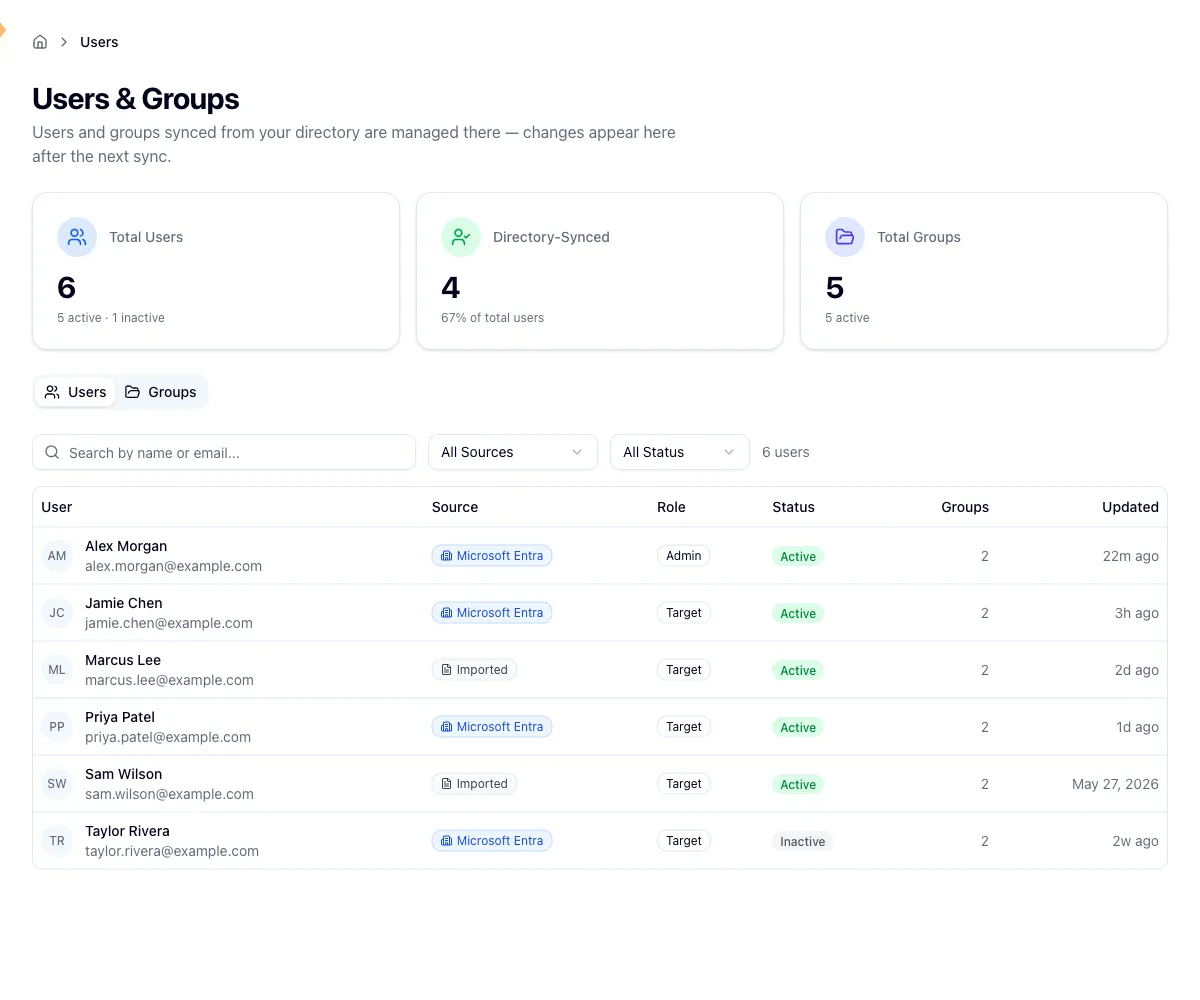
Three cards run across the top, all scoped to the organization selected in the sidebar switcher:
- Total Users, with the active and inactive split underneath.
- Directory-Synced, with the share of your total that came from a directory, so you can see your sync coverage at a glance.
- Total Groups, with the active count underneath.
Below the cards, the Users and Groups tabs switch the table. The active tab is stamped into the URL, so you can bookmark or share a link that opens straight on Groups.
Browse the Users tab
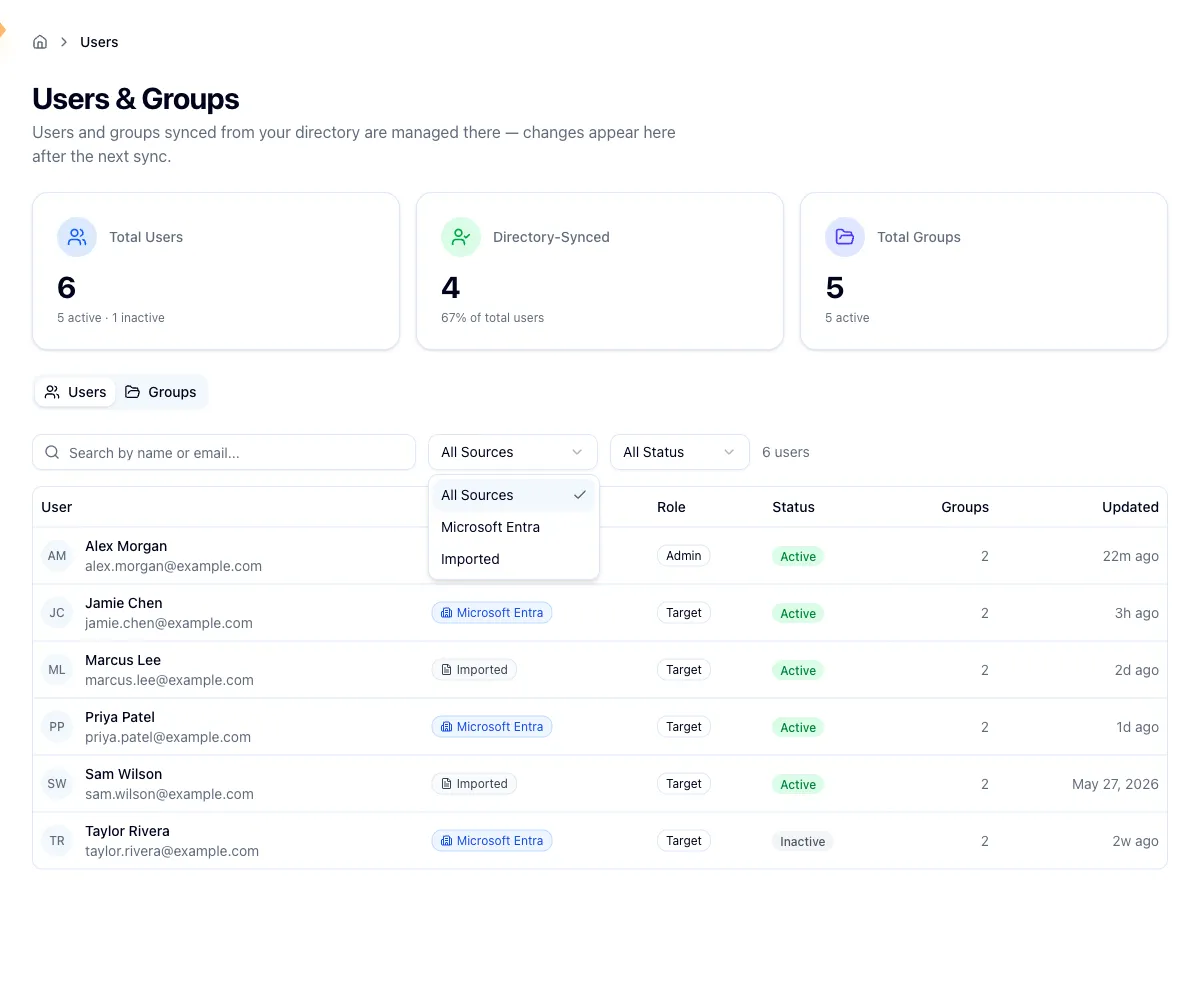
Search filters by name or email as you type. Two dropdowns narrow it further: Source (all sources, Microsoft Entra, or Imported) and Status (active or inactive). A live count beside the filters tells you how many users match, and when nothing does, Hook says so and suggests loosening the filters.
Each row covers the user, their source, their role (admin or target),
their status, how many groups they're in, and when the record last changed.
The Updated column shows a relative time for recent changes, like 3h ago,
and switches to a plain date once it's more than a month old.
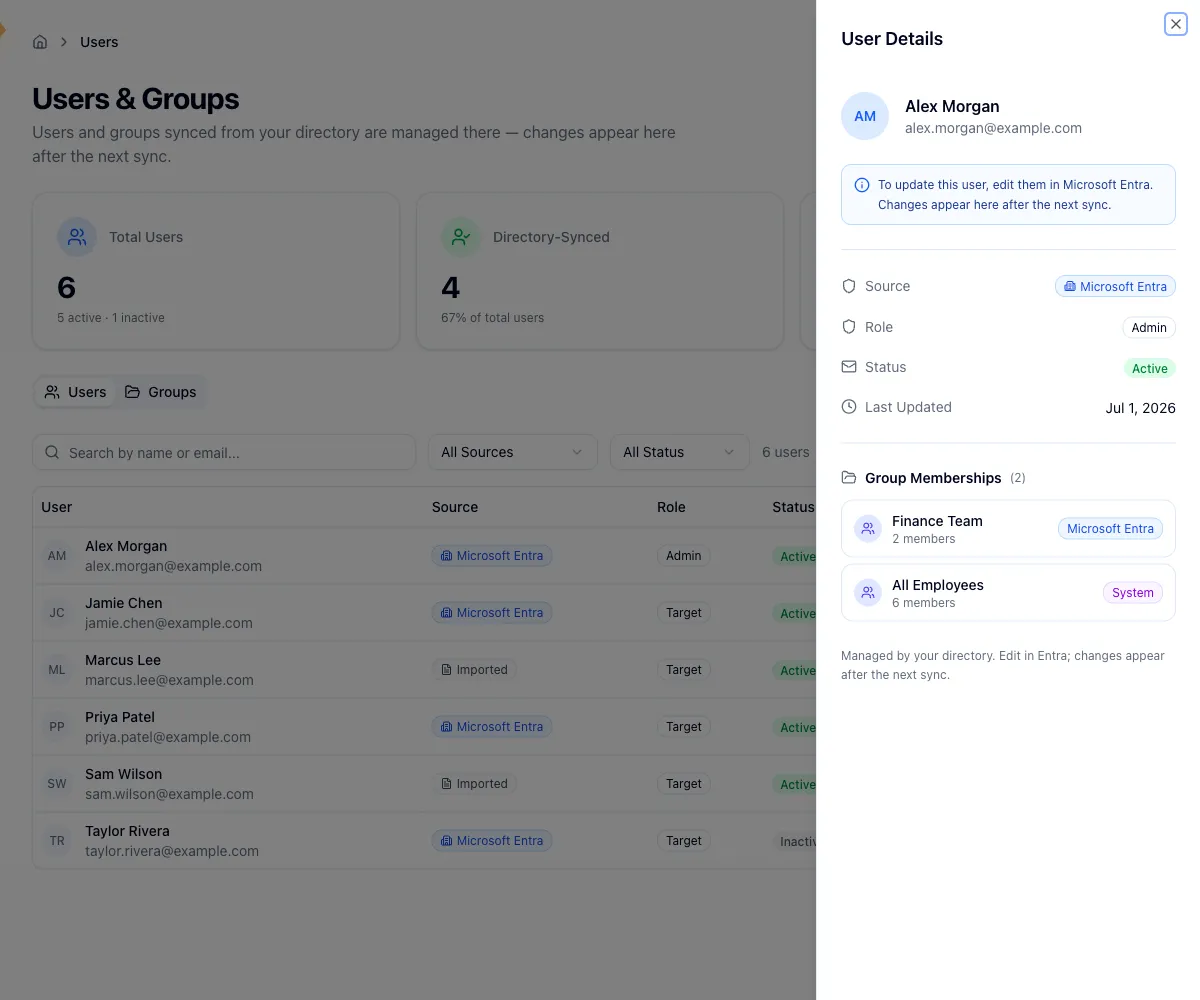
Click a row to slide in the detail panel. It repeats the source, role, status, and last-updated values, then lists every group the person belongs to with its member count and source. A group they've left is marked as removed, with the date, instead of a member count. For a synced user, the panel points you back at Microsoft Entra as the place to make changes.
Browse the Groups tab
Same idea, applied to groups. Search matches the group name, and the Source dropdown has more options here because groups come from more places:
- Microsoft Entra: synced from your directory.
- Legacy: migrated from an earlier import and no longer actively synced.
- Manual: created directly in Hook, not tied to a directory.
- System: maintained automatically by Hook and not editable.
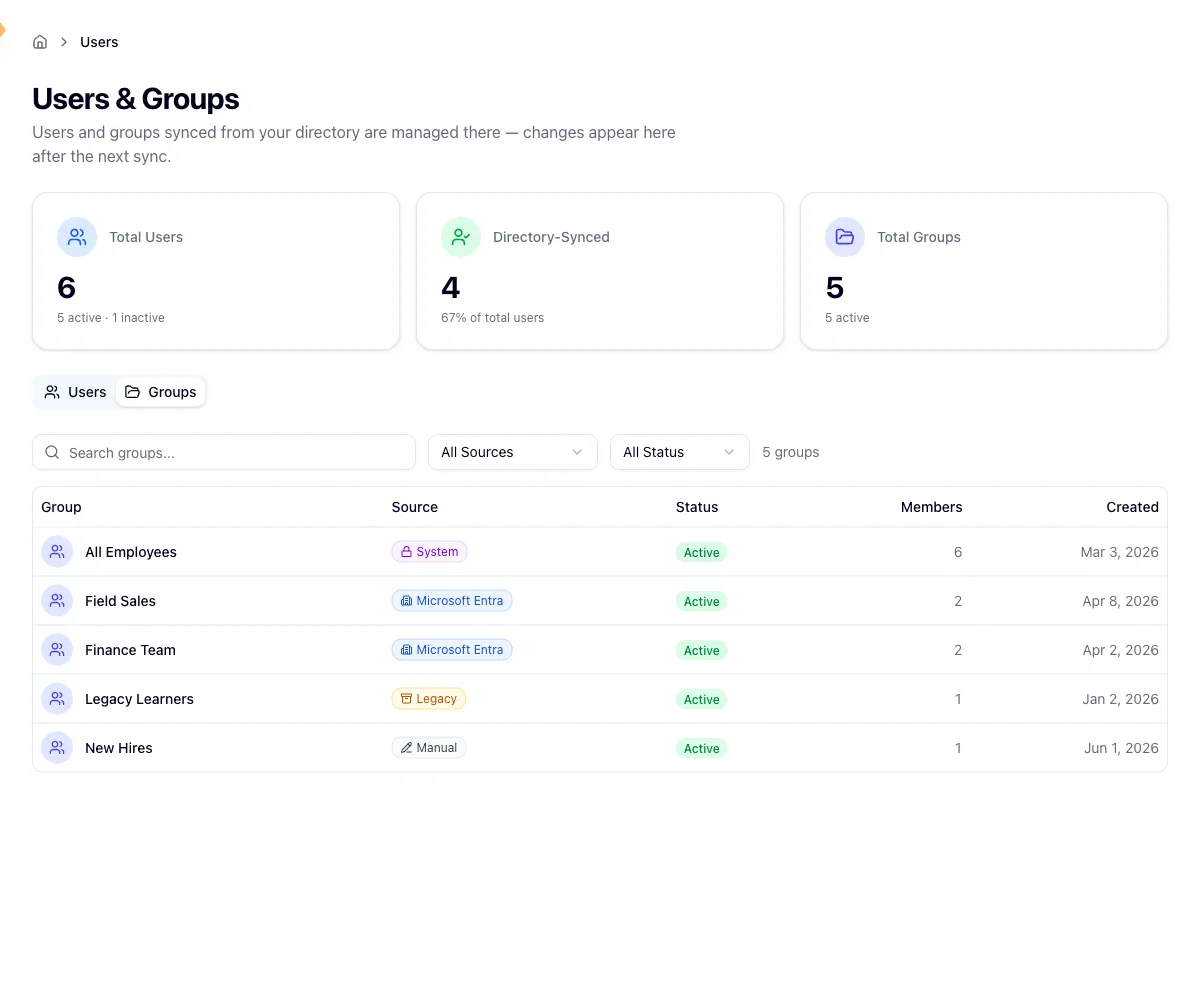
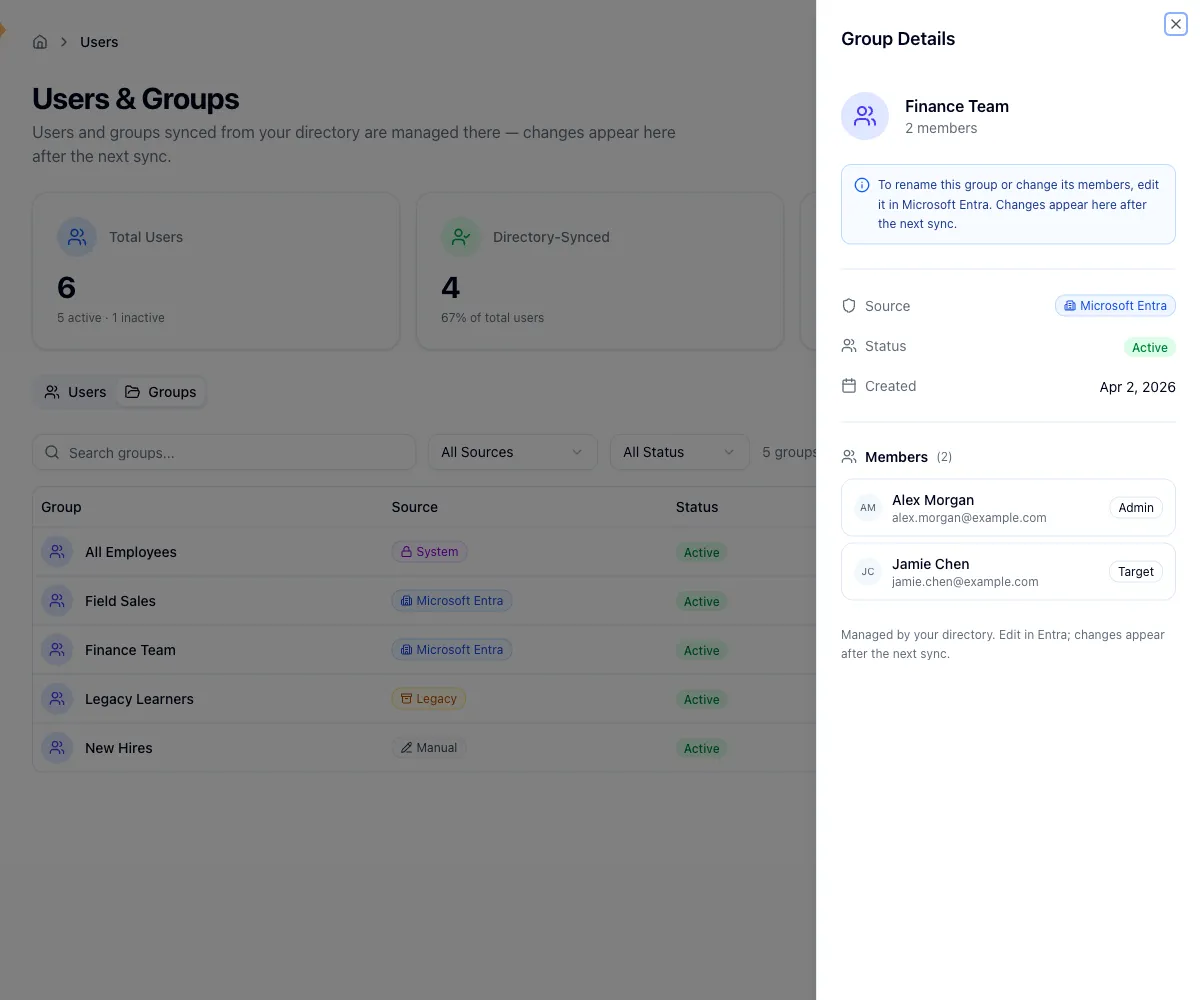
Rows show the group, its source, status, member count, and creation date. The detail panel adds the full member list with each person's name, email, and role, and marks anyone who has left as removed with the date they went. Synced and system groups carry a note at the top of the panel explaining where they're managed from.
How status is decided
Status is worked out fresh each time the page loads rather than stored. A user is Active only when the record hasn't been removed and the source still lists them as active; anything else reads Inactive. A group is Active until it's removed.
Removed users and groups stay on the page so your historical campaign and training data still points at a real person, but their rows are dimmed and sorted after the active ones. In a detail panel, their memberships and rosters are labelled as former rather than current.
Common pitfalls
- Changes aren't instant. A rename, a new hire, or a removed member in Entra appears here after Hook's next sync, not the moment you save it.
- The page looks empty right after connecting a directory. Users and groups only appear once the first sync completes. Give it time to run.
- Switching organizations resets the page. Search, filters, and any open detail panel clear when you change workspace.
- An offboarded person still shows up. That's deliberate, so past results stay attributable to someone.
Related
Sync users from Microsoft Entra
Connect a directory, pick groups, preview members, and confirm.
Manage your directory connection
See and manage the directories that feed users and groups into Hook.
Navigate the org portal
Find your way around the sidebar, the org switcher, and the core pages.
Concepts
Organizations, users, groups, and how the pieces fit together.
Automate report delivery
Schedule a report to be generated and emailed to the people who need it, on a repeating cadence, so you stop forwarding PDFs by hand.
Sync users from Microsoft Entra
Connect Hook to Microsoft Entra (Azure AD), choose which groups to sync, preview the members, and confirm, so your user list stays current on its own.