
Preview upcoming Autopilot campaigns
See what Autopilot will send next, the email itself, the red flags it hides, and the sending IPs your IT team needs to allowlist.
Open Campaign Previews when you want to brief your help desk ahead of a send, or when someone asks what's coming next. Each preview also carries the training video that pairs with that month's theme, if there is one.
It's a window, not an approval queue. There's no approve, reject, edit, reschedule, or cancel anywhere on the page. To change what Autopilot sends, change your settings in Understand and set up Autopilot.
Open Campaign Previews
Go to Autopilot in the sidebar, then Campaign Previews. If Campaign of the Month isn't enabled for the organization you have selected, you get a short message explaining that instead of a list. Switch organizations, or turn it on from Autopilot settings.
You'll see two lists, each with its own count. Upcoming holds scheduled campaigns, soonest first. Past holds completed ones, most recent first. Nothing else appears here. Campaigns in any other state are filtered out of the customer view, so a gap in the numbering doesn't mean something broke.
An empty Upcoming list usually has a simple explanation. Scheduled previews are hidden while Autopilot is paused, and while you have the next cycle set to skip.
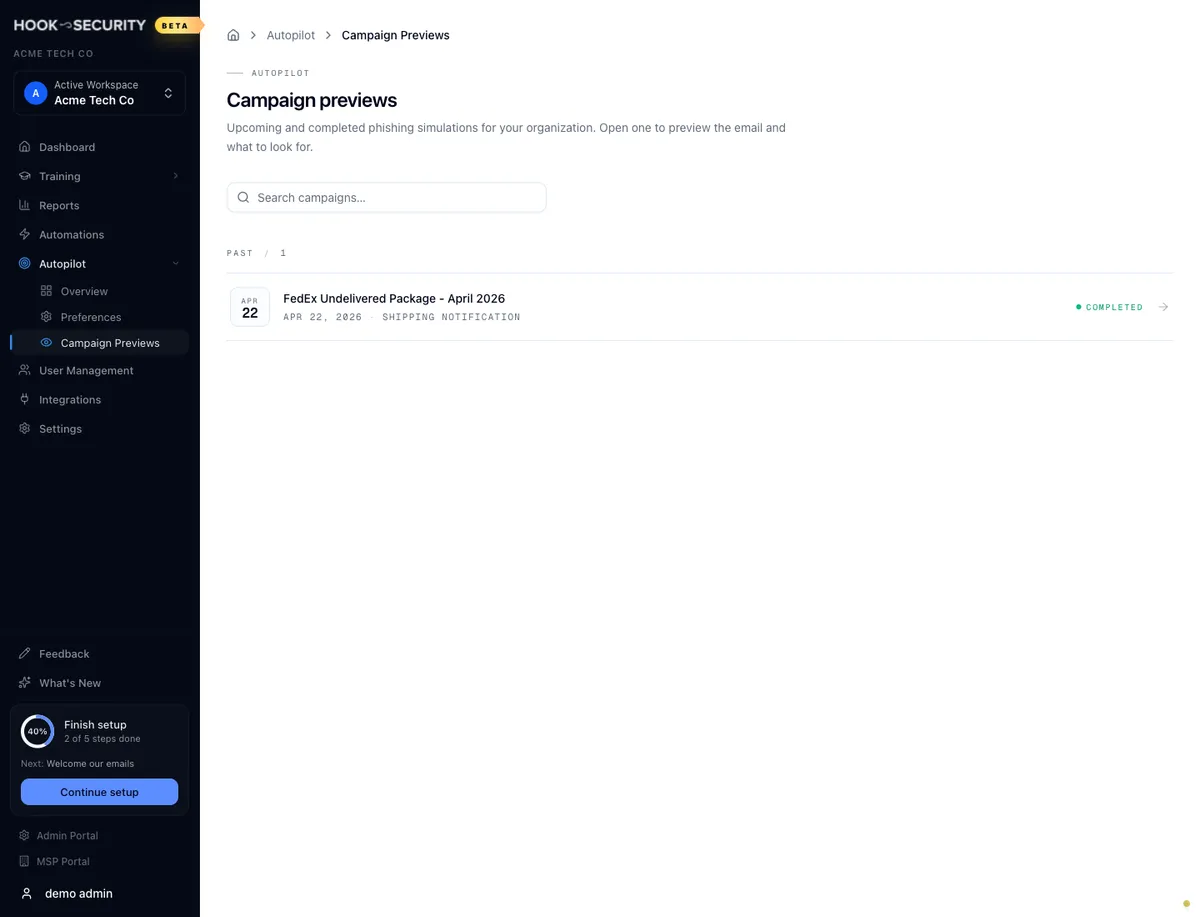
Each row leads with its status pill on the left, then the campaign name, the date, and the theme if one is set. On a narrow screen the status pill drops off. The search box filters on campaign name, theme, and template name.
Read a preview
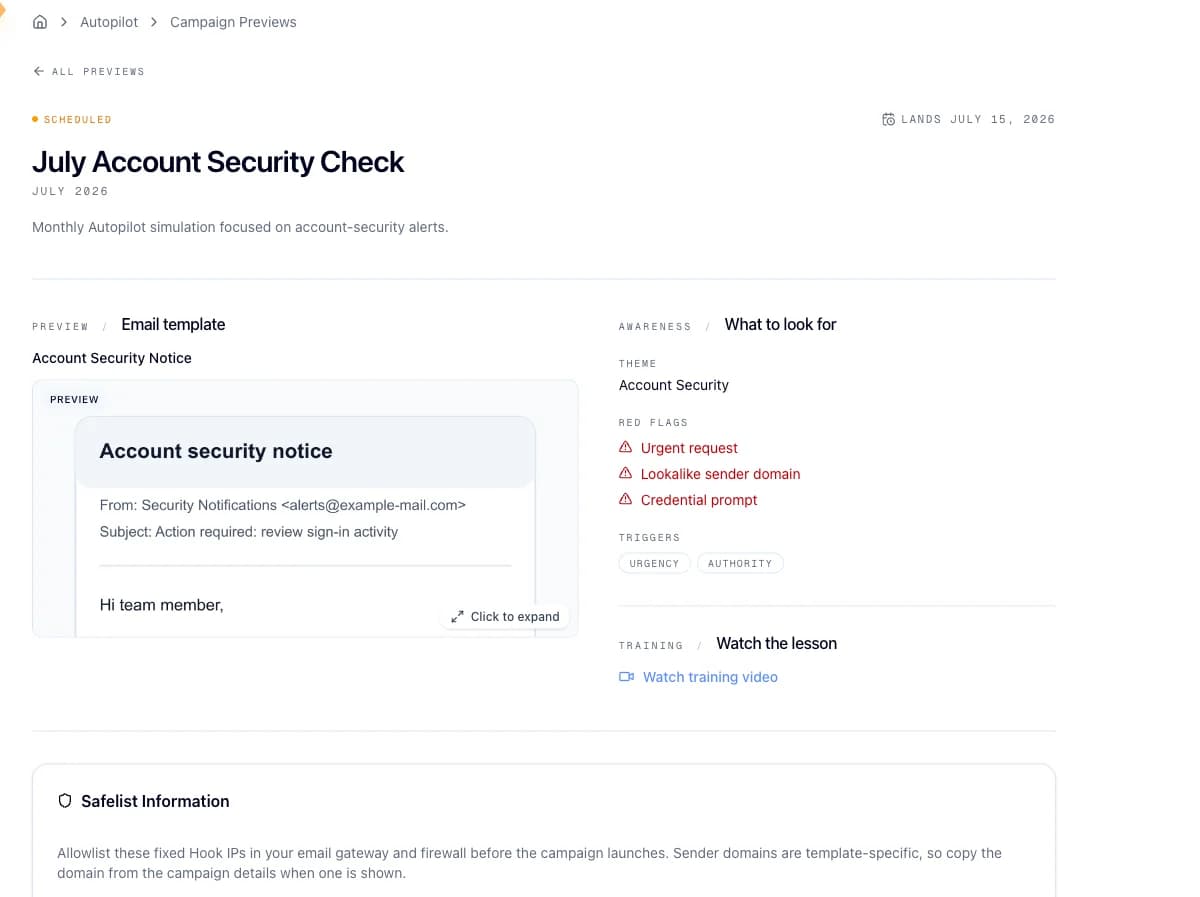
Click any row to open its detail card. The card opens with the status pill and the campaign name, and a date line telling you when the campaign lands, or when it was sent if it already ran. A description, when there is one, sits below that title block.
The email itself
Under Email Template you get the template name and a rendered screenshot of the phishing email exactly as your users will receive it. This is the part worth forwarding to your help desk. When the calls start, they'll already know what the email looks like.
What to Look For
This section is the teaching material Hook attaches to the simulation. It appears when at least one of three things is set: the theme, meaning the social engineering angle such as a fake invoice or a password reset; the red flags a careful reader should catch; and the triggers, the psychological pressure the email leans on.
Reach for it when you need to explain why a simulation works, not just what it looked like.
Training video
If a lesson is attached to the campaign, a Watch training video link opens it in a new tab. The section is hidden entirely when there's no video, so don't read its absence as a fault.
Hand IT the safelist details
Every preview ends with a Safelist Information card listing the eight sending IP addresses Hook uses for every simulation, Autopilot or manual:
64.191.166.196
64.191.166.197
64.191.166.198
198.61.254.6
54.80.160.189
54.88.246.212
54.240.70.101
54.240.70.102
Copy all puts the list on your clipboard, ready to paste into a ticket. Your IT team needs to allowlist these in the email gateway and the firewall before the campaign launches. If they don't, the simulation is filtered before anyone sees it and your results overstate how well your users are actually doing.
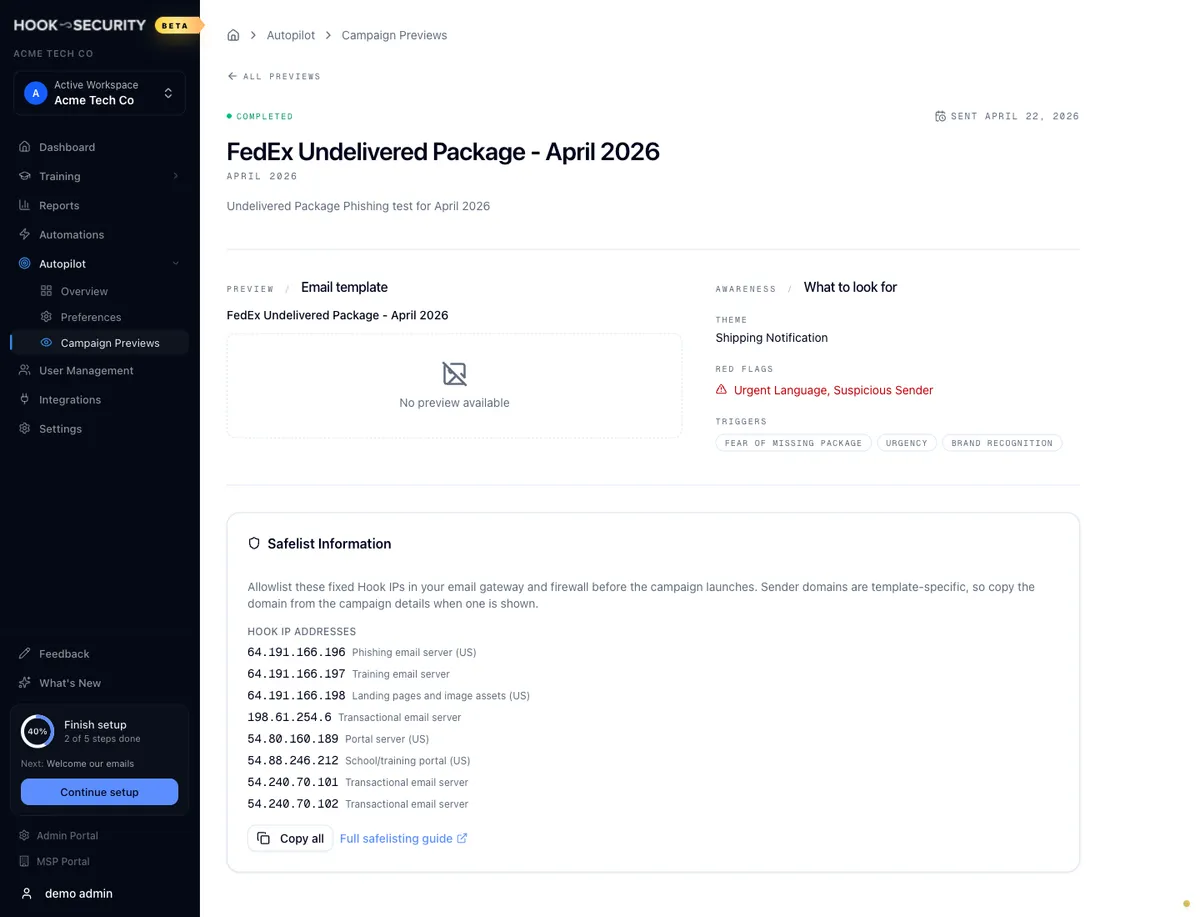
This card carries IPs only. Sender domains come from each template rather than from a fixed list, so if your gateway filters on domain as well as IP you need that value too. Safelist Hook's sending domains and IPs covers the whole handoff.
Related
Understand and set up Autopilot
Turn Autopilot on, choose frequency and audience, and control what these previews reflect.
Safelist Hook sending domains and IPs
The full allowlisting handoff, including the per-template sender domain this page omits.
Run a phishing campaign
Launch a one-off simulation by hand instead of waiting for Autopilot.
Understand and configure Autopilot
See what Autopilot is running and when the next simulation goes out, turn it on or off, and tune how often simulations go out, who receives them, and who gets a preview.
Browse the reports catalog
Find your way around the Reports hub, filter the catalog by category, and pick the report that answers the question you were asked.