
Frequently asked questions
The questions support hears most often about Hook: sign-in, the read-only portal, which sections you see, campaign scheduling, autopilot, and empty reports.
Each answer points at a deeper guide where there is one. If your question isn't here, email support@hooksecurity.co.
Access and sign-in
How do I sign in? Is there a password?
Sign-in is invitation-only, and the default path is a one-time code. You enter your work email, Hook emails you a 6-digit code, and you paste it back in. There's also a password tab for accounts that have a password set. Those are the only two methods.
Two details that surprise people. Hook always advances you to the code-entry screen after you request a code, whether or not the email matches an account, so attackers can't use the login page to work out who has access. And resending a code has a 30 second cooldown, shown as a countdown.
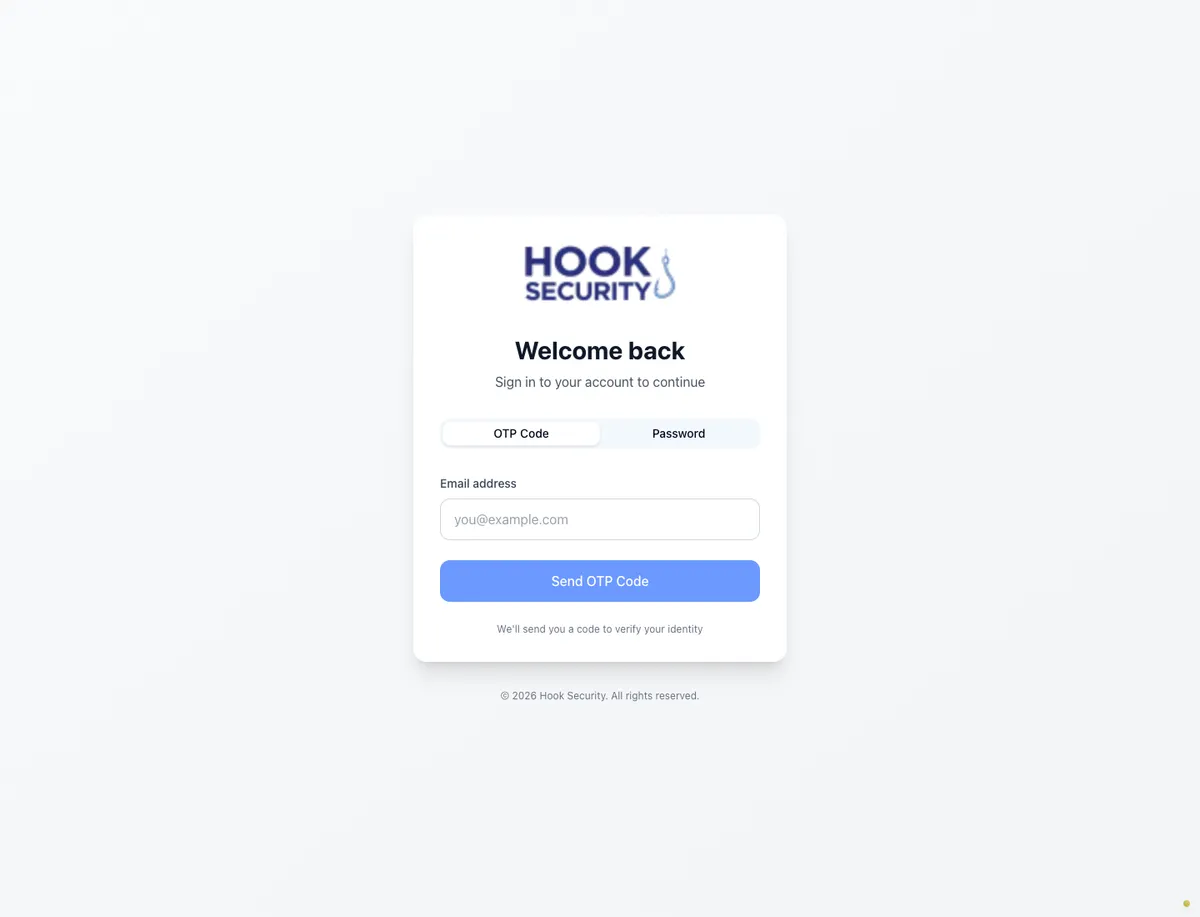
For the full walkthrough see Get started with Hook, and if you're blocked, Troubleshoot sign-in.
Why was my sign-in rejected when my email is correct?
Two checks run after your code or password is verified, and either one stops a valid email address.
The first is whether your identity matches a known Hook user. Sign-in is invitation-only, so if nobody has provisioned you, ask your CSM or an existing admin to do it.
The second is your role. Only people with the Admin role in Hook can sign in here, so any other role is turned away even though the account exists. The fix is for an admin to change your role. This is the most common cause by far, and it usually means you're a training learner rather than an administrator.
Either way Hook ends the session rather than leaving an ineligible account signed in. Troubleshoot sign-in covers the rest.
Where do my end users take training?
On a separate site. Every successful login here lands in an admin portal; there is no learner experience in this product. Employees complete assigned courses at school.hooksecurity.net, and the button they use to report a suspicious email lives in their email client, not in this app.
You assign and track training here. Your people take it there.
Single sign-on for learners
Can our people open training with their work account?
Yes. Connect your identity provider under Settings, then Single sign-on, run a test sign-in, and choose whether single sign-on is available alongside emailed links or required. Microsoft Entra ID, Okta, Google Workspace, and any SAML 2.0 provider work. The setup takes about 20 minutes and is written up in Set up single sign-on for learners.
Does signing in through our provider create the learner in Hook?
No. A person must already be in Hook, through directory sync or an import. Sign-in matches them; it never creates them. They don't need training assigned to sign in. Someone your provider vouches for but Hook does not know is told they are not set up as a learner yet and shown a reference code for support.
If we make single sign-on required, do we resend the training emails?
No. Every training email carries the same kind of link whatever the mode, and Hook decides what the link does when it is opened. Switching to required covers emails already sent, and switching back makes them work again.
Our provider is down and sign-in is required. Are we locked out?
Switch the mode to available and emailed links work again immediately, or ask support@hooksecurity.co for recovery access, which restores the links for a bounded window without touching your configuration. See Manage your SSO connection.
The read-only portal
Why can't I add or edit users?
Users and groups in this portal are read-only by design. You can search, filter by source and status, and open any record to see members and memberships, but there are no add, edit, or delete controls.
To change someone, edit them in the source and let the next sync reconcile it. For records synced from Microsoft Entra, that means editing the user or group in Entra; deactivating someone there is what removes them from future campaigns and enrollments. Imported records are changed upstream too. Either way the change shows up after the next sync rather than instantly, which is expected and not worth a support ticket.
See View users and groups and Sync users from Microsoft Entra.
How does this portal relate to Hook 1.0?
This portal is largely a read-only view of data synced from Hook 1.0, the classic console at portal.hooksecurity.net. Your users, groups, campaigns, and results originate there and flow into here, and management features are arriving in this portal in phases.
So if a number looks like it's lagging, it's showing you what was last synced.
What you can and can't see
Why do I see fewer sidebar sections than the docs describe?
Your sidebar is built from what's enabled for the organization you have selected, so two orgs on the same account can legitimately show different sections. Switching workspaces re-evaluates the list.
The full set is Dashboard, Hook Agent, Training, Simulations, Reports, Automations, Autopilot, User Management, and Settings, with feedback, What's New, the research library, a readiness widget, and portal links below. Integrations aren't a top-level section; they live inside Settings.
A missing section is almost never a bug. It just isn't turned on for your organization yet, and your Hook contact can enable it. See Navigate the org portal for a tour of each one.
Can I schedule a phishing campaign for later?
That depends on how your account is set up. On some accounts scheduling is marked as coming soon and disabled, so finishing the wizard sends immediately. On others it's fully live: you pick a date and time, with a short minimum lead time, and you can edit or cancel before it goes out.
Either way, check the launch timing on the review step. If the campaign is set to launch now, that final button really does send, so confirm your targeting, your template, and above all the selected workspace first. See Run a phishing campaign.
How do I turn on Autopilot?
In most organizations an admin can turn phishing autopilot on from the Autopilot section and edit its settings there. If a partner manages your organization, you may instead see a prompt to contact them, and they decide whether you can change the settings yourself. Until it's on, the Autopilot pages read as not active.
You'll see autopilot called COTM, short for Campaign of the Month. It's the same feature, and reports that depend on it, like the COTM Campaign Report, only appear once it's enabled. See Understand and configure Autopilot.
Reports and delivery
Why are my report numbers empty or partial?
Phishing numbers only exist if the simulation actually reached people, so work down the delivery chain before assuming a report is broken.
- Recipient domains have to be authorized. Hook only delivers to email domains it knows are yours, and those come from your synced directory. An unauthorized domain means the send never lands and nobody registers as opened, clicked, or reported. See Authorize recipient domains.
- Safelisting may be required. If Hook's sending domains and IPs aren't safelisted in your mail filtering, simulations get blocked or quarantined before they arrive. See Safelist Hook's sending domains and IPs.
- Check the organization you have selected. Every report covers that one org and never rolls up child organizations, so a parent org will not see its clients' numbers here.
If a report is thin right after a launch, give it time. Engagement arrives across the campaign's tracking window, which is three days by default. If phishing tiles read zero across every report and every campaign, ask your Hook contact to confirm the delivery integration is connected for your org. Troubleshoot phishing delivery walks the whole chain.
How do directory sync and authorized domains fit together?
Directory sync brings your Entra groups and members into Hook and keeps them current. As a side effect, the email domains of those synced users become your authorized domains, which is how Hook knows where it's allowed to deliver. Connect a directory and the rest follows. Without one you'll be authorizing domains by hand.
See Sync users from Microsoft Entra, Manage directory connections, and Authorize recipient domains.