
Browse the reports catalog
Find your way around the Reports hub, filter the catalog by category, and pick the report that answers the question you were asked.
Reports is the catalog of everything Hook can generate for your organization. You come here when someone asks how the last phishing test went, who still hasn't finished training, or which people keep clicking, and you need the one report that answers it.
Open the hub and narrow it down
Open Reports in the sidebar. Every report appears as a card in a single grid, with a row of category chips above it: Campaign, Course, User, and Group.
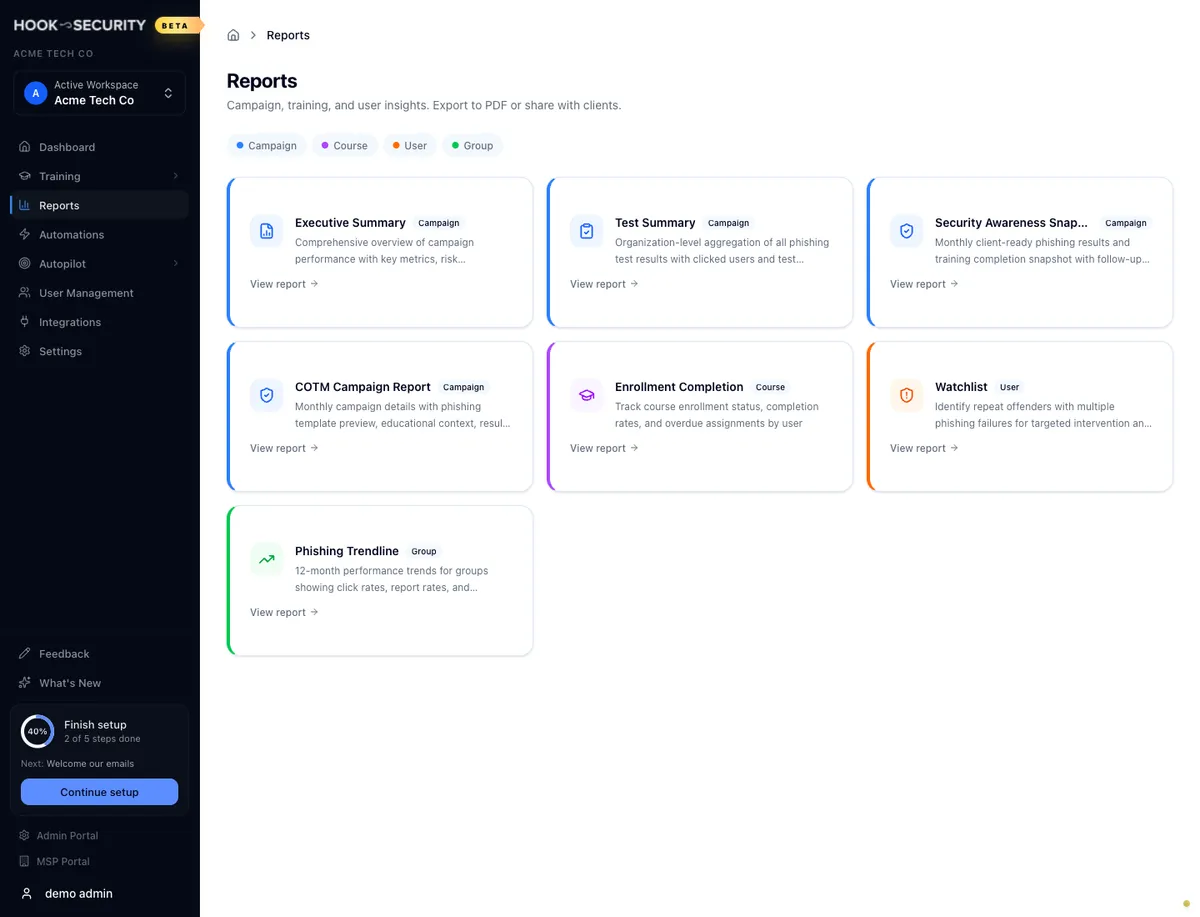
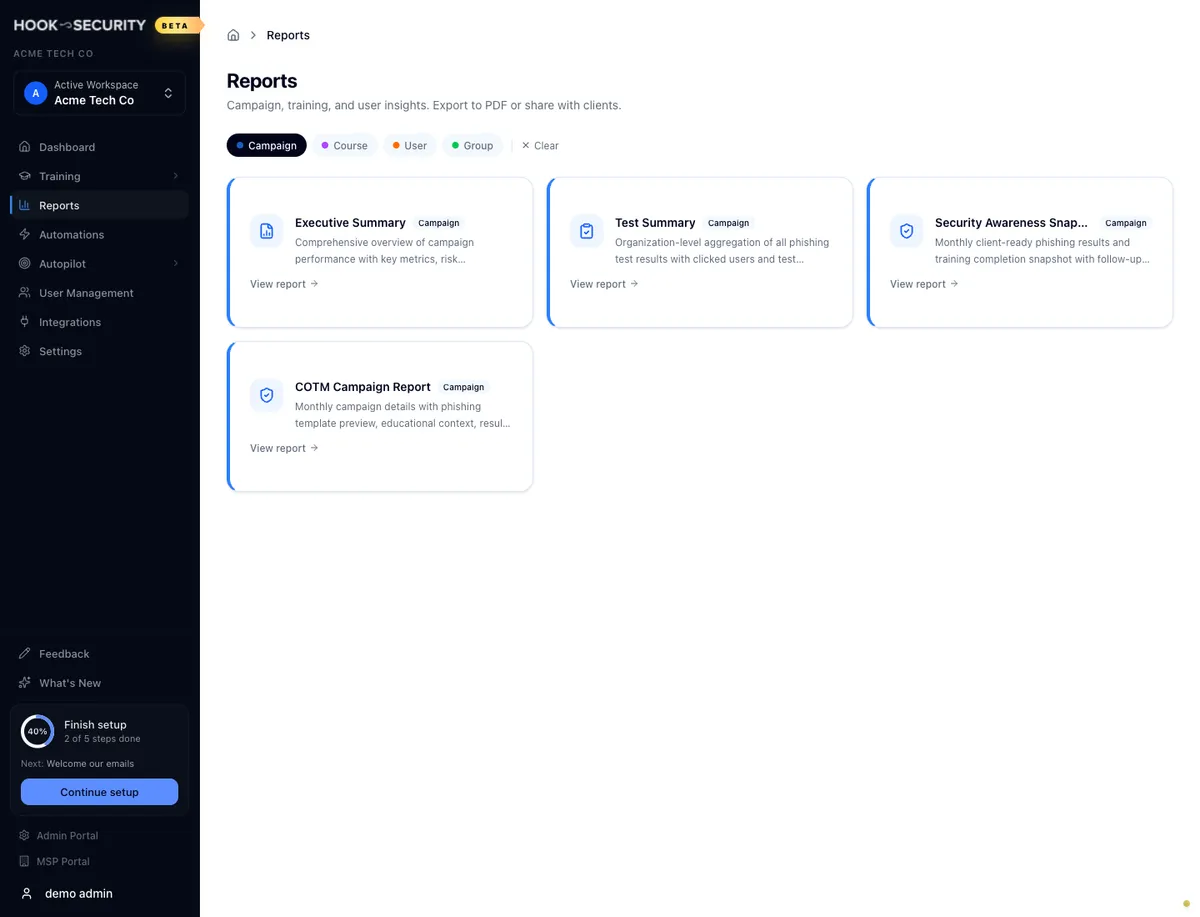
The chips are additive, so turning on Campaign and Course shows both sets of cards, and a Clear button appears as soon as any chip is active. There is no search box on this page and no per-category sections to scroll to, so the chips are the only way to narrow the grid. If a filter leaves you with nothing, clear it to bring every report back.
Which report answers which question
There are seven reports in the catalog.
| You want to know | Open this | Category |
|---|---|---|
| How one campaign went, in a form leadership can read | Executive Summary | Campaign |
| Full results for one phishing test, including who clicked | Test Summary | Campaign |
| A month of phishing and training on one client-ready page | Security Awareness Snapshot | Campaign |
| The Campaign of the Month detail, with template preview and group participation | COTM Campaign Report | Campaign |
| Who has finished a course and who is running late | Enrollment Completion | Course |
| Which people keep clicking, across every simulation you have run | Watchlist | User |
| Whether one group is getting better or worse over a year | Phishing Trendline | Group |
Two cards change name once you are inside them. Phishing Trendline opens a page called Group Reports, where you pick a group first, and the detail page behind Enrollment Completion is headed Course Enrollment Report. Same reports, different labels on the way in.
The COTM Campaign Report card only shows up when Campaign of the Month is turned on for the selected organization. If you are expecting it and it isn't there, that is why.
Opening a report
Click View report on a card to open it. The Security Awareness Snapshot and the Watchlist go straight to data, since they cover the whole organization. The others ask you to choose something first: a campaign for Executive Summary and COTM, a test for Test Summary, a course for Enrollment Completion, and a group for Phishing Trendline. Those pickers only list things that have reached the sending provider, so a campaign you started but never launched won't appear in the Executive Summary list.
Export and email
Every report has an Export PDF button for a presentation-ready copy and an Export CSV button for the data behind it, which is what you want when the numbers are going into a QBR deck, a spreadsheet, or your own charts.
A CSV export follows the controls you have set on the page, including the selected campaign, test, course, or group, the date range, the visibility options, and the column you sorted by. A report with a single table downloads one CSV. A report with several tables filled in downloads a ZIP containing one CSV per table.
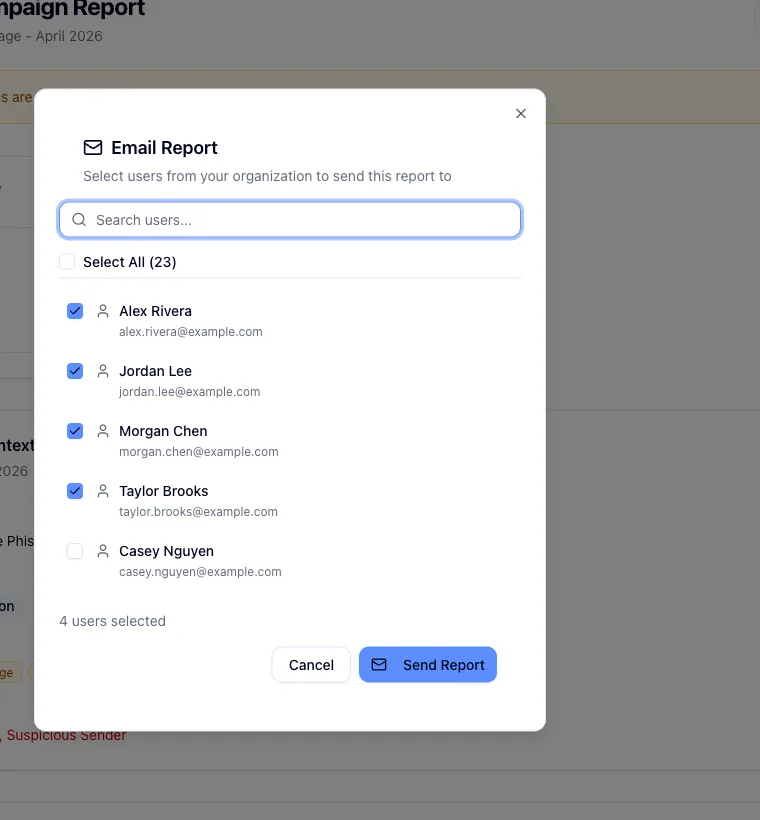
Most reports also have an Email button that builds the same PDF and sends it as an attachment, which saves you downloading and forwarding it yourself. You choose recipients from the users in the selected organization rather than typing an address, so anyone outside the org has to be added as a user before you can send them anything. The Security Awareness Snapshot is the exception: you can download it as a PDF or a CSV, but there is no Email button.
If you want a report to arrive on a schedule rather than sending it by hand, see Automate report delivery.
Where the numbers come from
The phishing reports (Executive Summary, Test Summary, Watchlist, and Phishing Trendline) pull live simulation data through your organization's phishing integration, so without it they have nothing to show. Enrollment Completion reads training records out of Hook itself and works whether or not phishing is set up. The COTM report is built from Hook's own record of the campaign and adds live metrics when it can, quietly dropping that block when it can't. The Security Awareness Snapshot draws on both sides.
When a report opens but comes back empty, it is almost always one of two things: the selected organization has no campaigns or enrollments yet, or a phishing report is missing its API key.
Reports follow the selected organization
The catalog and everything inside it is scoped to whichever organization is chosen in the org switcher. No report rolls up the client organizations beneath it, so if a number looks smaller than you expected, check the switcher before you go hunting for a bug.
Related
Read the executive summary report
Make sense of the metrics and recommendations for a single campaign.
Run the test summary report
See full phishing test results and the users who clicked.
Run the course enrollment report
Track completion and overdue training on a single course.
Review the security watchlist
Identify repeat clickers who need targeted follow-up.
Preview upcoming Autopilot campaigns
See what Autopilot will send next, the email itself, the red flags it hides, and the sending IPs your IT team needs to allowlist.
Read the executive summary report
Open, interpret, and share the executive summary for a phishing campaign so leadership sees the results and your team knows what to do next.