
Track training progress and completion
Watch training land: see completion by course, find the learners who are behind, and export a roster for a manager.
Once training is assigned, Manage Training is where you watch it land. It rolls every course with active enrollments into one view and drills down to the individual learner. Come here at the end of a compliance window, when you need to chase stragglers, or when a manager wants a clean spreadsheet for their team.
The whole dashboard is read-only. To change an enrollment, use Enrollment History instead.
Open Manage Training
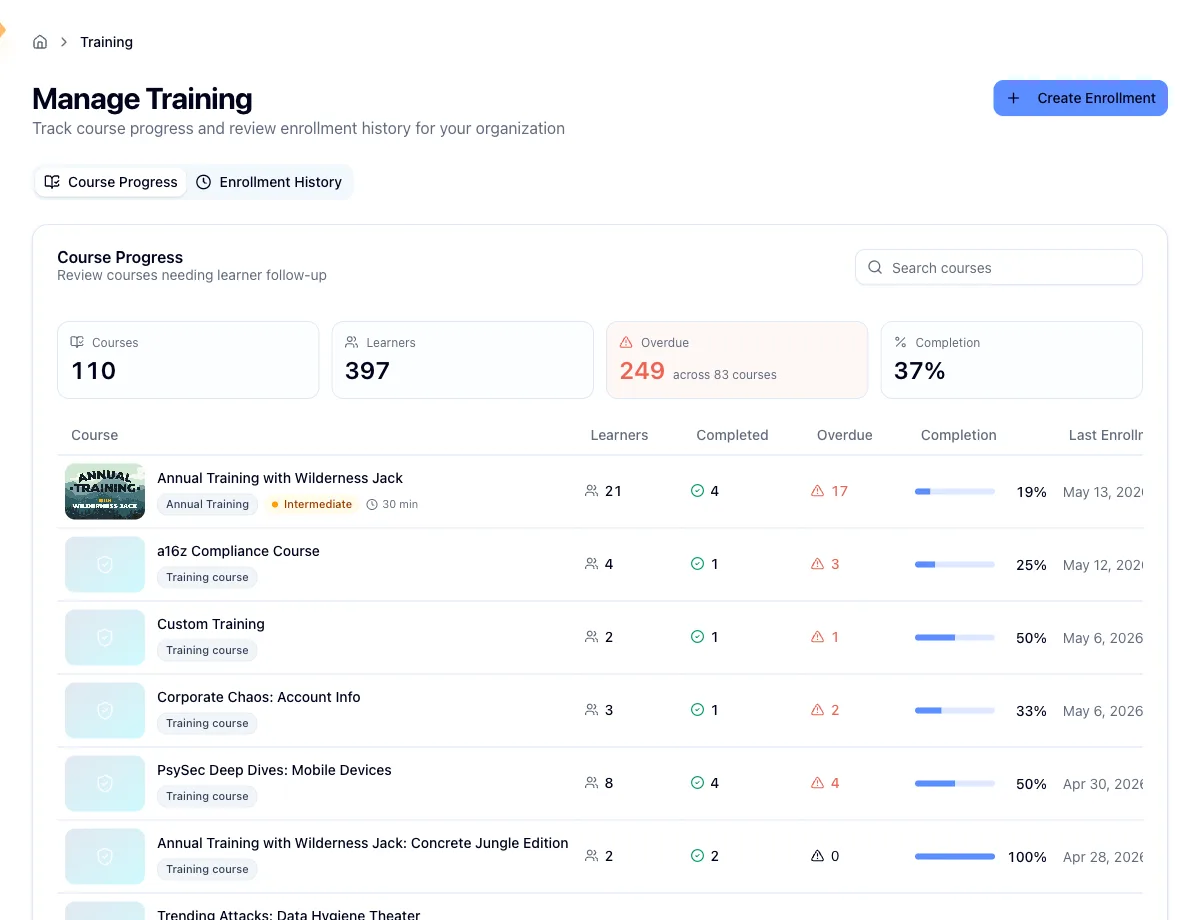
Open Training in the sidebar. The page has two tabs: Course Progress, which opens by default and is what this article covers, and Enrollment History, the batch-by-batch record of what you've submitted. Create Enrollment in the top right starts a new assignment.
Read the Course Progress tab
Four tiles run across the top: how many distinct courses have enrollments, the total learner count, how many learners are overdue and across how many courses, and the overall completion percentage.
The Learners tile counts enrollments, not people. Someone enrolled in three courses adds three to it, so this number can comfortably exceed your headcount. Within a single course it works the other way: if a person was enrolled more than once, only their most recent enrollment counts, so they show up once.
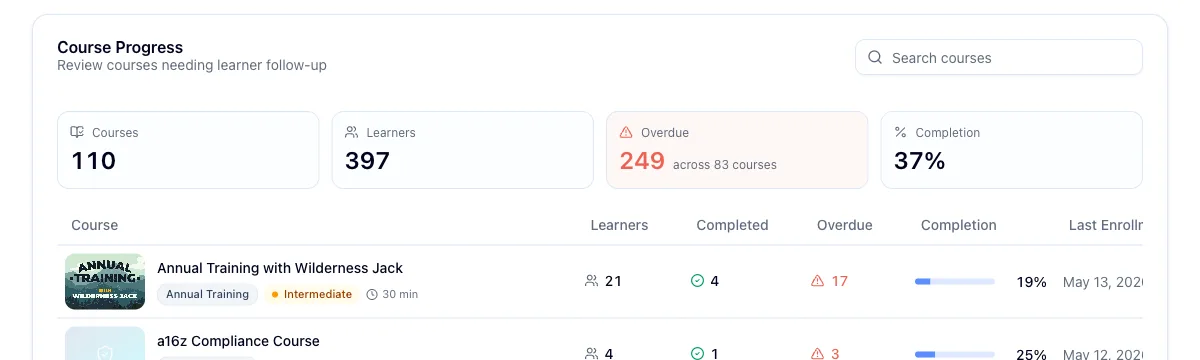
Below the tiles is one row per course, with the enrolled count, how many finished, how many are overdue, a completion bar, the most recent enrollment date, and the soonest upcoming due date. Every header sorts, and the table starts on the most recently enrolled course. Search by course name in the top right, and click any row to open that course.
A course that isn't in your published catalog still reports accurate numbers and shows its real name, which comes from the training provider. What you lose is the presentation: a generic category label and icon instead of the catalog artwork, and no difficulty or duration badges.
Drill into a course
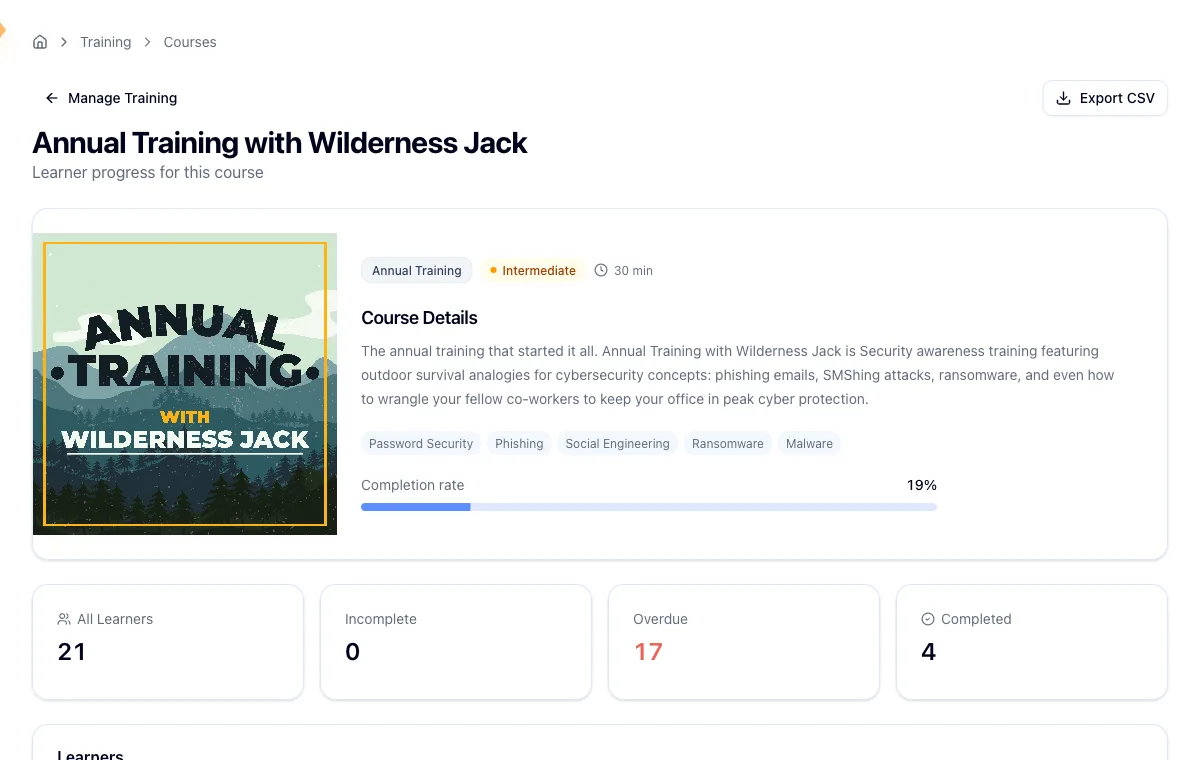
The course page opens with a hero card carrying the course details and a completion bar, then four counts that bucket the roster: everyone enrolled, incomplete, overdue, and completed. Manage Training at the top left takes you back.
How a learner's status is decided
Hook works down three rules and stops at the first match:
- Completed, if the enrollment is marked complete or has a completion date.
- Overdue, if it isn't complete and the due date has passed.
- Incomplete for everything else, including enrollments with no due date at all.
That last point catches people out: a learner with no due date can never go overdue. They stay incomplete until they finish.
Filter the roster
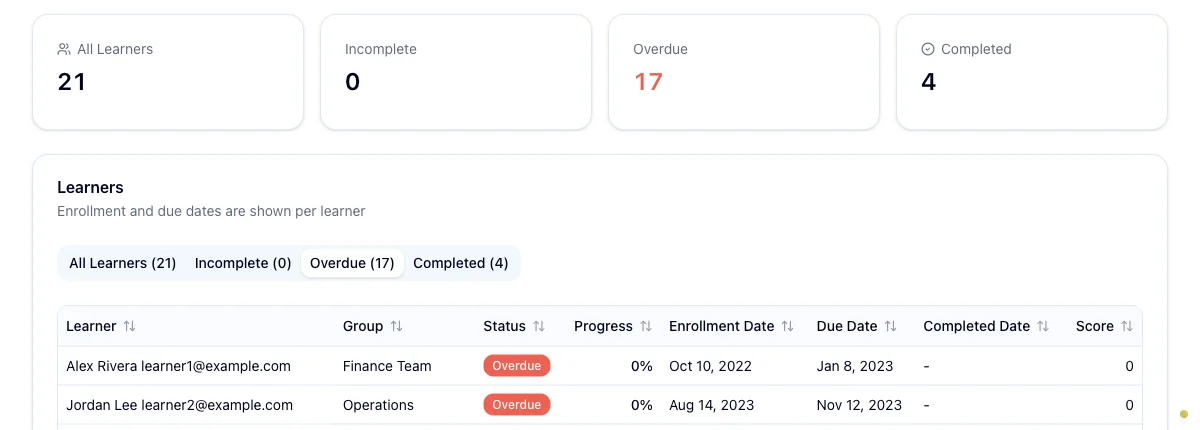
The Learners table underneath has a tab per bucket, each with its count. Selecting a tab filters the table. Rows show the learner and their email, their groups, status, progress, the enrollment, due, and completion dates, and a score where one was recorded. Every header sorts.
A blank score isn't a failing grade. It means no score has come back yet, which is normal for courses that don't return one and for anyone still working through the material.
Every date on this page is UTC
Dates render in UTC rather than your local time, in the table, on the course page, and in the export. If you're several hours off UTC, a date can read a day out from your calendar and a learner can flip to overdue at what looks like the wrong moment.
Export to CSV
Export CSV on the course page asks which bucket you want: all learners, incomplete, overdue, or completed. The file is built in your browser and downloads immediately, with no email or background job to wait on. It carries the learner and their email, group, status, progress, and the date fields, and it opens cleanly in Excel.