
Monitor single sign-on across your clients
See which client organizations use single sign-on, which connections need attention, and where to act.
Single sign-on is configured per client organization, by that organization's admin or by you from inside their portal. Settings, then Single sign-on in your MSP workspace shows every client on one page so you can spot a problem before the client does.
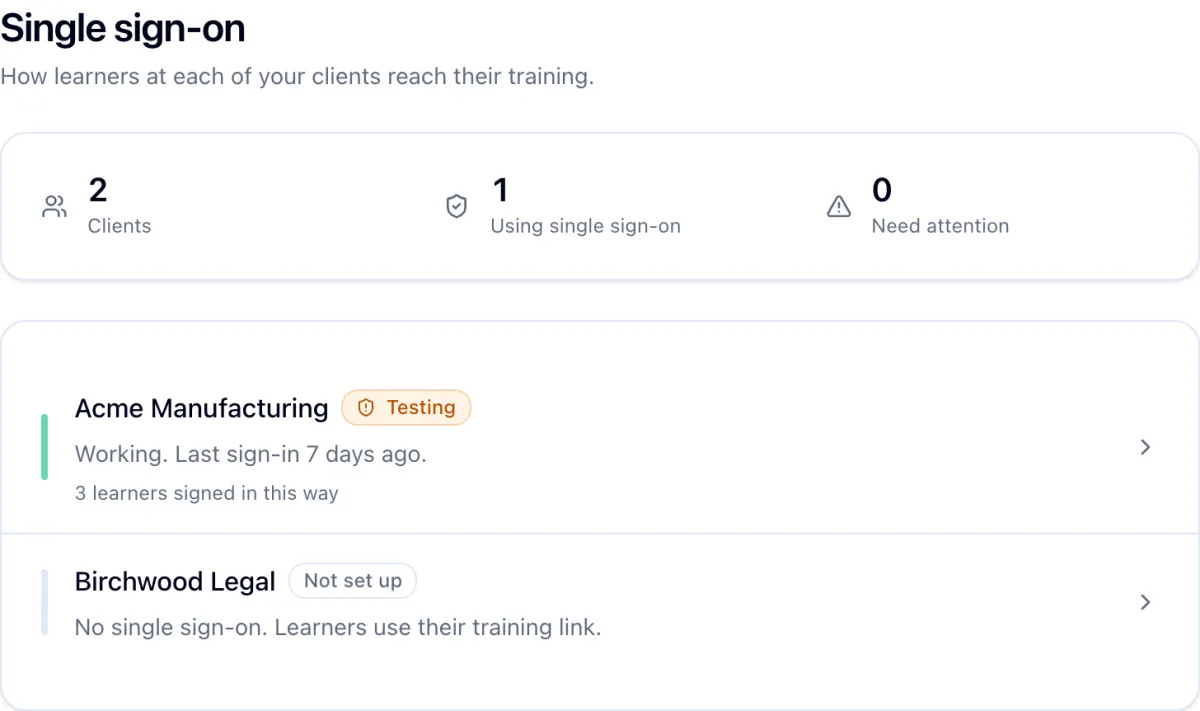
Read the summary strip
Three counts sit at the top: how many clients you manage, how many use single sign-on, and how many connections need attention. A client without a connection is not a problem; it simply uses emailed training links.
Read the client list
Clients are ranked by urgency, so anything that needs a hand is at the top:
- An expired signing certificate. Sign-in fails until the client's provider rotates it, or until the client replaces the metadata in Hook.
- A failed metadata check. The endpoint could not be read on the last try.
- A certificate expiring within the week, or recovery access currently on.
- Single sign-on set to required in an organization where no learner has yet signed in through it.
Below those come certificates expiring within the month, connections still being set up, and connections that are turned off. Each row's summary says what the badge means in plain words.
Act on a client
Open the client's portal from Clients and go to Settings, then Single sign-on. Everything on Manage your SSO connection applies: check or replace metadata, change the sign-in mode, disable or remove.
If a client's provider is down while their sign-in mode is required, ask Hook support for recovery access on their behalf. Their learners get their emailed links back for a bounded window while the provider is fixed.