
Manage your SSO connection
Read the connection's health, act on certificate warnings, replace metadata after a rotation, change how learners sign in, disable or remove the connection, and switch providers.
Once single sign-on is connected, the Settings, then Single sign-on page is where you keep it healthy. This page covers what each part of it means and what to do when something needs attention.
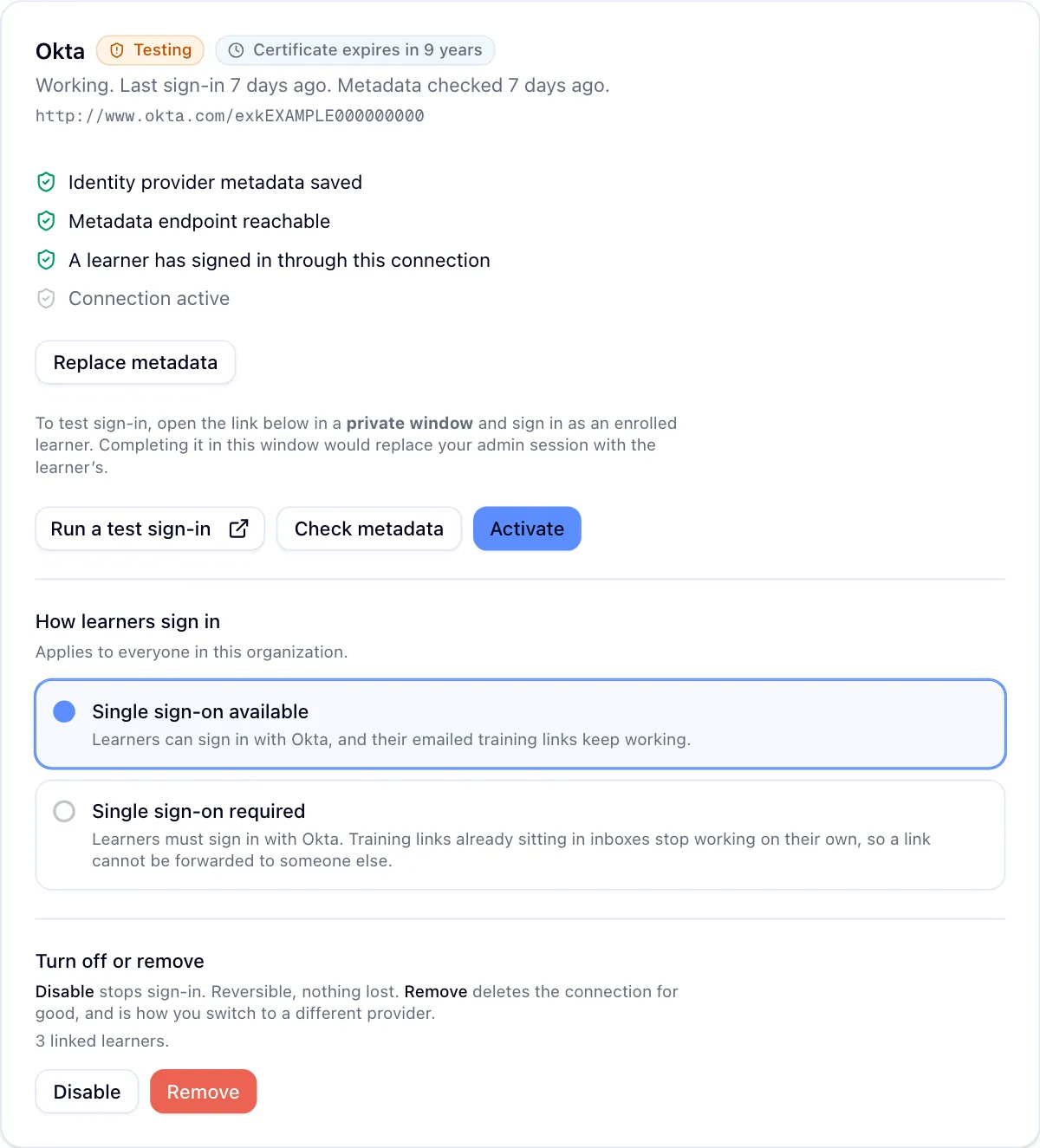
Read the health summary
The line under the connection name tells you the state in plain words: whether a learner has ever signed in through it, when the last sign-in was, and when Hook last checked the metadata endpoint. Two dates matter and they are different things:
- Last sign-in is a real person authenticating through your provider. It is the only proof that the whole chain works.
- Metadata checked is Hook reading your provider's metadata endpoint. It confirms the endpoint is reachable and reads the certificate expiry, nothing more.
If the last check failed, a notice explains why in the words your provider returned, and the summary says so instead of reporting the connection as working.
Certificate warnings
Your provider signs every sign-in with a certificate that expires. Hook reads the expiry from your metadata and shows a badge next to the connection name:
| Badge | Meaning |
|---|---|
| No badge or a green badge | More than 30 days remain. |
| Amber | 30 days or fewer. Plan the rotation. |
| Red | 7 days or fewer, or already expired. Sign-in fails once it expires. |
For Entra, Okta and any provider you connected by metadata URL, use Replace metadata with the same URL once the new certificate is active. Until you do, the sign-in service keeps checking sign-ins against the old certificate, and they fail. Hook re-checks the URL daily to keep the badge current.
For Google Workspace and any pasted metadata, Hook holds a snapshot. Download fresh metadata from your provider and use Replace metadata.
Replace metadata
Replace metadata swaps the connection's metadata in place. Nothing else changes: learners who have signed in before keep their link to their Hook record, the sign-in mode stays as it is, and your provider's application does not need to be recreated.
Paste the new metadata URL or file contents and confirm. Hook re-reads the certificate expiry and clears the last error. Use this after a certificate rotation, or whenever your provider tells you its metadata changed. To move to a different provider application, see Switch to a different provider.
Change how learners sign in
The two modes are covered in Set up single sign-on. Two rules apply when you change them:
- Required needs proof. The option stays unavailable until a test sign-in has confirmed the connection, and the connection must be active. A learner signing in through it counts too.
- Required takes effect for links already sent. Every training email carries the same kind of link whatever the mode, and Hook decides what the link does when it is opened. Switching to required therefore covers emails sent last week, and switching back to available makes them work again, with nothing to resend.
Turning a connection off while it is required puts the mode back to available first, so nobody is left required to use a door that is closed.
Recovery access during a provider outage
If your provider fails while single sign-on is required, your people cannot open their training. Hook support can grant recovery access: a bounded window, four hours by default and never more than a day, during which emailed training links work again. Sign-in through your provider keeps working throughout, nothing about your configuration changes, and the requirement comes back on its own when the window ends. There is nothing for you to undo.
Your settings page shows a notice while recovery is on, with the time remaining. To request it, contact support@hooksecurity.co with your organization name.
Disable or remove
Disable stops sign-in through the provider and signs out learners who are currently using it on their next request. It is reversible: Re-enable puts the connection back into testing, and everything you configured is kept.
Remove deletes the connection from Hook and unregisters it from the sign-in service. It can't be undone. Learners who signed in through it are signed out on their next request, required sign-in ends, and emailed training links work again. If you set SSO up again later, the connection gets a new organization sign-in link, so any tile in your provider's dashboard needs updating.
Switch to a different provider
Moving to another provider, or rebuilding the application in the same provider, means replacing the connection. Replace metadata can't do it, because it only accepts metadata from the application the connection already uses.
- Remove the current connection. Learners are signed out and use their emailed training links while you switch.
- Set up the new provider as described in Set up single sign-on, and run a test sign-in.
- Choose how learners sign in again. Required needs a passed test on the new connection first.
Learners don't need to do anything. The first time each person signs in through the new provider, Hook links them to their existing record by email, or by their Entra account when your Microsoft Entra directory sync covers the new provider's tenant. Their training progress is unchanged. Otherwise the new provider must send the same email address Hook has for each person; if it sends an alias or a different domain, they see an error instead. See Troubleshoot single sign-on.