
Troubleshoot sign-in problems
What each login error actually means, and the fastest way to clear it.
Portal sign-in works two ways, both on the same screen: a six digit code Hook emails you, which is the default, and a password. Signing in to the portal is limited to people whose role in Hook is Admin. If your role is anything else, retrying won't help, and the fix is a role change rather than a support ticket.
Find the message you're seeing below.
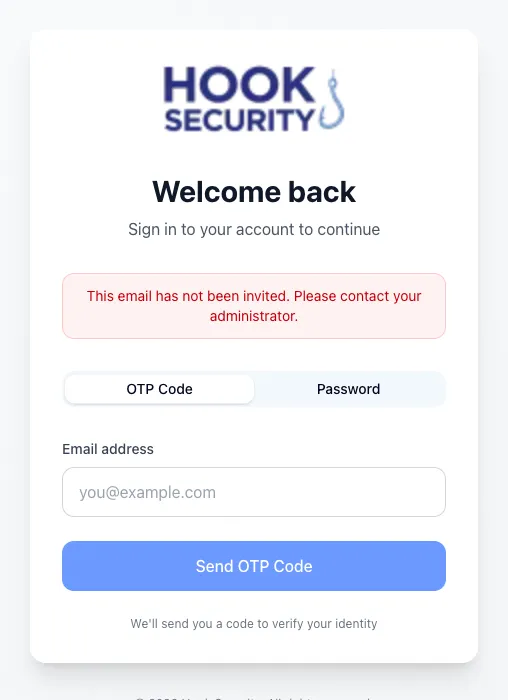
Hook says your email hasn't been invited
Your address doesn't match a Hook user. The code you used was fine; there is just no account behind it. Hook is invitation-only, so an admin has to create the account before you can sign in.
Ask your org admin to add you, and check the address you're typing while you
wait. you@acme.com will not match an invite sent to you@acme.co.
Hook says your account isn't authorized to sign in
Your account exists and you verified successfully. Your role just isn't Admin, and portal sign-in is admin only. That is the entire cause. No external account, provider record, or other system is checked when you sign in, so there's nothing to reactivate anywhere else.
If you should have portal access: ask an org admin to change your role to Admin in Hook, then sign in again. Support can't clear this any faster than your own admin can, because the change is made in Hook.
If you're here to complete assigned training: you're on the wrong site. Courses live on the school site at school.hooksecurity.net. The portal is for admins. This is the single most common reason people hit this message.
You get the same guidance whether you signed in with a code or a password.
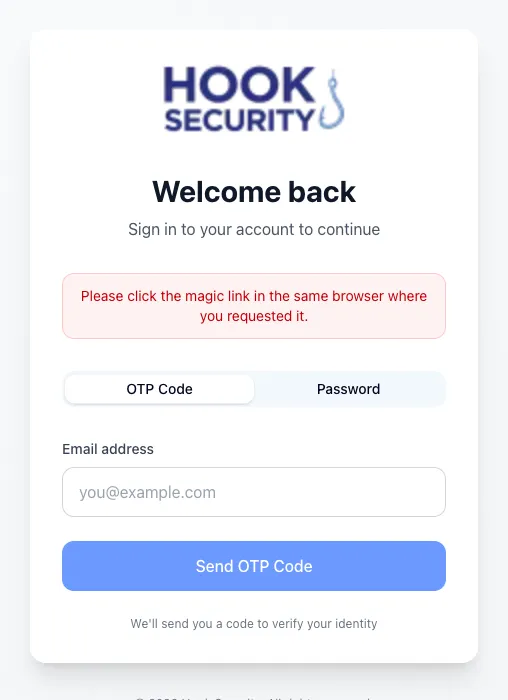
A sign-in link opens in the wrong browser
If you request a sign-in link on one device and open it in a different browser, the sign-in can't complete, and Hook asks you to open it where you requested it. This usually happens when you ask for the link on your phone and tap it on a desktop, or when an email app opens links in its own built-in browser.
Request a fresh link and open it in the same browser you started in. The simpler fix is to skip links entirely and use the emailed code, which works no matter where you type it.
The emailed code won't work
The code is exactly six digits and numbers only. The field strips anything else and stops at six characters, and the verify button stays disabled until all six are in, so a greyed-out button usually means you're a digit short or one over. Copy the code straight from the email rather than retyping it.
Codes are short-lived. If Hook says yours expired or didn't match, request another with Resend code and use it right away. Resend has a 30 second cooldown, so wait for the countdown instead of clicking repeatedly. Requesting too fast gets you rate limited for a minute.
Typed the wrong address? Use different email takes you back a step.
If no email arrives at all, check spam and confirm the spelling. Hook deliberately doesn't reveal whether an address is on file when you request a code, which stops strangers probing for valid accounts, so silence can also mean the account was never invited.
Your password won't work
A failed password sign-in gives the same message no matter what went wrong. Hook won't say whether the address exists, whether the password was wrong, or whether the account is inactive, because that would let someone test addresses one at a time.
There are two exceptions. If your role isn't Admin, you get the not-authorized guidance above instead. And if your account has been removed from Hook, Hook tells you that specifically, in which case an admin has to add you back before anything else will work.
Otherwise, re-check for typos and then use Forgot your password? below the form. You enter your email, verify with a one-time code, and set a new password of at least 8 characters, typed twice. Hook returns you to the login screen to sign in with it. Finish the reset in one sitting: leave the final screen too long and the verified session expires, and you'll have to start over.
Still stuck? The code tab doesn't depend on a password at all, so it's the fastest way back in.
What to send support
If none of the above clears it, email support@hooksecurity.co with the exact error from the login screen (a screenshot is ideal), the address you're using, whether you were on the code tab or the password tab, and roughly when you tried. For browser-specific problems, name the device and browser too.
If you're reporting on behalf of a teammate, say whether they should have portal access as an admin or only training access as a learner. That one sentence resolves most not-authorized tickets on the spot.