
Troubleshooting overview
Match your symptom to the right fix, from sign-in and missing navigation to directory sync, phishing delivery, training enrollments, and empty reports.
Before you chase a specific symptom, the two checks below clear a surprising share of reports on their own.
Check these two things first
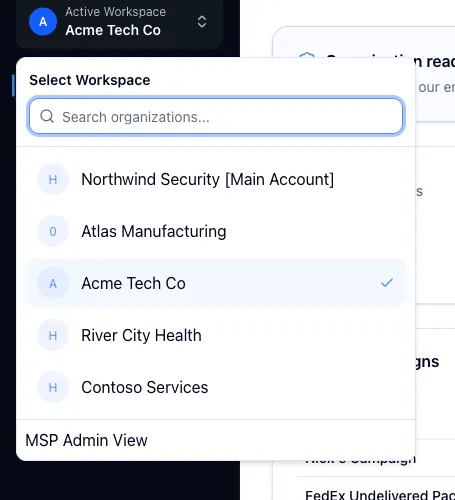
Is the right organization selected? Most reports of "the data is missing" or "I don't have access" come down to the wrong org being active. The switcher sits at the top of the left sidebar, and it drives what every page shows: your users, your campaigns, your reports, and which sections appear in the nav. See Navigate the org portal for where it lives.
Are you an org admin? Management pages and most reports are admin only. If a coworker can see something you can't, compare your roles first. And if you have just switched orgs or had your role changed, reload the page. Hook reads both when the page loads.
You can't sign in
The banner on the login screen tells you which case you're in.
- Your email hasn't been invited. The address isn't a Hook user yet. Ask your admin to add you, and check the spelling and domain while you wait.
- Your account isn't authorized. You signed in fine, but your role isn't Admin, and portal sign-in is limited to admins. An org admin can change your role in Hook. If you're only here to take assigned training, courses live on the school site at school.hooksecurity.net, not in the portal.
- Your code expired or didn't match. Request a new one. Codes are six digits, and Resend code has a 30 second cooldown.
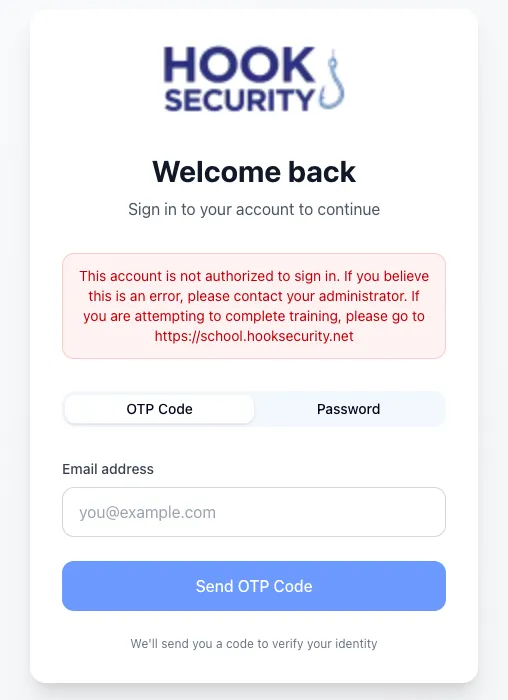
Sign-in works two ways on the same screen: a six digit code Hook emails you, which is the default, and a password. If passwords are giving you trouble, use the code tab, or reset with Forgot your password?. For the full decision tree, see Troubleshoot sign-in.
A sidebar section is missing, or a page redirects you away
Two causes cover nearly all of these.
That area isn't turned on for the organization. Not every account has every area enabled. When something is off for the org you have selected, the section simply doesn't render; there's no greyed-out placeholder to click. Confirm the right org is selected, then ask Hook support whether that area is available for the account. One thing that trips people up: Integrations is not a top-level nav item. It lives inside Settings.
The org is outside your scope. You can act only on organizations you manage, which for parent and MSP accounts includes the orgs beneath you. Open a page for anything else and Hook redirects you rather than showing data you shouldn't see. Switch back to an org you manage.
Common symptoms by area
Phishing delivery
Emails didn't arrive, a campaign shows as failed, or open and click counts sit at zero long after launch. Start with Troubleshoot phishing delivery, then confirm your environment is ready with Safelist Hook sending domains and IPs and Authorize recipient domains.
Directory sync
Group member counts look wrong, expected users are missing, or a deactivated person still appears. Most of this reconciles on the next scheduled sync. Some of it needs a change in your identity provider. See Troubleshoot directory sync, Sync users from Microsoft Entra, and Manage directory connections.
Training enrollments
You assigned a course and learners didn't get it, an enrollment looks stuck, or the wrong people were enrolled. Targeting depends on group membership, which depends on directory sync, so check both. See Troubleshoot training enrollments and Assign training to groups.
Learner single sign-on
A learner signed in at your identity provider and Hook turned them away, the metadata URL was refused, or the certificate badge turned red. Almost every case is a learner who is not yet in Hook, or an email claim that does not match; Check a learner on the single sign-on settings page shows which. See Troubleshoot single sign-on and Manage your SSO connection.
Empty or partial reports
A report opens but the tables are blank, or the numbers look low. In order of likelihood:
- Wrong org selected. Every report covers the one organization you have selected. Nothing rolls up from child organizations, so if you're expecting a combined total across clients, you won't find one here.
- No activity yet. A report has nothing to show until a campaign has run or training has been assigned in that org.
- It's still early. A campaign keeps tracking for days after launch, so opens and clicks continue to move for a while.
Once data exists, Browse and run reports, Read the executive summary report, and Review enrollment history walk through what you're looking at.
Still stuck
Email support@hooksecurity.co with your organization name, a screenshot of the error with the URL visible, and what you expected to see instead. The org name matters more than your login email, because it tells support which account to open.
Related
Troubleshoot sign-in
Not invited, not authorized, expired codes, and passwords that won't take.
Troubleshoot phishing delivery
Campaigns that fail to launch, missing email, and stats that won't load.
Troubleshoot directory sync
Consent errors, group picker limits, and scope changes that deactivate people.
Troubleshoot training enrollments
Enrollments that failed, landed on the wrong people, or never reached learners.
Troubleshoot single sign-on
Failed learner sign-ins, refused metadata, expired certificates, and provider outages.