
Understand and configure Autopilot
See what Autopilot is running and when the next simulation goes out, turn it on or off, and tune how often simulations go out, who receives them, and who gets a preview.
Autopilot runs your phishing program for you. Instead of building a campaign every month, it sends recurring simulations, sometimes called the Campaign of the Month (COTM), on a cadence you choose: Monthly, Bi-monthly, or Quarterly. You come to these pages to see what's running, check what's queued next, and adjust the timing, the audience, and who gets a preview.
Training Autopilot works the same way for course enrollments, with a frequency and an audience but no send window, notification lists, or skip switch. The steps below use the phishing program as the example.
Read the Autopilot overview
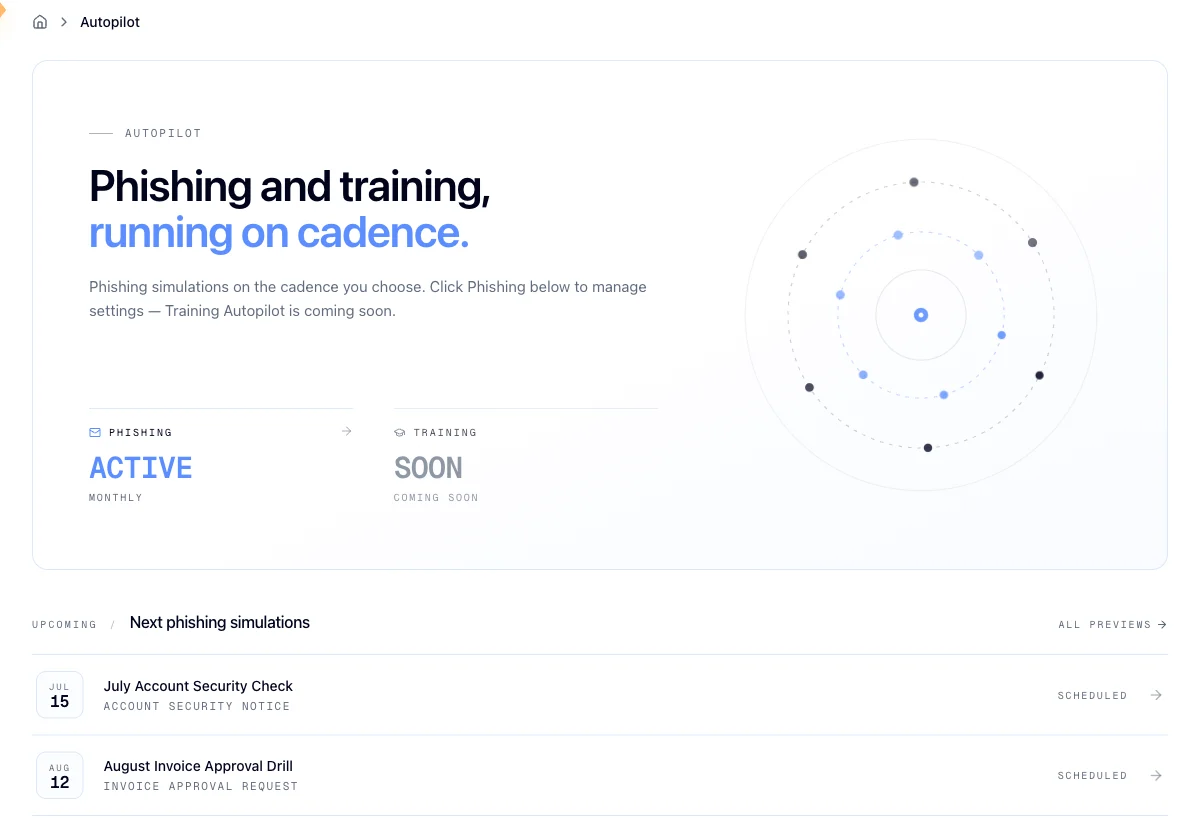
Open Autopilot in the sidebar. The top of the page gives you a readout for each program: whether it's off, running on its cadence, paused, or running but set to sit out the next cycle, along with its frequency and next date. Click a readout to open that program's settings.
Below that, an Upcoming strip lists the next few scheduled simulations with their send date, campaign name, template, and status. Click one to open its preview, or open the full list to see everything queued. See View campaign previews for what a preview shows you. When Training Autopilot is on, a second strip shows the next training enrollment, the frequency, and who gets enrolled.
Turn Phishing Autopilot on
If Autopilot isn't running yet, select Set up Phishing Autopilot on the overview or Turn on Phishing Autopilot on the phishing settings page. A setup window opens where you choose:
- Frequency: Monthly, every two months, or Quarterly.
- Audience: everyone, or specific groups.
- Preview and report contacts: optional email addresses for the heads-up before each simulation and the results afterward.
A What happens next panel under those choices shows when your first simulation would go out, and it updates as you change the frequency. Select Turn on Phishing Autopilot to save your choices and switch the program on in one step. A confirmation then shows the first send date and what to expect from each cycle.
If your organization is managed by a service provider, you may instead see a message pointing you back to them, and they'll turn it on for you.
The same split applies to editing. Org admins can change the settings below without asking anyone. Under a service provider, they decide whether you get to change settings yourself; when they haven't handed that over, every value is still visible but the controls are inert.
Know when the next simulation goes out
The top of the phishing settings page shows your Next simulation. The same date appears on the overview and the dashboard.
- A date: a simulation is scheduled and your organization is included. This is the day emails start going out.
- From a month, such as "From December": your frequency means you aren't due yet. You'll be included in the first cycle Hook schedules from that month onward.
- Not scheduled yet: Hook hasn't scheduled the next cycle yet. You're included when it does, and your preview contacts get an email before it goes out.
Changing the frequency shows the new next date in the Save changes bar before you commit it. After saving, the confirmation repeats the date.
Set how simulations run
Open Autopilot, then Phishing. The How simulations run section holds three settings.
Frequency is how often a simulation goes out: Monthly, Bi-monthly, or Quarterly.
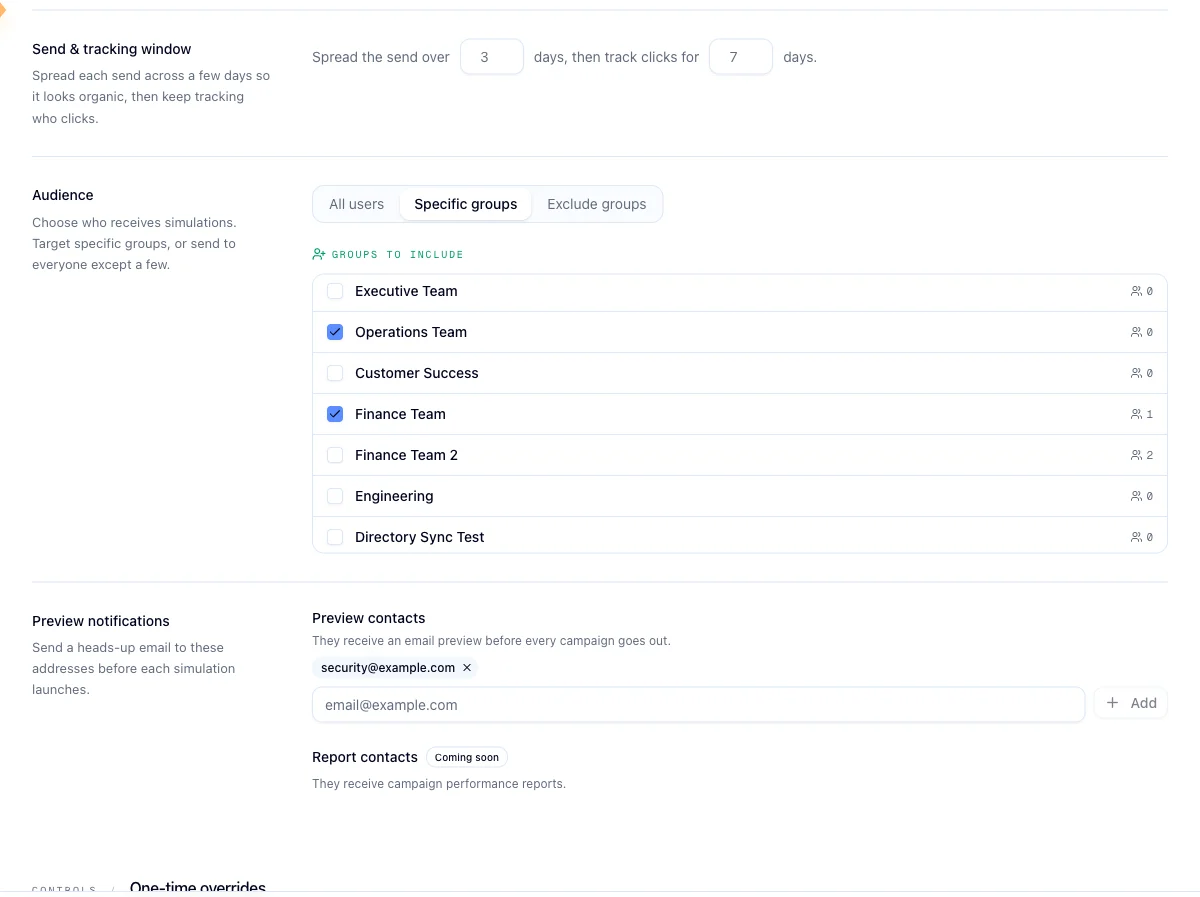
The send and tracking window reads as a sentence with two steppers in it: how many days to spread the sending over, and how many days to keep tracking clicks afterward. Each accepts 1 to 14 days. Out of the box, Autopilot sends everything in a single day and tracks for 3 days after. Widen the send window when a burst of identical mail arriving at once would give the game away.
Audience is either all users or specific groups. There's no "everyone except" option, so to leave a team out, pick the groups you do want. Group member counts are listed to help you judge the size, and a group-based audience needs at least one group checked before it will save.
Nothing here saves until you use the Save changes bar
Frequency, the send and tracking window, and the audience are all staged together and committed by the single Save changes bar. Changing a value does not apply it. If you navigate away first, your edits are gone.
Choose who gets notified
The Preview notifications card holds two lists of email addresses: the people who should see each campaign before it sends, and the report contacts for afterward. Both lists are editable.
Type an address and add it, and it appears as a chip you can remove again. These lists behave differently from the settings above: adding or removing an address saves on the spot, so there's no separate button and nothing to commit. Addresses have to be valid and can't be repeated, and a list holds up to 50.
Preview contacts are worth setting up even if you never change anything else. They're your chance to catch a template that lands badly with your workforce before it reaches a few hundred inboxes.
Skip the next cycle
Underneath the settings is a Skip the next cycle switch. Turn it on and Autopilot sits out the next campaign, then picks the cadence back up on its own for the cycle after. It's the right control for a quiet week, a company shutdown, or an incident you don't want to add noise to.
While a skip is set, the campaign it would have sent drops off your upcoming previews, so an empty preview list right after skipping is expected.
A skip only covers that one campaign. Pausing the program outright isn't something you do from these pages, so if your program shows as paused and you want it running again, contact whoever manages your Hook account.
Turn Autopilot off
To stop Autopilot, scroll to the bottom of the phishing or training settings page, select Turn off, and confirm. Hook stops including your organization in new cycles. A simulation that was already prepared may still go out, and training courses already assigned stay open for learners.
Your settings are kept. Turning the program back on opens the setup window with your previous choices filled in.
Related
View campaign previews
Review the Autopilot simulations queued for your organization before they send.
Run a phishing campaign
Launch a one-off simulation outside the Autopilot cadence.
View the org dashboard
See how phishing and training results trend across the organization.
Concepts
Brush up on campaigns, groups, templates, and the rest of the vocabulary.