
Review and manage enrollment batches
Confirm an enrollment landed, reschedule or cancel a future one, and retry the ones that failed.
Every enrollment you submit is recorded as a batch: one submission, one or more courses, one set of recipients. Enrollment History is where you go afterward to answer "did that training actually go out?", to move a future enrollment, to cancel something you no longer need, or to re-run one that failed.
Open Enrollment History
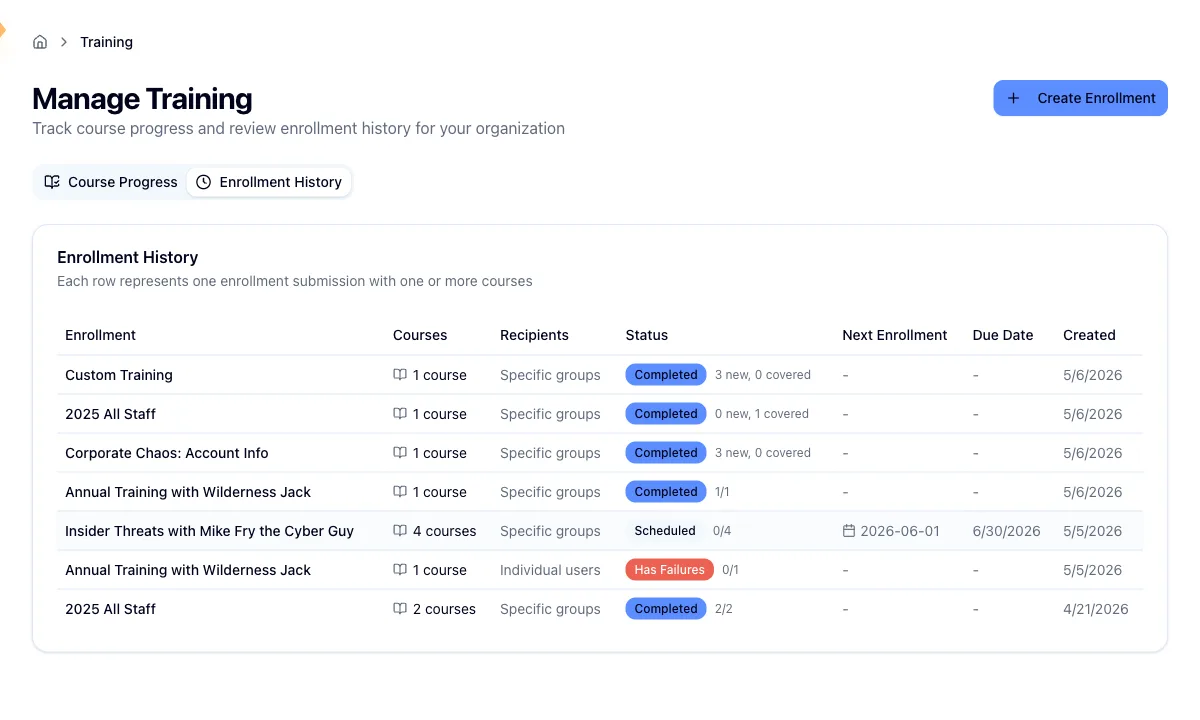
Open Training in the sidebar, then switch to the Enrollment History tab. Each row is one submission rather than one course, so a single row can carry several courses. Alongside the batch name you get the course count, the recipient mode, a status badge, the next scheduled enrollment date, the learner due date, and when you created it. Click anywhere on a row to open it.
The tab lists the 10 most recent batches, newest first, and there's no paging control, so older enrollments aren't reachable from this view. In practice the work you care about is at the top.
A row can also carry a Managed or Autopilot badge. Those batches are read-only: you can open one and read the outcome, but the edit, cancel, and retry actions don't appear.
What the status badge means
The badge summarizes every course in the batch, and Hook picks the first of these that applies:
- Has Failures means something needs you: a course failed outright, or recipients inside a course hit a hard failure.
- Needs Access means the organization doesn't have the course. You'll only see this on older enrollments; new ones can't produce it.
- Completed means every course enrolled successfully.
- Scheduled means everything is queued for a future date.
- In Progress covers any mix, such as one course enrolled and another still waiting.
Next to the badge is a small tally. Depending on the batch, it either splits the learners into newly enrolled and already covered, for example 38 new and 12 already covered, or shows how many courses of the total have finished enrolling.
Read a batch
Opening a batch gives you a row of summary cards. Newly Enrolled and Scheduled always appear. Already Covered, Needs Access, and Need Attention appear only when they aren't zero, so a clean batch shows a short row of cards.
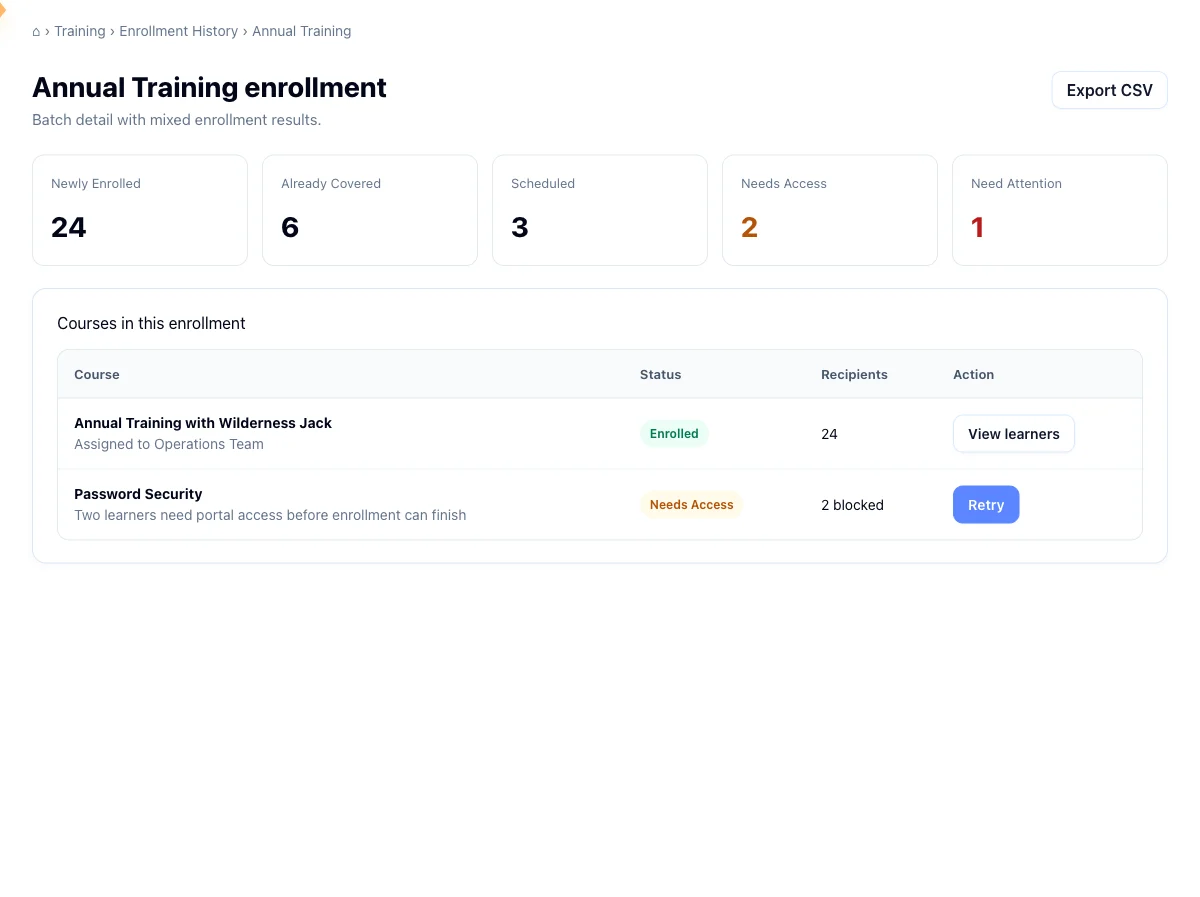
Below the cards, each course gets a row with its status, enroll date, due date, created date, and the same newly enrolled versus already covered split. When a course targeted groups or named individuals, expand the row to see the result per person: newly enrolled, already covered, blocked, or failed with the reason attached. Group rows roll their members up the same way.
Course statuses read as Enrolled, Scheduled, Pending while an enrollment is still in flight, Partial when some recipients made it and others didn't, Failed, and Needs Access on older records.
Re-enrolling someone is always allowed
Hook never blocks a repeat assignment, and there's no limit on how many times you can enroll the same person in the same course. Anyone already enrolled in a course you assign is quietly skipped rather than enrolled twice, and the batch reports them under Already Covered.
So a high already-covered count is not an error. It usually means you assigned a refresher to a wide audience and Hook sorted out the overlap for you.
Edit or cancel something scheduled
Edit and Cancel appear only on courses that haven't run yet. Once a course has enrolled, you can't undo it from this page.
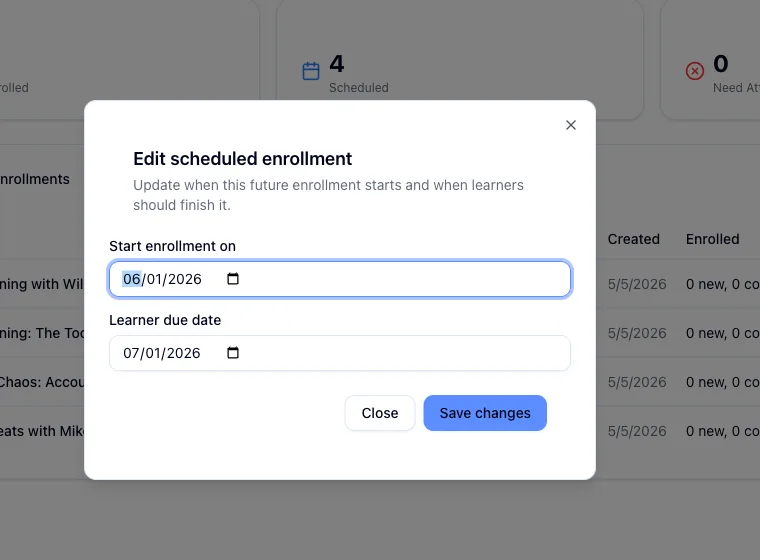
Edit opens a dialog with Start enrollment on and Learner due date. Both are required, the start has to be in the future, and the due date has to land after the start. Depending on how your account is set up, some scheduled enrollments won't accept an edit at all and will ask you to cancel and recreate instead. That's expected, not a failure.
Cancel clears the queued job so the course won't fire. If it was the last course left in the batch, you'll land back on the Training page, since the batch has nothing left to show.
Retry a failed enrollment
Failed courses get a Retry button. Retrying re-runs the enrollment; anyone who already enrolled successfully isn't enrolled a second time, so it's safe to use once you've fixed the underlying cause. A transient delivery error is the usual case.
Retrying before you've fixed the cause just lands you in the same state. If the block was that your organization doesn't have access to a course, that has to be enabled by your Hook administrator first.
Related
Track training progress and completion
Watch training land: see completion by course, find the learners who are behind, and export a roster for a manager.
Understand and configure Autopilot
See what Autopilot is running and when the next simulation goes out, turn it on or off, and tune how often simulations go out, who receives them, and who gets a preview.