
Set up single sign-on for learners
Connect your identity provider (Microsoft Entra, Okta, Google Workspace, or any SAML 2.0 provider) so your people open assigned training by signing in with their work account.
With single sign-on (SSO) connected, your people can reach their assigned training by signing in with the account they already use at work, from the link in their training email or from a tile in your identity provider. Their emailed training links keep working while you test, and you decide later whether SSO becomes optional or required.
Setup takes about 20 minutes. You need the org admin role in Hook and someone who can create a SAML application in your identity provider. Your organization's training must be fully migrated, because single sign-on opens the training Hook delivers itself; if Single sign-on is missing from Settings, ask Hook support to migrate your organization.
Learners must already exist in Hook
Signing in through your provider never creates a learner. Someone who is not in Hook is turned away even when your provider says they are who they claim to be. Sync your directory or import users before you test. A learner with nothing assigned can sign in, and sees an empty dashboard until you assign training.
What Hook gives you
Go to Settings, then Single sign-on. The Hook service provider details card has the values your identity provider asks for, each with a copy button:
- Entity ID (Audience URI): some providers call this the Audience Restriction or SP Entity ID.
- ACS (Assertion Consumer Service) URL: where your provider sends the sign-in. Also called the Reply URL or Single Sign-On URL.
- Service provider metadata: providers that accept a metadata URL can import both values from this one link.
Keep this page open. You come back to it with your provider's metadata.
Create the application in your identity provider
Pick your provider. Every path ends the same way: a metadata URL, or for Google a metadata file, that you bring back to Hook.
Create a single-tenant app
In the Entra admin centre, open Enterprise applications, click New application, then Create your own application. Choose Integrate any other application you don't find in the gallery. This creates a single-tenant app, which is what SAML needs.
Enter Hook's values
Open Single sign-on, choose SAML, and edit Basic SAML Configuration. Paste Hook's Entity ID into Identifier (Entity ID) and the ACS URL into Reply URL (Assertion Consumer Service URL). Leave the NameID format alone: Hook asks for the right one during sign-in.
Check the email claim
Nothing to change for most tenants. Entra fills its emailaddress claim from
user.mail, which is empty for anyone without an Exchange Online mailbox. When
it is empty, Hook reads the name claim, which Entra fills with the user
principal name (UPN).
Open Attributes & Claims to confirm that this address is the one your
learners are enrolled under. If user.mail is empty and the UPN differs from
the enrolled address (for example name@contoso.onmicrosoft.com instead of
name@contoso.com), point the emailaddress claim at an attribute that holds
the enrolled address. Hook turns away a sign-in whose address matches no
learner, unless your Microsoft Entra directory sync already holds the person.
Assign people and copy the metadata URL
Assign the users or groups who take training. Then copy the App Federation Metadata Url from the SAML signing certificate section. That is what Hook needs. After you rotate the signing certificate, use Replace metadata with the same URL so sign-ins are checked against the new certificate.
Create a SAML app integration
In Okta admin, open Applications, click Create App Integration, and choose SAML 2.0. Give it a name your people will recognise, such as Hook Training.
Enter Hook's values
In SAML Settings, paste Hook's ACS URL into Single sign-on URL and the Entity ID into Audience URI (SP Entity ID). Set Name ID format to EmailAddress and Application username to Email.
Assign people and copy the metadata link
Assign the users or groups who take training. On the Sign On tab, find Identity Provider metadata and copy the link address. After Okta rotates the certificate, use Replace metadata with the same link.
Add a custom SAML app
In Google Admin, open Apps, then Web and mobile apps, and choose Add custom SAML app. Name it, and on the next screen click Download metadata. Keep the file; you paste its contents into Hook.
Enter Hook's values
On the service provider details screen, paste Hook's ACS URL and Entity ID. Set Name ID format to EMAIL and Name ID to Basic Information, Primary email.
Turn it on for your users
Under User access, turn the app on for everyone or for the organizational units that take training.
Google does not publish a metadata URL, so Hook stores the file you paste. When Google rotates the signing certificate, download fresh metadata and replace it in Hook. Hook warns you on the settings page 30 days before the current certificate expires.
Create a SAML 2.0 application and give it Hook's Entity ID and ACS URL, or import Hook's service provider metadata URL if your provider accepts one. Send the user's email as the NameID, in email format, and assign the people who take training.
Bring back the application's metadata: a URL if your provider publishes one, otherwise the XML.
Connect it in Hook
Choose your provider and name the connection
Back on Settings, then Single sign-on, pick your provider. The connection name is what your people see on the sign-in screen, so use the name they know, such as "Acme Okta".
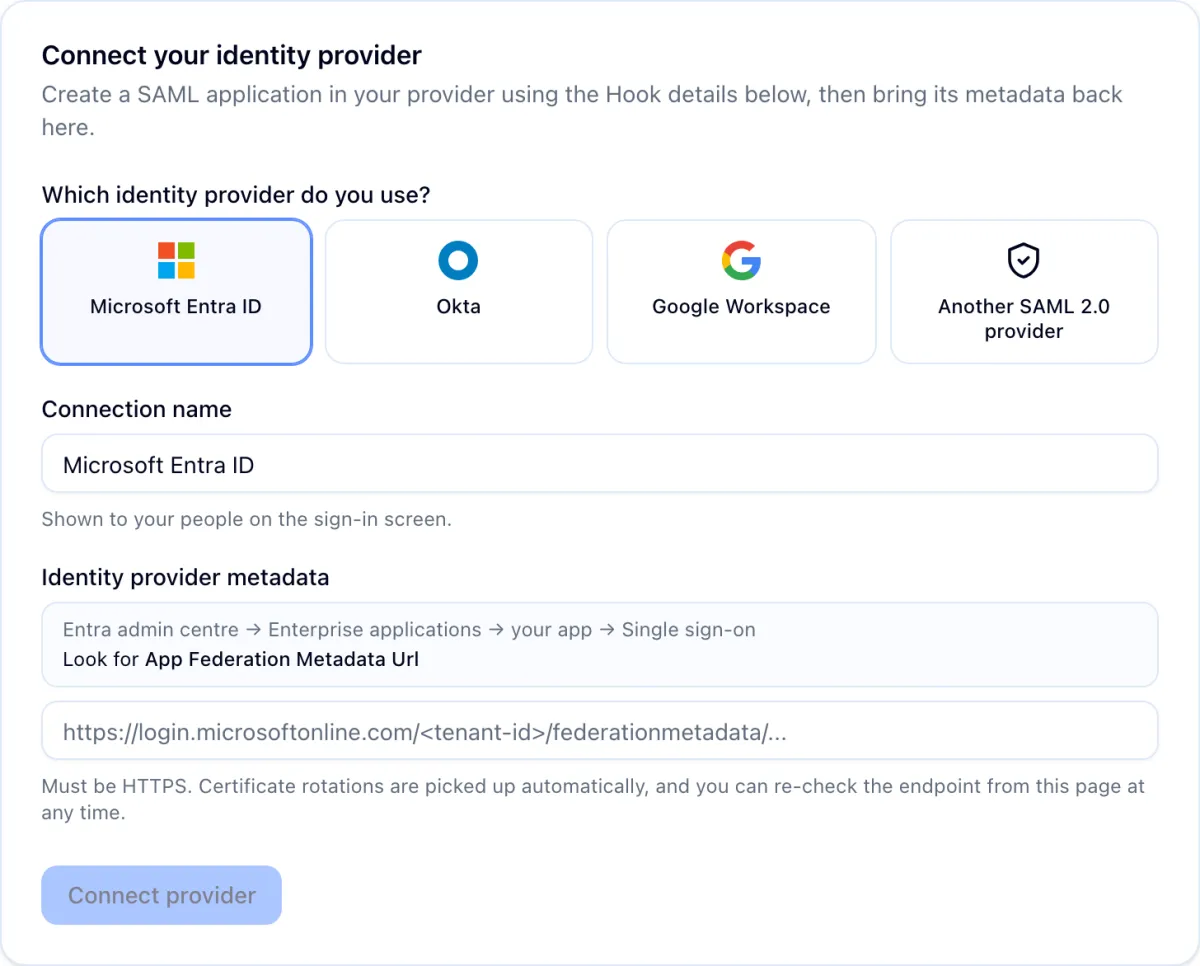
Paste the metadata
Paste the metadata URL, or for Google the contents of the metadata file, and click Connect provider. Hook checks the address, registers the connection, and reads the certificate expiry.
Metadata URLs must be public HTTPS addresses. An address that points inside a private network is refused.
Open it for testing
Click Open for testing. Nothing changes for your people yet. The connection can sign people in, but every emailed training link still works exactly as before.
Run a test sign-in
The test checks the connection, not a learner: sign in at your provider with any account it accepts, and Hook confirms that the answer came from this connection. The test session is signed out straight away and nothing is linked to a learner. Because that sign-out applies to the whole browser, run the test in a private window or another browser, never in the window you are signed in to Hook with.
- Click Copy test sign-in link on the connection panel.
- Open a private window, paste the link, and sign in at your provider.
- You see Connection confirmed. If the answer carried no email address, you see Connected, but no email address instead, and the test does not count: add the email claim to the SAML application and test again, because learners are matched by that address.
- Close the window. Back on the settings page, the checklist marks the test as done on its own within a few seconds.
A passed test proves your provider, the certificate and the metadata. Whether a particular person can sign in is a separate question, answered by Check a learner on the same page. Until a test has passed, the connection cannot be activated or made required.
Choose how learners sign in
Once the test has passed, click Activate, then choose a mode under How learners sign in:
- Single sign-on available: learners can sign in through your provider, and emailed training links keep working. Start here.
- Single sign-on required: learners must sign in through your provider. Training links already sitting in inboxes stop opening courses on their own, so a forwarded link cannot be used by someone else.
Required is the only mode that changes anything for people who are not yet using SSO, so switch to it when you know your provider assignment covers everyone with training. To stop using single sign-on, use Disable instead; see Disable or remove.
Add a tile in your identity provider
The Sign-in link for your organization on the service provider details card is a plain address you can use as the app tile or bookmark in your provider's dashboard. Opening it starts sign-in for your organization and lands the learner on their training home.
Related
Authorize recipient domains for phishing simulations
Approve the email domains your synced users receive mail on so Hook can deliver phishing simulations to them.
Manage your SSO connection
Read the connection's health, act on certificate warnings, replace metadata after a rotation, change how learners sign in, disable or remove the connection, and switch providers.