
Set up Microsoft Direct Delivery
Place simulations straight into Microsoft 365 mailboxes by approving Hook in Microsoft Entra and checking one mailbox.
Microsoft Direct Delivery places phishing simulations straight into your people's Microsoft 365 mailboxes. Nothing travels the public mail path, so your mail filtering never quarantines a simulation. Training and account emails still arrive as regular email, so keep your safelisting rules in place.
This page covers setup. For choosing between methods, switching, and what disconnecting does, see Choose an email delivery method.
Before you start
- Your organization is fully migrated. Hook support migrates your organization; see Full migration.
- Microsoft Entra directory sync is connected. Microsoft Direct Delivery works with the same Microsoft tenant as your directory. See Sync users from Microsoft Entra.
- You have a Microsoft Entra administrator who can grant tenant-wide admin consent to an application. If that isn't you, have them with you when you start, because the approval happens in their Microsoft sign-in.
Open Settings, then Email delivery. MSP admins can do this from inside the client's account.
Approve Hook in Microsoft Entra
Start setup
On the Microsoft Direct Delivery card, click Set up. Hook sends you to Microsoft to sign in.
Grant consent
Sign in as the Entra administrator for the same tenant as your directory, and accept the permission request. Hook asks for one permission, to read and write mail in your organization's mailboxes. It uses it to place simulations in mailboxes and to check that it can reach them. It doesn't send mail as your people.
Microsoft then returns you to the Email delivery page.
Wait for Microsoft to apply the approval
Microsoft can take a few minutes to apply a new approval. While it does, the page says Hook is waiting and checks again on its own every so often. Click Check now to check right away.
Check a mailbox
Once the approval is in place, the page asks for a mailbox to check.
Enter a mailbox
Under Mailbox to check, enter the address of any mailbox in your organization, for example your own.
Check access
Click Check access. Hook confirms it can reach that mailbox. If the check fails, wait and try again: permission changes can take up to a couple of hours to reach every mailbox.
Start using it
When the check passes and you haven't chosen a delivery method yet, Microsoft Direct Delivery becomes your method. If another method is already chosen, click the Microsoft Direct Delivery card to switch.
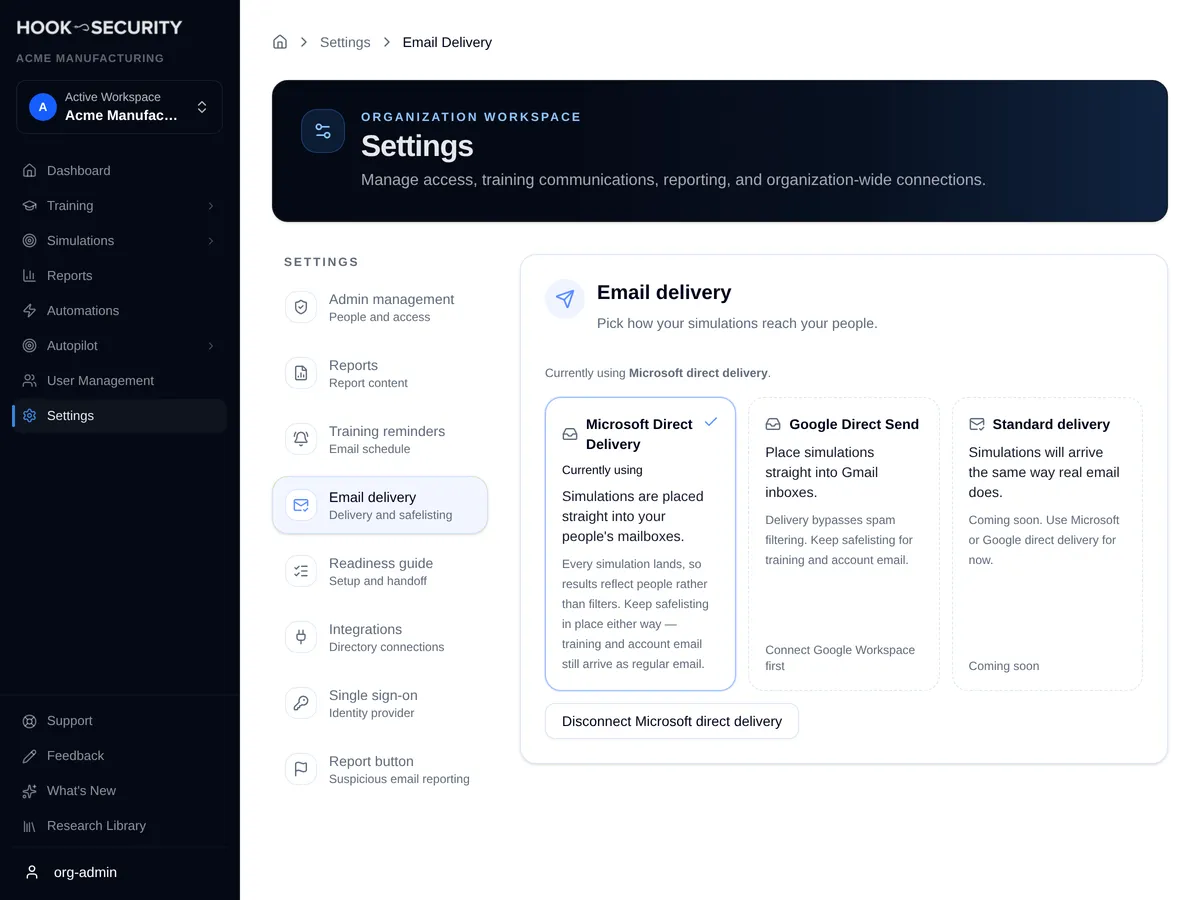
You're ready to run a phishing campaign.
When it needs attention
The Email delivery page tells you when Microsoft Direct Delivery needs attention. Simulations stop going out through it until you fix it, but your choice of method is kept.
- The connection stopped working. Click Reconnect on the card and approve again.
- Your directory points at a different Microsoft tenant. If you reconnected directory sync to another tenant, click Reconnect so delivery matches it.
- The last attempt didn't finish. If you left the Microsoft sign-in before approving, click Set up to try again.
Disconnect and revoke access
Click Disconnect Microsoft direct delivery on the Email delivery page. Scheduled campaigns that use Microsoft Direct Delivery are canceled, and new deliveries stop. If it was your chosen method, no method is selected afterward. See Disconnect a method.
Disconnecting in Hook doesn't remove the consent you granted. To revoke Hook's mailbox access, open the Microsoft Entra admin center, find Hook's direct delivery app under Enterprise applications, and remove its consent.