
Re-enroll training from your previous system
Move people with unfinished training from your previous training system into the new LMS, choosing which courses, how recent, and which email they get.
When your organization moved to Hook's new LMS, any training people hadn't finished in your previous system stayed there, frozen and incomplete. That training can't be finished anymore. Re-enroll previous training lets you assign it again in the new LMS so those people can complete it.
Re-enrolled learners start each course from the beginning. Progress from the previous system doesn't carry over.
Who sees it
The option appears for organizations that use the new LMS and still have unfinished training from their previous system. Organization admins can run it. Service providers can run it for a client after opening the client's account (see Manage client accounts).
Once nobody with unfinished previous-system training remains, the button goes away.
Spot previous-system training
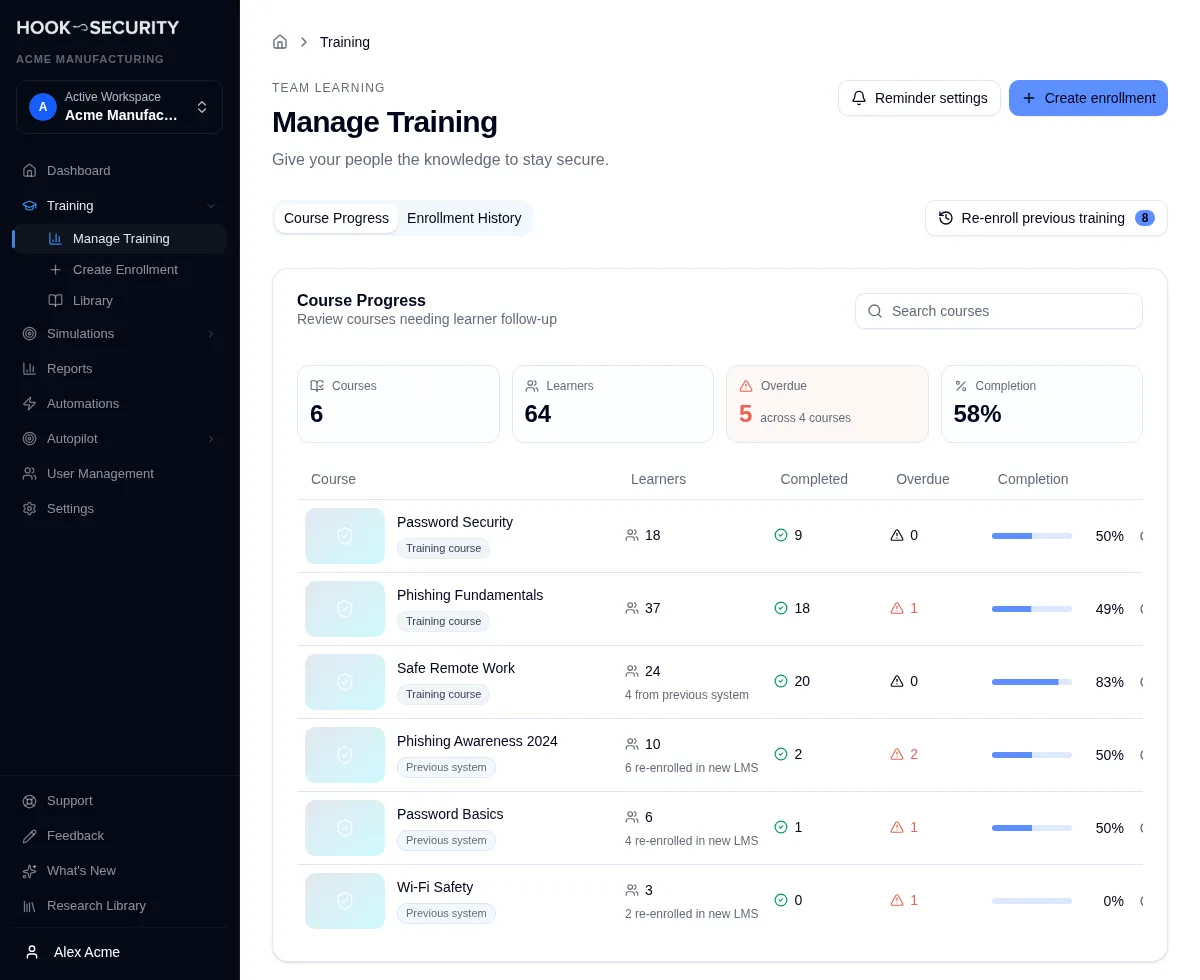
Open Training in the sidebar, then Manage Training. On the Course Progress tab, courses that came from your previous system are labeled:
- A Previous system tag marks a course where every learner was assigned in the previous system.
- When a course has learners from both systems, the learner count shows how many of them came from the previous system.
The Re-enroll previous training button sits to the right of the Course Progress and Enrollment History tabs. Its number is how many people have unfinished training you can re-enroll.
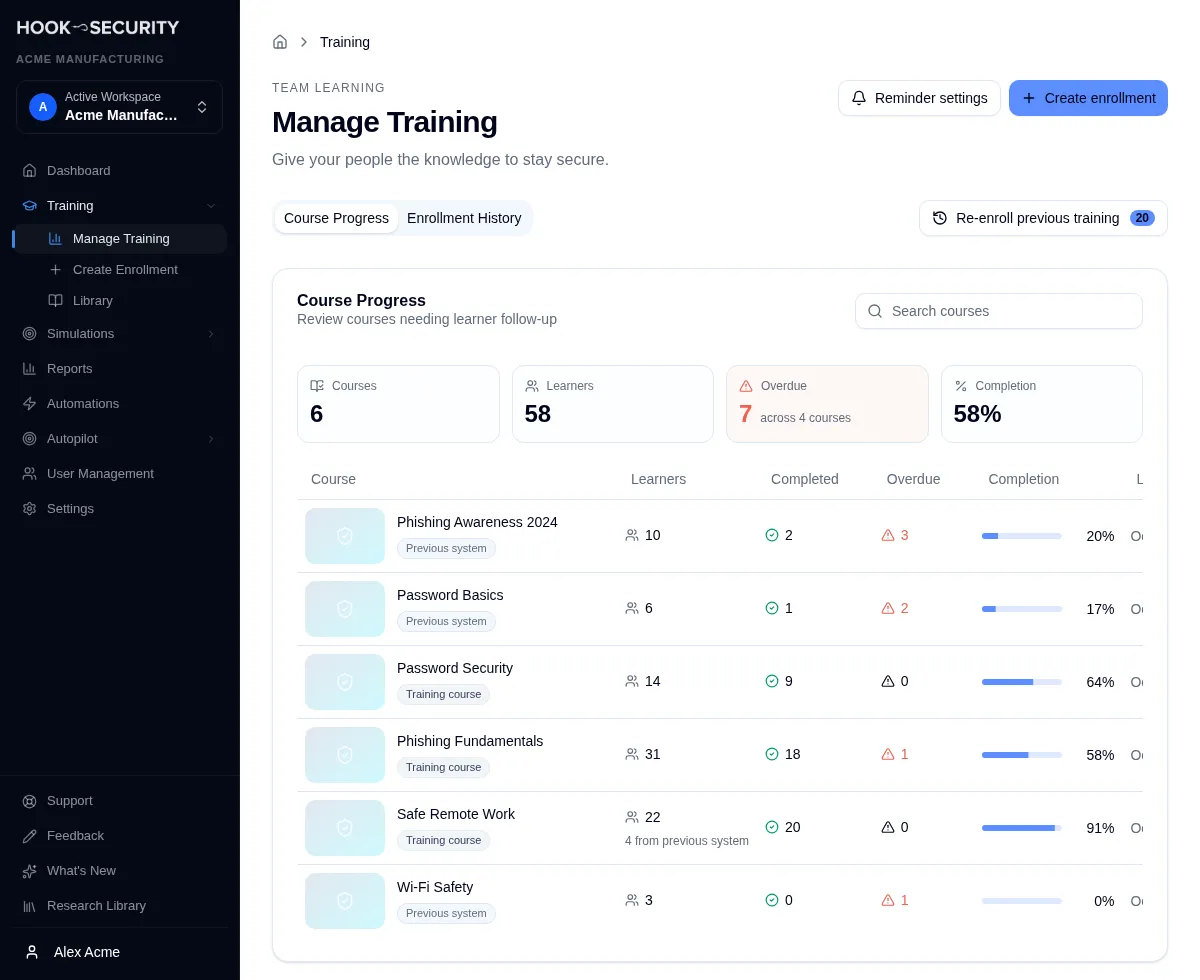
Choose what to re-enroll
Click Re-enroll previous training to open the re-enrollment page. Nothing changes until you confirm at the bottom of the page.
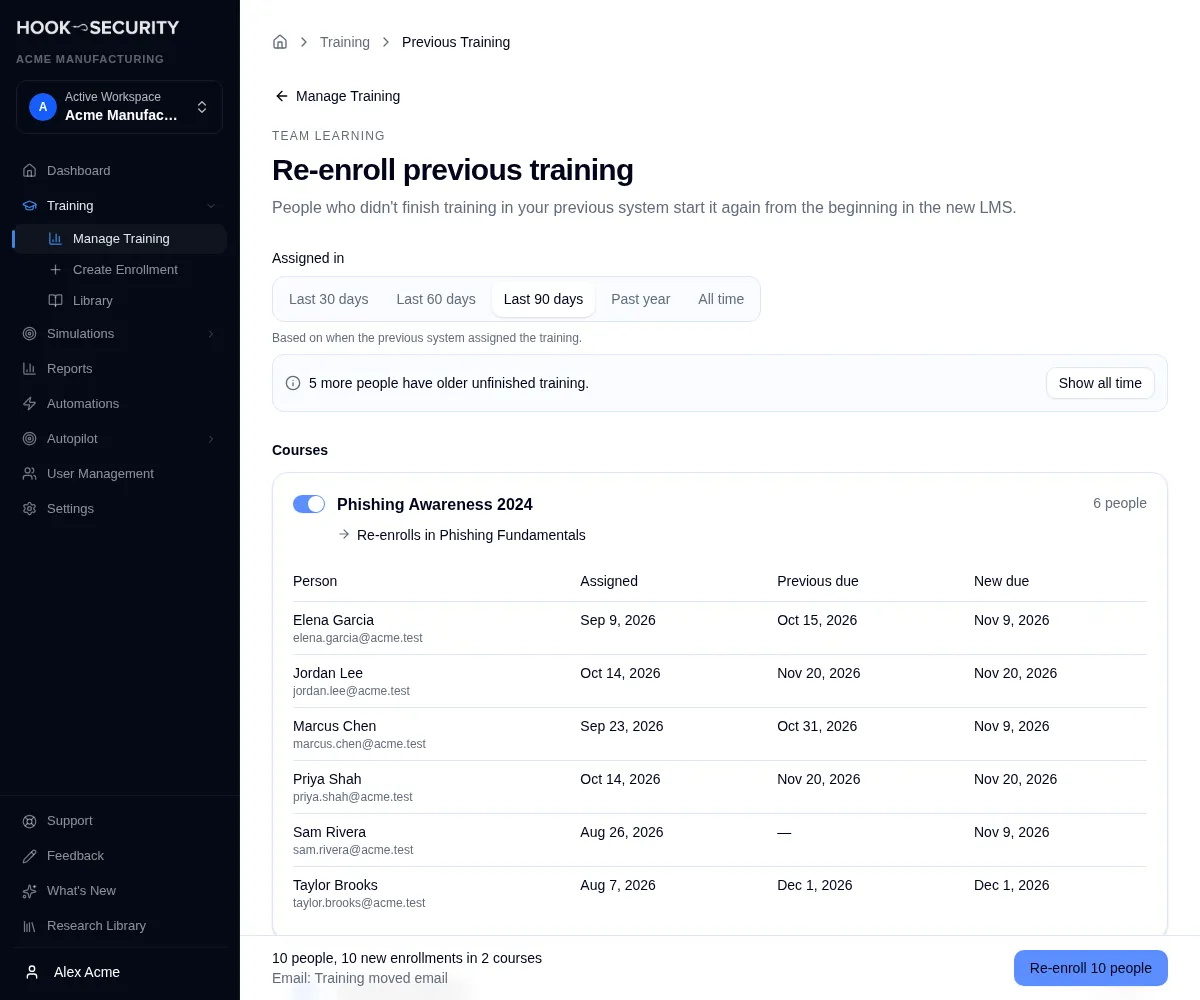
Pick how far back to go
Assigned in limits the page to training the previous system assigned within a period: the last 30, 60, or 90 days, the past year, or all time. It starts on the last 90 days.
When people have unfinished training older than the period you picked, a note says how many, with a shortcut to show all time. Older training stays where it is, and you can come back for it later.
Review each course
The page groups training by the course people had in the previous system. Each course shows how many people it covers and what happens to it:
- Re-enrolls in a course: the matching course in the new LMS. This is the usual case.
- Not available yet or Content being prepared: the matching course isn't ready in the new LMS. You can leave it for later and come back once it is, or pick a substitute course now.
- No matching course: there is no equivalent in the new LMS, which is common for programs and for retired or custom courses. Pick a substitute, or leave it for later.
To leave a course out of this run, turn off the switch next to its name. It stays on the list for next time.
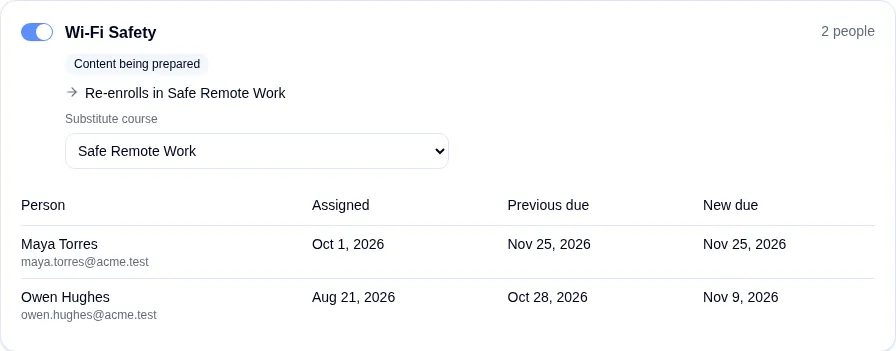
Check who is included
Every course lists its people with their name and email address, when the previous system assigned the course, when it was due there, and the due date they'll get in the new LMS.
A course shows its first 10 people. For larger courses, use the search box to find someone by name or email, and Show all to page through everyone.
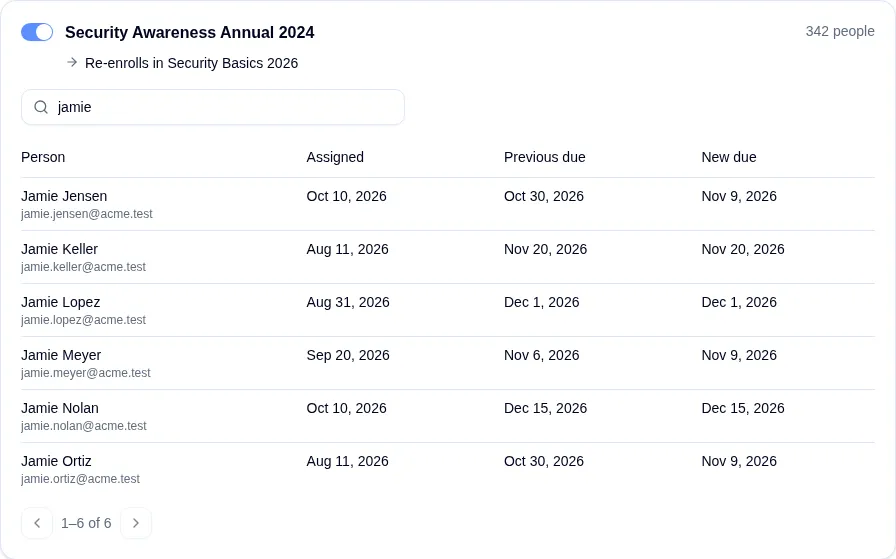
You choose courses, not individual people: turning a course off leaves out everyone in it.
Set due dates and the email
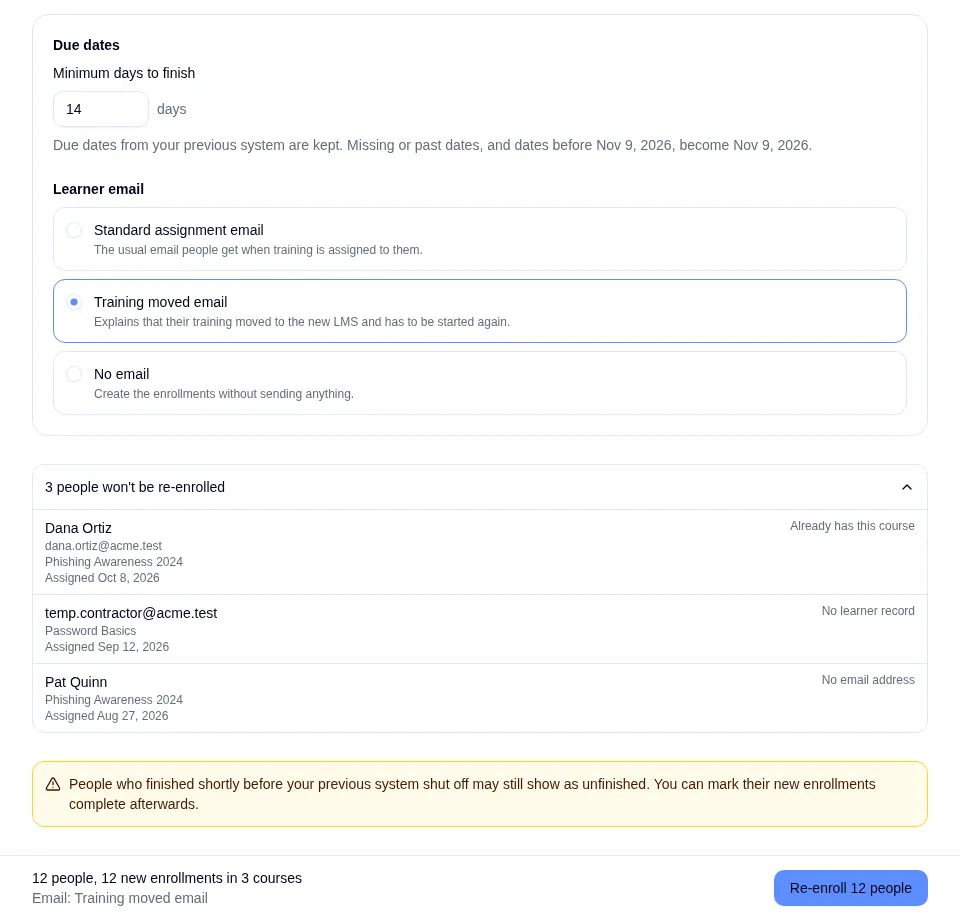
Due dates
People keep the due date they had in the previous system. If that date is missing, has already passed, or is too soon, they get a new date instead. Minimum days to finish decides what "too soon" means. It starts at 14 days, and the page shows the date that results.
If two of someone's previous courses re-enroll in the same new course, they get one enrollment, due on the earlier of the two dates.
Learner email
Choose what people receive:
- Training moved email explains that their training moved to a new platform and has to be started again.
- Standard assignment email is the same email people get for any new training.
- No email creates the enrollments silently. People see the training the next time they sign in.
Each person gets one email for the whole run, listing all of their re-enrolled courses, each with its own link and due date. Someone re-enrolled in three courses gets one email, not three.
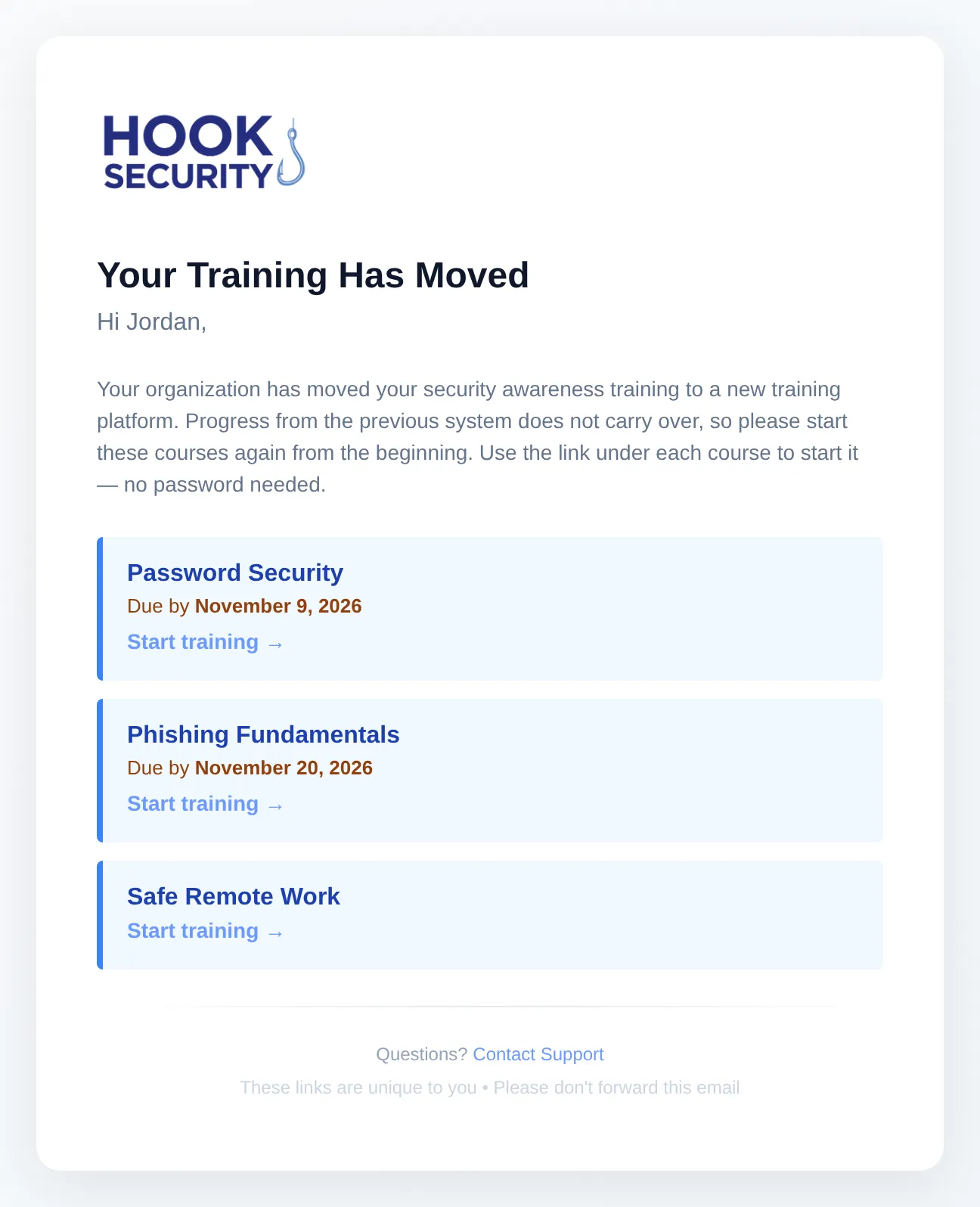
People who won't be re-enrolled
Some people are listed separately with the reason they're left out:
- Already has this course: they already have the new course, open or completed, or are in a scheduled enrollment for it. Their previous-system training is marked as handled, and nothing new is assigned.
- No learner record: Hook can't match them to a current learner in your organization.
- No email address: they couldn't receive a link to their training.
- Email address changed: their email address in Hook no longer matches the one the previous system had, so Hook doesn't assume they're the same person.
People who have left your organization are never re-enrolled.
Check for recent completions
People who finished a course shortly before the previous system shut off may still show as unfinished. After the run, open the run in Enrollment History, select those people under People & progress, and mark their course complete.
Confirm and review the results
The bar at the bottom of the page totals the people, new enrollments, and courses in the run, along with the email you picked. Click the Re-enroll button to run it.
When it finishes, the page lists the result for each course, and any courses left for later.
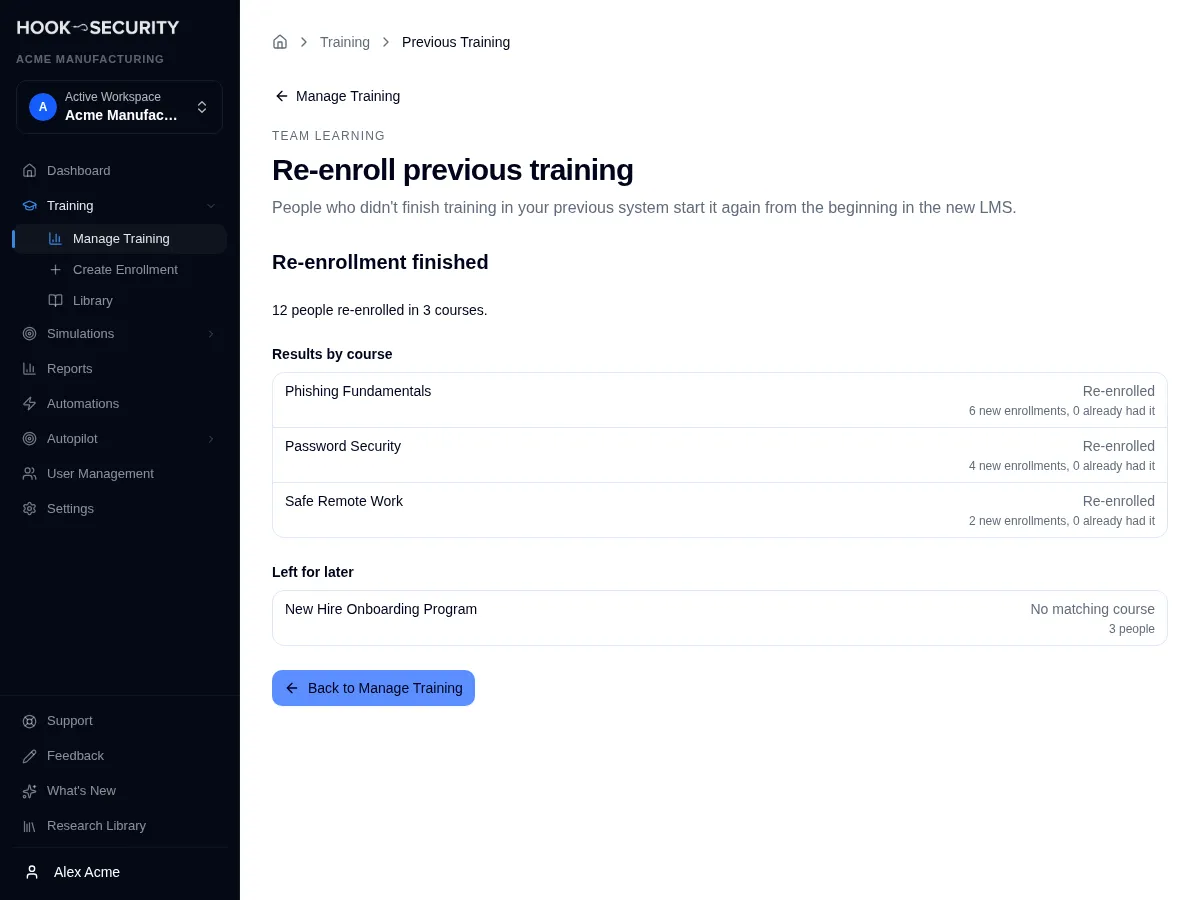
Running it again never re-enrolls the same training twice. Come back whenever you want to re-enroll older training, or once a course you left for later is ready.
After you re-enroll
-
Course Progress shows the people as learners of the new courses. The previous-system courses show how many people were re-enrolled in the new LMS, and they no longer count as unfinished or overdue.
-
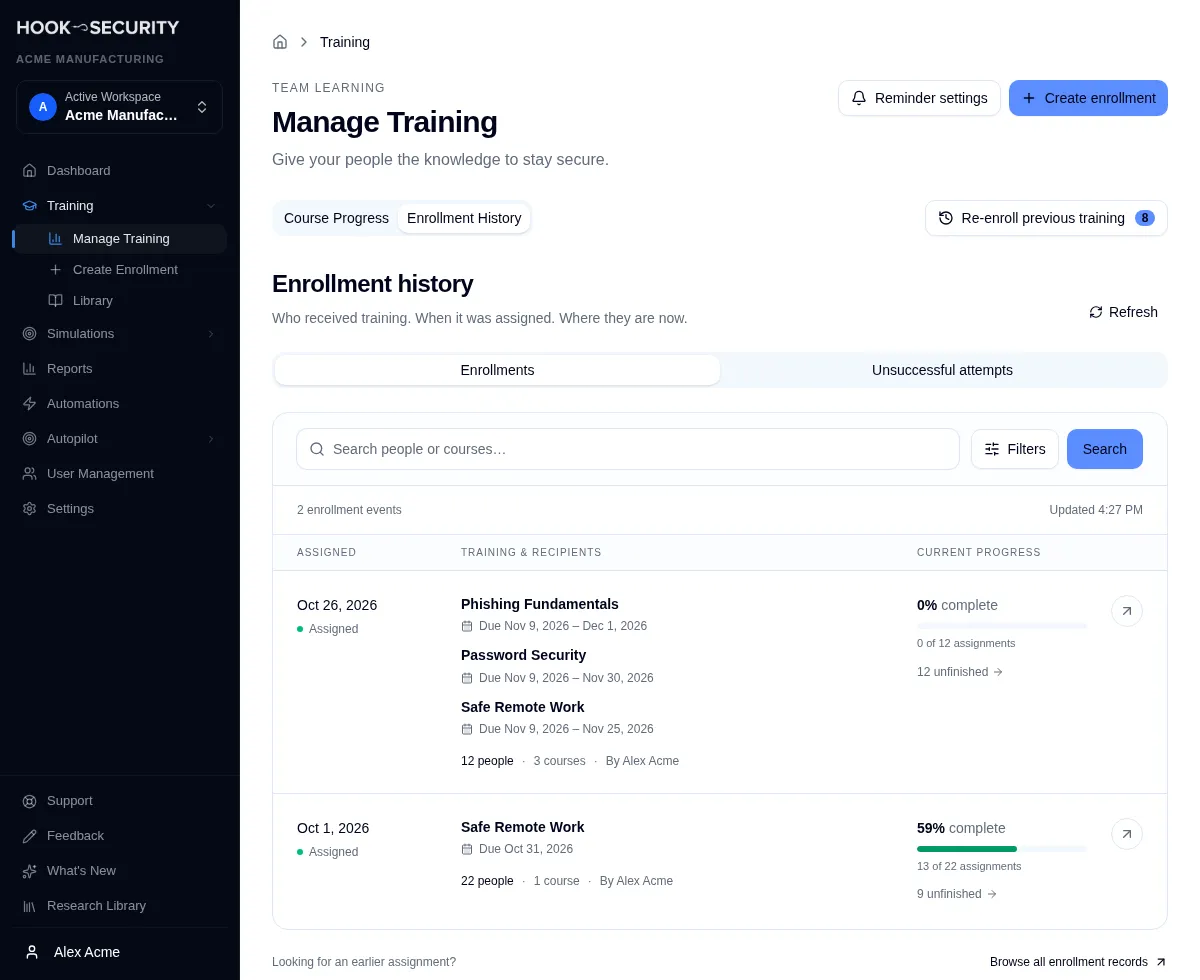
Enrollment History lists the run as one enrollment. Each course shows the range of its people's due dates, since each person keeps their own, and opening the enrollment shows its courses as moved from the previous system. From People & progress you can send reminders, change due dates, mark training complete, or cancel it, as for any enrollment. See Review and manage enrollment batches.
-
Legacy reports show the previous-system records as re-enrolled in the new LMS instead of incomplete. If the previous system later records one of them as completed, it shows as completed.
Related
Review and manage enrollment batches
Confirm an enrollment landed, follow up with the people who haven't finished, reschedule or cancel a future enrollment, and retry one that failed.
Brand your employees' training
Put your organization's name, logo, and support contact on the training emails, learner pages, and certificates your employees see.